
How to Fix Jagex Launcher Error Loading Game Configuration


 3 min. read
  Updated on

If you’re getting the Loading game configuration error on the Jagex Launcher, it’s most likely due to game file corruption or connection problems.
Below, we’ll show you a few solutions that we tested and are proven to work. Check them out:
How to fix Jagex launcher error loading game configuration
First, try restarting your PC and making sure your internet is up and running. With these out of the way, consider the more advanced fixes below:
1. Add Jagex to your firewall’s exception list
- In the search bar, type Windows Defender Firewall and open it.

- Click Allow an app or feature through Windows Defender Firewall.

- In the app list, find JagexLauncher.exe.
- If it’s not there, click Change Settings, then Allow another app.

- Locate the Jagex Launcher and select it.
- Check both Private and Public boxes.

- Click OK and restart the launcher.
2. Reset Jagex
- Open Settings and go to Apps> Installed Apps.

- Locate the Jagex Launcher, select it and pick Uninstall.

- A prompt will ask you to choose between Repair and Uninstall. Pick Repair.

- Let the process complete and relaunch the app.

3. Run Jagex in compatibility mode
- Right-click the Jagex Launcher shortcut and select Properties.

- Go to the Compatibility tab.
- Check the box for Run this program in compatibility mode for: and select an earlier version of Windows (e.g., Windows 8 or Windows 7).

- Click Apply and then OK.
4. Update DNS servers
- Press Windows + R, type ncpa.cpl, and press Enter.
- Right-click your active network connection and select Properties.

- Select Internet Protocol Version 4 (TCP/IPv4) and click Properties.
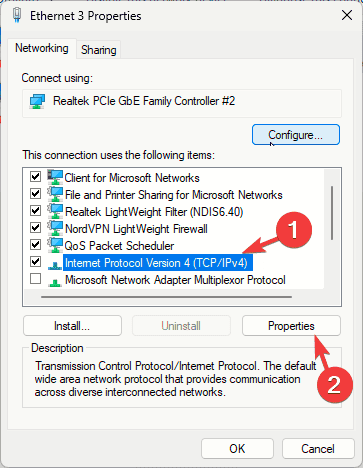
- In the new window, choose Use the following DNS server addresses and enter the following:

- Preferred DNS server: 8.8.8.8
- Alternate DNS server:
8.8.4.4
- Click OK to save changes and close all windows.
5. Update graphics drivers
- Open Device Manager.
- Locate the Display Adapters section and expand it.
- Right-click on your graphics card and select Update driver.

- Select Search automatically for drivers.

By following these steps, you should be able to resolve the loading game configuration error in the Jagex Launcher and get back to enjoying your game.
You can explore issues like Jagex Launcher vs Steam in this comparison or troubleshoot the white screen issue.
This isn’t the only issue, and many users reported that the Play button isn’t working in Jagex Launcher, but we have a special guide that addresses that.
If one method doesn’t work, try another until you find the fix that works for you, and if you’re still struggling, leave us a message with more details in the comments below.


Read our disclosure page to find out how can you help Windows Report sustain the editorial team. Read more



Improve this guide



User forum
0 messages