
Laptop Low Battery Warning When Plugged In (7 Easy Fixes)


 4 min. read
  Published on
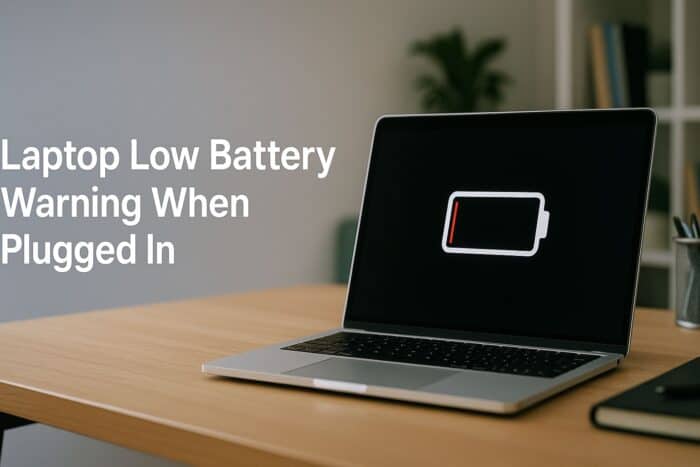
If your laptop shows a low battery warning even when plugged in, it usually means there’s a problem with the charger, power settings, or the battery itself. Follow this guide to quickly identify and fix the issue.
Table of contents
- How Do I Fix Laptop Low Battery Warning When Plugged In?
- 1. Check the Power Source and Cable
- 2. Reseat or Replace the Battery (For Removable Models)
- 3. Run the Power Troubleshooter (Windows 10/11)
- 4. Update or Reinstall the Battery Driver
- 5. Update BIOS or Firmware
- 6. Reset Power Management Settings
- 7. Replace a Faulty Battery
- Why Your Laptop Shows “Plugged In, Not Charging”
- FAQs
- Conclusion
How Do I Fix Laptop Low Battery Warning When Plugged In?
1. Check the Power Source and Cable
Before troubleshooting software, verify the basics.
- Make sure the power outlet works by plugging in another device.
- Check the charger for damage, bends, or frayed wires.
- Confirm the charging light or LED indicator is on when connected.
- If you’re using a detachable cable, try another compatible one.
If your battery drains too fast even after fixing the cable, see this guide on battery drain and shutdown issues.
2. Reseat or Replace the Battery (For Removable Models)
Loose battery connections can interrupt charging.
- Power off your laptop completely.
- Unplug the charger.
- Remove the battery carefully.
- Clean the battery contacts using a dry cloth.
- Reinsert the battery firmly and reconnect the charger.
- Turn on your laptop and check if it charges normally.
If the issue continues, you may need to calibrate your laptop battery to improve accuracy.
3. Run the Power Troubleshooter (Windows 10/11)
Windows includes a built-in troubleshooter to detect charging issues.
- Open Settings > System > Troubleshoot > Other troubleshooter.

- Scroll down and click Power.

- Select Run the troubleshooter.
- Follow the on-screen instructions to apply any recommended fixes.
4. Update or Reinstall the Battery Driver
Battery drivers control how Windows communicates with the hardware.
- Press Windows + X and select Device Manager.

- Expand Batteries.
- Right-click Microsoft ACPI-Compliant Control Method Battery.
- Choose Uninstall device and confirm.

- Restart your laptop. Windows will reinstall the driver automatically.
For more advanced troubleshooting, read the detailed guide on laptop battery not charging in Windows 10.
5. Update BIOS or Firmware
Outdated BIOS can cause charging glitches.
- Visit your laptop manufacturer’s support page.
- Download the latest BIOS or firmware update for your model.
- Connect your laptop to power and close all running apps.
- Run the installer and follow the on-screen directions carefully.
Tip: Never interrupt a BIOS update; it can make your system unbootable.
6. Reset Power Management Settings
Incorrect power configurations can lead to false low battery alerts.
- Open Control Panel and go to Hardware and Sound > Power Options.
- Click Change plan settings next to your active plan.
- Select Restore default settings for this plan.

- Restart your computer and check if charging resumes properly.
7. Replace a Faulty Battery
If all else fails, the battery may be defective or worn out.
- Check your laptop’s battery health report:
- Press Windows + X, choose Terminal (Admin).
- Type powercfg /batteryreport and press Enter.
- Open the generated battery-report.html file and review the capacity difference.
- If the full charge capacity is below 50% of the design capacity, replace the battery.
Why Your Laptop Shows “Plugged In, Not Charging”
A low battery alert while your laptop is plugged in often points to one of these causes:
- Loose or damaged charging cable
- Faulty power adapter or port
- Battery driver issues
- Outdated BIOS or firmware
- Power settings misconfiguration
FAQs
It’s usually caused by poor connection, a faulty charger, or battery calibration issues.
No. Modern laptops stop charging automatically when they reach 100%.
Not necessary. However, if the laptop overheats, removing it can help extend battery life.
This happens if you’re using a low-wattage adapter, running heavy apps, or your charging port is dirty.
Conclusion
If your laptop shows a low battery warning when plugged in, start by checking the charger, reseating the battery, and running the Power troubleshooter. Updating the BIOS, resetting power settings, or replacing the battery can also solve the problem.
For long-term performance, remember to keep your battery calibrated and monitor its health regularly. These fixes usually restore proper charging and prevent future low-battery alerts while plugged in.

Read our disclosure page to find out how can you help Windows Report sustain the editorial team. Read more



Improve this guide

User forum
0 messages