
Microsoft Word Gets Smarter Arrow Navigation for Screen Readers


 2 min. read
  Published on
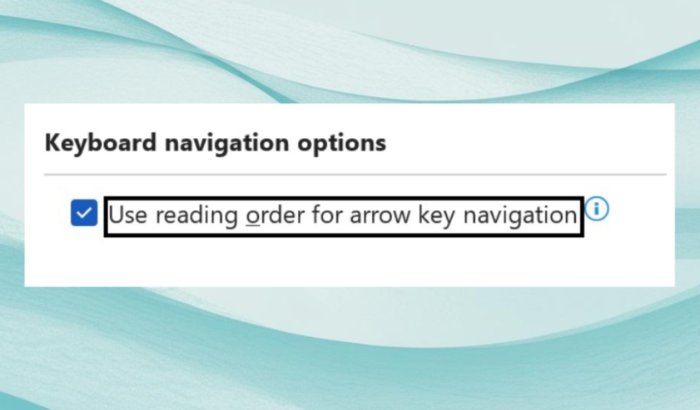
Microsoft has quietly rolled out a key accessibility update for Word on Windows. Users who currently rely on screen readers can now navigate documents more intuitively using the up and down arrow keys, following the logical reading order rather than just the visual layout.
Arrow keys in Word now follow reading order
Prior to this update, pressing the up or down arrows could skip important content. Columns, tables, text wrapped around images, dropped caps, and multi-page layouts often confused navigation, leaving screen reader users missing lines or entire sections. The new feature fixes that.
With the update enabled, arrows move through text as a sighted reader would naturally read it. Columns are navigated top to bottom, multi-page layouts flow correctly, and tables now follow a logical sequence from column to column and row to row. Text around images and dropped-cap paragraphs are also fully supported, so no content is skipped.
How to enable the new navigation in MS Word
By default, the feature is off. To turn it on:
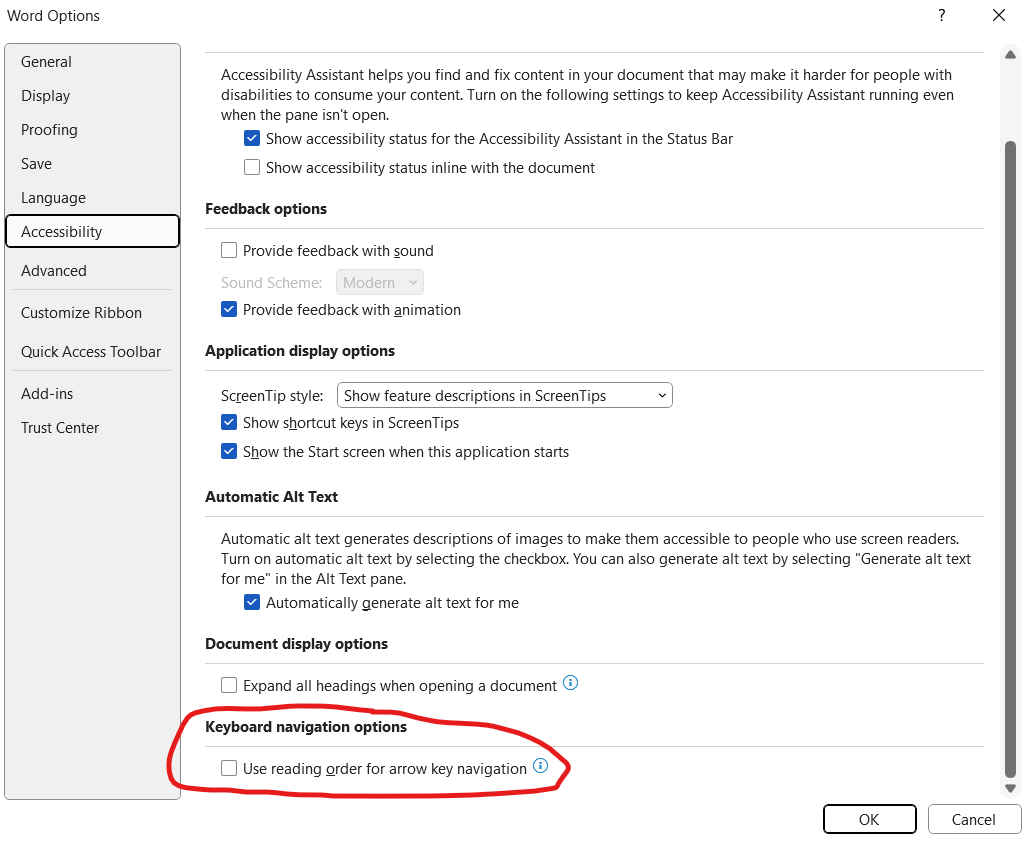
- Open Word on Windows and press ALT + F to access the File menu.
- Press T for Options, then A for Accessibility.
- Tab to Use reading order for arrow key navigation and press Space to enable.
- Press Tab to OK and hit Enter to apply.



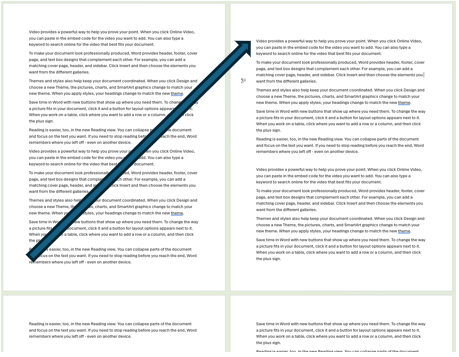

Once activated, the arrows now move logically through every part of your document—columns, multi-page layouts, tables, text around images, and dropped caps. This ensures screen reader users get the full context and don’t miss anything, just like sighted readers.
Microsoft says that this update is now available for Word for Windows users running Version 2603 (Build 19727.20000) or later.

Read our disclosure page to find out how can you help Windows Report sustain the editorial team. Read more



Improve this guide




User forum
0 messages