
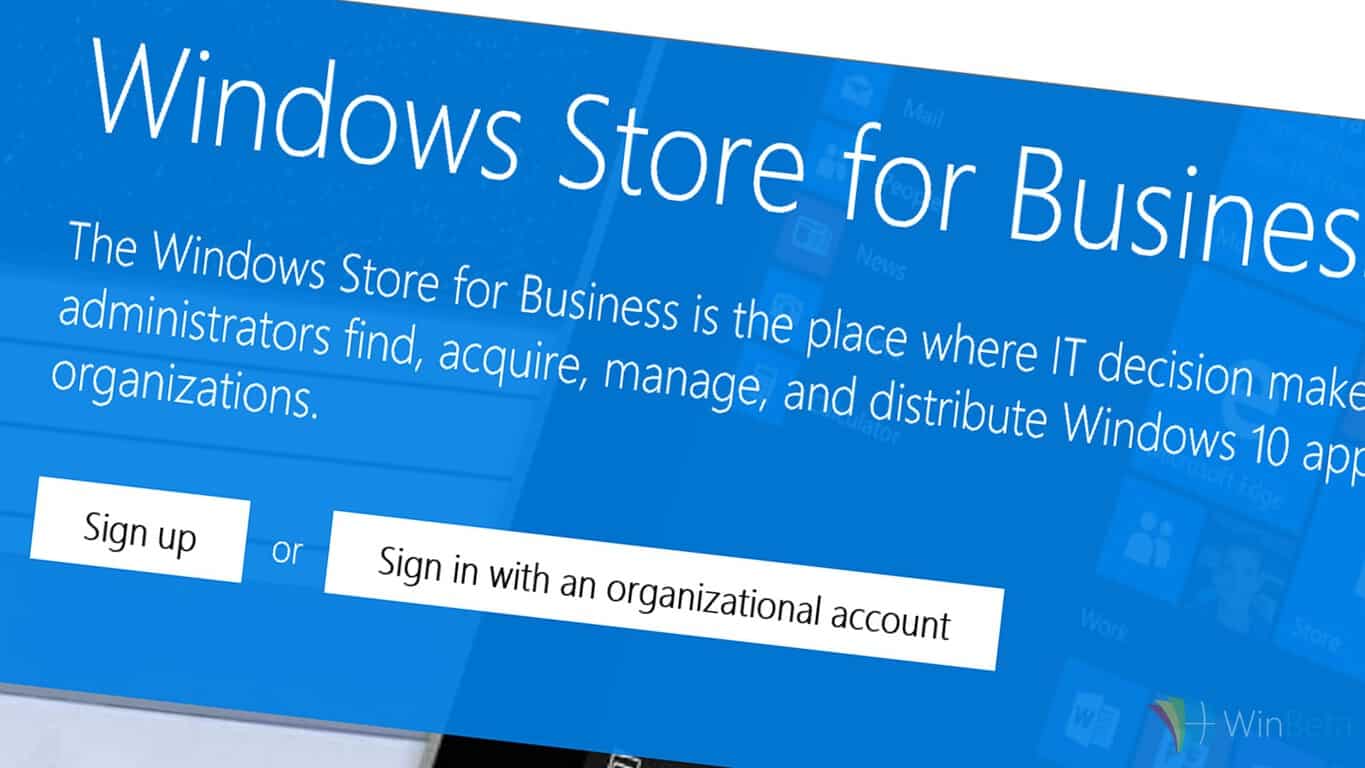
Very little has been heard of Microsoft’s Windows Store for Business since it was first announced back in November 2014. The proposed feature will create a separate part within the Windows Store where businesses and other organizations could distribute Windows apps to specific, targeted audiences as opposed to the general public. Examples of a practical usage for this could be a university which needs its employees to download an app relating to school schedules or policy or a company creating an app to keep co-workers up to date on clients.
While no specific release date has been confirmed, a Microsoft spokesperson has revealed that they are rolling out the Windows 10 Store for Business to Windows Insiders for testing. The official Windows Store for Business web portal has also updated recently with a host of information on the project and is now accepting new member applications and allowing users to sign in which suggests a proper launch of the service isn’t too far on the horizon.
Microsoft launches Bing Ads Academy to help train users

Bing has launched a new program called, Bing Ads Academy, to help their premium customers (those users working for agencies, channel partners, or tool providers) better understand the Bing Ads product and how to use it effectively.
Bing Ads Academy consists of a combination of training resources both online in the form of on-demand virtual classrooms, and in-person trainers who will arrive on location for a more hands-on teaching experience.
The course catalog is described as focusing on two main users of Bing Ads; Do-ers and Sellers.
Because Bing Ads Academy is intended for people working in the premium segment of agencies, channel partners and tool providers, the primary content focus is on topics relevant to “Sellers” (who pitch Bing Ads as a media buy to their clients) and “Do-ers” (those who work within the Bing Ads platform on a daily basis). The “Sellers” will gain a better understanding of why Bing Ads is a smart buy for their clients and the “Do-ers” can hone their ROI skills with specific strategies and tactics based on key features in Bing Ads.
Those interested in participating in Bing Ads Academy are advised to reach out to their account executive or account manager who will assist them in getting started with the program. Is dedicated training like this something that you would be interested in? Let us know in the comments below.
Microsoft showcases how the Surface Book is the ultimate canvas for artists
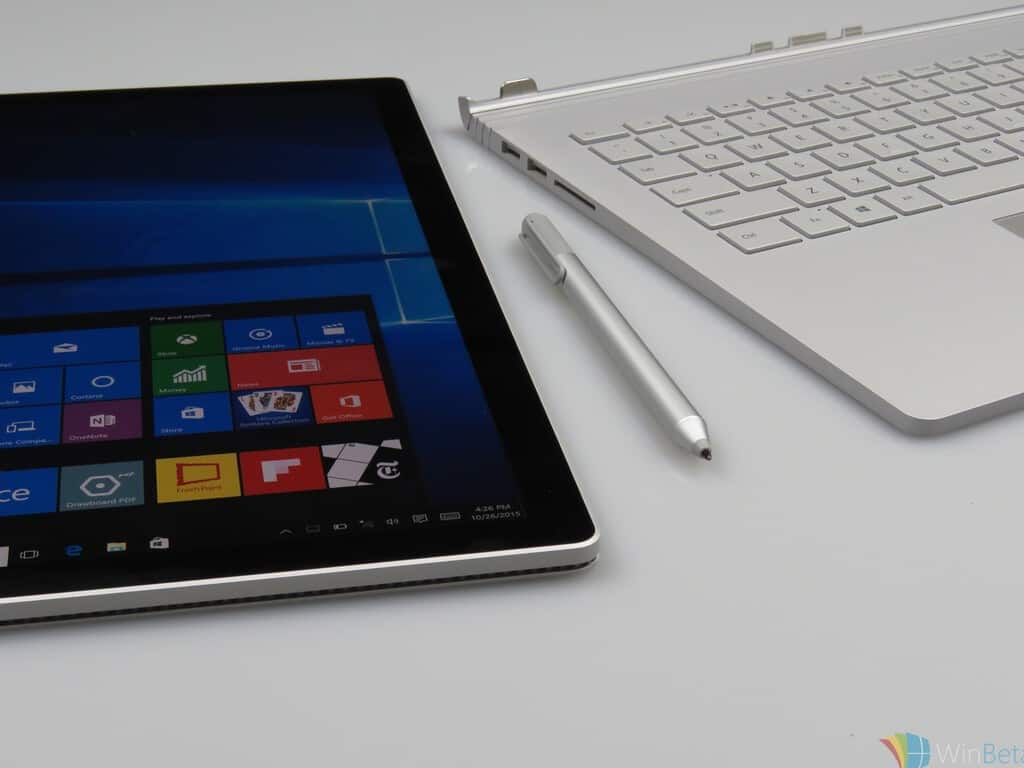
The Surface Book is great laptop/tablet hybrid that works well for many people. Among some of the kinds of people that the Surface Book is great for are artists, and it’s easy to see why. The device has a decent screen area for artists’ creativity to begin, and it comes and a very precise Surface Pen for drawing fine lines.
Jordan Crane is a comic book artist, and a perfect example of someone who can use a Surface Book to make great pieces of art. He starts off by making quick rough sketches, then he slowly draws over them and gives them much greater detail. In an interview with Microsoft, he describes his process,
“I’ll start by writing doing a quick thumbnail. I’ll then go to the Surface and I’ll do the super rough pencils. Then I’ll go in and do a tighter version of the pencils.”

He goes on describing how great the Surface Pen is for his drawings,
“In older digital technologies, there’s a space between the tip of your pen and where you’re actually drawing on the screen. With the Surface, when you put that pen on the screen, you’re basically touching the drawing.”
Of course, black and white drawing aren’t all he does. He also adds great color to the covers of his comic books.
” One of my joys of screen printing is mixing the colors, and you can’t get that by sending them a color guide. I have to do it. I look at the Surface, I mix the paint, then I see the interaction of the colors. And if that works, it’s perfect. So in that sense, it’s like the means to the end. It’s the tools that gets me into this final print.”
He also has some pretty nice advice for young artists.
“If you just keep doing it you will find your voice and your expression, and every’s got it. Even when they don’t feel they have something, they’ve got it. It’s just you’ve gotta keep doing it.”
The Surface Book is available now from a variety of retailers and sources. Are the Surface Book’s creative capabilities something that interest you? Let us know in the comments below.
Microsoft's wants its cloud service to help healthcare become more 'predictive and preventative'
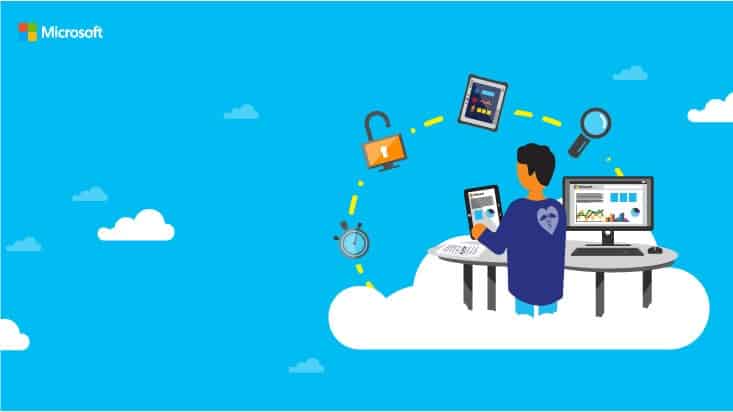
Recent and often short-sighted evaluations of IoT (Internet of Things) have focused on what shiny wrist-wear people can go out and buy right now, or what company is making a play for cars or in-home connectivity. While some consumers may be focused on the next smartwatch or in-car dash system, companies are building the connectivity glue to evolve processes and shape industries.
Here at WinBeta, we’ve been reporting on Microsoft’s IoT and cloud pitch in various fields such as law enforcement, education, disaster relief and it now looks like we can add healthcare to the list.
Microsoft wants to combine the cloud with the various sensors and devices utilized in everyday healthcare to collect health analytics while using Machine Learning to aid in advances in the healthcare industry. Recent developments in healthcare are illustrating if and when properly executed, the use of the cloud and IoT in the industry could lead to better patient treatments and cut cost for chronic disease management.
Advanced analytics capabilities combined with the digitization of the physical world (Internet of Things) has tremendous impact when applied to remote monitoring and better treatment of chronic diseases. According to a McKinsey Global Institute 2015 report, IoT has the potential to cut costs by as much as 50 percent in chronic diseases management, equaling to a gain of $1.1 trillion per year in 2025. Use of IoT systems could enable societal benefits worth more than $500 billion per year. Interestingly, most of the IoT data collected today are not used at all, and data that are used are not fully exploited across various sectors – not only health and wellness – as less than 1% of data is currently used, mostly for alarms or real-time control, while more can be used for optimization and prediction.”

Specifically, the combination of cloud and IoT devices has led to some health professionals creating intelligent beside systems. Lille Regional Teaching University Hospital in France utilizes a collection of IoT solutions to improve the experiences of 87,000 patients each year.
By connecting 1,928 bedside terminals and 652 Internet Protocol televisions with multiple data streams and media capabilities, Lille is saving healthcare workers countless hours spent accessing and manually updating information.”
On a slightly elevated scale of IoT and cloud utility, the City of Vienna is using cloud analytics to power a new epidemic management solution. With support from a European IT services corporation, Atos, and a fully scalable Microsoft Azure solution, Vienna’s Atos Epidemic and Outbreak Management solution can track, trace analyze, and predict patterns of spreading diseases. Designed to address the type of disease, condition or pathology of a spread, much of the AEOM solution can track incidents in real-time using the cloud.
As more health organizations seek to use the cloud to power their IoT efforts, Microsoft is positioning itself as a trusted and industry compliant solution. Recently, Microsoft established what it calls Trustworthy Cloud. The Trustworthy Cloud is a website intended to show Microsoft’s commitment to data privacy, compliance, transparency and cyber security. Microsoft’s also hosts a European Cloud Risk Assessment Framework site intended to address concerns healthcare professionals in the area might have about the cloud and the IoT.
While, many of us would like to see a more consumer-facing effort by Microsoft in the IoT, it’s perhaps, for the best they put their attention towards helping to prevent diseases and cut medical cost for both professionals and patients, at least for the time being.
OneDrive customers blast Microsoft over at UserVoice
Microsoft’s decision to drastically cut OneDrive storage allowances made some serious waves in the industry, and was generally slammed as being a very, very bad move. The details aren’t nearly so bad as the initial impression created, with some options being offered up to ease the transition, but overall OneDrive has become a point of contention where it was previously a strength for the software giant.
Now, OneDrive users have joined in a campaign over at UserVoice, where a thread has been created in the OneDrive section that already has almost 19,500 votes and a cool 999 comments as this post is being written. Clearly, people are upset, and they’re not holding back in voicing their opinions.
Titled “Give us back our storage,” the thread encapsulates the reaction to Microsoft’s decision:
Recently, a blog post was announced detailing that you would be reducing our free and paid storage. Only 1TB for Office 365 customers, and only 5 GB for free customers. I have been a long-time OneDrive fan, but after this upgrade I can no longer recommend it as my promised storage has been taken away. Some of us actually store a normal amount of stuff in OneDrive. Why makes us pay for those who went over the top?
User Disappointed Again likely speaks for quite a few people in saying:
Once again, Microsoft starts out with a great story, then backtracks and disappoints. Microsoft needs the think like their customer, to understand their needs. Stop promising and not delivering. If you have a few bad eggs putting 400TB+ out there, cap it at 100TB. 1TB is a joke. Add this to the list of disappointments.
1. OneDrive storage limits
2. A new Onedrive sync client that finally has features available in DropBox 3 years ago
3. Edge on supporting chrome plug-ins during Win10 launch
4. Win10 big brother data collection (telemetry) without telling us ahead of time
The list goes on and on…
Check out the thread for more pointed comments, and feel free to add your own voice into the mix. There are some ways to prepare for the reduction in OneDrive storage, but the fact remains that OneDrive has lost some of its luster for many users.
Companies have been known to backtrack on unpopular policies, given enough user feedback–something that Microsoft has been much better at asking for and responding to. We’ll keep you updated on whether the backlash over Microsoft’s OneDrive faux pas convinces the company to change its mind.
Your OneDrive storage has been gutted, now what?

On Monday, Microsoft announced that it was cutting storage options for OneDrive, dropping free storage for all OneDrive users from 15GB to 5GB, capping OneDrive for Office 365 Home, Personal, or University accounts from unlimited to 1TB per year, and dropping the free 15GB Camera Roll bonus. While we won’t use this post to go into the wisdom, or lack thereof, of the decision, it does pose some suddenly rather pertinent questions about what you’ll need to do with your OneDrive account to accommodate Microsoft’s about face.
The 1TB cap on Office 365 accounts (and note that Office 365 business accounts are not affected by these changes) begins immediately, while the drop from 15GB to 5, and the loss of the 15GB Camera Roll bonus will take place in early 2016.
[pullquote align=”full” cite=”” link=”” color=”” class=”” size=””]So what does this all mean? If you’re a OneDrive user affected by these changes, what do you need to do?[/pullquote]
First of all, of course, if you don’t have any extra OneDrive storage and have less than 5GB on OneDrive, you don’t have to do anything (as long as you keep that storage under 5GB). OneDrive will function as it always has, for better or worse.
If you have any bonus storage, say from one of the “enthusiast’s” bonuses, that storage will remain in effect until it runs out, usually one year after it was activated (the one exception being the Camera Roll bonus, as noted above).
Also, if you have paid storage that comes with some subscriptions, like the Groove Music Pass, for example, you’ll keep that extra storage for as long as you keep your subscriptions active. This includes Office 365 storage up to 1TB, as long as you have an active Office 365 subscription.
If you don’t fall into one of those categories, however, things get a little trickier, but you do have a number of options.
Suck it up and pay
Perhaps the easiest thing to do, although not the cheapest, is to pay for the storage you need. Microsoft has made even this somewhat painful, as its 100 and 200GB storage options are also being retired (although if you were previously on a 100 or 200GB plan you will be allowed to maintain it, at least until Microsoft reneges on that, too). You can opt in to a new 50GB storage option for $1.99 per month, and keep your storage, just not for free.
You could pick up a Groove Music Pass for $99.90/yr and gain 100GB storage as long as you keep the subscription active. That’s more per gb than the 50GB paid option, but you get all the other benefits of Groove Music including music streaming, etc.
[pullquote align=”left” cite=”” link=”” color=”” class=”” size=””]Get Office 365 Personal with 1TB storage free for one year if you’re over 5GB[/pullquote]
You can also opt in to an Office 365 Personal plan, which offers 1TB of OneDrive Storage and the latest version of Office for 1 PC or Mac, 1 tablet, and 1 phone. Microsoft is offering 1 year free with these changes, but you’ll have to provide a credit card and will be auto-renewed at $69.99 a year unless you opt out (updated to correct the earlier reference to Office 365 Home)
If you’re over the 5GB (or 1TB with O365) limit, you still have some time to get your storage in order. Microsoft has split the transition into three basic tiers, with the timing dependent on whether you’re over your free storage limits, or over your Office 365 limits, but the process is the same.
Grace Period
At first, you’ll have a grace period, where you don’t need to do anything, and you’ll retain full functionality. That lasts for 3 months from the time Microsoft informs you that your free 15GB limit and your 15GB Camera Roll allotment has ended, sometime in early 2016, or if you have O365, beginning immediately and lasting 12 months.
[pullquote align=”right” cite=”” link=”” color=”” class=”” size=””]All of your storage, not just the portion over your limit, will be put in read only mode[/pullquote]
Read Only
Then, your storage (and this is important, ALL of your storage, not just the portion that’s over the limit) will be put into read only mode. You’ll be able to access your files to read them, or download them off OneDrive. Until you reach a state where you’re under the limit set by your free allotment, plus any paid storage you have, you won’t be able to make any edits, or upload any files or folders (even if you free up some space but stay over your limit) to ANY of your files.
That period will last for 9 months after the initial 3 month period for free accounts, or for 6 months after the first year for overdrafted Office 365 allotments.
Locked Out and Gone
Next, your accounts will be locked, and you won’t be able to access them at all until you take action. You’ll have another year in each case in which to unlock your files, but after that you’ll risk losing them for good.
If you decide to abandon OneDrive and move to some other solution, you’ll have at least a year in any case to make a decision before you lose any capabilities on OneDrive, and some time after that to still get your files offloaded.
What will you do with your OneDrive Storage? Our poll asking if you’ll stay with Microsoft or leave for some other storage service seems to be split pretty evenly down the middle, which side will you fall on?
Microsoft introduces a new Skype share button for websites
We often see share buttons on websites, allowing us to share content on various social networking websites, such as Facebook, Twitter, etc. Starting today, you’ll be able to share the stuff you come across on the internet with your Skype friends and family, and discuss them as well.
Earlier today, Microsoft introduced the Skype share button which will be initially available on MSN.com as well as sify.com in India — head over to the specific website and see how the new Skype share button works.

Upon clicking the share button, a pop-up will appear which will ask you to log in with your Skype credentials, select the friends you want to share the content with, and you’re good to go. Furthermore, you’ll also have the ability to enter a description with the link you share on Skype.
Additionally, Microsoft is also allowing developers to implement the new share button on their website:
For our developer friends with blogs and websites, you can also easily add the Skype share button to your site. Simply head over to skype.com to learn more and generate a code snippet today. There are multiple button layouts available and the sharing experience works great for both desktop and mobile sites. So get started and add the button to your site today!
Will you share content you see on the web through Skype?
Microsoft announces partnership with Red Hat
This morning, Microsoft and Red Hat announced a significant new partnership that will enhance Microsoft’s Azure offerings and bring Red Hat Linux, the leader in enterprise Linux will allow more businesses to move to the cloud “on their terms”. The deal includes a number of new offerings for Red Hat and Microsoft customers, including:
- Red Hat solutions available natively to Microsoft Azure customers, including Red Hat Enterprise Linux applications and workloads as well as Red Hat application platform offerings. Available in the coming weeks, this includes Red Hat Enterprise Linux as well as the JBoss middleware platform.
- Integrated enterprise-grade support spanning hybrid environments, with Red Hat and Microsoft co-locating support personnel to deliver an end-to-end enterprise support experience for Red Hat offerings on Microsoft Azure that is deeper and richer than any other public cloud offering. This experience will enable enterprises to move their production Red Hat solutions to the public cloud with confidence. Co-locating support will be available in the next few weeks.
- Collaboration on .NET for a new generation of application development capabilities, providing access to .NET technologies across Red Hat offerings, including OpenShift and Red Hat Enterprise Linux, which will be available within the next few weeks.
- Unified workload management across hybrid cloud deployments, including integration between Red Hat CloudForms and Microsoft Azure and System Center Virtual Machine Manager to manage Red Hat Enterprise Linux on both Hyper-V and Microsoft Azure. Support for managing Azure workloads from Red Hat CloudForms is expected to be added in the next few months.
Scott Guthrie, Microsoft’s Executive Vice President for Cloud and Enterprise, will join Red Hat’s Paul Cormier in a webcast at 8am PST to talk more about the deal, and you can read more in the press release and on Red Hat’s blog.
Fix: Cortana Not Finding Local Apps in Windows 10
We use Cortana for various things, but most of all, we’re using it for searching through our local content and apps and online. But what if Cortana suddenly stops to search for our local apps? Well, that’s not a big deal, because we have a solution for that.

Sometimes Cortana’s search mechanism can experience some kind of error, which will prevent Windows 10’s personal assistant from performing normal searches. And this time, a lot of users complained on Microsoft forums that searching online with Cortana works just fine, but they’re unable to search for local apps and programs. That could be annoying, especially if you used to just typing two first letters of the program you want to use, and Cortana shows it immediately.
How to reset Cortana in Windows 10
The fastest, and simplest way to deal with this error is to reset Cortana. If you’re not sure how to do that, just follow these steps:
- Right-click on the Start Menu and open Run
- Enter the following line into Run, and press Enter:
- C:\Windows\sysWOW64\Windowspowershell\v1.0\powershell.exe

- C:\Windows\sysWOW64\Windowspowershell\v1.0\powershell.exe
- Now, in the PowerShell window, enter the following command and press Enter:
- Get-AppXPackage -Name Microsoft.Windows.Cortana | Foreach {Add-AppxPackage -DisableDevelopmentMode -Register “$($_.InstallLocation)\AppXManifest.xml”}

- Get-AppXPackage -Name Microsoft.Windows.Cortana | Foreach {Add-AppxPackage -DisableDevelopmentMode -Register “$($_.InstallLocation)\AppXManifest.xml”}
- Wait a couple of moments until the process restarts your Cortana
That should be all, your Cortana will now be reset, and search functionality should get back to normal. The only thing you’ll have to do is to adjust Cortana by your desire again, which could be boring, but it’s better than being unable to search for local apps and programs.
If you have any comments, questions, or suggestions, just reach for the comment section below, and we’ll assist you further. You can also tell us what you use Cortana for the most, are you just searching through your computer, or you use it for sending mails, creating appointments, reminders, etc?
Read Also: Fix: CMPXCHG16b / CompareExchange128 Problem in Windows 10
Microsoft advertising digital gift cards for Fall entertainment
For many, Fall has become synonymous with new seasons of their favorite television shows, a fact that Microsoft is well aware of. Microsoft’s is sharing details on how the company hopes to satiate its binge watching users with digital gift cards this holiday season. Microsoft is advertising its digital gift cards for use with Xbox and Windows to purchase entire seasons of this Fall’s biggest hits.
Microsoft’s Movies and TV store offer a broad range of content including Season passes, as well as al-a-cart pricing for popular TV shows including Supergirl, The Blindspot, Empire, Arrow, and Once Upon a Time.

Purchasing a gift card is relatively straightforward. After selecting 1 of 57 unique digital gift cards, customers are given the option of buying cards from $10 up to $1oo. Gift cards can be sent via email or printed for the recipient. Users are able to then provide a personalized message as well as a delivery date. After the formalities are completed, the ‘gifter’ is prompted to sign in with his or her Microsoft account and choose a method of payment.

With over 120 million users running Windows 10, not to mention millions of Xbox users, these digital gift cards seem like a pretty good goft idea. Let us know if you plan on purchasing a digital gift card for a friend or loved on in the comments below.
Digital gift card purchase
Tour the Microsoft Archives with legendary Windows developer Raymond Chen

A Microsoft Channel 9 vlog, Defrag Tools, with Chad Beeder and Andrew Richards takes a tour of Microsoft’s archives with Windows developer, Raymond Chen. Chen is a 23-year veteran of all things Windows, working on various projects throughout the years and just released a book based on his blog, The Old New Thing: Practical Development throughout the Evolution of Windows, available through Amazon.
Chen shares some Microsoft memories of everything from mascots for Windows 3.1 and Windows 95 to the Command Prompt and its emulation of MS-DOS. Chen navigates viewers through the history and evolution of Windows and the artifacts from those eras. Check out Part 1 of the Defrag Tools tour of Microsoft Archives below.
Chen discusses the history and software of the Windows evolution from Windows 95 all the way to Windows 7. Chen and the Defrag Tools group also sift through old computers and technology that was used to create Windows.
Defrag Tools discover the schematics for the original Microsoft Mouse and the Microsoft Campus buildings blueprints. Old aerial Microsoft campus maps and a bonus find of a gargantuan Encarta 2001 package are among other Microsoft Archive discoveries. Stay tuned to WinBeta when we reveal part two of the Microsoft Archives tour with Defrag Tools with Raymond Chen.
Windows 10 is less ‘XP with flat design’ and more of a mature operating system
By now, some of you may have seen or read about the shots fired by Google’s vice president of design, Matias Duarte, towards Microsoft’s 10 operating system. Matias has been credited with the visual evolution the Android operating system and by extension, Google, has undergone in the last few years. With roots in the Palm webOS design team, Duarte was a much-needed design change for Google and Android.
Duarte took to his Twitter account to offer his colorful analysis of Microsoft’s most recent OS update, Windows 10.
I just setup a Surface 4 & Windows 10 – not sure why I was excited to try a new thing, it's basically XP with a flat design skin. #FutureNot
— Matías Duarte (@MatiasDuarte) November 2, 2015
With a series of tweets, Duarte explains that he recently set up Windows 10 on a Surface 4 (assuming Surface Pro 4), and to his dismay, it looked like Windows XP but with a ‘flat design skin.’ Admittedly, Windows 10 is still a hodgepodge of decades old design languages that surface in various crevasse throughout the OS. Our own Brad Stephenson speaks to the matter in a separate post, where he mentions that Windows legacy support virtually trapped its efforts with design.
“To entice all of these users to switch over to Windows 10, Microsoft had to slow down and redesign Windows to visually resemble older operating systems despite all of the technical improvements and innovations. The tiles’ importance was reduced significantly, and the Start Menu was brought back and even became one of the main selling points in the marketing leading up to the launch of Windows 10.”
Arguably, Brad aligns himself with Duarte by extension of his reasoning, but not for the same criticism Duarte is laying at the doorstep of the Windows team.
“You should upgrade to Windows 10. It’s just like XP and Windows 7”, “No, don’t worry about the tiles, they brought the Start Menu back. It’s just like the old Windows you’re used to”, “It’s a really good upgrade that has heaps of new features but pretty much functions like the old system used to.”
While Brad, in a roundabout way agrees with Duarte, the nuances of their observations are vast. Brad, arguably, comes off as a well-versed Windows user taking thoughtful consideration into account. On the other hand, Duarte seems to be trolling the Windows team and fans of Windows 10 by extension. [pullquote align=”right” cite=”” link=”” color=”” class=”” size=””]”Microsoft had to slow down and redesign Windows to visually resemble older operating systems despite all of the technical improvements and innovations.”[/pullquote] Perhaps, what has many Windows 10 defenders in a tizzy is that Duarte’s comments seemingly come from a place of convenience in regards to Android and Google while also being hypocritical. Android benefits from relatively short lifespan and OEM’s skins being the predominate Android interface most users interact. Furthermore, Google properties are arguably seen as a collection of apps rather than a cohesive operating system in comparison to Windows. With TouchWiz and HTC Sense being the predominate “Android interfaces,” they have allowed Duarte and co, to experiment wildly with design in Android’s short lifespan without public scrutiny with its modest Nexus program. What makes Duarte’s comments odd and hypocritical to many is the fact that even when he’s not talking about design but rather how something works, he’s ignoring the familiarity that accompanies both Android and Google while belittling the engineering behind Windows 10.
I have no beef with how #Windows10 *looks*. I'm disappointed it *works* just like XP.
I understand that's a feature for many. Not for me!— Matías Duarte (@MatiasDuarte) November 2, 2015
Mentioning how sad he would be if Android operated the same way ten years from now, seemingly turning a blind eye to how Android has worked for the last eight years. As nice as Material design is and as cohesive as some users find it, smartphones and even desktops operating systems are no more than app and program launchers. Sure Android and Google with Material design have a few more bells and whistles, but those bells and whistles are a means to an end, not a destination. The same applies to Windows 10, iOS, and OSX. On Windows, icons may be from different generations, but as long as they are in the same place and do the same thing they’ve always done, people seem to appreciate that. The Windows team is attempting to engineer one OS platform that works the way people will expect it to, across various devices, while keeping design familiar and mature enough for old and new users.
Durate, his design team, and OEM partners appear to be well aware of familiarity to some extent, keeping the hollowed Google Search bar at the top of the screen on Android home screens for the last few years. Furthermore, the taskbar/start menu paradigm was seemingly co-opted to help Windows and OSX (to a lesser extent) users transition over to a somewhat ‘familar’ ChromeOS.

In light of these observations, Duarte’s comments come off as nothing more than, an admittedly, successful troll of the Windows team and its users rather than legitimate concerns from a fan of design. His comments seem to want to invoke change for change sake despite the very public disapproval of previous attempts or the well-established paradigms of desktop computing. As Google gets ready to merge a version of its Chrome OS and Android, Duarte’s comments should put him and his team in the crosshairs of industry observers. It will be interesting to see how he and his team revolutionize filesystems, and copy/paste that don’t harken back to Windows XP style of operating.
Phone not detecting SIM after Windows 10/11 mobile upgrade
Windows 10 is designed to work on variety of devices, from desktops and laptops to smartphones. Speaking of smartphones and Windows 10, it seems that some users are reporting that their SIM card isn’t detected after upgrade to Windows 10, so today we’re going to see how to fix this issue.

If your SIM card isn’t detected that can be a huge problem because you lose all your basic phone functionallity and you won’t be able to send text messages or to make phone calls. However, there’s no need to worry because there’s a way to fix this without too much hassle.
How to solve problems with your phone not detecting the SIM Card in Windows 10 Mobile
Solution 1 – Perform a hard reset
Warning, this solution will delete your data, so make sure that you backup your important files and data.
- Go to Settings > System > About and tap on Reset my device.
- Accept the warnings.
- Your phone should restart now and the spinning wheels will appear. This process make take a few minutes, so be patient.
- After the process has been completed your phone will restart and you should see Nokia logo on a black screen.
- Some older models might give you a black screen but you just need to press the power button and you’ll get Not for resale message in red along with Windows logo.
- If your phone isn’t responding, you might want to press the power button, or just wait patiently until you see a Welcome screen asking you to choose the desired language.
- Enter the necessary information and add your Microsoft account when asked.
- After entering all the information you should see Restore phone option. Select the device you want to restore and click Next.
- The restoring process will start, and you might get asked to verify your identity. To do so you’ll need an alternative email and device to get the validation code.
- After the process of restoration is completed you should get a message saying that your device has been restored. If you had email accounts associated with your device you might be asked to enter your email password.
- If for some reason your phone becomes unresponsive you might want to hold the power button to restart your phone.
- This usually affects models such as Lumia 520 and Lumia 625.
- Now you should see Almost done screen asking you to use data connection.
- After that you should see Resuming screen and after it’s gone you phone will be successfully reset.
Solution 2 – Turn off SIM Security
- Abort the initial SIM PIN window and unlock your phone.
- Go to Settings > System > Phone.
- There should be option to turn off SIM security.
- Turn off the SIM security and enter your PIN if asked to.
Your SIM card should now be detected and working. If you have any questions, comments or suggestions, just reach for the comment section below.
What to do if Your Laptop is Plugged In, But Not Charging
One of the most annoying, and biggest problems for laptop owners is the problem with charging. And since charging is essential part of using any laptop, problems with charging need to be solved immediately. So, we’re going to show and explain you what should you do, if your laptop is plugged in, but not charging.

Various causes can prevent your laptop from charging, from minor software issues, to serious hardware problems, which require professionals’ intervention. So, we’re going to explore various cases and symptoms here, and provide you with a proper solution. Because, based on your symptoms, you can determine the problem, and find the solution. So, let’s begin.
How to Solve Laptop Charging Problems
Check your connections
The first thing we’re going to check are connections between your laptop and a charger. Let’s begin with checking if you’re properly plugged in. It sounds like an obvious and silly solution, but if maybe something slipped out of your sight, and it might require a little more work than you thought in first place. Because, if you have some problem with connection no software or hardware tweaks can help.
First, check your AC adapter brick, and make sure that all removable cables are plugged in properly. Next, check if everything is okay with your battery compartment, check if the battery is properly seated, and if everything’s okay with both battery and laptop contact points.
If everything’s okay with battery connections, you should ‘explore’ your power connectors a little bit more. Check if your power connector has any kinks or breaks, by sliding your fingers along it (unplug it first, of course), also check the ends for broken connections. Now, take a look at your AC adapter. Do you notice anything unusual about it? Try plugging it into another laptop, and see if it charges normally, if it doesn’t the problem is probably in your charger.
Check your battery
If you deeply ‘scanned’ all your power connections, and everything seems to be okay, maybe the problem lays in the battery. First thing you should try is to remove the battery entirely and then plug in your laptop. If the laptop powers correctly, the problem was probably the damaged battery. Just like you did with the charger, you can put the battery into another laptop, and see if anything is different.
Luckily battery and chords are the cheapest and easiest-to-replace parts of the laptop. Chords shouldn’t be more than $10 online, while batteries can be bought for under $100. You can find the proper cable by searching under the model of your laptop, while batteries often have their own model numbers. But, it’s probably easiest to search for the same battery as you already have.
Make sure your laptop’s not overheated
If your laptop‘s temperature is too high, some charging problems may occur. In first case, your system will shut down to prevent overheating a battery and causing fire/explosion. And in other case, high temperature might misfire the battery sensor, which will tell your computer that battery is either fully charged, or missing completely, which will logically cause charging problems. Problems like these more often occur on older laptops, with lower-quality coolers and vents. So, if you notice that your laptop is overheated, don’t try to burn it with charging, but instead, turn it off and let it cool down.
Check out Power options and other settings
By now, we’ve covered all hardware-related problems with charging, and if you check all of the above, and still facing the issue, there’s a big chance that it’s software-related. We’ll start our ‘software investigation’ with checking your power plan. Go to Search, type Power Options and Press Enter. Check all sections of the window, and make sure everything is correct if you notice that your power plan is different than it should be, check out our article about preventing automatic power plan change. You should also check if everything’s okay with your battery, display, and sleep options, as well. If you’re not sure which options are the best for you, probably the best choice is to restore the power profile to default settings.
Update your Drivers
This especially applies if you’ve recently upgraded your laptop to Windows 10, because maybe you still didn’t receive all necessary drivers, yet. So, it won’t do any harm if you check if your battery drivers are up to date. To do so, follow these steps:
- Go to Search, type devicemanager and open Device Manager
- Find “Batteries” section, and expend it. You should see three items, one for the battery, one for the charger, and one listed as “Microsoft ACPI Compliant Control Method Battery” (maybe you’ll see just charger and Microsoft ACPI Compliant Control Method Battery, it depends on the laptop)

- Right-click on one of the items, and go to Update driver software. Wait for wizard to search for available updates, if there are any, they’ll be installed on your laptop automatically

- Do the same thing for the rest of items
- Once your drivers are updated, restart your laptop, and try to charge it again. If you’re still unable to charge it, uninstall “Microsoft ACPI Compliant Control Method Battery,” reboot, and try again
Call tech support
If you went through our guide completely, and you still didn’t find the cause of your charging problem, it’s the right time to contact tech support. Some laptops, made by some particular manufacturers, have their own unique problems, so contacting your laptop manufacturer’s tech support will probably be helpful, as he/she surely experienced something like this before, while we can only give you universal solutions.
We’re closing our guide with this, as we hope it helped you to solve the problem with charging of your laptop. If you have any comments, or questions, just reach for the comment section below.
Read Also: Flickering Screen on Surface Book and Surface Pro 4 Gets a Fix
Microsoft releases a new NXOE update for Preview Program members before the November 12 launch
Just a week from the official public launch of the new Xbox One operating system, Microsoft is pushing out another update to those in the Preview Program for some last minute testing of the OS and features before it goes live. Microsoft’s Mike Ybarra has just tweeted that this new update will go out at 6pm PST to Preview Program members and it should be available for download through the usual method of simply checking for a system update (if the console doesn’t automatically detect an update by itself).
New NXOE build hitting tonight at 6PM PST. Snag it and test away! Thanks as always – you all rock. #Xbox
— Mike Ybarra (@Qwik) November 3, 2015
It’s unclear if any new features will be added with this build but due to it coming so soon before the public launch. It will most likely contain the refining of performance and squashing of bugs found in previous versions.
The new Xbox One experience will launch publically on November 12th and will bring with it backwards compatibility for over 100 Xbox 360 titles. The names of all of these Xbox 360 games will be revealed a few days before the system update and the functionality is made available.
Are you in the Xbox One Preview Program? What are you hoping to see added or fixed before the public launch of the NXOE on November 12th? Let us know in the comments below.
Google's vice president of design thinks Windows 10 is 'XP with a flat design skin'
Google’s vice president of design and the man behind the company’s Material Design philosophy, Matias Duarte, has been making waves this morning with several tweets he sent out criticising Microsoft’s Windows 10 operating system after he experienced it for the first time on his new Surface Pro 4. He refers to the operating system as resembling something like the old Windows XP OS instead of an evolution in design and jokes, “Windows 10? More like Windows 10 years ago!”
I just setup a Surface 4 & Windows 10 – not sure why I was excited to try a new thing, it's basically XP with a flat design skin. #FutureNot
— Matías Duarte (@MatiasDuarte) November 2, 2015
#Windows10 ? More like Windows 10 years ago!
— Matías Duarte (@MatiasDuarte) November 2, 2015
It would be all too easy to jump on the defensive, especially being a Microsoft news website, but the thing is, Matias Duarte isn’t entirely wrong when you really think about it. While there have been some significant evolutions under the hood in Windows 10, from a design perspective (which is what Duarte is criticising) Windows 10 is an attempt to win over consumers who were scared away from Windows 8’s radical and forward-thinking tile interface.
Man, I struck a nerve! Overly clever tweetbait aside, I've always liked Microsoft was attempting to do with Windows 8 – change the paradigm.
— Matías Duarte (@MatiasDuarte) November 2, 2015
With Windows 8’s new look and the removal of the Start Menu, Microsoft tried to push their operating system forward but the problem was that people didn’t like change and the stigma surrounding Windows 8 got so bad that many users refused to even upgrade and chose to stay on Windows 7 without even trying the new look for themselves.
To entice all of these users to switch over to Windows 10, Microsoft had to slow down and redesign Windows to visually resemble older operating systems despite all of the technical improvements and innovations. The tiles’ importance was reduced significantly and the Start Menu was brought back and even became one of the main selling points in the marketing leading up to the launch of Windows 10.
Does Windows 10, visually, look like a step back from Windows 8 instead of a step forward? Perhaps, depending on who you ask, and that was very much a deliberate design choice by Microsoft. Is this a bad thing? However, when trying to convince numerous friends, family members, and even Twitter followers to upgrade to Windows 10 after finding out they hadn’t due to the amount of bad press surrounding Windows 8, I find myself actually echoing Matias Duarte quite a bit, though with a much more positive tone; “You should upgrade to Windows 10. It’s just like XP and Windows 7”, “No, don’t worry about the tiles, they brought the Start Menu back. It’s just like the old Windows you’re used to”, “It’s a really good upgrade that has heaps of new features but pretty much functions like the old system used to.”

It’s likely Microsoft wouldn’t have been able to get the number of Windows 10 upgrades it achieved if they didn’t pull back their design in the way they did but there are those who would also like to see the company push the operating system’s visual design as far as they can without worrying about those users resistant to change. Of course, at the end of the day, a company must listen to their customers and give them what they want, even if what they want differs from the company vision.
Technically, Windows 10 is a big leap forward compared to Windows 8 and is an operating system everyone should be upgrading to if they haven’t already, even if just for the added security. Where do you stand on its design though? Do you think Microsoft should have pushed it further with Windows 10 or do you see its look as a good compromise between the old and new? Was Matias Duarte out of line? Sign off in the comments below!
Microsoft imposes deadline for manufacturers to sell Windows 7 and 8.1 PCs
Customers who own a Windows 7 or 8 PC, in need of a replacement PC, and aren’t ready to get familiar with Windows 10, have a deadline to buy a new PC running their familiar version of Windows. Microsoft has confirmed on its Windows Lifecycle Fact Sheet web page that PC manufacturers have until October 31 of next year to sell off all their stocks of computers running Windows 7 Professional or Windows 8.1.

Looking at the sheet above, it is a little ironic that manufacturers have until July 30 of 2016 to sell off Windows 8 PCs―sooner than they have for Windows 7 Professional PCs. It’s also worth noting that manufacturers may also no longer sell PCs running Windows 7 Home Basic, Home Premium, and Ultimate, as the end-of-sales date was October 31 of last year.
Typically, the end-of-sales date of a particular version of Windows is two years after the release of the succeeding version of Windows. However considering the large amount negative feedback towards Windows 8 and the fact that Windows 7 still dominates the market, it’s easy to see why Microsoft set a much later date for Windows 7 computers.
To sum it all up, consumers have 363 days from the date this post is written to buy a brand new Windows 7 or 8.1 PC, after which the only available PCs running either version of the OS will only be sold from the existing inventories of merchants.
The good news is that Windows 10 attempts to be familiar to both Windows 7 and 8.1 users, so it shouldn’t be too hard for new users to get used to it. If you’re willing to give the new OS a shot, you can check out our review of it to see if it’s right for you.
What do you think about Microsoft’s decision to discontinue manufacturers’ licenses to sell PCs running Windows 7 or 8.1 on October 31, 2016? We’d love to hear what you think in the comments below!
Microsoft Research managing director Eric Horvitz talks AI and 'Hyperlanes'

While some may be waiting for a more traditional announcement or keynote from Microsoft regarding its future in ‘the car’, the company has its eye set on the much broader ecosystem play. The managing director of Microsoft Research, Eric Horvitz is using his team’s talents to build out a what he calls ‘hyperlanes’ for the future of driverless cars.
Microsoft may not have an open play for producing driverless vehicles like that of the Google’s or BMW’s of the world or even feeding the fire to rumors about an inevitable production car like Apple; the company is dedicating around 300 to 400 scientist and engineers to creating technologies for a driverless future.
As Horvitz sees it, the creation of ‘Hyperlanes’ will, obfuscate the need for drivers and pave the way for more autonomous vehicles in the future (all pun intended).
“I think we will have the rise of special lanes, hyper lanes, closed to manual traffic” — @erichorvitz on driverless cars #EmTechMIT
— John Miley (@johntmiley) November 2, 2015
Horvitz came up with the idea of ‘Hyperlanes’ while driving his Tesla around Seattle, according to a spokesperson who reached out to Geekwire recently.
Microsoft and PGA TOUR strike three-year technology agreement

A few weeks ago, Lindsey Matese the senior communications manager for Microsoft’s Band and Health Division introduced the world to the Microsoft Band 2. In her brief stint on stage, she covered the various use cases for the Band, including her own use for it, as a marathon training companion. Matese also took the time to highlight perhaps a lesser known activity the Band 2 excels at tracking and charting, that happens to be golf.
Building on its work with mapping golf courses, and third-party golf suppliers and equipment, Microsoft has recently signed a three-year technology deal with the PGA TOUR. The newly minted agreement will put Microsoft in the seat to integrate various technologies and media provided by the tour, to its fans.
The PGA TOUR is thrilled to enter into this relationship with Microsoft, which, at its core, is designed to produce deeper, richer and more immersive content for our fans to consume across all of our platforms,” said Tom Wade, the PGA TOUR’s Chief Commercial Officer. “We also look forward to working with such an iconic global company as it activates broadly across PGA TOUR golf to further grow its business.”
Essentially, the new agreement has the PGA TOUR adopting Windows 10, Microsoft Azure and Microsoft Office, to help Microsoft collect as much information as possible. In exchange for the support of the PGA TOUR, Microsoft will begin developing several technologies to feed the TOUR’s information back to its golf fans. As of now, there are several technological integrations underway for the new partners that include new apps for the latest Microsoft devices.
Presumably, the Microsoft Band and Band 2 will be among the many devices that benefit from this new partnership. Other devices being looked at for PGA TOUR integration also include Surface and Lumia smartphones that Microsoft claims will somehow utilize “80,000-plus hours of PGA TOUR library footage and other information to deliver this content to fans and commentators in new and engaging ways.”
Beyond consumer benefits, adoption of new Microsoft services and software will help the TOUR enhances its employee productivity and infrastructure. The deep level of integration happening between the PGA TOUR and Microsoft now places the company as the Official System of the PGA TOUR and Champions TOUR. Microsoft will also become the Official Analytics Partner of the PGA TOUR and Champions Tour as well as the Office [Personal] Productivity Software of the PGA TOUR and Champions Tour.

Windows Insider app scores small update
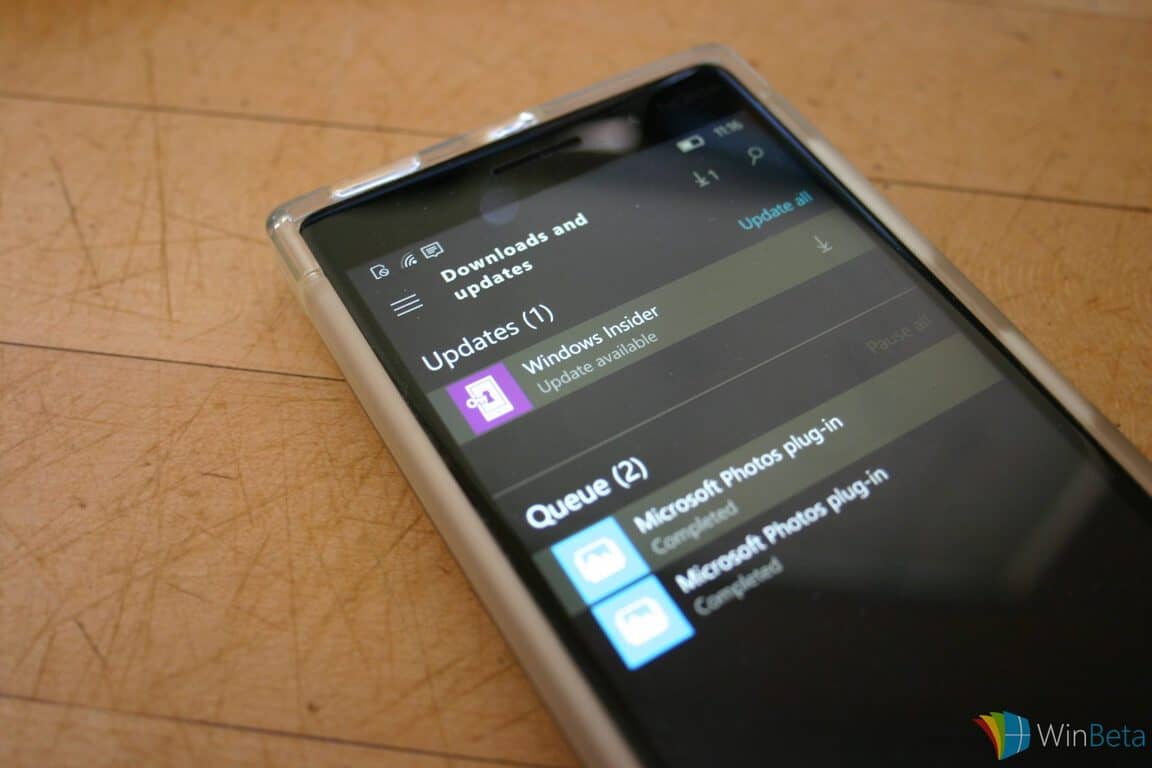
We’re always excited when the Windows Insider program gets an update, even when it’s minor. Microsoft pushed an update to the Windows Insider app today that certainly qualifies as just that.
As we’re sure you know, the Windows Insider app is the key to receiving Windows Insider builds of Windows 10 Mobile. There’s no changelog, and so as far as we can tell nothing major changed with the app. Sometimes the app updates in preparation for upcoming Windows 10 Mobile updates, but we’ve heard nothing lately that indicates anything new in the immediate future.
Windows 10 Mobile build 10581 is treating us pretty well, and so we’ll just take the Windows Insider app update and wait patiently for the shipping version. Hopefully, that will come soon enough, along with our shiny new Lumia 950/950XL flagships.

Microsoft's Office 365 E5 plan goes on sale December 1st
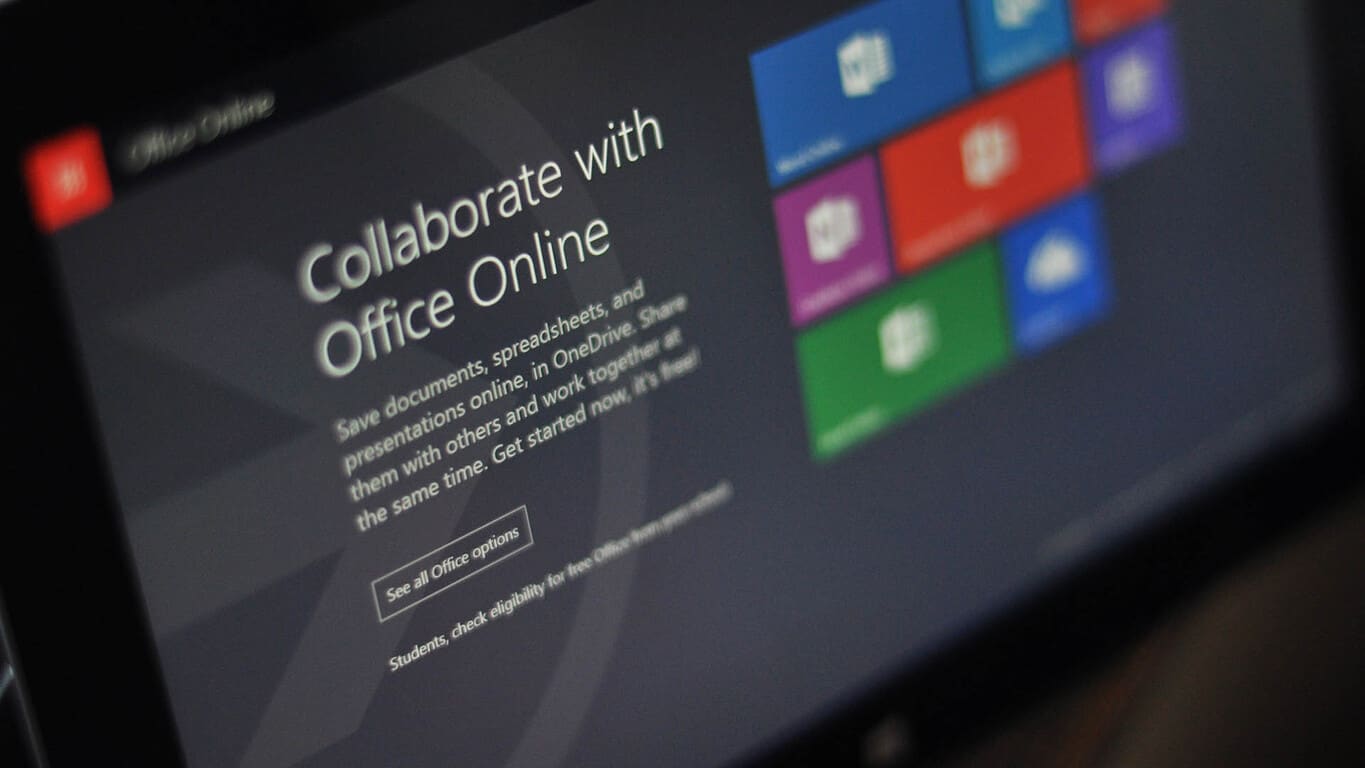
According to ZDNet’s Mary Jo Foley, Microsoft will begin selling its new Office 365 E5 plan to businesses on December 1st. This new high end tier of Microsoft’s Office 365 offerings will include new security, analytics, and communications features that will appeal mostly to large organizations that would utilize volume licensing.
Foley describes the E5 plan’s added features, saying:
The Office 365 E5 SKU will include Skype for Business (Lync) with support for features including Cloud PBX and Meeting Broadcast; new analytics features, like Power BI Pro and Delve Organizational Analytics; and new advanced security features, such as eDiscovery, Customer Lockbox, Data Loss Protection and Safe Attachments.
The new capability to use Skype for Business with support for Cloud PBX will make this new Office 365 plan an attractive option for large corporations looking to cut their landlines and move their traditional voice calls to a more flexible cloud based system. The new Power BI Pro and Delve Organizational Analytics has also been promoted by Microsoft as a new easy to use and revolutionary way to aggregate and analyze an organization’s information in an intuitive manner.
While the E5 Office 365 plan launch in less than a month, there is still no word what the official pricing will be. As Foley points out, the E5 plan will replace the current E4 plan, which sells at $22 per user per month, but most likely the E5 plan will be priced significantly higher. With large companies like GE deploying Office 365 across their global operations, and Office 365 overtaking Google Apps for Work, the latest E5 plan should increase Office 365’s attractiveness to companies that have previously relied on volume licensing of Microsoft’s Office products. For those wondering, DLP (data loss prevention) is available with Office 365 E3, as well as in E5.
Would these new features in Office 365’s E5 plan help convince your company to switch to Microsoft’s SaaS offering of its Office suite? Let us know in the comments section below.
Microsoft releases new "Beneath the Surface" advertisement series

Since the reveal of the Surface Book, Microsoft released a series of new advertisements, titled “Beneath the Surface,” showing how everyday people use the Surface Book for work and play. In “Beneath the Surface,” Jordan Crane shows how he uses the Surface Book as a comic book artist and illustrator.
Crane enjoys using the Surface Book with the Surface Pen and its PixelSense display to find the best color for a comic he might be working on. Crane remarked that the new Surface Pen feels as if you are actually drawing on the artwork itself instead of on a computer screen.
Another “Beneath the Surface” spot shows how the Surface Book helps a music teacher, Thavius Beck, as a producer, performer and music teacher. Instead of carrying around multiple instruments and heavy music equipment, Beck relies on his Surface Book with Windows 10 to help him produce and perform music in his spare time. He can also use the Surface Book to quickly transition to teaching his students in the classroom.
Microsoft is certainly using a different approach to advertising the Surface Book, but it remains to be seen if these commercials will help sell Surface Books. What do you think of Microsoft’s latest “Beneath the Surface” ad campaign? Is this a step in the right direction for the Surface Book?
Windows 10 news recap: 120 million installs, new desktop build and Redstone

Welcome back to our weekly Windows 10 news recap. This week, we kicked off with news of Windows 10 surpassing 120 million installs, three months after launch. 120 million installs in three months is nothing to sniff about. With the Windows 10 November Refresh update around the corner, it’s possible we’ll see that number spike yet again as people who want to upgrade for Windows 10 are likely waiting to the update to release first before making the jump. We’ve also got millions of Xbox One devices waiting to be added to this number too, as Windows 10 for Xbox One rolls out on November 12.
Also this week, Microsoft rolled out a new Windows 10 desktop build for insiders, build 10576. The build doesn’t really include much feature wise, but is a lot more stable than before. One new change is Edge-cast, which allows you to stream video from the likes of YouTube to a miracast enabled device, directly from within Edge.
Now onto important news, Microsoft announced that starting next year, Windows 10 will automatically download to your machine, but will not install unless the user agrees to it. Microsoft said:
Early next year, we expect to be re-categorizing Windows 10 as a “Recommended Update.” Depending upon your Windows Update settings, this may cause the upgrade process to initiate automatically on your device. Before the upgrade changes the OS of your device, you will be clearly prompted to choose whether or not to continue. And of course, if you choose to upgrade (our recommendation!), then you will have 31 days to roll back to your previous Windows version if you don’t love it.
Moving onto some Redstone news. I reported this week that Redstone would further improve upon Continuum, bringing “Continuity-like” functionality such as app roaming and the ability to take phone calls from your desktop beamed from your Windows 10 Mobile device.
Microsoft is essentially planning to introduce the ability to roam apps across your Windows 10 PC and Windows 10 Mobile device. What I mean by this is simple, imagine working on an email on your phone in the Mail app, but you decide you want to continue working on your email on your desktop. Simply open the Mail app on your desktop, and Windows will pick up exactly where you left off. Another example is with web browsing with Microsoft Edge on your desktop, opening the app on your phone will bring you to where you left off on your desktop. Pretty neat.
And finally, according to a Microsoft Support Engineer, Windows 10 Threshold 2 could launch on November 10th. The Support Engineer on the Microsoft Answer forums has said the Windows 10 “Fall Update” will launch on November 10th, bringing with it Cortana support in India. That’s one of many things coming in the “Fall Update”, other features include UI improvements, Edge improvements and a new Messaging app.
That’s all for this week, what was your favorite story?
Windows 10 "Fall Update" could launch November 10th

Last week, I reported that Microsoft was planning to launch the Windows 10 “Fall Update” on November 2nd, but Microsoft was unable to sign off on a final build last week meaning they still don’t have anything ready. So November 2nd isn’t happening now, but according to a Microsoft Support Engineer, the 10th it is.
The Support Engineer on the Microsoft Answer forums has said the Windows 10 “Fall Update” will launch on November 10th, bringing with it Cortana support in India. That’s one of many things coming in the “Fall Update”, other features include UI improvements, Edge improvements and a new Messaging app.
Assuming the Support Engineer knows what he’s talking about, the 10th gives Microsoft one more week to sign off on a final build for the Fall Update, after missing their planned deadline last week, they’ll probably want to sign off on a final build very soon so they can ship to Insiders for final testing, much like how they did with the original Windows 10 RTM.
Thanks for the tip, Sumit Dhiman
Five ways to use your Surface Book to meet your productivity needs

The Surface Book is Microsoft’s new ultimate laptop and is an amazing piece of hardware that can be used in various ways to keep you productive. Just because it looks like a laptop doesnt mean you are stuck using it as a laptop. You can detach it from the keyboard and use it as a powerful tablet. You can prop up the display in stand mode, or turn the device over and use it in tent mode. All these options help make you productive, no matter what the scenario.

There are several different ways you can use your Surface Book to meet your productivity needs. First, and the default way to use the Surface Book, is the laptop mode. As you can see in the image above, this mode is the traditional laptop mode. Nothing exciting or revolutionary here, but definitely one of the big selling points of the Surface Book.

One big feature of the Surface Book is the ability to detach the display from the keyboard, effectively turning your Surface Book into a powerful Surface tablet. All you have to do is press the screen detach key located on the left side of the “Del” key and you can remove the display from the keyboard base.
You can sit on the couch or walk around with the device in your hands, having turned your Surface Book laptop into a powerhouse tablet.

Instead of re-attaching your Surface display to the keyboard base the normal way, why not attach it backwards? In this mode, you can effectively use your keyboard base as a stand — perfect for use in the kitchen when you want to display a recipe on-screen or if you are watching a movie on netflix.

An alternative mode to this is called the “tent mode” that other device manufacturers like Lenovo often tout. Similar to the above scenario, you can use this mode to watch movies or view presentations with ease.

And finally, you can fold back the device the opposite way (as long as the display is inserted the opposite way), effectively turning your Surface Book into a tablet with the keyboard attached to it. This is yet another interesting way to use your Surface Book, but may not feel as practical as the above listed modes.
Which mode do you tend to use the most? I personally prefer the first three modes, with the default laptop mode obviously being used the most. There are times where I am on the couch and I want better “lapability” so i’ll use the tablet mode instead. Or i’ll insert the display backwards onto the keyboard base so I can set the Surface Book on a table while I view a presentation or watch an episode on Netflix.
Use these Surface Book keyboard shortcuts to adjust brightness

The Surface Book keyboard features a standard layout with cool backlit keys, but did you know you can also control the screen brightness with a keyboard shortcut as well as adjust the keyboard backlighting? It’s quite easy to do so!
There are two keys located on the keyboard that allow you to decrease or increase the keyboard backlighting. Located at the F1 and F2 keys, these two keys allow you to control your keyboard backlighting. For those of you who prefer to not have any backlit keys, you can simply decrease the lighting until it’s gone.
With the keyboard, you can also adjust your screen brightness to your optimal levels. To increase screen brightness via the keyboard, simply press Fn + Del. If you want to decrease screen brightness, simply press Fn + Backspace.
Do you like the keyboard backlighting? Share your thoughts in the comments below.
Microsoft stresses Windows 10 Feedback app as UserVoice sites meet their demise
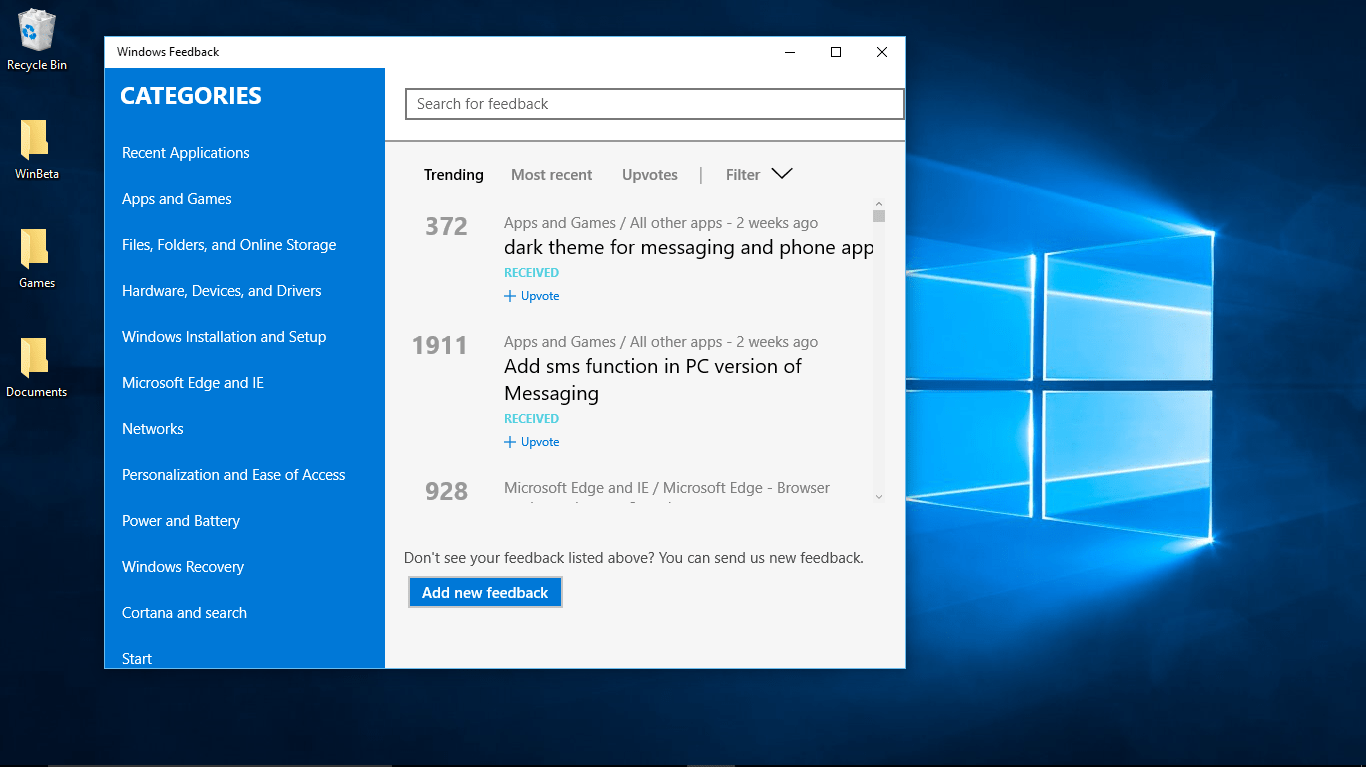
Up until now, a great place to give feedback to Microsoft has been through the Windows and Windows Phone UserVoice site. These sites have given Windows 10 and Windows 10 Mobile (and Windows Phone) users a place where they can hand feedback over to Microsoft engineers effectively, and has been a platform that’s continuously improving around the wants and needs of the people who use it. Both Windows and Windows Phone on UserVoice are, however, being shut down.
Microsoft announced that, starting from October 30th, they are in the process of ramping down the UserVoice site. Windows 10 and Windows 10 Mobile for UserVoice will continue being functional until November 16th, but after that point it will no longer be accessible. This may be somewhat alarming to those who frequently utilized the website, but fear not: UserVoice is being replaced by something that, hopefully, will be even more effective at bringing feedback to Microsoft’s attention.
Now, instead of keeping feedback in a website separate from Windows 10 itself, feedback is all going to be coming from a client built right into the operating system. All feedback should now be directed through the Feedback app on Windows 10 and Windows 10 Mobile, which should be on your Windows 10 device right now, accessible by typing “Windows Feedback” into your Cortana search bar.
With Windows 10 Feedback now doing work as the primary medium through which our feedback is delivered, Microsoft hopes that they will have even more ways to refine Windows 10 and Windows 10 Mobile in the future. Windows 10 Feedback gives Microsoft engineers access to “the complete set of raw feedback” and, according to the post on UserVoice, “not only makes it easy for the engineers to find user feedback, but also makes it easy for them to act on it.”
Hopefully Microsoft is right about Windows 10 Feedback being a more effective tool with which users can interact with Microsoft directly – since it’s directly built into the operating system, it certainly seems to be a more useful system than UserVoice presented before it.
How to pair a Microsoft Band 2 with your Windows 10 Mobile device
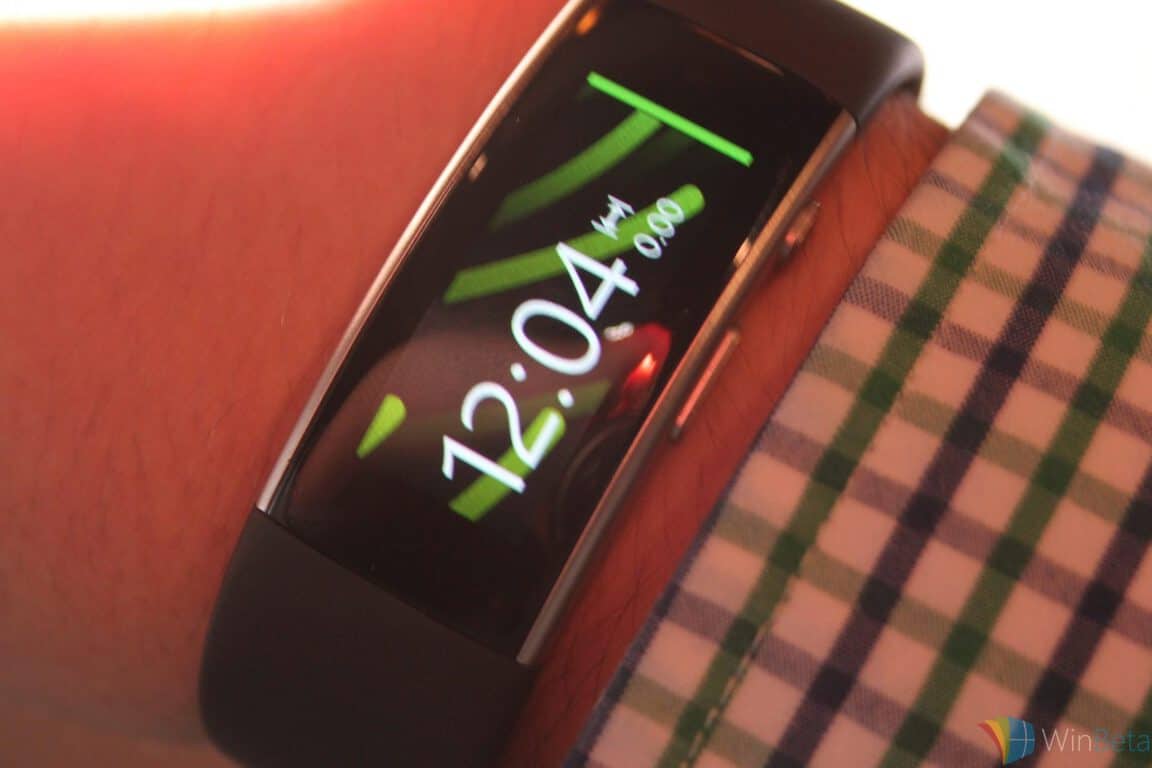
To those who have purchased a brand new Microsoft Band 2, congratulations. Now comes one of the fun parts of owning Microsoft’s fitness smartwatch — pairing it with your Windows 10 Mobile device. If you’re new to all this, don’t worry — we’ve got you covered.
Before you get started, you will need to download and install the Microsoft Health app for Windows 10 Mobile. You will also need your Microsoft Account login credentials. You should also have Bluetooth enabled on your phone.
- Press the power button on your Microsoft Band and choose your language
- Swipe left and select your phone’s operating system, then swipe left and tap Pair now
- On your Windows 10 Mobile device, open the Microsoft Health app and sign in using your Microsoft Account
- If this is the first time you are opening the app on your phone, you will be prompted to complete your profile.
- Enter your Profile info and tap Next. Then choose which type of Band you own (in this case, tap Microsoft Band 2)
- Make sure Bluetooth is enabled on your phone.
- Tap scan now and tap the name of your Band. This will be some variation of MSFT Band
- On your Windows 10 Mobile device, enter or select the PIN code that appears on your Band and tap Pair
- On your phone, tap Next then Allow
- On your Band, press the action button (located on the right side of the power button) to start. A flashing arrow will point to the action button
Congrats, your new Microsoft Band is now successfully paired with your Windows 10 Mobile device. Bookmark our dedicated Microsoft Band page for all the latest news on this cool new gadget of yours. Enjoy!

Microsoft partners with Lose It! to bring first party nutrition of Microsoft Health and Band

The Microsoft Band 2 is available everywhere starting today, and the reviews are starting to pour in on the update from the popular original version. Buried in Microsoft’s announcement, though, is news about a new first party nutrition partner, Lose It!
Lose It! Is a personalized, full-featured weight-loss system based on matching goals with exercise and nutrition. The Lose It! system is intended to provide up-to-date progress as your exercise activity is impacting your daily calorie budget, and works hand-in-hand with Microsoft Health and the Band 2 to incorporate this system into your daily weight control efforts.
Microsoft will be providing more information on how Lose It! and other partners are working together to help you improve your health. In the meantime, if you have some aggressive weight loss goals, then the Band 2 and Lose It! stand by to lend a wrist.
Surface Book and Surface Pro 4: top tips and tricks for your Pen
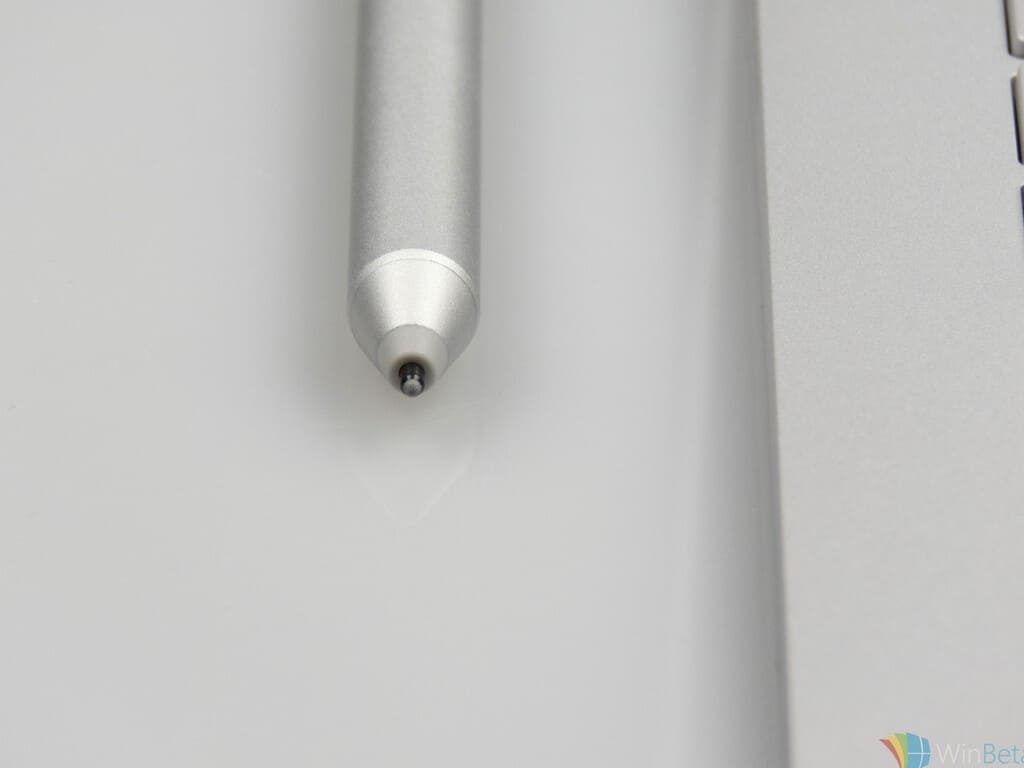
The Surface Pen is an awesome piece of hardware to compliment your new Surface Book or Surface Pro 4. For those that did not know, the updated Surface Pen offers the ultimate writing experience with 1,024 levels of pressure sensitivity and reduced latency. In this post, we’re going to look at some top tips and tricks regarding the Surface Pen, to make your experience just a tad bit easier.
- On the opposite side of the clip is the flat side of the Surface Pen, featuring a magnetic strip that allows you to attach the Pen to your Surface device.
- Clicking the top button on the Surface Pen opens up OneNote so you can begin writing away.
- If you click and hold the top button on the Surface Pen, you will open up Cortana on Windows 10 (or Search if Cortana has yet to be set up).
- Double-click the top button to take a screenshot. You can use your Surface Pen tip to drag from one corner to another in the screenshot and your selection appears in a new page in OneNote.
- You can use the top button on the Surface Pen as an eraser, simply flip the pen over and use the top as an eraser (how easy was that?).
- The Surface Pen features a “right-click button” located at the tip end of the raised area on the flat side of the pen. All you have to do is press and hold the button, touch the screen with the pen tip, then release the button. This will bring up the right-click menu.
- Adjust Pen pressure sensitivity by opening the Surface app, going into the Pen category, and adjusting the slider.
- The Surface Pen is powered by one AAAA battery. When your battery is running low, the LED will glow red.
Do you have any cool tips or tricks to share? Let us know in the comments below.
Microsoft shows how easy it is to co-author docs in Word 2016
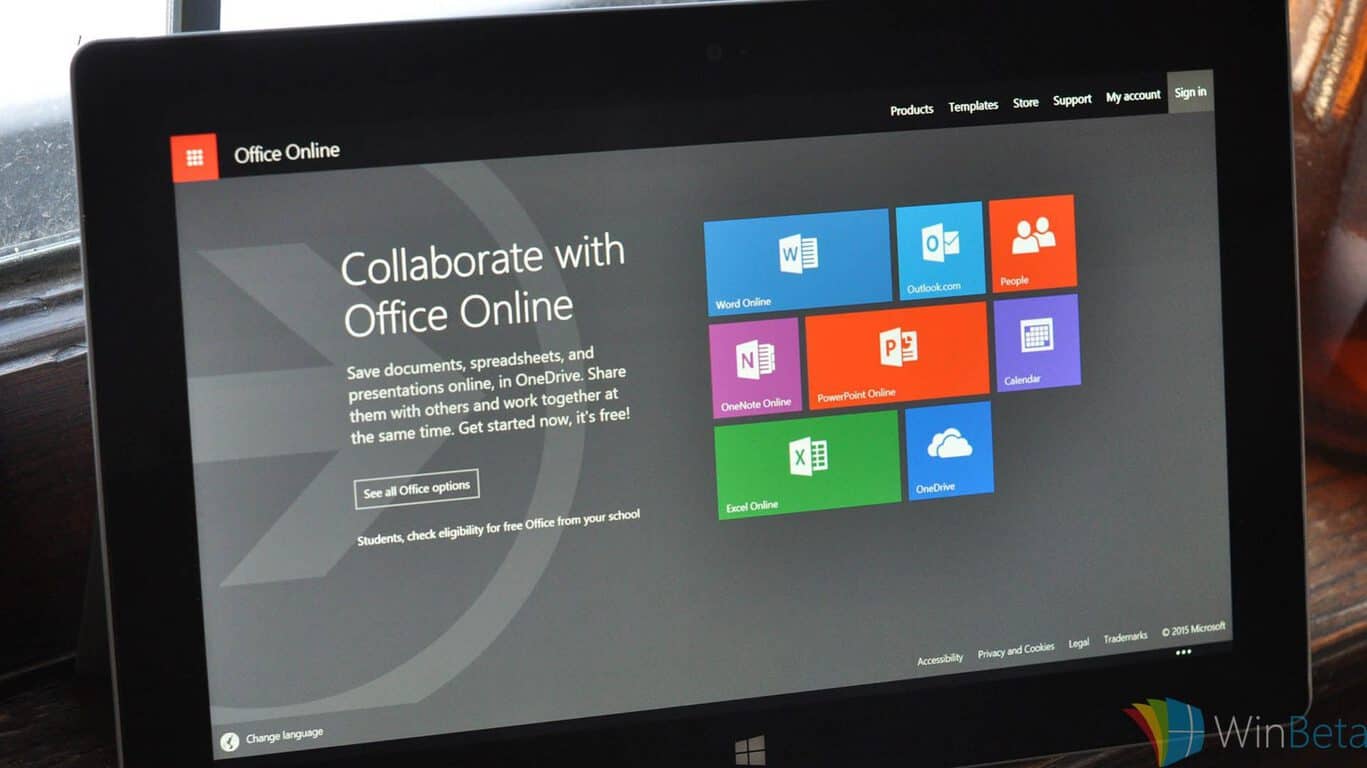
Today’s teams want to collaborate in creating documents and processing information, and Microsoft Office 2016 is one of the more significant and powerful tools people use in getting their work done. Right on cue, Microsoft has put together a quick tutorial making it perfectly clear how easy it is to co-author documents using Word 2016 or Word Online.
The easiest way to get up to speed on co-authoring in Word is just to watch the video overview over at Office Mechanics:
The first thing to do when collaborating in Office 2016 is to hit the Share button. Select the people you want to work with, and click Share.


Then, changes will show up in real time in Word 2016 and Word Online, and you’ll be able to see just which changes were made by which team member.

There you have it, everything you need to know to get started on collaborating with Word 2016. If you haven’t already, get a team together and give it a try. We’re sure you’ll like it.
Disney Infinity 3.0 comes to Windows 10

Disney has been expanding its empire of entertainment for many years now, having gobbled up countless companies and getting a slice of every medium’s market share. Whether it be in the Marvel Cinematic Universe for TV and movies, or, more recently, their dominating entry in video games: Disney Infinity. Infinity is Disney’s title in the genre sparked by Skylanders years ago – a genre where players can collect real-life toys for use in the game world.
Disney Infinity 3.0 has come to Windows 10, once again offering Windows 10 users a peek into the console gaming world. This comes just as the Star Wars franchise is being added into the game, letting players enjoy all of their favorite stories, characters, and settings from the legendary sci-fi franchise. Standing alongside the characters and settings from Marvel and Pixar, Disney Infinity is boasting a pretty massive roster where most people can find something to like.
Disney Infinity 3.0 is free to download right now on the Microsoft store, and you can try out a rotating character trial to see any characters that you might like before you go dropping money on the game.

Windows 10 Redstone: Continuum to be big focal point with new ‘Continuity-like’ features
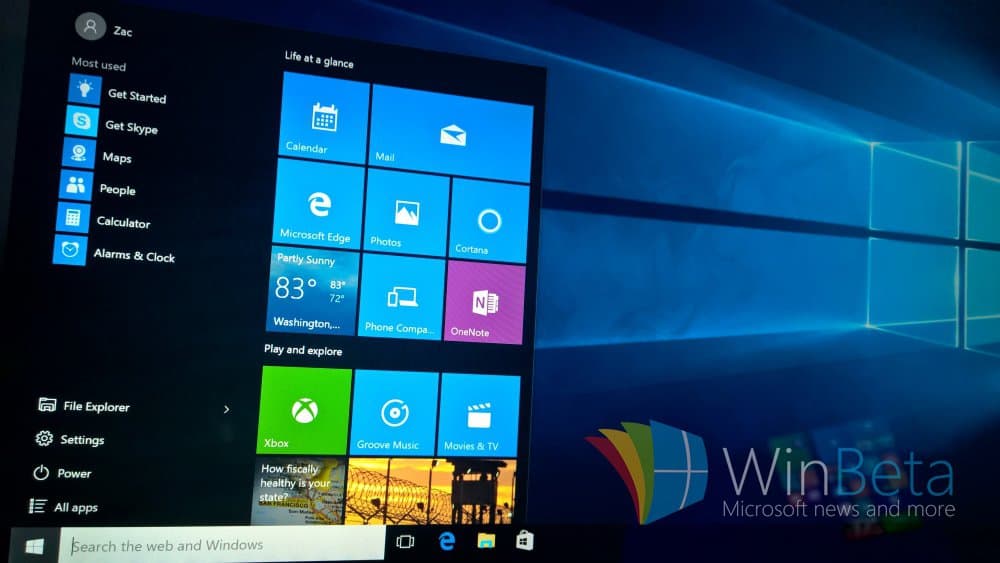
Windows 10 “Threshold 2” is almost ready. With final tests hopefully beginning next week (I’m told it won’t be launching November 2nd now, more on that here), Microsoft has begun focusing on its next planned update for Windows 10, codenamed Redstone and coming in the summer of 2016. Redstone is set to be a much larger update compared to Threshold 2, incorporating a number of new features and user-experiences which will enhance Windows 10.
Redstone for the most part is still being drawn up internally, which explains why so few details regarding the update have leaked. There are however a few plans already on the table, features such as extensions for Microsoft Edge are expected to arrive with Redstone after being postponed in Threshold 2. Now, I’ve started hearing plans regarding Continuum in Redstone, and how Microsoft is planning to beef it up with new OS X Continuity-like features that connect your PC to your Windows 10 Mobile device like never before.
Microsoft is essentially planning to introduce the ability to roam apps across your Windows 10 PC and Windows 10 Mobile device. What I mean by this is simple, imagine working on an email on your phone in the Mail app, but you decide you want to continue working on your email on your desktop. Simply open the Mail app on your desktop, and Windows will pick up exactly where you left off. Another example is with web browsing with Microsoft Edge on your desktop, opening the app on your phone will bring you to where you left off on your desktop. Pretty neat.
Another feature on the cards is the ability to make phone calls directly on your desktop, beamed from your Windows 10 Mobile device. This, along with the ability to roam your apps will bring the desktop and phone experiences of Windows 10 closer together, something that definitely needs to happen as Windows 10 for desktops and Windows 10 Mobile still feel pretty disconnected, even with universal apps and user interfaces.

Microsoft is rather obviously taking heavy inspiration from Apple’s “Continuity” feature, which does exactly what I’ve explained in this post just with an iPhone and Mac instead. The Redmond giant is planning to introduce this functionality with 1st party apps in Redstone, and will provide an SDK for 3rd party developers to utilise this functionality too.
We’re still several months away from Redstone being finalised, and considering we’re still only weeks into development, plans can very easily change so keep that in mind. Still, it’s exciting to know that Microsoft is planning to beef up Continuum in Redstone. I honestly believe the improved Continuum may give people an incentive to buy a Windows 10 Mobile device, because who doesn’t want to be able to make phone calls from their PC using their phones cellular connection? I know I do.
Would you like to see functionality like this make an appearance in Redstone? Let us know below!
Microsoft Edge can cast media content in the latest Windows Insider build
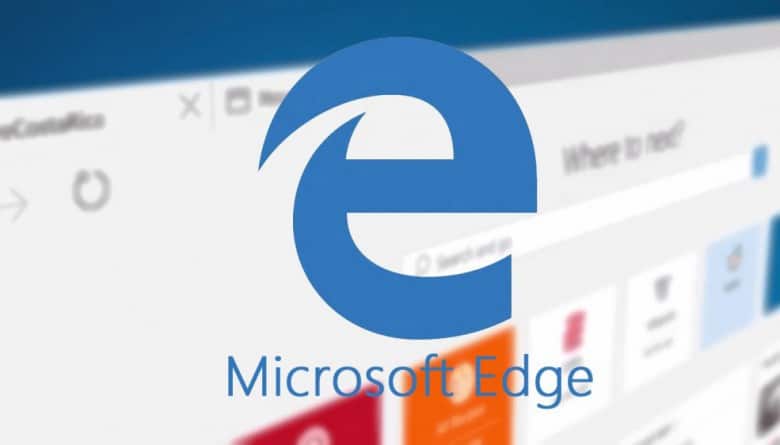
Microsoft has released a new build for Windows 10 today for Windows Insiders who are on the Fast Ring. One interesting new feature in this build is the ability for users to cast photos, videos, and music from Microsoft’s Edge web browser onto any Miracast and DLNA enabled device connected to the same network.
Users can cast media such as YouTube videos, Facebook photo albums, and music streaming from Pandora by clicking on the ellipsis menu to the right of the address bar, click or touch Cast media to device, then choose which device they want to cast their media onto.

Unfortunately, media content that is protected by DRM, such as videos from Netflix and Hulu, is not supported for the time being. Hopefully support for protected media will be available in the future.
What do you think of this feature? If you’ve tried it yet, how to you like it? Let us know what your thoughts are in the comments below!
Windows 10 is now an "Optional" update but will be "Recommended" next year
We reported earlier today that Microsoft’s Windows 10 OS has managed to surpass 120 million installs worldwide. As nice as the Windows 10 launch has been for Microsoft’s PR, the install process hasn’t been as worry free for some Windows users. Since the July release of Windows 10, some users on older versions of Windows have complained about annoying pop-up reminders, background WiFi-chugging update processes. In some rare instances, Windows 10 bits have downloaded onto devices in preparation for an update seemingly without any user intervention.
As a rather large Fall update to Windows 10 is just a week or so out for users, Microsoft is attempting not only make it even easier to upgrade to Windows 10 but explain the process and dispel some myths floating around on the internet.
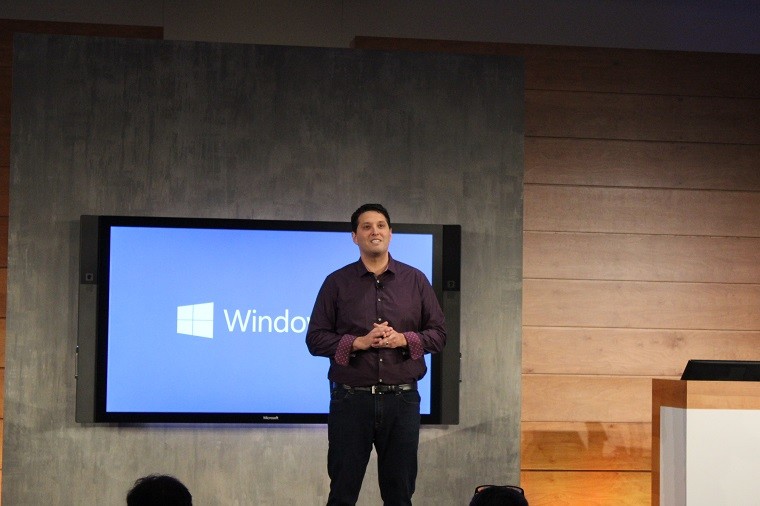
From the mouth of Microsoft executive vice president of the Windows team, Terry Myerson:
We understand you care deeply about what happens with your device. This is why – regardless of your upgrade path – you can choose to upgrade or decline the offer.
That being said, we would encourage everyone to upgrade because Windows 10 is the best Windows ever – familiar, safer, faster, and full of innovations. After any upgrade, you can easily go back to your prior version of Windows within 31 days if you choose. We do this by keeping a full copy of your previous operating system on your device – including apps and settings – for the first 31 days following your upgrade. At any time during the first 31 days, you can go to “Settings->Update and Security->Recovery and Uninstall Windows 10” to return to your prior version of Windows.”
Myerson continues, addressing the notifications users of older versions of Windows are receiving. It seems going forward, the once annoying notification to upgrade for some, is being evolved. The notification will now have a more ‘approachable’ feel and should appear clearer to users as to what is being asked. Users will also now have the option to dismiss the notification in their respective Windows 7 or Windows 8.1 settings.

For users who decided to finally take the plunge and update, there are now going to be new processes in place to ideally transition from one version to another as smoothly as possible. Beginning with how Windows 10 is categorized and where users can find the update.
We will soon be publishing Windows 10 as an “Optional Update” in Windows Update for all Windows 7 and Windows 8.1 customers. Windows Update is the trusted, logical location for our most critical updates, and adding Windows 10 here is another way we will make it easy for you to find your upgrade.
Early next year, we expect to be re-categorizing Windows 10 as a “Recommended Update.” Depending upon your Windows Update settings, this may cause the upgrade process to initiate automatically on your device. Before the upgrade changes the OS of your device, you will be clearly prompted to choose whether or not to continue. And of course, if you choose to upgrade (our recommendation!), then you will have 31 days to roll back to your previous Windows version if you don’t love it.”
Myerson also discusses more pressing issues of the upgrade process such as upgrading over a metered connection, with a DVD ISO and upgrades for Non-Genuine users. As far as metered connections go, Windows 10 will default to users Windows 7 or Windows 8.1 settings. According to Myerson, users who opt out of automatic updates, should still manually check for updates now and then and also consider installation of all ‘Recommended’ and ‘Important’ updates. Doing so will allow Windows 10 to use a metered connection only if there is a security issue addressed in the update. Otherwise, it’s still up to the users to install updates.
For users who choose to do a full and clean installation of the Windows 10, the Windows team will issue an update to the Media Creation Tool allowing the creation of DVD ISO’s or USB keys from within the OS.
Myerson touches on the efforts non-Genuine Windows customers have gone through to get Windows 10, and to use that feedback, he and his team are willing to try an experimental one-click opportunity to get a Genuine copy of Windows. Users will be able to go to the Windows Store to grab a valid copy of Windows 10 using an activation code they happened to purchase elsewhere. The experiment is only being opened to the US for now, but based on telemetry, the Windows team may scale it to other countries.

According to Myerson and the Windows team, many of these improvements come by way of the feedback users have been offering, and they would like that continue. For anyone using Windows 10, you may have noticed a little pop-up asking for feedback about new features. That feedback is something the Windows team hopes reaches more of their users.
Share yours or your friends and family’s upgrade experience in the comments below!
Microsoft Office gets online Skype integration and Chrome extensions among other updates
Windows 10 Mobile build 10581 isn’t the only new thing Microsoft has been working on today. The Office team is also announcing the Office October feature update. This month brings some welcome updates to Office Online, as well as Office Mobile for Android and Office 2016 for OS X.
Office Online gains some new Skype integration, taking last month’s basic Skype functionality and expanding it to include voice and video. Starting in November, when you’re collaborating on Word, Excel, PowerPoint, and OneNote documents, you’ll be able to jump into Skype voice and video calls to spice up your co-authoring sessions.

Next, although Windows 10 Edge users will have to wait a little while for extensions, the Office team is full steam ahead on integrating more closely with Google’s Chrome browser. Specifically, they’re introducing a new Chrome extension that provides some instant gratification when creating and accessing documents in Office Online.

Office Online also gets a new Navigation pane to make it easier to work with large Word documents, and formatting Excel online and PowerPoint online should be easier.
In more news, Office on Android went on a diet, specifically being a full 40% smaller. Signing in should be easier for Office 365 work and education users, and Enterprise and Android for Work users can now be fully productive in Android M. Finally, PowerPoint on Android now enjoys a Presenter View to make it easier to present to groups using your robotic device.
The Office team rounded things out in October with Visual Basic enhances to Office 2016 for the Mac. Learn more about what Office developers can now accomplish on the Mac.
So, there you have it, all of October’s Office updates win one fell swoop. Microsoft is certainly keeping itself busy, and keep checking back for more news.