Windows 9 (Threshold) technical preview on track for late September

Windows 9 (Threshold) technical preview on track for late September

Microsoft is planning to release a technical preview of Windows 9 (threshold) in late September or early October to anyone interested. This is similar to what Microsoft did with Windows 8. Getting software into the hands of customers enables Microsoft to make tweaks to the operating system before releasing it publicly.

Mary Jo Foley, who initially broke this story, reports users should expect mandatory monthly updates to the tech preview. This will enable Microsoft to treat Windows like it currently treats its Xbox One preview program by releasing new features and fixes monthly. Hopefully these monthly updates will refine Windows 9 to perfection for its rumored spring 2015 public release.

Windows 9 has been rumored to come with many user requested improvements. These include a scaled down ‘Mini-Start’, Windowed Metro apps, and removal of the Charms bar. In addition to these refinements, Microsoft is also rumored to be bringing virtual desktops like in Mac and Ubuntu. Finally Cortana is rumored to be making an appearance on Windows 9 in some capacity.

Microsoft will probably evolve the tech preview with user feedback each month. It is unclear if the development pattern with Windows 8 will be followed where multiple previews will be released or if Microsoft will choose to keep evolving the tech preview monthly until final release. There is a possibility Microsoft may release a public preview to anyone at the end of 2014, but this may get skipped in favor of just rolling changes into the tech preview.

Are you going to get the technical preview? When do you expect Microsoft to deliver this preview? Are you excited for Windows 9? Let us know in the comments below!

Microsoft and Intel talk up DirectX 12 at SIGGRAPH 2014

Microsoft and Intel talk up DirectX 12 at SIGGRAPH 2014

Microsoft and Intel are both at SIGGRAPH 2014 talking about the benefits of DirectX 12. SIGGRAPH is a conference dedicated to desktop graphics, so it makes sense for Microsoft and Intel to be involved showing off their new tech. This year DirectX 12 is a hot topic in a lot of different categories.

Announced earlier this year, DirectX 12 bring efficiencies to how a computer renders graphics. These efficiencies can be utilized in a couple of different ways. The obvious use of a more efficient platform is more performance, so more frames per second. Another way to take advantage of a more efficient system is to use less power. Less power means longer battery life and less heat.

Intel demonstrated this gain in efficiency by running a simulation of 50,000 unique asteroids, and plotted power consumption. When switching from DX11 to DX12, the power being consumed by the CPU and GPU dropped by approximately 50%! When Intel unlocked the frame rate and allowed constant power consumption, the frame rate increased by 50%. This means when DX12 is released, supported hardware will get a bump in graphics capability with a simple software update.

Microsoft and Intel talk up DirectX 12 at SIGGRAPH 2014

Neither Microsoft nor Intel gave an explanation on how these efficiencies were achieved with DX12. The only explanation given by Microsoft is that DX12 enables lower level access to the hardware. Hopefully these results are the same when DX12 hits consumers later this year. These improvements could mean big savings for companies who work with high polygon count models, such as MRIs, large simulations, etc.

“DirectX 12 can save more than 50% of CPU power compared to DirectX 11. When allowed to use equivalent power to DirectX 11, DirectX 12 can also yield 50% better FPS performance. DirectX 12 can run and show these improvements on a wide variety of devices including Microsoft’s flagship device the Surface Pro 3,” Microsoft explained.

Are you excited for DirectX 12? Do you game on a laptop or tablet? Would you go for less power consumption or higher FPS? Let us know in the comments below!

Support a savory cause by helping end zombie hunger in Plight of the Zombie

Support a savory cause by helping end zombie hunger in Plight of the Zombie for Windows Phone

Zombie games are always fun and entertaining, there is no denying this fact. A new zombie-themed game has hit the Windows Phone Store, but its not your typical zombie shoot-em-up type game. 

“We are tired of all of these zombie games designed for those apathetic people who just want to kill poor, innocent zombies all the time. They’re just hungry!” the app description reads. Wait, what? Yes, you read that correctly. In this sympathetic puzzle game, you will take control of a hungry zombie in their quest for yummy brains.

Plight of the Zombies lets you play over 50 deliciously brainy puzzles, allowing you to be one with your inner zombie as you eat yummy brains. You are supporting a savory cause by helping end zombie hunger. The app even features a store where you can snag tasteful accessories for your zombies.

Enough words, check out the game in action below. Hit the download link to snag the app for Windows Phone – it runs for $2.99. The app for Windows 8.1 runs for $4.99.

Thanks for sending this in, Steveo!

Microsoft showcases how its technology can be used in the classroom, partners with Parade magazine

Microsoft showcases how its technology can be used in the classroom, partners with Parade magazine

Partnering with Parade magazine, Microsoft held discussions around the US centered on technology in the classroom. Technology is becoming a part of students’ education process (now more than ever), so Microsoft is suggesting teachers take a more active role. Students using technology in the classroom can be a hot topic when it comes to data security, and Microsoft is keen to highlight its own strengths in the area of safe data practices.

Due to Microsoft’s diverse software portfolio there are a lot of different ways Microsoft technology can find its way into a classroom. A teacher using Skype to have a guest expert give a lesson. Students using OneNote to do their homework. Searching the web with Bing in the Classroom to avoid exposing students to ads during class. These are just some of the ways Microsoft says technology can help teachers and students.

Although, Microsoft didn’t just highlight their own technology during these discussions. Minecraft and 3D printing in the classroom were also mentioned to help students explore and learn using new tools. Teachers can seek help at Microsoft Stores as another way Microsoft employees can assist teachers by showing them how to use existing tech to do more.

Data security is a very important issue for schools and educators. Ensuring their students data is not being farmed or exploited is critical for teachers. Microsoft outlines how student data can be used for good to identify students who may need more attention or assistance. Microsoft subtly calls out Google by saying, “[c]ompanies should not use student data for advertising or corporate gains.” While Microsoft may see schools as customers, they make it clear students’ data is off limits.

Here is the video Microsoft has provided:

How have you seen technology in the classroom? Do you think Microsoft is doing a good job talking to schools and teachers about technology? Let us know in the comments below!

Microsoft thinks Windows 9 needs to be “deeply personal” to stay relevant in 2015

Microsoft Motivation

Something rather heartwarming is currently floating around internally at Microsoft. It appears to be a poster with tag lines which may or may not be used to market the next major version Windows when it launches in 2015, and the tag lines seem to tell us where Microsoft is headed with Windows 9.

Recode.net has acquired the poster, and as you can see above, it appears to be motivating the company to build something better. The current stance with the development team is to get Windows 9 out the door and pretend Windows 8 didn’t happen. How will Microsoft do this? They can’t go back to Windows 7 as the world doesn’t want just another operating system.

If this poster is anything to go by, Microsoft is worried that Windows will no longer be relevant in 2015, and that Windows 9 will need to change the game by becoming “deeply personal, [and a] universally human way of operating.” Whatever this means, I like the sound of it. We already know that the personal assistant Cortana is on the way, with user experience improvements for both desktop and tablets users too.

The poster finishes with a simple but true statement, “Because the world needs Windows”. Windows in 2015 is set to align everything, including phone, tablet, PC, TV and indeed Xbox. This is Microsoft’s biggest ever release of Windows, and we’re excited for it. A preview version of the operating system is set to debut this fall, with an RTM release sometime in Spring 2015.

Symbian also losing Skype access in ‘coming weeks’

Symbian also losing Skype access in 'coming weeks'

Windows Phone 7 isn’t the only mobile operating system which will soon become incompatible for Skype. Microsoft has announced that Symbian users too will soon lose access to the popular instant messenger and video chat service.

Earlier this year, Microsoft had unpublished the Skype app from the Nokia Store. However, at that time, the users could still sideload the app to use the service “for a while”. Microsoft is now chopping the support lines for the Skype app from several outdated operating systems.

The company says that Skype for Symbian will stop working “within the next few weeks”. Some Symbian users who have used Skype on their handsets are receiving email from the Skype support.

Skype apps for Symbian are permanently retiring

We’ve noticed that you are, or previously were, signed into Skype on a Symbian phone, and we’re sorry to inform you that we are now permanently retiring all Skype apps for Symbian phones. As a result, within the next few weeks, you’ll no longer be able to sign in and use Skype on any Symbian phone.

You can still stay in touch with friends and family using Skype on an Android device, Nokia Lumia phone or desktop computer. You can sign into them all using the same Skype account. The latest versions of Skype for all your devices are available at https://www.skype.com/download.

Any Symbian users among our readers? What are you planning to do now? Would you get yourself a Windows Phone or any other OS-powered smartphone to continue using Skype?

This Microsoft technology turns your shaky GoPro recording into a smooth timelapse video

This Microsoft technology turns your shaky GoPro recording into a smooth timelapse video

Microsoft Research has introduced new technology called “first-person hyperlapse videos” which turns your shaky recordings into smooth time-lapse videos. This technology is especially useful if you own a GoPro camera and find yourself recording lots of shaky videos.

“We present a method for converting first-person videos, for example, captured with a helmet camera during activities such as rock climbing or bicycling, into hyperlapse videos: time-lapse videos with a smoothly moving camera,” Microsoft Research stated.

The way it works is simple. Microsoft’s technology first reconstructs the 3D input camera path and the dense, per-frame proxy geometries. A camera path is then optimized for the output of video that is smooth and passes near the input cameras while ensuring the virtual camera looks in directions that can be rendered well from the input. In other words, the 3D camera path takes a different, smoother route resulting in each frame being rendered from the new viewpoint.

At the moment, the researchers working on this technology are looking to create a Windows app, but no availability timeframe was given. If you are someone who enjoys the outdoors and happens to own a GoPro (or similar) camera, check out the technology in action below.

Microsoft Interns send a balloon to the edge of space, with the help of Surface, Bing apps, and more

Interns at Microsoft send a balloon to the edge of space

Today, August 9th at noon PT, a team of interns at Microsoft launched a balloon to the edge of space. David Rappaport, an intern at Microsoft had the idea to send a camera to space on a balloon. This was originally supposed to be a small pet project of David’s, but it grew to become much more.

By the end, this project involved many different Microsoft technologies such as Surface, Microsoft Azure, Internet Explorer and Bing apps, all to create an interactive experience. The FAA was even involved to ensure all federal guidelines were followed. The public were invited to help the team control the camera. A website was also created to stream live video of the flight.

The website now has video from the flight posted (see embedded video below). A chat system allows anyone to vote on where to point the camera. The site also posts the longitude and latitude of the balloon. The project also involves custom fiberglass and foam frame to hold the payload. Some of the details of their flight are on their site, but the rest will be released in a detailed technical write-up. As a bonus, the team added a ‘beloved Xbox character’ to the payload whose identity was a mystery before launch.

What do you think? Cool project? Have you ever done anything like this? Let us know in the comments below!

XBMC pushes forward to version 13.2 with release candidate 1

XBMC pushes forward to version 13.2 with release candidate 1

XBMC, which was named after a combination of Xbox and Media Center, is moving on with a new name in version 14. It wishes to escape the lack of control it currently has, thanks to Microsoft controlling those brands. But before we get to 14 (well, you can, as its in alpha now) there is 13.2, which still falls under the XBMC name and goes as Gotham. 

The latest release is in candidate form, and follows several, well three, betas, but it brings a number of changes. All are fixes — don’t expect new features to come flying off your TV screen. 

“Do note that this release only contains fixes and no new features. So it should be safe to install on top of any of the current 13.X releases”, the organization states. 

For now there is no exact schedule for final release, with XBMC only saying “in due time”. There are some important caveats with this release and users should follow the via link below to head over to the official announcement from XBMC and read through everything the organization has to say. There is much about Linux, iOS and backing up data.

Microsoft teams with ifixit to train repair people

Microsoft teams with ifixit to train repair people

Fixing electronics can be difficult, especially when it comes to phones and tablets, which are hard to even take apart. Microsoft is teaming up with the popular ifixit website in an effort to solve this problem, training employees of repair shops to get devices back in running condition. 

The training will be provided online and it will be free of charge. The goal behind all of this expense being laid out by the two companies is, according to Microsoft, increasing the reuse of smartphones and tablets, saving recycle costs and e-waste. 

“One study in the USA found that 62% of people said they have at least one unused mobile phone in their household. With mobile electronics containing valuable and often scarce resources, including copper, gold, lead, zinc, beryllium, tantalum, and coltan, they represent a large materials resource that can be “mined” by recycling them to help build the next generation of devices”, says Microsoft’s Josh Henretig. 

What Microsoft and ifixit plan is a better database of information. The software giant claims that a real resource of information to help out people was the missing element in today’s electronics environment. The hope is that more devices will get improved longevity, as opposed to finding the way to the landfill. 

“By sponsoring this repair business toolkit, we hope that some of the visitors may see this as an opportunity to create a green business for themselves, for their neighborhood, and for the planet”, Microsoft concludes. You can learn more about the Pro Tech Network here. 

Microsoft shows you how Cortana can keep you up to date with your favorite interests

Microsoft shows you how Cortana can keep you up to date with your favorite interests

Microsoft has uploaded a new video to the company’s Windows Phone YouTube page, showcasing one of Cortana’s key features. With Cortana, you can keep up to date on things that are interesting to you. Cortana can send you timely notifications for those interests, so you don’t miss a beat on stuff that you care about the most.

You can add or remove interests, turn updates and notifications on and off, and more from Cortana’s Notebook. Cortana’s Notebook already comes with some default interests, such as the weather near you, the latest headline news, a trip planner, getting around, and daily glance. You can easily turn off these interests and add your own.

For example, you can add a daily routine or a sports team to follow and Cortana can keep you in the loop whenever there is an update. Want to track your favorite sports team and their scores? Cortana can do that for you!

We’ve embedded the video below for your viewing pleasure. For those of you who are running Windows Phone 8.1, which comes with Cortana, let us know if you have toyed around with this new feature and if you have been using it to keep up to date on things that matter the most to you.

How to Take Screenshots on Windows RT

If you are trying to take a screenshot for work or even in a game you’re playing then you will need a screenshot app.Well in Windows RT we have this app, the Snipping app or we can just use the print screen keyboard buttons situated on the upper left of the keyboard .So if you don’t have a visual memory the Snipping tool will make things easier for you to save your work by quickly taking a picture.
Windows RT screenshot app

Taking a screenshot on Windows RT should be relatively easy, either you take a screenshot of a work document,a moment in a movie you are watching or just an in game screenshot of your favorite character, all of these can be done with the proper app in windows RT.In this case we have the Snipping tool used to select exactly the portion on the screen you wish to capture and then just by doing a few clicks you will be able to save it to your Windows RT tablet.Seeing that most users are used to the old operating systems and the old methods of capturing and saving an image we will walk you through a few steps to see how easy it is in Windows RT to do the same.

How to take screenshots in Windows RT

There are two methods of capturing an image on your Windows RT,either use the buttons shortcuts on your Windows RT tablet or just use the Snipping app i presented above.But we will see exactly how to make a screenshot with both methods in the rows below.

First method i will present is using the buttons on the Surface RT PC with Windows RT operating system :

  1. The first thing we need to do is press and hold the button “Window” (situated right under the display) and the lower volume button(situated on the left side of the display).
  2. Now you should see the screen dim a little and then it should flash like a camera on your smartphone.
  3. The screenshot is now saved to the computer, you can find it by searching in your “Pictures” folder in the PC under the “Screenshots” directory.

Second Method to take a screenshot is by using the Snipping app you have in your Windows RT.

  1. First thing we need to do to find the Snipping tool is go to the right of the screen under the “charms” bar.
  2. Lets click (left click)on the “Search” app you have there that looks like a magnifying glass.
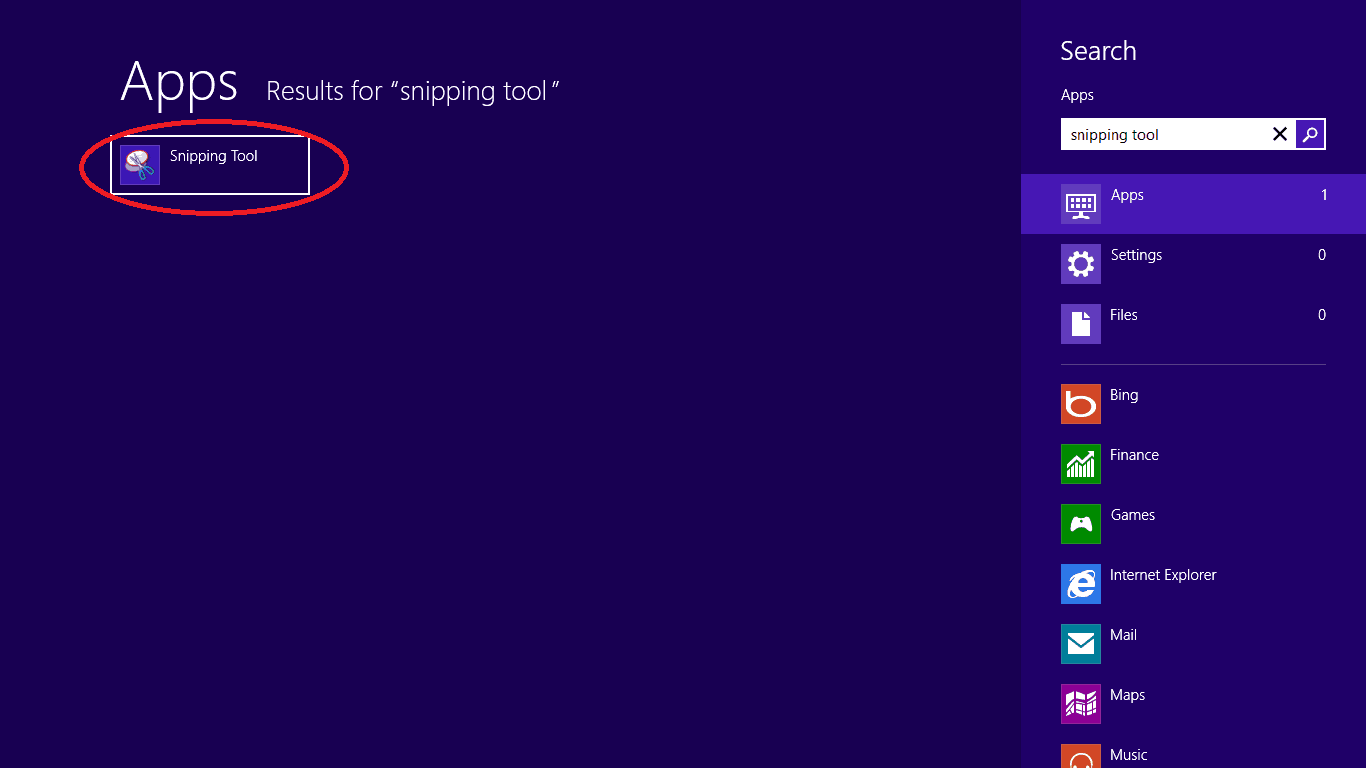
  3. Type in the search box “Snipping tool”
  4. Now you should have on the left the “Snipping tool” app
  5. Click (left click) on the icon you have to the left called “Snipping tool“
  6. The desktop should now open
  7. If you click(right click) it should show you the Snipping tool menu on the lower side of the screen,from there you can pin the icon to the start menu or to the taskbar.
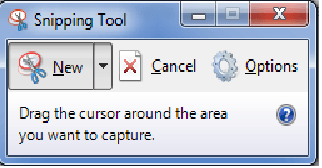
  8. After you clicked(left click) the Snipping tool icon a window should appear.snipping app windows RT
  9. We need to click (left click) on “New” in the Snipping tool window.
  10. Check if the mouse cursor on the screen changed to a set of cross hairs, if not click again on “New”
  11. We need to click (left click) on the image we want to save and drag the cursor while holding the click pressed over the entire photo we want to save.
  12. After we release the click the Snipping window will show how the image looks like
  13. Click(left click) on “File” in the upper side of the Snipping tool window
  14. Click(left click) on “Save As”
  15. Select the location where the Image will be saved .Example :Desktop
  16. In the box next to “File name” on the “Save as” window write a name for the photo you want to save but be sure to leave the .PNG at the end of the name.
  17. Click(left click) on “Save” on the lower side of the window “Save As”
  18. Now you can find your print screen on the directory you’ve chosen to save it.

These are the two methods used for screenshots on Windows RT, if you have anything else to add and any new suggestions please write us a few ideas below.

Poll: Is Microsoft doing the right thing with Windows Threshold?

Windows Threshold

It’s pretty much common knowledge now that Windows Threshold is currently in development, and that it’s set to bring back beloved Windows 7 features such as a Start Menu for desktop users. When Windows 8 was released, the Start Screen was hated by the majority of users who used it, and that story had stayed similar up until the launch of Windows 8.1, however as of recently we’ve been hearing more from the users who actually like the Start Screen, the Charms bar, and many other Windows 8.x elements.

We recently broke the news that the Charms bar, one of the Modern UI’s key features will be going away in Threshold. It was revealed months back that the Start Screen is taking center stage again for desktops, meaning the Start Screen is gone from the desktop in Threshold. The expected response to this news was “hooray!” but instead we had a 50/50 split between people who were happy with this change and people who were not.

It’s pretty obvious now that with every new story about Threshold that breaks, another Modern UI feature is shoved into the background, and every time this news has broken we’ve been hearing more and more from users who hate the changes Microsoft are making. So I ask you, which side are you on? Do you think Microsoft is doing the right thing with Threshold, or would you prefer it if they stuck to their guns and stayed on the Windows 8.x path?

We want to know YOUR own personal opinion, we don’t want to factor in any facts regarding market share and other boring stuff, we want to know whether you actually like what Microsoft had done with Windows 8.x or whether you think Threshold is a good change. Answer our poll below and leave us detailed comments for us to read. We’ll get involved too!

Microsoft takes you back 20 years, showcasing their first website ever

Microsoft Homepage

20 years ago, the internet was not the same as it is today. It was, what should I say, much simpler since people didn’t have faster connections, or ultra fast PCs. It was an era where kids used to play in the lawn, and not Titanfall all day long on their consoles and PCs. There was a dial-up internet accessed by only a few who actually needed it.

Today, Microsoft went back in time and showed their fans the design of their first website 20 years ago. By today’s standards, one would not even open it because there’s nothing to please the eyes — no attractive graphics, no advance options, but hey folks, it was 20 years ago. At that time, it was managed by just one guy, Mark Ingalls, the first administrator of Microsoft.com. He says it was a heavy web page at that time, and would have taken some time to load on a normal dial-up connection. 

“For most folks at home in that day and age, you would have been able to count to three or five before that picture showed up on your screen,” he says. “There wasn’t much for authoring tools. There was this thing called HTML that almost nobody knew.”

Later, Ingalls was joined by Steve Heaney to manage the site so he could get some relief. “Steve Heaney and I put together PERL scripts that handled a lot of these daily publishing duties for us,” he says. “For a while, we ran the site like a newspaper, where we published content twice a day. And if you missed the cutoff for the publishing deadline, you didn’t get it published until the next running of the presses, or however you want to term it.”

Today, it’s managed by almost 30 people who work on the homepage and make sure it’s up to date. Microsoft.com is one of the biggest websites on the planet, catering 20 to 30 million visits a month. 

The webpage is still up for people who want to take a look at how the website worked 20 years ago. Take a look at the page here.

Myth Defense 2 Dark Forces hits the Windows Store, build towers and traps in this strategy game

Myth Defense 2 Dark Forces hits the Windows Store, build towers and traps in this strategy game

Myth Defense 2 Dark Forces is now available in the Windows Store for your Windows 8.1 device. In this strategy game, you must fight on the dark side and restore balance between light and darkness. This sequel to Myth Defense Light Forces features three races with unique towers, four battle maps, fifty campaign missions, and much more.

“Popular tower defense game is back! Light Forces repulsed the attack of Dark Forces and passed to the offensive. Now you fight on the dark side. Restore the balance between Light and Darkness! Build towers and traps using technologies of Orcs, Goblins and Necromancers. Show your tactical skills combining various towers’ effects and using terrain features. Protect the stronghold of the Dark Forces from the onslaught of hostile armies of Light,” the app description reads.

Enough words, take a look at the game in action below. If you like tower defense and strategic games, hit the download link to snag the game for free.

Microsoft reportedly opening first ever New York City retail store on Fifth Ave

Microsoft reportedly opening first ever New York City retail store on Fifth Ave

A Microsoft Store offers an assortment of products and services, including Windows 8.1 devices, Windows Phone smartphones, Xbox One consoles, Office 365, and much more. Customers can also receive support and services from staff members who can make recommendations and more. A kiosk-style specialty store is a smaller store that features the best of what Microsoft has to offer in a smaller space.

Microsoft is rumored to open its first ever New York City retail store on Fifth Ave, going head to head against Apple’s glass cube store, which just so happens to be nearby. “For Microsoft to land on Fifth Avenue just a few blocks from Apple would certainly be interesting,” said Faith Hope Consolo, a top retail broker with Douglas Elliman, who was not involved in the deal. “It would be very dramatic.”

The 8,700-square-foot, two-story space that Microsoft is looking to snag is located at 677 Fifth Avenue near 53rd Street. Not only is this a prime location, but prices to rent ground floor stores are nearing $3,500 per square foot. It will be interesting to see how flashy Microsoft plans to make this particular store, if negotiations go through as expected. Apple’s huge 32-foot glass panels make up the entrance to the company’s flagship store.

We’ve reached out to Microsoft for comment and a company spokesperson told us what we had already figured. “We are always working to identify the best possible locations for our Microsoft retail stores to deliver the choice value and service our customers are looking for, but do not have any additional information to share at this time.” 

Microsoft recently unveiled to WinBeta a list of thirteen new Microsoft Store locations that are set to open in the next few months.

HTC One W8 makes another appearance on Telfort’s website, hints at a possible global launch

HTC One W8

HTC is rumored to launch a Windows Phone version of their popular HTC One M8 handset. We’ve heard about the device several times in the past few weeks from many reputed sources. The alleged device even made an unexpected appearance on Verizon website, showing us the press render of the purported handset. Well, it’s not just the folks at Verizon who have jumped the gun a little early. Recently, Telfort, a Dutch mobile telecommunication company, also leaked the HTC One W8 on their website’s homepage as shown above albeit small.

We can clearly see a similar press render of the HTC One M8 running on Microsoft’s operating system. This could mean a few things: first it confirms the existence of the device. Secondly, it also means the alleged device is not only making its way to the US, but also in other global markets as well.

The alleged device is expected to come with a bunch of exclusive HTC apps, possibly to make use of the Duo cameras dubbed as the HTC Camera. In addition, Blinkfeed is said to make an appearance on the handset as well. As for the internals, it should bring a similar set of specifications as the HTC One M8, a 5-inch 1080p display, powered by a quad-core Snapdragon 801 SoC with 2GB of RAM and 16GB of internal storage coupled with a microSD card support. 

HTC has scheduled an event on August 19th in New York City. Rumors suggest we may see the HTC One W8 at the event, or some information about the upcoming HTC tablet. It’s just a speculation so a grain of salt is required. We’ll update you as soon as any other information pops up.

Windows 9 (Threshold) still on track for preview release this fall

Threshold

We’ve had an entire raid of Windows Threshold news over the last week, with Neowin unveiling a possible new feature called Virtual Desktops coming in Threshold, and WinBeta exclusively revealing changes coming to the Charms bar. Today, Mary Jo Foley from ZDNet has confirmed both the Virtual Desktop and Charms bar changes, whilst also reiterating that Threshold is on track for a preview release this fall.

Foley has expanded on our report earlier, explaining how the Charms will work for not only desktop users, but tablet users too. We reported that the Charms bar was going away for desktop users, and it appears, according to Foley’s unnamed sources, that the Charms bar is going away for tablet users too. Read more about that here.

Foley claims that Threshold is on track for a preview release at the end of this year, meaning there isn’t a lot of time between now and getting our hands on a new build of Windows Threshold to test out. Of course, more information about Threshold is expected to be revealed before then, and we’ve got even more juicy bits about Threshold to reveal soon. So stick around for that!

What do you expect to see in the Windows Threshold Preview? Do you think we’ll have an official name by then, or will Microsoft stick with Threshold until closer to release? Leave us your thoughts below!

Windows 9 (Threshold) to include Ubuntu-like virtual desktop spaces

Threshold

Microsoft is currently hard at work on the next iteration of Windows, currently codenamed Threshold, the operating system is set to put the desktop back in the spotlight for desktop users, whilst making the Modern UI even better for tablet users. So far, we’ve heard about improvements to the desktop side of things, including the new Start Menu, windowed Modern UI apps and a brand new taskbar which is set to include live icons and Cortana.

Today, more information about Windows Threshold has been revealed, courtesy of Neowin. The desktop is set to include a feature very similar to Virtual Desktops, users of Ubuntu and other Linux variants are already accustomed to a feature like this, and Microsoft seems to be interested in bringing said feature to Windows too.

If you’ve never seen a virtual desktop, let’s explain it. Virtual Desktops allow for more than one desktop at a time. You can have 3 windows on one desktop, and 4 windows on another. In Threshold, this feature would be activated via a button on the taskbar, clicking it will reveal all your desktops, which will allow you to click in on your selected desktop environment.

This feature will be very good for users with small screens, as it allows for more windows in the environment at a certain time. Of course, considering Threshold is in early stages, we must remember that this feature may not make it into the final build of Threshold, so bare that in mind.

It’s good to see Microsoft developing desktop features again. Microsoft left the desktop out in the cold with Windows 8, introducing hardly any new features for the environment. Threshold is set to bring the desktop back into the limelight for desktop users, and having Virtual Desktops will make power users very happy.

Microsoft quietly ends some Azure discounts for new customers

Microsoft quietly ends some Azure discounts for new customers

All good things must come to an end, and it seems that this old adage applies to discount pricing. No announcement was made, but as GigaOM noticed, at some point in the last three weeks, Microsoft changed the criteria to qualify for “commitment discounts”.

Pay a visit to the Azure Commitment Plans page, and the headline has now been changed so that it reads “this offer is no longer available to new subscribers. Existing subscribers are able to continue utilizing this offer”. As the remainder of the text explains, existing subscribers will still receive a discount of between 20 and 32 percent upon signing up for a 6 or 12 month contract.

With the current price wars in cloud storage, Microsoft’s decision is slightly strange. No explanation is yet forthcoming, but we’ll update the story if we hear more about what has happened.

GigaOM speculates that the reasoning could be that Microsoft is now more interested in promoting use of existing accounts rather than taking on new customers. But the key word here is “speculates” — we have no way of knowing what the reason is at the moment, and it is entirely possible that there is a replacement discount around the corner.

Rumor: Windows 9 Free for XP and above users

Threshold

According to Microsoft watcher Mary Jo Foley, Windows 9 is soon to be ready and is expected to be the best version of Windows released to date.  The operating system is expected to be available in early 2015 with the ability to run on all devices whether tablet, PC or mobile phones. 

This rumor highlights that users on Windows XP, Vista and 7 will all get this update for free.  This would allow for many users to jump aboard the operating system while reducing the confusion with the different Windows versions.  This update is also considered to be useful to the PC market, allowing for more PC’s to be sold to masses. 

Rumors of free upgrades from Microsoft are not new but would be interesting to see in this scenario.  It is believed that there will be two different beta versions of the operating system that will be released before launch.  One, if not both, betas of Windows 9 could be released by October or November. 

Keep in mind this is still a rumor, once there is more information released on this we will let you all know.  Do give your feedback of whether you believe this is accurate or not. 

Microsoft sends Yammer’s plush blue mascot ‘Yammy’ into space, because why not?

Microsoft sends Yammer's plush blue mascot 'Yammy' into space, because why not?

Microsoft is showcasing a video that highlight’s Yammer’s plush blue mascot ‘Yammy’ soaring above the earth. Microsoft attached Yammy onto a weather balloon with a camera to record Yammy’s adventures in space.. because, why not?

“We got a great response from our social media followers and a lot of people asked for more information about how we did it. The short answer to that question is a weather balloon attached to a box with a video camera shooting out of the side. The long answer is that some of Yammer’s most creative minds had a fun idea that they turned into an even more fun project,” writes Adam Bonefeste, from the Yammer team.

Yammer, for those that did not know is a communication tool used within organizations and is an example of enterprise social software from Microsoft. This video has nothing to do with product advertisement, and is simply showcasing the Yammer team having fun.

The Yammer team followed up on questions raised by people on social media with some answers on the behind-the-scenes teamwork it took to pull off Yammy’s greatest adventure yet. You can head over to the VIA link below to read up on how Yammy was sent into space.

Official Roku App for Windows 8.1 is Now Available

The wait is finally over and you can now go ahead and follow the download link at the end of this article to get the official Roku app on your Windows 8.1 devices. Let’s have a look at its features.
roku app windows 8
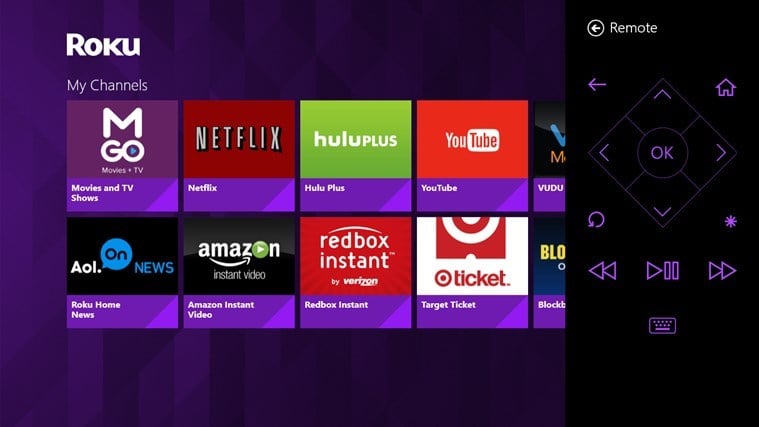
The official Roku app for Windows 8.1 allows Roku users to control their Roku player over their home network. So, if you have a Roku player around, you can now use the app to get more controls. Here are its most important features:

Roku lands on the Windows 8 Store

  • Automatically detect all Roku players on the local network
  • View installed Roku channels and launch the channel with a tap
  • Control your Roku player with an on-screen remote control

So, by using Roku on your Windows 8 device, you can transform it into a remote control to get better access to your channels. Go ahead and download it and let us know what you think of it.

Download Roku app for Windows 8 

Microsoft Dynamics CRM Online is now live in 17 additional markets

Microsoft Dynamics CRM Online is now live in 17 additional markets

Microsoft has expanded the availability of Dynamics CRM Online to 17 new markets. This now means that Dynamics CRM Online is available globally in more than 50 markets. Microsoft is pushing hard to deliver platforms and applications that enable people to do more and achieve more.

“Together with Microsoft Azure and Office 365, CRM Online is a critical part of the Microsoft Cloud for Business that delivers experiences that users love and businesses can count on,” writes Bob Stutz, Corporate Vice President, Microsoft Dynamics CRM, in a blog post. “We want to do everything we can to bring these cloud benefits to as many businesses and countries as possible.”

The new markets include Argentina, Uruguay, Ecuador, U.S. Virgin Islands, Indonesia, Thailand, Taiwan, Philippines, Bahrain, Egypt, Kuwait, Oman, Qatar, Saudi Arabia, South Africa, Ukraine, and the United Arab Emirates. Microsoft plans to announce country-specific events and announcements over the course of the next few months.

Rumor: Microsoft expected to launch a new cloud service called Sway, but what could it be?

Rumor: Microsoft expected to launch a new cloud service called Sway

Recently, Microsoft purchased the domain name Sway.com, which appears to be a cloud service — CDN as per the report. The information was first discovered by Jamie Zoch of DotWeekly, who mentioned that Microsoft may launch a content delivery network service soon.

There are several variations mentioned which points on what the domain name could be used for, including sway-CDN.com, sway-CDN.net, sway-INT.com and sway-INT.net. Surprisingly, the domain name currently redirects to Bing, with search results for the terms. Microsoft has a habit of doing this with every domain they register or acquire.

“I think Microsoft is getting ready to launch the software pretty soon, or it isn’t likely that they would have revealed they were behind the purchase of the domain name yet. They have also set domain name servers,” Zoch wrote.

Along with the domain registration, the software giant also registered a trademark for Sway with a wide focus: computer software, computer application software, online computer software, and software as a service.

It’s a little hard to guess what sway.com will be used for, but cloud apps are a possibility since the company has been focusing on cloud apps since Nadella took the charge of the company.

Have your say on what Sway could really be. We’re open to the guessing games for now until Microsoft officially unveils it.

Simplified Office 365 admin experience arrives for SharePoint Online admin center

Simplified Office 365 admin experience arrives for SharePoint Online admin center

Microsoft has simplified the SharePoint Online admin center, as part of the company’s journey to simplify the Office 365 admin experience. You can now choose between a simple or advanced admin experience, control top navigation items, and block workflows from being used from your environment.

“Narrow in on what is important – the task at hand. And when that changes, refocus. The journey to simplify the Office 365 admin experience continues, this time with a focus on simplifying the SharePoint Online admin center. For those admins who don’t specialize in deep SharePoint management, our goal is to allow you to manage the service more easily while maintaining access to the most common controls,” Microsoft stated in an official blog post.

The simple admin center experience displays only the essential options used in the most common scenarios. This includes site collection management, user profile management, and the main settings for external sharing, Information Rights Management, and more. The advanced admin center, on the other hand, offers access to all SharePoint Online management capabilities. This includes Business Connectivity Services (BCS), the Term Store, the Secure Store, and more, in addition to site collections, user profiles, and settings.

Admins can now show or hide the OneDrive for Business, Yammer/Newsfeed, and/or Sites in a users’ top global navigation bar. This allows for a streamlined view that matches your corporate policy. On top of that, admins can block specific workflows too.

“If you manage workflows into SharePoint Online from SharePoint Designer 2013, and you select Block 2013 workflows, your users will not be able to create a new workflow,” Microsoft adds.

Admins can also opt into the latest Office 365 releases, by heading over to the Office 365 admin center, Service Settings > Updates, and turning on First Release.

Visiting Google using Windows and Internet Explorer? Expect to be prompted to use Chrome

Visiting Google using Windows and Internet Explorer? Expect to be prompted use Chrome

By default, Windows comes with Internet Explorer as the web browser — unless you live in Europe, in which case you’re prompted to choose between several browsers. Thanks to this, most average users stick with IE, while many techie folks simply use it to install either Chrome or Firefox. Now Google is targeting those regular customers. 

IE web surfers who visit Google’s site to search for something are now finding an interesting prompt to the right of the search box. The wording is very straight-forward — “A faster way to browse on Windows. Install Google Chrome.”

Clicking the link will result in a page prompting the installation of both Chrome and the Google search app. There are even instructions for how to put them on your Start screen. 

Google prompting users to switch browsers isn’t entirely new, but the specific targeting of Internet Explorer is new. It’s hard to say how many people will actually take advantage or disadvantage of the prompt and make the switch.

Surface Pro 3: i3 and i7 models are now available for purchase at your local Microsoft Store

Surface Pro 3: i3 and i7 models are now available at your local Microsoft Store

You can now head over to your local Microsoft Store and purchase all models of the Surface Pro 3. As of today, the Core i3 and Core i7 models are available for order. If you were one of the first to pre-order these models, you should have already received a shipping notification letting you know that your new Surface Pro 3 is on its way.

The Surface Pro 3, powered by Windows 8.1 Pro, features a 12-inch ClearType Full HD display (2160×1440), 800g in weight, and 9.1mm thin with its Magnesium casing. The RAM is dual-channel LPDDR3 and varies between 4GB and 8GB depending on how much you are willing to pay. The front-facing speakers are also Dolby Audio-enhanced. The device also features a 5MP and 1080p HD front and rear facing cameras, Bluetooth 4.0 low energy technology, and Wi-Fi 802.11ac/802.11 a/b/g/n.

The device also features the following ports: Full-size USB 3.0, microSD card reader, Headset jack, MiniDisplayPort, Cover port, and Charging port. The device has the following sensors: Ambient light sensor, Accelerometer, Gyroscope, and Magnetometer. The device comes with a 36W power supply (including 5W USB for accessory charging). Battery life is up to nine hours (web browsing). The N-trig pen features 256 levels of pressure sensitivity.

The Surface Pro 3 has been well received by critics and consumers. The device looks nothing short of a work of art. The display is crisp, clear, and accurate. In fact, an independent display analyst firm DisplayMate has found Surface Pro 3’s display to be “one of the very best and most accurate displays available on any mobile platform and OS.”

You can snag the entry-level Surface Pro 3 (64GB of storage and a Core i3 CPU) for $799. You can also purchase the Core i5 model with 128GB of storage and 4GB of RAM for $999. The Core i5, 256GB/8GB model runs for $1,299, while the Core i7, 512GB/8GB model runs for $1,549. The high end Core i7, 512GB/8GB model will run you a whopping $1,949.

You can also snag the Type Cover, which runs for roughly $130, while the docking station will run you close to $200. 

The Surface Pro 3 allows you to be productive anywhere you go with its lightweight design, allowing you to easily slip the device into your bag or backpack. Powered by Windows 8.1, the Surface Pro 3 is fast and is touted as a tablet that can replace your laptop. The device also features a Surface Pen, which offers natural writing and drawing experience. 

Head over to your local Microsoft Store, or check out the store online. You can also snag these devices at BestBuy and Staples. We’ve also embedded the very first Surface Pro 3 TV commercial below in case you missed it.

How to Zoom Out/In With the Mouse on Windows 8, 8.1

Windows 8 is a great OS especially if you are using a portable or touch based device. Why? Well, because with the release of Windows 8 Microsoft created and provided a new platform that wants to help you in all your actions, whether we are talking about business related activities or entertainment purpose.zoom out mouse windows 8
Thus, Windows 8 is featuring a friendlier user interface along with other in built apps and capabilities that can improve your Windows experience. In that matter, you should know that you can perform classic operations easier and faster by using some new features. For example you can zoom out or in within Metro apps by using your mouse. Doing so is easy, but if you haven’t used this feature you might have problems in understanding how to use your mouse in order to zoom out or in on your Windows 8, or Windows 8.1 based device.

Therefore, let’s see how to easily use this new feature that is integrated on Windows 8 system.

How to Zoom Out/In With Mouse on Windows 8 and Windows 8.1

When you are in Metro and using your mouse as soon as you swipe your mouse pointer over a certain title, on the bottom of your screen a scroll bar will be displayed. Now, for zooming out or in you don’t actually have to use that scroll bar. All you have to do is to move your mouse pointer to the middle of the right or left edges of the screen. While doing so the Metro will automatically scroll in the direction you are pointing in with your mouse. Moreover, for obtaining similar results you can zoom out or zoom in by using the wheel from your mouse.

Moreover for zooming out or in while in certain app you can use the classic method: press Ctrl keyboard key and while pressing and holding the mentioned button scroll down or up using the wheel from your mouse.

Well, that’s how you can scroll and zoom out and in with your mouse while using the Windows 8 or Windows 8.1 platform.

How to Name a Group of Tiles on Windows 8, 8.1

Windows 8 comes with a redesigned user interface along with several in built features that are dedicated for portable and touch based devices. The system is also featuring different settings that can be applied in order to personalize and customize the default UI, so in that matter we will be checking how to rename a group of tiles on Windows 8 and Windows 8.1.name group of tiles windows 8
As you know by default Windows 8 is featuring a Home Screen where you have organized several in built apps and processes. These apps are being displayed in titles mode and you can use the same for having instant access to your email account, to Windows Store and to other locations and programs from your computer. Now in case you want to personalize the user interface from your Windows 8 or Windows 8.1 laptop, tablet or desktop you might want to group some titles and to name that group so that you can easily access the same. In that matter, you should take a look over the guidelines from below.

How to Name a Group of Tiles on Windows 8 and Windows 8.1

  1. First of all you need to see all the tiles from your Home Screen. In order to do so, you have to point your mouse cursor on the bottom right corner of your screen where you need to left click on the dash icon.
  2. Good; now you will zoom out and you will be able to see all the tiles.
  3. From that point all you have to do is to select the group of tiles you want to rename.
  4. So, right click on the mentioned group and from the settings panel select Name Group.
  5. Type the new name that you want to assign in the dialog box and click “ok” in the end.
  6. In the end from your keyboard press the dedicated Windows button in order to zoom in and you are done.

Perfect; now you know how to easily and quickly name a group of tiles on Windows 8 and Windows 8.1.

Microsoft’s newest board member John Stanton: I’m excited to help shape Microsoft’s future

Microsoft's newest board member John Stanton: I'm excited to help shape Microsoft's future

Microsoft announced today that John W Stanton, touted by the Redmond giant as a pioneer and innovator in the global wireless industry, has become Microsoft’s 11th board member. Stanton is entering Microsoft’s mobile-first cloud-first era and will help the company transform.

“John brings extraordinary experience in the mobile communications industry and deep business acumen, and we are delighted that he is joining Microsoft’s board of directors,” said John W. Thompson, Microsoft chairman. 

Stanton, who currently serves as the chairman of a private equity fund called Trilogy Equity Partners will join the Compensation Committee of the Microsoft board. Stanton is married, has two sons, and has an MBA from Harvard Business School.

“I’m happy to be joining Microsoft at such a pivotal moment in the company’s history. I know firsthand what an indispensable role Microsoft plays in the technology industry, in the lives of countless people around the world, and in the Puget Sound region, so I’m excited to have the opportunity to help shape Microsoft’s future,” Stanton stated.

Microsoft's newest board member John Stanton: I'm excited to help shape Microsoft's future

“John’s insights into mobility around the globe and his expertise in working with organizations as CEO and as a board member will be invaluable as we transform Microsoft for growth and leadership in the mobile-first, cloud-first world,” said Microsoft chief executive officer Satya Nadella. 

Stanton joins Chairman John W. Thompson, Steve Ballmer, Dina Dublon, Bill Gates, Maria M. Klawe, David F. Marquardt, G. Mason Morfit, Satya Nadella, Charles H. Noski, and Dr. Helmut Panke.

How to Use Two Windows Open on Windows 8, 8.1

Windows 8 was designed to be great for portable and touch based devices, which means that multitasking is a must when considering the latest OS released by Microsoft. So, for completing various multitasking actions you will first have to learn how to use two windows open side-by-side feature and that’s exactly what we will be checking during the guidelines from below.windows 8 side by side
Using multitasking features on Windows 8 is easy as there are dedicated solutions that can be applied each time you need or want to switch between apps or to compare processes and programs. In that matter, using two windows on the same time will be often required whether you just want to complete classic copy-paste actions or if you have to compare different projects, presentations or other tools. So, if you still don’t know how to use two windows side-by-side on Windows 8 or Windows 8.1, then you have all the reasons for checking the lines from below.

How to Use Two Windows Open on Windows 8 and Windows 8.1

This first thing you can try is to open your windows; then just drag a window’s title bar against one side of your screen and at some point your window will fit at one side of your screen. You should repeat this operation for the other window you want to use and voila, there you have two windows open side-by-side on Windows 8 and Windows 8.1.

For getting the same results you can also right click on any blank space from your taskbar. From the list of options that will be displayed just select “Show Windows Side by Side”. This of course is the easiest way in which you can start planning your multitask actions.

Also you can make a window to fit one of your screen half sides by pressing and holding the Windows dedicated keyboard key while pressing on left or right Arrow button.

So, there you have it; that’s how you can anytime use two windows side-by-side on Windows 8 and Windows 8.1. Try each method from above and see the results by yourselves; also do use the comments field from below if you have something to share with us and with our users.

Microsoft is fighting the US government’s demands to hand over emails

Microsoft is fighting the US government's demands to hand over emailsToday Microsoft is in court. Not for doing anything wrong, you understand. This time around, big M is standing up for its customers, and standing up for privacy. The hearing centers around the US government’s attempt to force companies to hand over customer emails regardless of whether they are stored within the US or not.

Microsoft shares the view that many people hold — that these requests are unacceptable. There are, of course, instances in which it would be appropriate for the government to request access to someone’s emails, but Microsoft argues that the correct legal channels should be used rather than request automatically being honored.

The hearing hinges on deciding who owns emails that are stored in the cloud — is the person whose account they are held in, or the company who hosts them? If Microsoft ‘owns’ the emails, then the government can request access to them as ‘business records’. Different laws applies when it comes to accessing personal data.

As the activities of the NSA have made people aware, legally the government is only able to obtain limited data about phone calls — who phoned who, when, and where. If the content of the phone calls needs to be accessed, a court order is needed. Microsoft says the same thinking should apply to accessing emails. But as the Wall Street Journal points out, “under well-established case law, a search warrant cannot reach beyond US shores.”

It will be fascinating to see how the case at the New York federal court pans out. Whatever the result of the hearing is, there could be very wide-reaching consequences. It just remains to be seen whether the consequences involve a loss of privacy.

Visual Studio Tools for Unity 1.9 released, features faster startup, debugger, and more

Visual Studio Tools for Unity 1.9 released, features faster startup, debugger, and more

Microsoft has released an updated Visual Studio Tools for Unity add-on, adding a few new features and bug fixes with the update. If you are a game developer, read on to find out more about this update.

For those that did not know, Visual Studio Tools for Unity (VSTU) is Microsoft’s free Visual Studio add-on that enables a rich programming and debugging experience for working with the Unity gaming tools and platform. This is Microsoft’s first release since the acquisition of SyntaxTree, and the company is excited that they can reach out to the Unity development community with Visual Studio.

SyntaxTree was the original developer of the UnityVS Visual Studio add-on for developers building games on the Unity framework. Now known as Visual Studio Tools for Unity, this news is a major step forward for game developers who utilize Microsoft’s Visual Studio software.

Here are the key improvements to Visual Studio Tools for Unity v1.9:

  • Faster debugger. Attaching and detaching the debugger as well as expanding local variables is now faster.
  • Faster startup. Opening VSTU projects is now faster.
  • Better handling of C# constructs. The local variables window is now properly populated when debugging iterators or when variables are accessed inside closures.
  • Start your game and your debugging session in one click. You can now attach the debugger and start the game by simply changing the debug target. This is only available in Visual Studio 2012 and 2013.
  • Many more new features and bug fixes

Hit the download link below to snag the updated version. You can also check out the complete change log by heading over to the VIA link below.

You can now receive Office 365 service communications in Microsoft System Center

You can now receive Office 365 service communications in Microsoft System Center

Microsoft has rolled out a new feature to Office 365’s admin experience, by adding the ability to receive service communications in Microsoft System Center. For those that did not know, Microsoft System Center is an integrated management platform that helps you manage data center, client devices, and hybrid cloud IT environments.

Office 365 admins, who use System Center, now have the option to import the Office 365 Management Pack, which enables you to view all service communications within Operations Manager in System Center. This tool provides admins with access to the status of subscribed services, as well as active and resolved service incidents. Admins can also view Message Center communications.

“Today, we’re providing Office 365 admins with more ways to stay informed with Office 365 service communications. You can now receive Office 365 service communications in Microsoft System Center by importing the newly available Office 365 Management Pack. And you can integrate Office 365 service communications into your monitoring systems and tools by interfacing with the Office 365 Service Communications API,” Microsoft stated in an official blog post.

These System Center alerts can also be sent as email notifications, so admins can stay on top of what’s going on.

Microsoft is also rolling out the Office 365 Service Communications API, which lets you create or connect your tools to Office 365 service communications, making it easier to monitor your environment. 

How to Turn off Mouse Swipe on Windows 8, 8.1

Disabling the touchpad gestures on Windows 8 or Windows 8.1 might represent a real problem, especially if you can’t figure how to manage the Mouse Settings within your Windows system. So, in that matter during the following guidelines I will try to explain you how to turn off mouse swipe feature on your laptop, or desktop.swipe gestures windows 8
As we all know the mouse swipe in Windows 8 brings a dedicated menu and launches other processes depending on each device. Well, if this feature might be useful in many cases, in some situations, when you accidentally launch the swipe feature you might want to turn it off, especially if this action is becoming stressful or annoying.

Now, even though on each device, depending on the manufacturer, you can access the Mouse Swipe feature differently, you can still manage to disable swiping actions by following a general troubleshoot solution. Do note though that the steps from below might vary a little bit, but by following the same you should be able to easily disable touchpad gestures whether we are talking about Windows 8 or Windows 8.1 based devices.

How to Turn Off Mouse Swipe on Windows 8

On your Windows 8 device go to your Home Screen. From there launch the Control Panel window and keep following the next steps: from Control Panel choose the Devices and Printers main category and within the same select Mouse; the Device Settings tab should be then displayed – click on the same; then go towards settings and just uncheck the Enable Edge Swipes option.

If that isn’t working for you, or if you can’t find the Device Settings option, then you should make some changes within the Registry Editor. Of course, before doing so, save your system data by making a system restore point. Now, all you have to do is to open a Notepad document. There you should copy-paste the following lines:

Windows Registry Editor Version 5.00
[HKEY_CURRENT_USER\Software\Synaptics\SynTPEnh\ZoneConfig\TouchPadPS2\Right Edge Pull]
“ActionType”=dword:00000000
[HKEY_CURRENT_USER\Software\Synaptics\SynTPEnh\ZoneConfig\TouchPadPS2\Left Edge Pull]
“ActionType”=dword:00000000
[HKEY_CURRENT_USER\Software\Synaptics\SynTPEnh\ZoneConfig\TouchPadPS2\Right Edge Pull Extended Zone]
“ActionType”=dword:00000000
[HKEY_CURRENT_USER\Software\Synaptics\SynTPEnh\ZoneConfig\TouchPadPS2\Top Edge Pull]
“ActionType”=dword:00000000

Save your document as gestures.reg and in the end just run the same. This should resolve all you problems as the swiping gestures will be automatically disabled on your Windows 8 or Windows 8.1 device.

Read Also: How to Fix Windows 8, 8.1 Won’t Wake Up From Sleep Mode