
Fix Windows Update Problems With Reset Windows Update Tool


 3 min. read
  Published on

If Windows Update fails to install patches or stays stuck on pending downloads, using the Reset Windows Update Tool often restores normal update behavior. This guide shows you how the tool works and how to run it safely.
Table of contents
How to Use the Reset Windows Update Tool on Windows 11
1. Download the Reset Windows Update Tool
- Visit the official GitHub project page for the Reset Windows Update Tool.

- Download the ZIP file containing the script.
- Right click the downloaded ZIP and select Extract All.
- Open the new folder to access the tool files.
2. Extract the Download
The script only runs after unpacking the archive.
- Download the ZIP file.
- Extract the ZIP.
- Open the extracted directory.
3. Run the Script as Administrator
The tool needs elevated permissions.
- Right click ResetWUEng.cmd.
- Select Run as administrator.
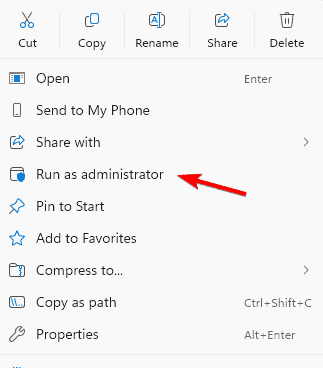
- Approve the UAC prompt.
4. Accept the Terms
The script displays a disclaimer.
- Type Y.
- Press Enter.
5. Choose the Reset Option
A full reset resolves most update problems.
- Type 2 to select the complete reset.

- Press Enter.
- Wait until the script finishes repairing components.
6. Restart Your PC
Restarting applies the reset.
- Close the script window.
- Restart your device.
- Go to Settings and check for new updates.
What the Reset Windows Update Tool Does
- Restores all Windows Update components to default settings
- Rebuilds update databases to fix corruption
- Clears the SoftwareDistribution and Catroot2 folders
- Resets key services that handle updates
- Repairs BITS jobs and update cache files
If you want a deeper breakdown of how update components work, review this guide on how to reset Windows Update manually.
When You Should Use It
- Updates fail repeatedly or stay stuck
- Your PC shows the same Windows Update error every time
- Windows Update freezes or refuses to start
- Download or installation progress never moves
- System files become corrupted due to incomplete updates
You can also check common causes of failures in this resource covering frequent Windows Update errors and their fixes.
FAQs
Yes, the tool resets update components without touching personal files.
No, only update cache folders are cleared.
Yes, it works on both Windows 10 and Windows 11.
Most resets finish in a few minutes.
Tips
- Free up disk space before checking for updates.
- Restart your device once before running the tool.
- Keep your system connected to stable internet.
Run the built in troubleshooter before using the tool if you prefer a simpler option. Learn how it works in this guide to the Windows Update Troubleshooter.
The Reset Windows Update Tool gives you a fast way to repair stuck or broken updates. Once you run the script and restart the system, Windows Update should begin working normally again.

Read our disclosure page to find out how can you help Windows Report sustain the editorial team. Read more



Improve this guide




User forum
0 messages