
How to Right Click on a Laptop in Windows: 3 Easy Methods


 3 min. read
  Published on
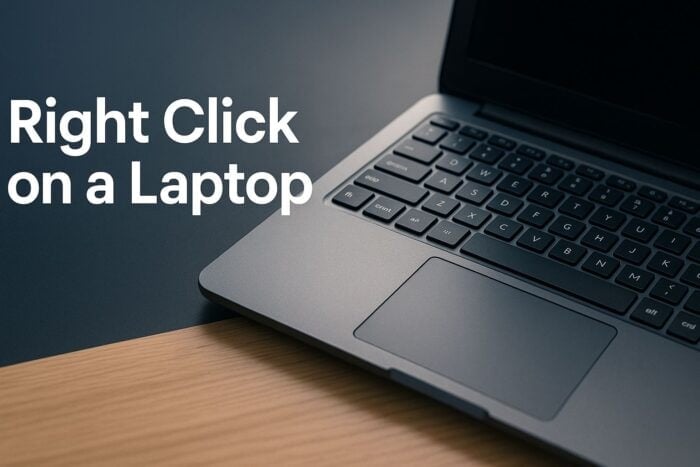
If you are using a Windows laptop without an external mouse, right clicking can seem confusing at first. You can still access context menus like copy, paste, and properties using built in touchpad gestures or simple keyboard shortcuts.
This quick guide explains all the ways to right click on a laptop and what to do if it does not work.
Table of contents
How to Right Click on a Windows Laptop?
1. Use Two Finger Tap
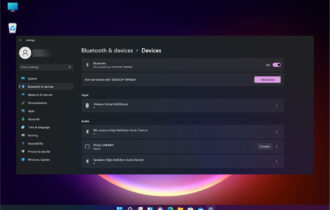
- Go to Start > Settings > Bluetooth & devices > Touchpad.

- Expand Taps.

- Check Tap with two fingers to right click.
- Tap the touchpad with two fingers to open the context menu.
To explore other ways to right click without a physical mouse, read the full guide on how to right click without a mouse in Windows.
2. Use the Touchpad Corner
- Open Settings > Bluetooth & devices > Touchpad.
- Expand Taps and enable Press the lower right corner of the touchpad to right click.

- Press that corner to trigger the context menu.
If you prefer the traditional menu, you can show all right click options in Windows 11 instead of the simplified one.
3. Use Keyboard Shortcut
- Find the Menu key near the right Ctrl key.

- Place the cursor over the desired item.
- Press Menu or Shift + F10 to open the menu.
Tip: If none of these methods work, your touchpad driver may need an update.
Why Your Right Click Might Not Work
- Reinstall or update touchpad drivers.
- Check Touchpad settings for disabled gestures.
- Make sure the touchpad is enabled in BIOS or Windows.
- Test using an external USB mouse.
For detailed fixes, visit the troubleshooting guide on how to fix right click not working in Windows 10.
FAQs
Use a two finger tap on the touchpad or press Shift + F10.
It is usually the bottom right corner of the touchpad or the Menu key on your keyboard.
You may need to enable it in Settings > Touchpad > Taps or reinstall your touchpad driver.
Yes. In Touchpad settings, you can change gestures or assign the corner tap function to right click.
Conclusion
Right clicking on a Windows laptop is simple once you know the gestures and shortcuts. Whether using the touchpad or keyboard, you can access context menus as easily as with a regular mouse.

Read our disclosure page to find out how can you help Windows Report sustain the editorial team. Read more



Improve this guide
User forum
0 messages