
How to Install Visual Studio Code on Windows Step by Step


 3 min. read
  Published on

You can install Visual Studio Code on Windows in a few quick steps. This guide shows you how to download it, install it, and set up the essentials.
Table of contents
How Do I Download And Install Visual Studio Code on Windows?
Download Visual Studio Code for Windows
You start by getting the official installer from the Visual Studio Code website.
- Open your preferred browser on Windows.
- Go to the Visual Studio Code download page.
- Select the Windows installer option.
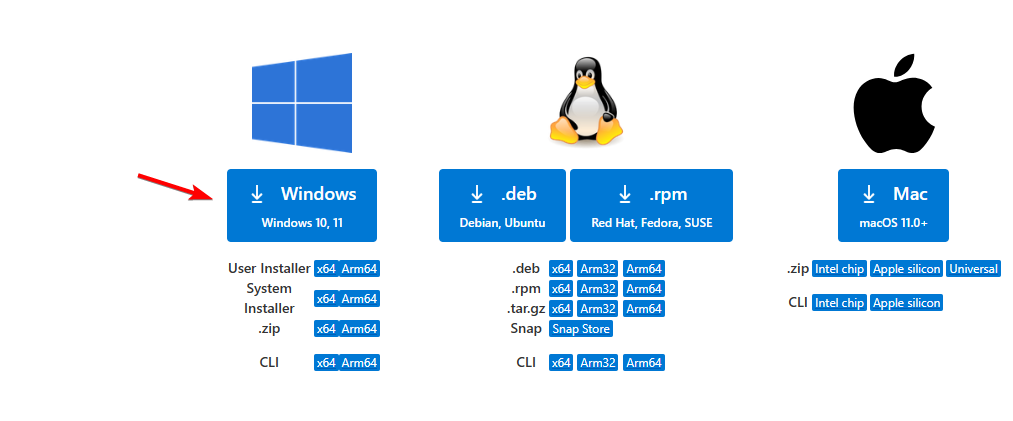
- Save the setup file to your computer.
You can also compare Visual Studio and Visual Studio Code if you want to see the differences by reading this guide on Visual Studio vs Visual Studio Code.
Install Visual Studio Code
You now run the installer and apply the basic setup.
- Open the downloaded Visual Studio Code setup file.
- Click I accept the agreement and choose Next.
- Select the installation location and click Next.
- Check options like Add to PATH or Create a desktop icon.
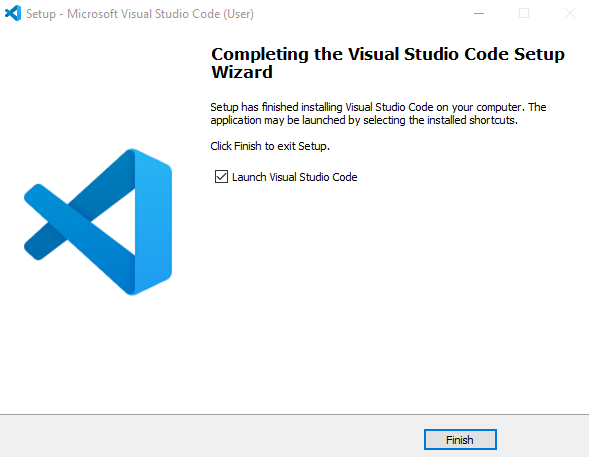
- Click Install and wait for the setup to complete.
- Click Finish to launch Visual Studio Code.
Set up essential extensions
You extend Visual Studio Code with tools that support your coding workflow.
- Open Visual Studio Code.
- Click the Extensions icon on the left sidebar.

- Search for your preferred language extension like Python or JavaScript.
- Click Install to add each extension.

You can explore recommended add ons in this guide on the best Visual Studio Code extensions.
Optional setup tips
You tailor the editor so it matches your workflow.
- Open File then Preferences to adjust themes and fonts.
- Enable Auto Save from the settings menu.
- Install Git and restart Visual Studio Code to use built in source control.
You can learn how to run code inside the editor with this guide on running code in Visual Studio Code.
FAQ
You update it from the Help menu by selecting Check for Updates.
It may request elevation when you install certain components like shell integration.
Yes, you can use the user installer, which keeps files inside your user profile.
It supports current Visual Studio Code releases on Windows 10 and later.
You now know how to install Visual Studio Code on Windows, add key extensions, and adjust basic settings. You can start writing and running code right away with an editor that fits your workflow.

Read our disclosure page to find out how can you help Windows Report sustain the editorial team. Read more



Improve this guide


User forum
0 messages