
Whoami Windows Command: What It Does and How to Use It


 3 min. read
  Updated on
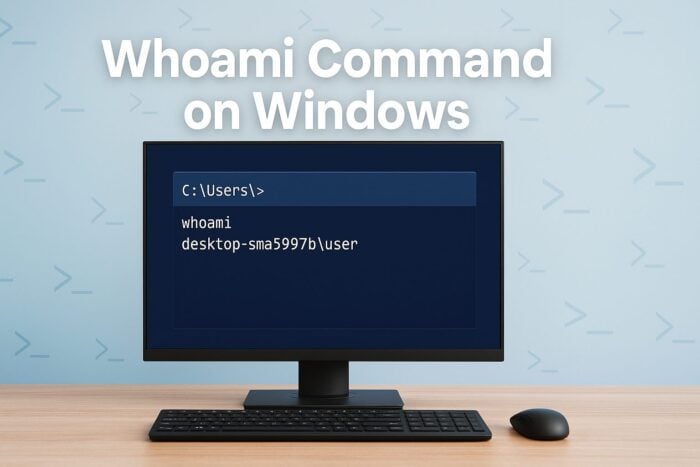
The whoami command in Windows helps you quickly see which user account is active. Use it to verify permissions, troubleshoot access problems, and confirm whether your session has administrative privileges.
Table of contents
What Is the Whoami Command in Windows?
The whoami command is a built-in Windows utility that prints the current user’s login context. It identifies which account is running your shell or process and is handy in multi-user or domain environments. For more useful networking diagnostics, see how to use the ipconfig /all command in Windows.
How to Use the Whoami Command in Windows
1. Open Command Prompt
- Press Windows + R to open Run.
- Type cmd and press Enter.

2. Run whoami
- In Command Prompt, type
whoami
- Press Enter.
After running the whoami command, you can also check your device name for reference by following our guide to find your computer name in Windows 11.
3. Read the output
- Note the format DOMAIN\Username or ComputerName\Username.
- Use this to verify you are in the expected account or domain.
While validating access and ownership, you may also need storage-level tasks. Here is a guide to manage hard drive partitions using DiskPart.
Advanced Whoami Options
These switches reveal deeper identity and permission details:
| Command | What it shows |
|---|---|
| whoami /all | Full identity details including groups, privileges, and SIDs |
| whoami /groups | All security groups the user belongs to |
| whoami /priv | Enabled or disabled privileges for the account |
| whoami /user | Username and SID only |
| whoami /fqdn | Fully qualified domain name of the current user |
If you manage backups or shadow copies alongside identity checks, review these Vssadmin commands.
Example: Check Your Admin Privileges
- Open Command Prompt as administrator.
- Run
whoami /priv
- Look for key privileges marked as Enabled to confirm elevated access.
Why Use Whoami in Windows?
- Identify the active user and context
- Troubleshoot access or “permission denied” errors
- Confirm if a session is elevated
- Audit group membership quickly
FAQs
It returns your current login context, showing the domain or computer name and the username.
Yes. You can run it the same way as in Command Prompt, and it will output the same information.
Yes. It is present in modern desktop and server editions including Windows 7, 10, and 11.
whoami includes the domain or computer name, which makes it more reliable in networked environments.
It is part of the system utilities installed with Windows and is available in the standard system paths.
Conclusion
The whoami command gives instant clarity about your active user context, helping you validate identity, elevation, and group access without digging through menus. Pair it with core maintenance and backup tools as needed to streamline troubleshooting and system management.

Read our disclosure page to find out how can you help Windows Report sustain the editorial team. Read more



Improve this guide




User forum
0 messages