
Quick Ways to Check Your Computer Name on Windows 11


 3 min. read
  Published on
If you need to locate your computer name in Windows 11 for troubleshooting, file sharing, or network setup, there are several quick ways to do it. Below, you’ll learn three reliable methods to find your PC name using Settings, Command Prompt, or System Properties.
Table of contents
How can I check my computer name on Windows 11?
1. Using Settings
This is the easiest way to find your computer name without entering any commands.
- Press Windows + I to open Settings, or click Start > Settings.
- Select System on the left sidebar.

- Scroll down and click About.

- Look for Device name, which shows your current computer name.

Once you locate it, you can also rename your device for clarity by following this guide on renaming your PC in Windows 11.
2. Using Command Prompt or Run
If you prefer using command line tools, this is the quickest way to get your computer name.
- Press Windows + R to open the Run dialog.
- Type cmd and press Enter to open Command Prompt.

- Type hostname and press Enter to see your computer name.
- You can also type ipconfig /all and look for Host Name under Windows IP Configuration.
You can learn more about similar commands in our tutorial on WHOAMI in Windows.
3. Using System Properties
This classic method lets you view detailed system information and your full computer name.
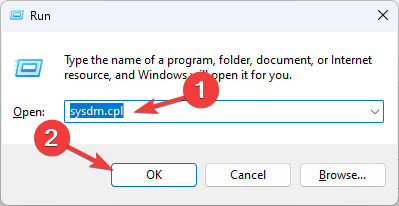
- Press Windows + R, type sysdm.cpl, and press Enter.
- In the System Properties window, select the Computer Name tab.
- You’ll see the Full computer name listed in this section.

If you want to personalize your PC further, you can also change your user folder name in Windows 11.
Why You Might Need the Computer Name
You may need your computer name when connecting to a network, setting up remote access, or contacting IT support. It helps identify your PC among other devices, makes file sharing easier, and can also be customized for better organization, such as naming your system “Office Laptop” or “Home PC.”
Knowing your computer name is just one part of identifying your system. You can also use Speccy on Windows 11 to see complete hardware details and monitor your PC’s performance more precisely.
Summary Table
| Method | Where to Go | Best For |
|---|---|---|
| Settings > About | Graphical quick access | Most users and home PCs |
| Command Prompt | Typing hostname or ipconfig | Tech-savvy users, remote/admin |
| System Properties | sysdm.cpl > Computer Name tab | Business networks, domains |
FAQs
Yes, in most cases the computer name shown in Settings is the same as the hostname used on a network.
Yes. Go to Settings > System > About, select Rename this PC, enter a new name, and restart your computer.
No. You can view the computer name in Settings or Command Prompt without admin permissions.
Yes. Open PowerShell and run the Get-ComputerInfo | Select CsName command to display your current computer name.
Conclusion
Finding your computer name in Windows 11 is quick and straightforward. Whether you use Settings, Command Prompt, or System Properties, any of these methods will help you identify your device easily. Once you know your PC name, you can personalize your setup by renaming your computer or adjusting your user folder name for better organization and easier management.

Read our disclosure page to find out how can you help Windows Report sustain the editorial team. Read more



Improve this guide




User forum
0 messages