
Fitbit App Not Working? Here's Why & How to Fix It


 3 min. read
  Published on
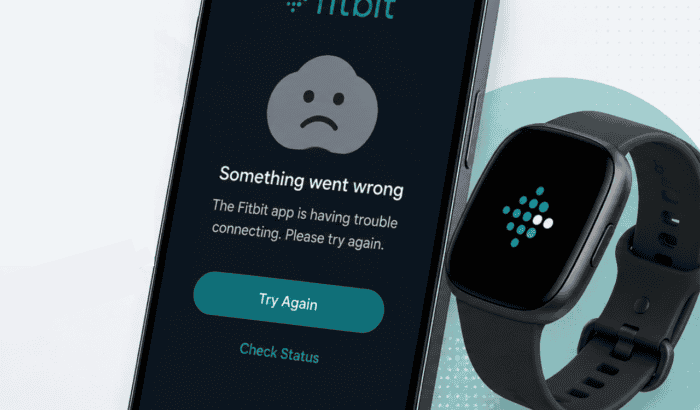
Wondering why Fitbit app is not working or not syncing? Well, if the Fitbit app won’t open, keeps crashing, refuses to sync, or gets stuck on a loading screen, you must understand that problems like these can happen after an app update, a phone software update, server outages, Bluetooth issues, or corrupted app data. Thankfully, most Fitbit app issues can be fixed in just a few minutes without resetting your fitness tracker.
How to Fix the Fitbit App Not Working
1. Restart your phone
A quick reboot can clear temporary software glitches that prevent the Fitbit app from opening or syncing.
- Restart your Android phone or iPhone.
- Open Fitbit again after the device finishes booting.
2. Check if Fitbit is experiencing an outage
If Fitbit’s servers are down, the app may fail to sync, log in, or load data.
- Check Fitbit’s official status channels.
- Look at outage tracking websites to see if other users are reporting similar issues.
- Wait until Fitbit restores service if there’s an active outage.
3. Update the Fitbit app
Running an outdated version can lead to crashes or syncing problems.
- Open Google Play Store or Apple App Store.
- Search for Fitbit.
- Install any available updates.
4. Check your internet connection
Fitbit requires a stable internet connection for syncing and account services.
- Switch between Wi-Fi and mobile data.
- Restart your router if using Wi-Fi.
- Disable VPN temporarily to rule out connection conflicts.
5. Restart Bluetooth
Bluetooth issues are one of the biggest causes of Fitbit syncing problems.
- Turn Bluetooth off for about 15 seconds.
- Turn it back on.
- Make sure your Fitbit device is nearby.
6. Force close the Fitbit app
Closing the app completely removes temporary background glitches.
- Open your phone’s recent apps screen.
- Swipe away Fitbit.
- Launch the app again.
7. Clear the Fitbit app cache (Android)
Corrupted cache files can prevent the app from working properly.
- Go to Settings > Apps > Fitbit > Storage.
- Tap Clear Cache.
- If necessary, choose Clear Data and sign in again.
8. Disable battery optimization
Some Android phones aggressively limit background apps.
- Open Settings > Apps > Fitbit > Battery.
- Select Unrestricted or Don’t optimize.
- Allow Fitbit to run in the background.
9. Reinstall the Fitbit app
If nothing else works, reinstalling usually fixes damaged app files.
- Uninstall Fitbit.
- Restart your phone.
- Download the latest version from the App Store or Google Play.
- Sign back into your Fitbit account.
Why is My Fitbit App Not Working?
There isn’t always a single cause behind Fitbit app issues. The problem could be related to your phone, the Fitbit app itself, or Fitbit’s online services.
Common reasons include:
- Fitbit servers are temporarily down.
- An outdated Fitbit app version.
- A recent Android or iPhone update causing compatibility issues.
- Bluetooth connection problems.
- Corrupted app cache or data.
- Battery optimization restricting the app.
- Network or internet connectivity issues.
- Temporary bugs introduced in a recent Fitbit update.
If the issue started suddenly and affects many users, it may be a temporary Fitbit service outage. Otherwise, the fixes below usually resolve the problem.
FAQs related to Fitbit app not working issue
It depends. If many users suddenly report syncing, login, or loading issues, Fitbit may be experiencing a temporary server outage. Check Fitbit’s official status page or outage tracking services before troubleshooting your device.
It depends. If many users suddenly report syncing, login, or loading issues, Fitbit may be experiencing a temporary server outage. Check Fitbit’s official status page or outage tracking services before troubleshooting your device.

Read our disclosure page to find out how can you help Windows Report sustain the editorial team. Read more



Improve this guide
User forum
0 messages