
How to increase the Windows 10 notification timeout


 2 min. read
 Published on


World-class 24/7 support with 82% for a 2 years plan and 2 months free
70% of our readers choose Private Internet Access
70% of our readers choose Private Internet Access

Amazing connection speed with 61% off and 4 months free for the 2-years plan.

Best security protocols with 83% off and 2 months free for a 2-year plan.
Windows 10 displays notification banners for 5 seconds before moving them into Action Center. This might feel too quick and hurried, especially when you receive a text-heavy alert. It’s possible to change how long notifications stay on screen, giving you more time to read them before they vanish into Action Center.
As is often with the case with Windows 10, the setting for this isn’t necessarily where you’d expect it to be. There’s no reference to the option within the main “System > Notifications” settings screen. Instead, you’ll need to open the Settings app to the “Ease of Access” category – click its tile on the Settings homescreen.
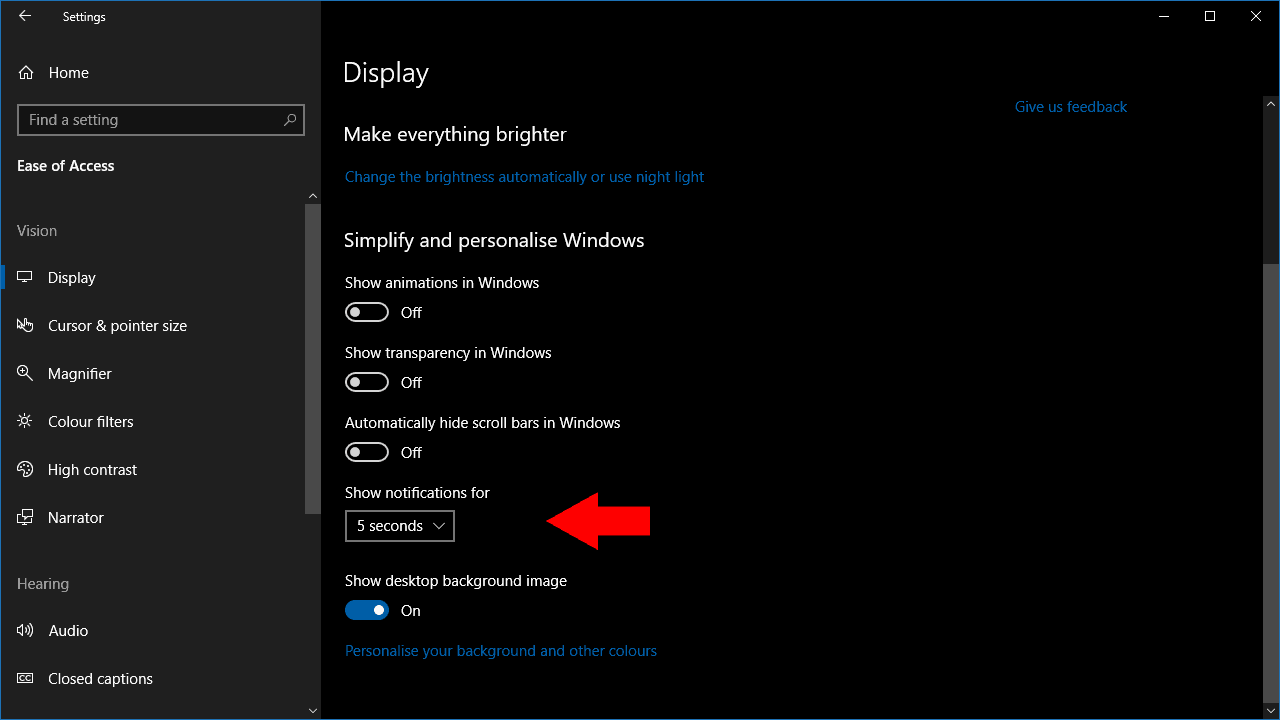
You’ll now find the relevant control under the “Simplify and personalise Windows” heading. The “Show notifications for” dropdown gives you a variety of timeout options, ranging from the default of 5 seconds right up to 5 minutes.
There’s no way to enter your own value, so you’ll have to pick one of the six predefined delays. We suspect you’re unlikely to want notification toasts onscreen for longer than 30 seconds, but Microsoft makes it possible to use a very long timeout if you do require the option.
The change will take effect immediately after you select a new value in the dropdown. Subsequent notifications will stay onscreen for the selected duration, before getting moved into Action Center for you to review later on.

Read our disclosure page to find out how can you help Windows Report sustain the editorial team. Read more


Improve this guide



User forum
0 messages