
How to shutdown Windows 10 during first-run setup


 2 min. read
 Published on


World-class 24/7 support with 82% for a 2 years plan and 2 months free
70% of our readers choose Private Internet Access
70% of our readers choose Private Internet Access

Amazing connection speed with 61% off and 4 months free for the 2-years plan.

Best security protocols with 83% off and 2 months free for a 2-year plan.
Windows 10’s setup experience doesn’t provide any obvious way to shutdown your computer. Once you’ve booted your PC, you have to work your way through setup until you reach the desktop, at which point you can safely shutdown.
This raises an issue when you’re resetting a device ready for sale. It’s best practice to reset Windows so the new owner sees the first-run setup screens. After resetting, Windows automatically reboots into setup, so you need to shutdown the PC without using the desktop. (Of course, you could hold in the power button, but this isn’t generally advisable.)
Although it’s not advertised anywhere in the UI, there is an age-old escape mechanism within Windows setup. Pressing the Shift+F10 keyboard combination launches a Command Prompt window.
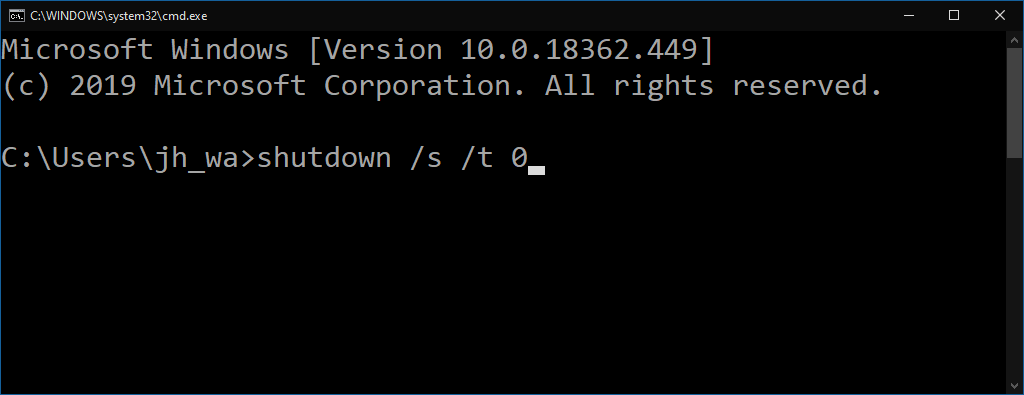
From here, you can run any command as the administrator-level “defaultuser0” user. This user account is created to host the Windows setup experience; it’s automatically removed once you complete setup and reach your own desktop.
With access to the command prompt, it’s simple to shutdown your PC: type shutdown /s /t 0 to immediately shutdown. The /s tells Windows to shutdown (instead of rebooting or suspending); /t 0 means shutdown after 0 seconds (i.e. immediately).
You should use this procedure after Windows 10’s installation has completed. As soon as you get to the first setup screen (asking you to select your language and region), use the sequence of commands to shutdown your device. Do not actually supply any information to the setup screens – you should leave the new owner to run through setup, so that they’re able to configure the device to suit their needs.
Next time you start the device, it will boot straight back into setup. You’re now ready to hand the device to its new owner.

Read our disclosure page to find out how can you help Windows Report sustain the editorial team. Read more


Improve this guide



User forum
0 messages