
Fortnite Sound Not Working on Xbox: Quick Fixes


 3 min. read
  Published on
Is your Fortnite sound not working on Xbox? This guide shows you quick steps to fix the issue and get your game audio back.
Table of contents
What can I do if Fortnite sound is not working on Xbox?
1. Check Xbox audio settings
Start by making sure your Xbox is sending sound correctly.
- Press the Xbox button to open the guide.
- Go to Profile & system > Settings > General > Volume & audio output.
- Set Speaker audio to Stereo uncompressed.
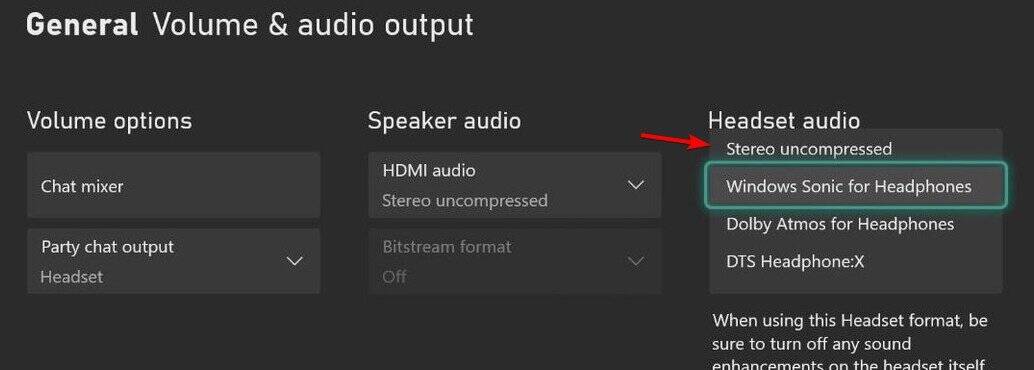
- Make sure HDMI or headset audio is not muted or disabled.
If the problem continues, you may also want to look at this detailed guide on Fortnite not working on Xbox One.
2. Test headset and controller
Check if the problem comes from your accessories.
- Disconnect your headset and reconnect it firmly to the controller.
- Try another controller to rule out port issues.
- Test the headset on a different device to confirm it works.
3. Adjust Fortnite audio options
Verify the in-game audio settings are properly configured.
- Launch Fortnite and press Menu on your controller.
- Go to Settings > Audio.
- Increase Master Volume, Music, and Sound Effects above 50%.
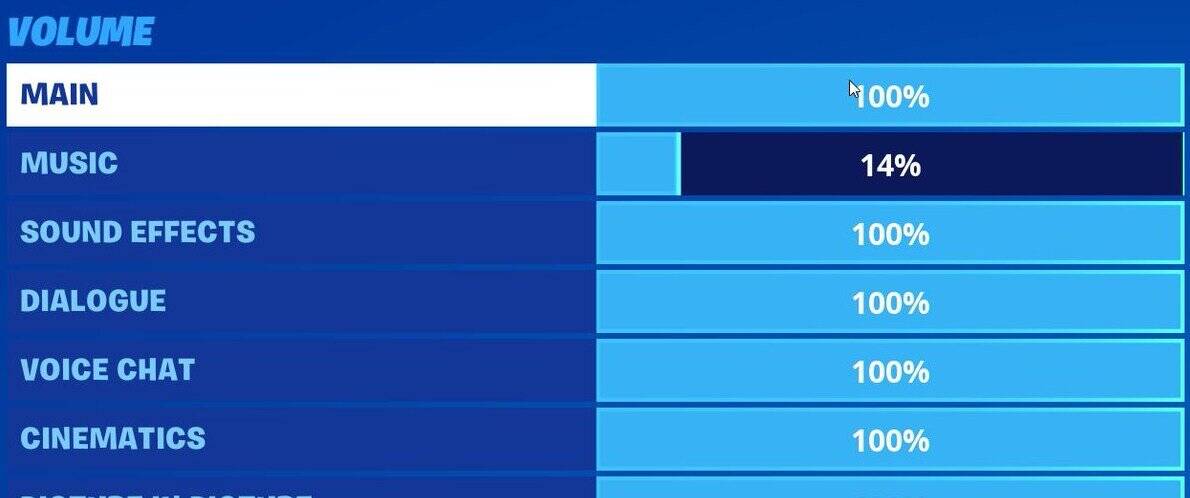
- Disable Subtitles temporarily to see if sound returns.
Fortnite has had several audio glitches in the past, so it is worth checking this guide on fixing Fortnite game audio issues.
4. Restart console and game
A clean restart often clears temporary glitches.
- Press and hold the Xbox power button for 10 seconds.
- Unplug the power cable for 1 minute.
- Reconnect, power on the console, and relaunch Fortnite.
5. Update Xbox and Fortnite
Make sure both the console and game are fully updated.
- Press Xbox button > My games & apps > Manage > Updates.
- Install any pending Fortnite or Xbox system updates.
- Restart the console after updates finish.
6. Clear persistent storage
Remove stored data that could interfere with sound.
- Press Xbox button > Settings > Devices & connections > Blu-ray.
- Select Persistent storage > Clear.
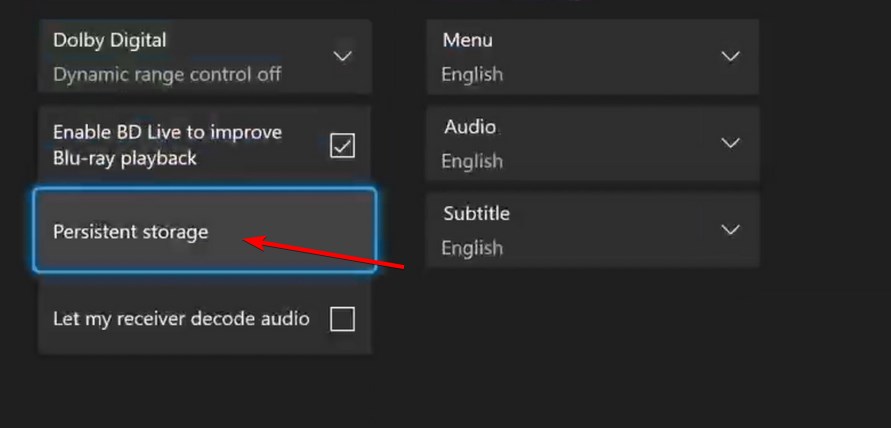
- Restart console and check if audio is restored.
7. Reinstall Fortnite
If nothing works, reinstall the game to reset files.
- From Home, highlight Fortnite and press Menu.
- Select Uninstall.
- Reinstall the game from the Microsoft Store.
FAQs
It usually happens due to incorrect audio output settings, outdated updates, or headset issues.
Yes, reinstalling clears corrupted files and often restores normal audio.
Yes, if the controller headset port is muted or faulty, sound may not play.
Conclusion
If Fortnite sound is not working on Xbox, start with audio settings, test your headset, and apply the fixes above. In most cases, restarting or updating restores sound quickly. If nothing works, reinstall Fortnite to reset all game audio files. And if you encounter other problems while playing, take a look at this guide on fixing Fortnite error code 86.

Read our disclosure page to find out how can you help Windows Report sustain the editorial team. Read more



Improve this guide

User forum
0 messages