
How To Fix No Sound on Windows 10 (Realtek and System-Wide Audio Issues)


 4 min. read
  Updated on

Sound problems on Windows 10 usually come from incorrect audio output settings, driver failures, or Realtek-specific issues after updates. This guide walks you through the most reliable fixes in order.
Table of contents
- 1. Check your physical connections
- 2. Check if Windows selected the wrong audio output
- 3. Verify the Volume Mixer
- 4. Make sure your playback device is enabled
- 5. Restart Windows audio services
- 6. Update, roll back, or reinstall Realtek drivers
- 7. Disable audio enhancements
- 8. Fix front-panel jack detection issues
- 9. Reset audio settings
- 10. Use the Windows audio troubleshooter
- 11. Repair sound after a Windows update
- 12. Reset audio components with Command Prompt
- 13. Reinstall chipset drivers
- FAQs
1. Check your physical connections
Loose or damaged cables cause immediate audio loss.
- Reconnect your speaker, headphone, or HDMI cable.
- Test a different port.
- Try another audio device.
- Re-seat USB audio devices.
2. Check if Windows selected the wrong audio output
Windows often switches output devices after updates, HDMI connections, or Bluetooth pairing. If you recently connected a wireless device and lost sound, you may run into similar symptoms to those in the guide on the Bluetooth no sound issue.
- Click the speaker icon.
- Select the arrow next to the device name.
- Pick Speakers (Realtek High Definition Audio) or your intended output.

3. Verify the Volume Mixer
Apps can mute individually. Here is how to get rid of this problem:
- Right-click the speaker icon.
- Select Open Volume Mixer.

- Increase volume for System Sounds and the affected app.
4. Make sure your playback device is enabled
Windows sometimes disables Realtek outputs.
- Press Win + R, type mmsys.cpl, press Enter.
- Open Playback.
- Right-click Speakers (Realtek High Definition Audio) → Enable.
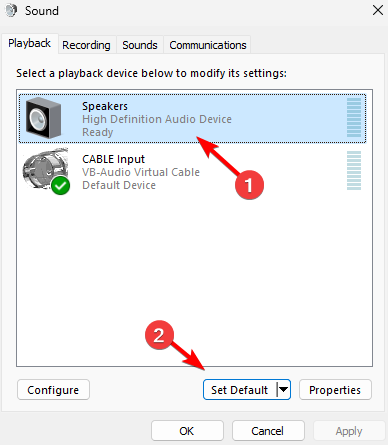
- Right-click again → Set Default.
5. Restart Windows audio services
If these services stop, your PC loses audio entirely.
- Press Win + R, type services.msc, press Enter.
- Restart:
- Windows Audio
- Windows Audio Endpoint Builder
- Realtek Audio Service (if present)
6. Update, roll back, or reinstall Realtek drivers
Most Windows 10 no-sound problems come from Realtek driver corruption, especially after updates. Similar issues are detailed in the guide on how to fix no sound in Windows 11 .
- Open Device Manager using Win + X.
- Expand Sound, video and game controllers.
- Right-click Realtek High Definition Audio.
- Try these steps in order:
- Update driver
- Roll back driver (if the problem started after an update)
- Uninstall device → restart PC

Install OEM drivers when needed
If Realtek disappears or Windows installs a generic driver, download the audio package from your device manufacturer (Dell, HP, Lenovo, ASUS, MSI).
7. Disable audio enhancements
Enhancements sometimes block audio processing.
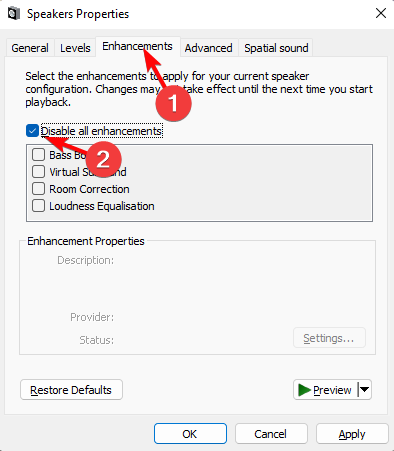
- Run mmsys.cpl.
- Right-click your Realtek device → Properties.
- Open Enhancements.
- Select Disable all enhancements.
8. Fix front-panel jack detection issues
Realtek often misreads plugged-in headphones.
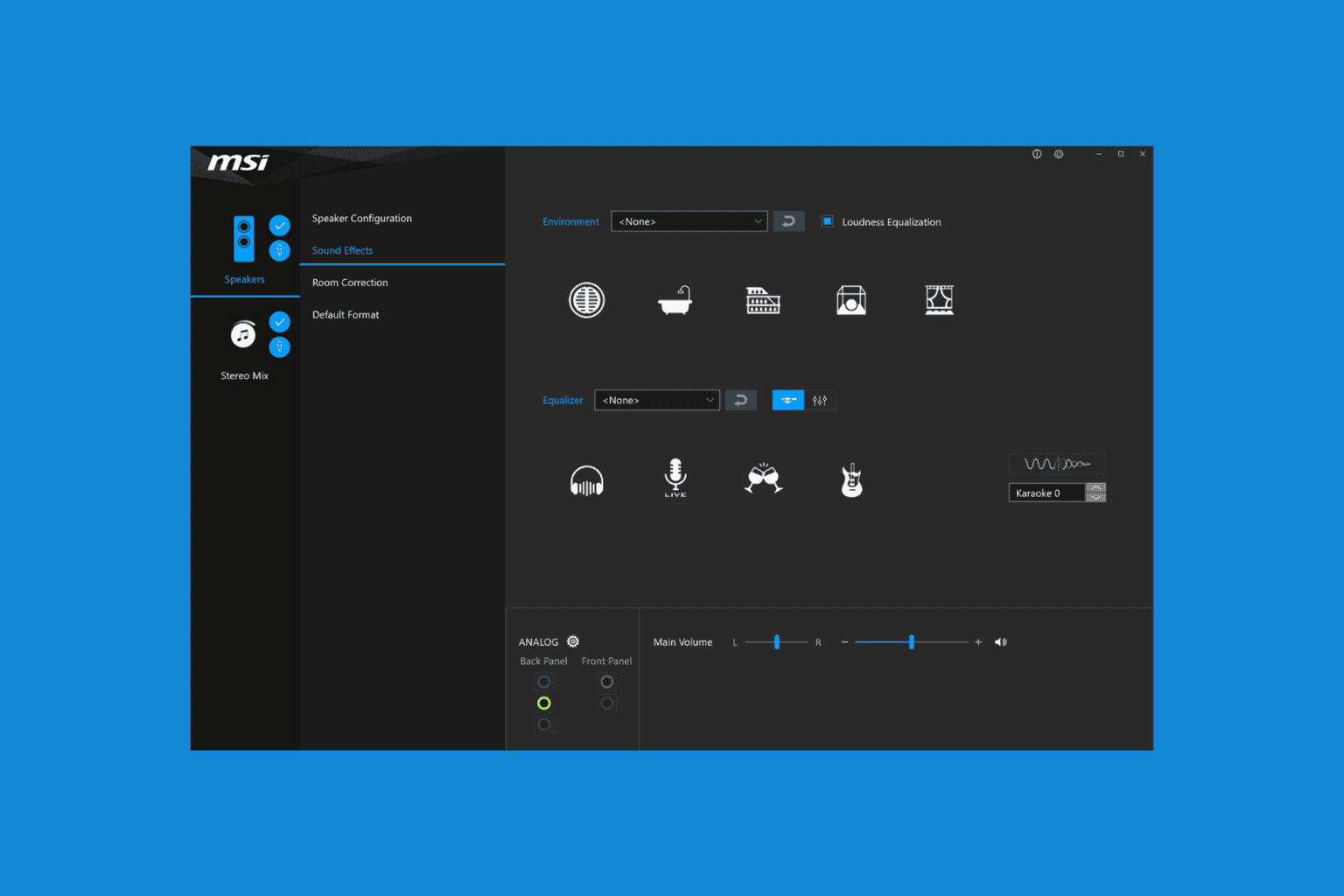
- Open Realtek Audio Console.
- Disable Jack detection or enable independent front-panel output.
- Restart your PC.
9. Reset audio settings
Resets clear routing and app-specific issues.
- Open Settings > System > Sound.
- Open Advanced sound options.

- Select Reset.
- Restart.
10. Use the Windows audio troubleshooter
It detects broken services, driver failures, and sample rate conflicts.
- Open Settings.
- Go to Update & Security > Troubleshoot.
- Select Playing Audio → Run the troubleshooter.

11. Repair sound after a Windows update
Updates often break Realtek functionality.
- Open Settings.
- Go to Update & Security.
- Select View update history.
- Click Uninstall updates and remove the problematic update.
12. Reset audio components with Command Prompt
This refreshes core audio services.
- Run Command Prompt as administrator.
- Enter the following:
net stop audiosrv
net stop AudioEndpointBuilder
net start AudioEndpointBuilder
net start audiosrv
13. Reinstall chipset drivers
Bad chipset drivers block Realtek detection.
- Visit your PC manufacturer’s support page.
- Download the latest chipset driver package.
- Restart your system.
FAQs
Driver corruption or replacement by a generic Windows driver.
Because HDMI, USB, and Bluetooth outputs take priority when connected.
It may be muted in Volume Mixer or bound to the wrong output in App volume and device preferences.
Realtek jack detection misread the connection. Disable it in Realtek Audio Console.


Read our disclosure page to find out how can you help Windows Report sustain the editorial team. Read more



Improve this guide



User forum
0 messages