
Google Is Bringing Search and AI to the Windows 11 Desktop, With Chrome Joining In
Search in Chrome now gets its own Google-branded presence alongside the company’s desktop app and Gemini in Chrome.


 3 min. read
  Published on
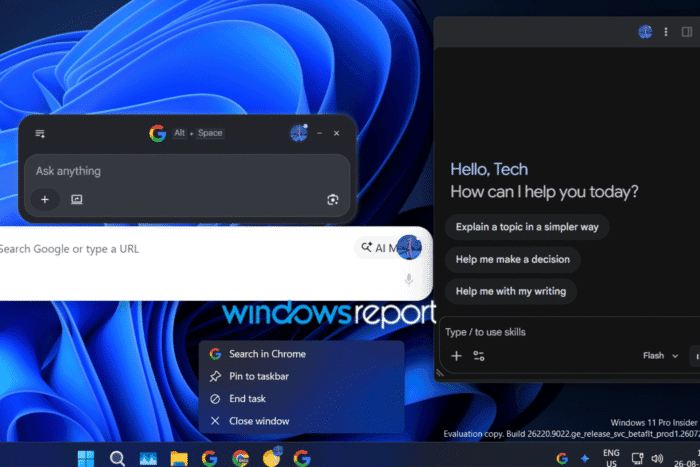
Google is bringing more Search and AI experiences to the Windows 11 desktop. The latest Chrome Canary build gives “Search in Chrome” its own Google-branded presence on the taskbar, adding another way to open the floating search interface we recently reported on.
Search in Chrome isn’t appearing in isolation, which is what makes this interesting. Windows users can now find multiple Google-branded desktop entry points for Search and AI, including the standalone Google app and Gemini in Chrome.
Chrome’s “Search in Chrome” experience expands on Google’s earlier Omnibox Everywhere work, with settings under Settings > Search engine for a keyboard shortcut and system-tray access.
In the latest Canary build, it appears as a separate Google “G” icon on the taskbar. Right-clicking identifies it as “Search in Chrome” and provides Windows options such as Pin to taskbar, End task, and Close window, making it feel more like a desktop search experience than a simple Chrome shortcut.
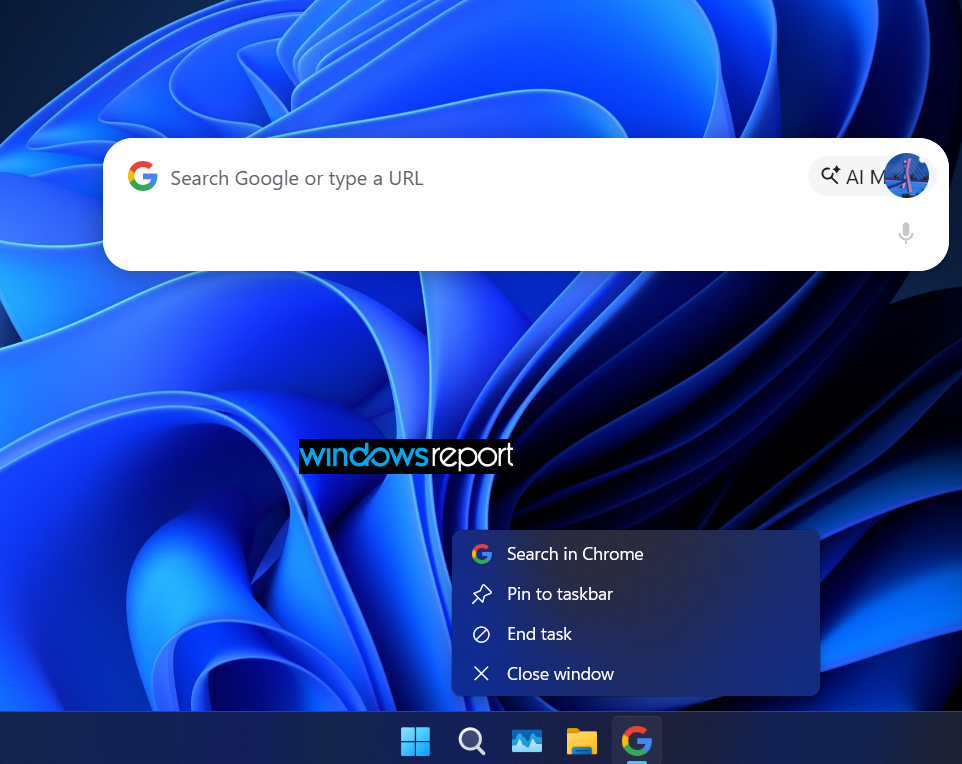
The floating interface itself hasn’t changed from what we reported earlier. It has a Google search field and an AI Mode option, while the shortcut is Alt + Space. Taskbar thumbnails also help distinguish the different Google experiences when multiple windows are open.
The overlap becomes more interesting with Google’s standalone desktop app, which launched globally on Windows in April 2026. It uses Alt + Space to open a search box that can search the web, files, apps, and Google Drive.
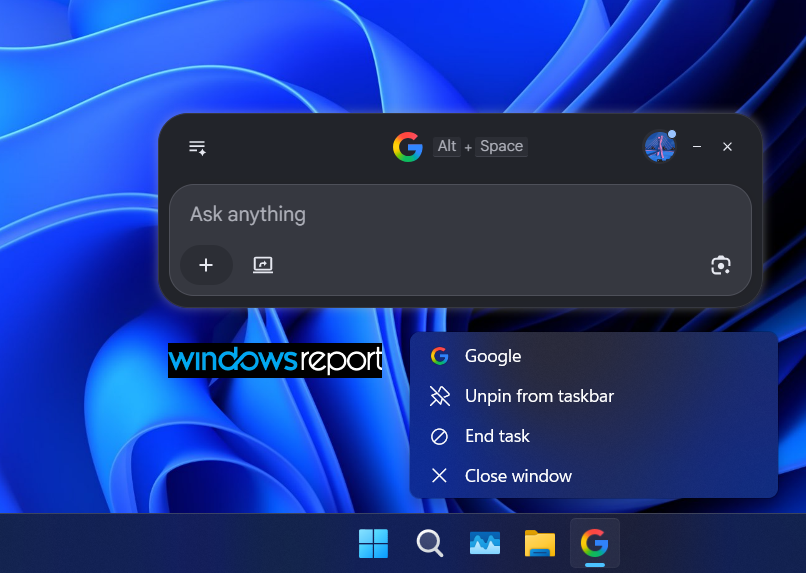
That gives Google two Windows desktop experiences that can both open Google Search with Alt + Space. Both use Google branding, which can make them hard to tell apart. Multiple “G” icons on the taskbar could still confuse users, even with taskbar thumbnails showing which experience is open.
Gemini in Chrome is already on the desktop
Google has also given Gemini in Chrome its own presence in the Windows system tray. Chrome’s documentation says it can be accessed with a keyboard shortcut, with an option to enable or disable the tray icon.
Gemini in Chrome also gives users quick access to Gemini and its settings without having to find the Gemini button inside Chrome. Its keyboard shortcut can also be customized.
So Google now has three desktop entry points:
- Google app for desktop → Google Search + AI Mode
- Search in Chrome → Google Search + AI Mode
- Gemini in Chrome → Gemini with Chrome context
All three put Google’s Search or AI tools closer to the Windows desktop rather than keeping them inside a browser tab.
That could make these tools easier to access without switching to Chrome, but it could also make Google’s desktop offerings harder to distinguish when several Google-branded icons appear together on the taskbar.
Search in Chrome is still experimental in Chrome Canary, so this could change before Google rolls it out more widely. For now, though, the standalone Google app, Search in Chrome, and Gemini in Chrome show Google bringing more of its Search and AI tools directly to the Windows desktop.


Read our disclosure page to find out how can you help Windows Report sustain the editorial team. Read more



Improve this guide



User forum
0 messages