
How to Hide or Show Name and Profile Picture in Windows 11 Start Menu


 3 min. read
  Published on
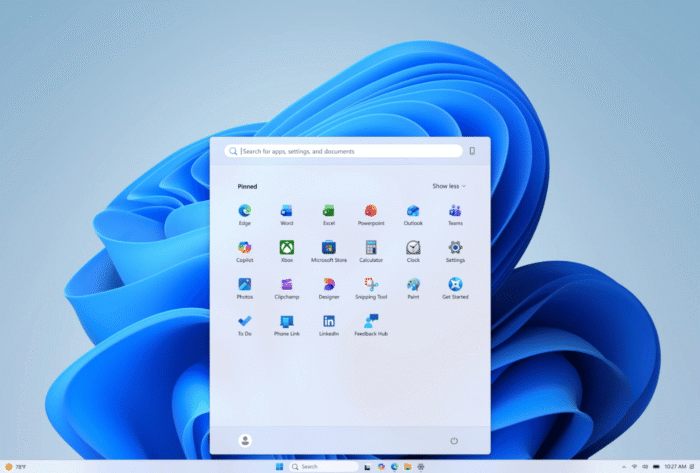
You can now hide or show your profile picture in the Windows 11 Start menu using a built-in setting. The option also controls whether your account name appears alongside your profile picture. In case you are trying to hide or show the name and profile picture, this guide will walk you through every possible step to do the same.
How to Hide Your Name & Profile Picture in the Windows 11 Start Menu
- Head to Settings in Windows 11 by pressing Windows + I on your keyboard.
- Click Personalization from the sidebar on the left.
- Select Start from the Personalization options.
- Look for the Hide your name and profile picture on Start option.
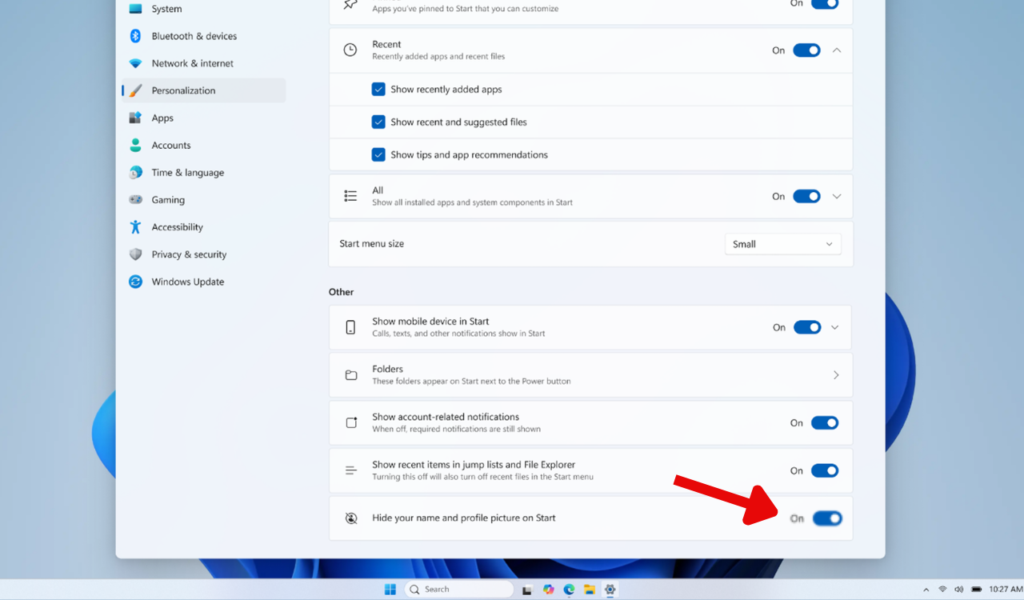
- Turn on the toggle next to Hide your name and profile picture on Start.
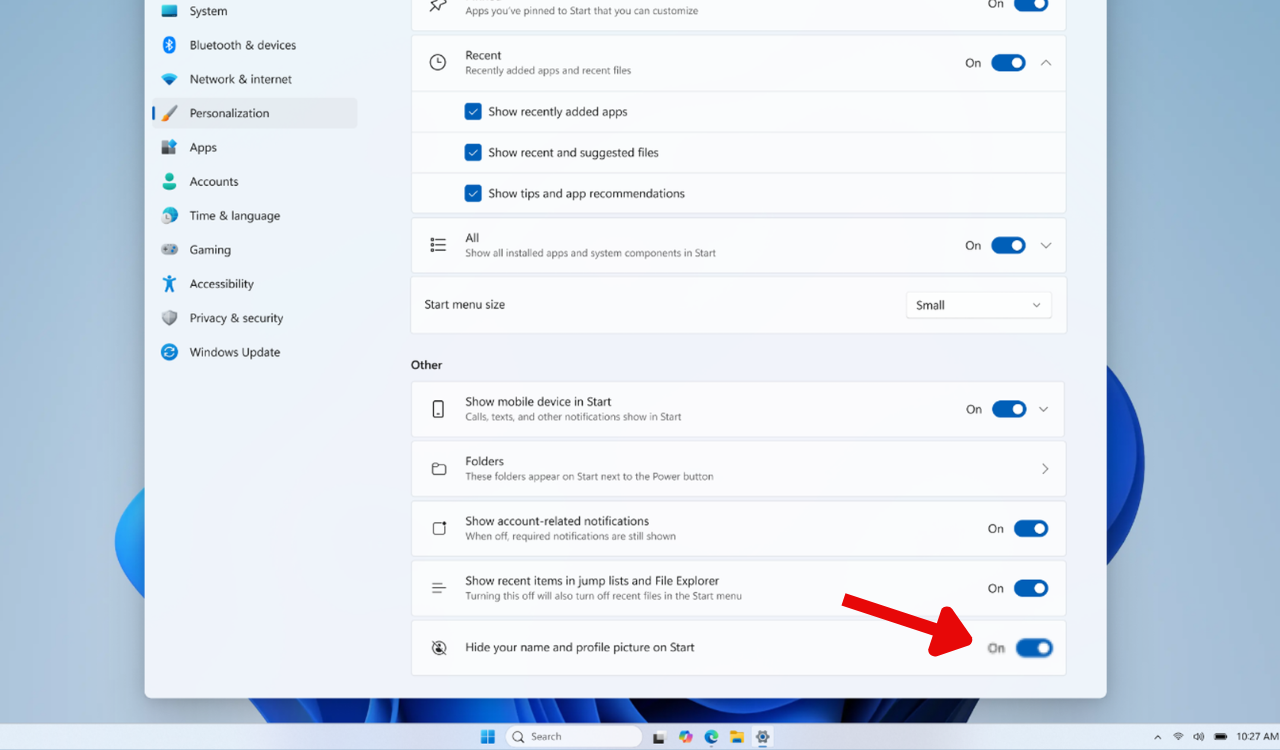
Windows should apply the change without requiring you to restart your PC. Now, all you have to do is open the Start menu by pressing the Windows key or clicking the Start button on the taskbar. Your name and profile picture should now be hidden from the Start menu.
If the information is still visible, close the Start menu and open it again. You can also restart Windows if the change does not appear immediately.
Note: Hiding the information from Start does not remove your profile picture from your Microsoft account. It only changes how your account information is displayed in the Start menu.
How to Show Your Name & Profile Picture Again
If you change your mind later, you can easily show your profile picture and name again. You do not need to restore your account picture or change any Microsoft account settings. Here’s what to do.
- Open Settings in Windows 11 by pressing Windows + I on your keyboard.
- Click Personalization from the left-hand sidebar to open the customization settings.
- Select Start to access the available Start menu options.
- Find the Hide your name and profile picture on Start setting.
- Turn off the toggle next to the setting.
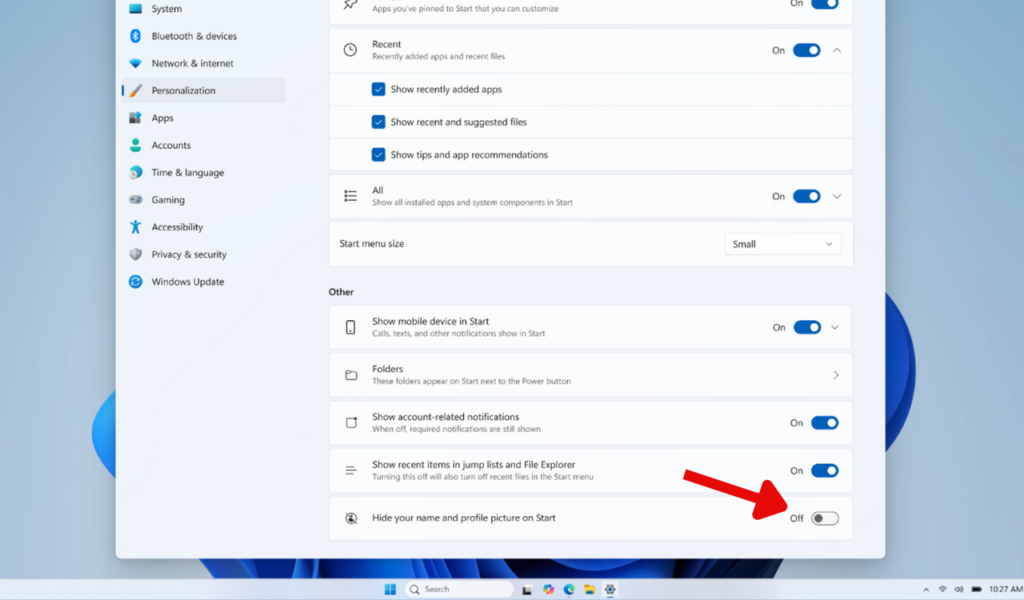
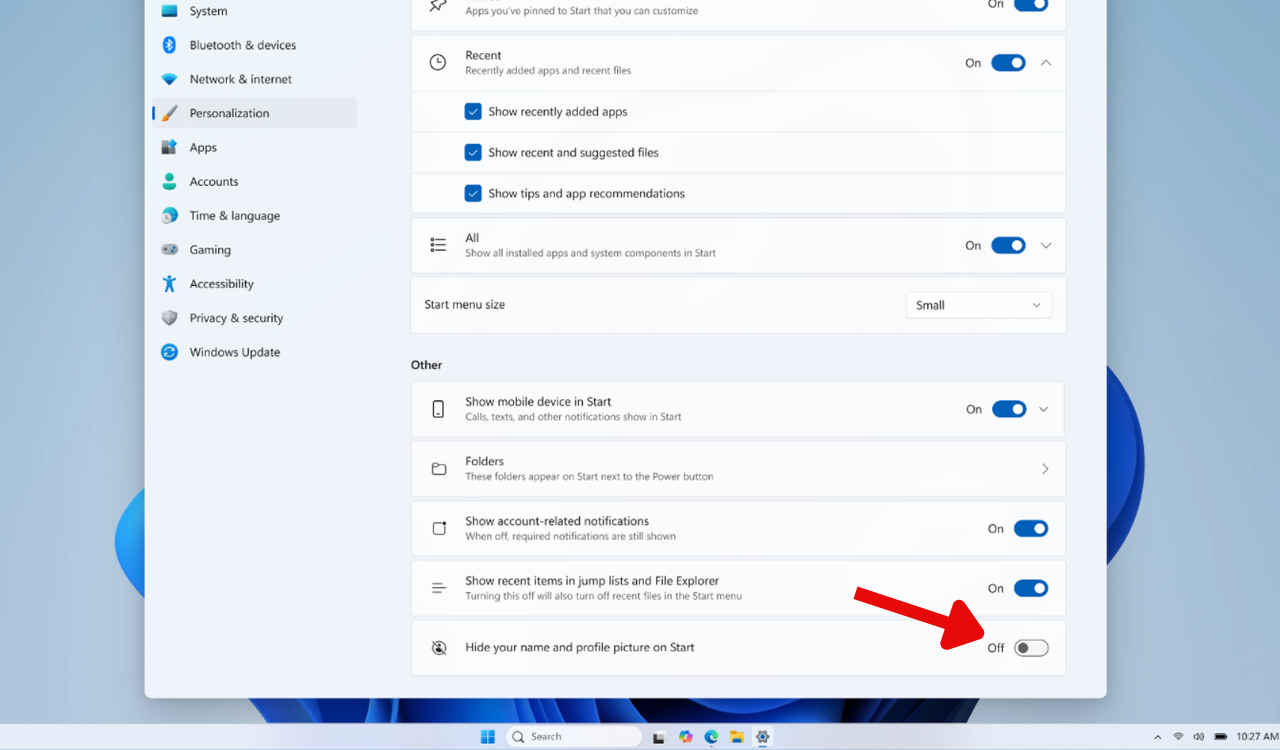
That’s all it needs to display your name and profile picture back again in the Windows 11 Start Menu.
What If the “Hide your name and profile picture on Start” Setting Is Missing?
If you cannot find the Hide your name and profile picture on Start option, check whether Windows 11 has any pending updates. Microsoft has introduced the feature with August’s KB5120998 update. So, don’t forget to update your Windows 11 PC.
Related FAQs
1. Does hiding my profile picture delete it?
No. Windows only hides your name and profile picture from the Start menu. Your account information remains unchanged.
2. Can I show the profile picture again?
Yes. Go to Settings > Personalization > Start and turn off the Hide your name and profile picture on Start option.
3. Can I hide only the profile picture?
The setting hides your name and profile picture together. Windows does not provide a separate Start menu toggle for hiding only the picture.
4. Do I need to restart my PC?
No. The setting should normally take effect immediately. If the Start menu does not update, close and reopen it.

Read our disclosure page to find out how can you help Windows Report sustain the editorial team. Read more



Improve this guide


User forum
0 messages