
Best Buy App Not Working? 8 Easy Fixes for Loading, Login & Cart Issues


 6 min. read
  Published on
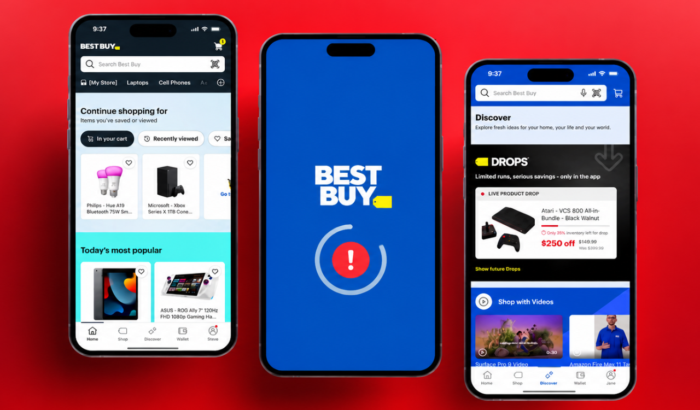
The Best Buy app can sometimes won’t open at all, while other times the app opens normally but products won’t load, search gets stuck, the cart refuses to update, or you can’t sign in. Yes, it’s quite frustrating, but mostly these issues aren’t related to your device. A weak internet connection, an outdated app, corrupted cached data, or a temporary service outage can cause the Best Buy app not to work normally. But worry not, in this guide, we have listed all the tried and tested fixes for you.
Here’s how to fix Best Buy app not working or loading properly
1. Check whether Best Buy itself is having problems
Before changing anything on your phone, check whether BestBuy.com works in your browser. This is a useful test because if the website also refuses to load, the problem may be on Best Buy’s side rather than with the app.
- Open Safari or Chrome on your preferred phone.
- Go to BestBuy.com.

- Try searching for the same product or opening your account.
- If the website also fails, wait a little and try again.
- If the website works but the app doesn’t, continue with the fixes below.
Best Buy also provides a support center and contact options if the problem continues.
2. Check your internet connection
A Best Buy page that keeps loading doesn’t always mean the app is broken. If other apps and websites are also taking forever to load, test your connection before doing anything more complicated.
- Open another website in your browser.
- Switch from Wi-Fi to mobile data.

- If you’re using mobile data, try Wi-Fi instead.
- Restart your router if the connection is failing on multiple devices.
- Open Best Buy again and test search and product pages.
3. Force close the Best Buy app and open it again
If the app freezes on the loading screen or gets stuck when you try to search, completely closing it can clear a temporary app process that has stopped responding.
- Open the recent apps screen on your phone.
- Find Best Buy.
- Swipe it away to close it.
- Wait a few seconds.
- Open Best Buy again.
4. Update the Best Buy app
An outdated version can cause problems after Best Buy changes something on its backend. This is especially worth checking if the app suddenly stopped working after previously working normally.
- Open the App Store on iPhone or Google Play on Android.
- Search for Best Buy.
- If you see an Update button, install the latest version.
- Restart the app after the update.
- Test the feature that wasn’t working.
5. Clear the Best Buy cache on Android
If you’re using Android and Best Buy keeps freezing, showing old information, or crashing when you open a product, clearing its cache is worth trying.
- Open Settings.
- Tap Apps or Apps & notifications.
- Find and select Best Buy.
- Tap Storage & cache.
- Tap Clear cache.
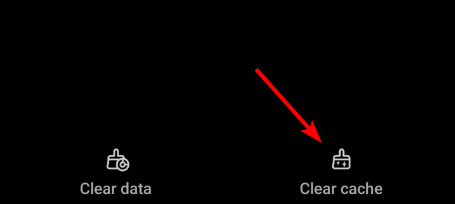
- Open Best Buy again.
Google often recommends clearing an app’s cache and data when an Android app crashes, won’t open, or stops responding. Don’t jump straight to Clear storage unless necessary. That can remove locally saved app data and may require you to sign in again.
6. Restart your phone
This sounds basic, but it’s worth doing if the Best Buy app suddenly stopped working after your phone had been running for a long time.
- Restart your iPhone or Android phone.
- Wait for it to boot completely.
- Open Best Buy before opening a bunch of other apps.
- Try signing in, searching for a product, and opening your cart.
7. Temporarily disable VPN if enabled
If Best Buy works on one connection but not another, check whether a VPN or security app is interfering with the connection.
- Disconnect from your VPN.
- Close Best Buy completely.
- Open the app again.
- Try searching for a product or accessing your account.
- If the app works normally, test your VPN settings before turning it back on.
8. Reinstall the Best Buy app
If the app is still crashing, freezing, or refusing to load after an update, reinstalling it gives you a clean installation.
- Delete the Best Buy app from your phone.
- Restart the phone.
- Open the App Store or Google Play.
- Search for Best Buy (Android) (iOS/iPadOS)
- Install it again.
- Sign in and test the app.
Why the Best Buy app might not be working for you right now
There isn’t one single reason why the Best Buy app stops working. Based on the troubleshooting guidance from Apple and Google, the usual causes include:
- A temporary connection problem
- Best Buy service problems
- An outdated app
- Corrupted cached data on Android
- A temporary app process that has frozen
- VPN or security software interference
- Problems with the phone’s operating system
- A broken app installation
- Account or sign-in problems
If Best Buy works in your browser but not in the app, focus on the app-specific fixes first. If BestBuy.com is also failing, there’s less reason to start deleting app data or reinstalling anything. If none of those work, Best Buy provides live chat and phone support through its official contact page. You can try that as last resort.
Summing Up
The Best Buy app not working can be annoying, especially when you’re trying to check an order, find a product, or complete a purchase. Start by checking BestBuy.com and your internet connection, then move through the app restart, update, cache, and reinstall fixes. In case you are looking for step-by-step sign in guidance, our Best Buy login guide is there to help you out. If you use Windows PC as your daily driver, you can check our Best Buy app review here.
FAQs related to Best Buy app issues
1. Why is the Best Buy app not opening?
The app may be frozen, outdated, or affected by corrupted data. Restart your phone, update Best Buy, and reinstall the app if it still won’t open.
2. Why is the Best Buy app stuck loading?
Check your internet connection first. If other websites work normally, force close Best Buy, reopen it, and try updating the app.
3. Why can’t I sign in to the Best Buy app?
A temporary connection issue, outdated app, or account-related problem can prevent sign-in. Try BestBuy.com in your browser to see whether you can access your account there.
4. How do I clear the Best Buy app cache?
On Android, go to Settings > Apps > Best Buy > Storage & cache > Clear cache. The exact menu names can vary between Android phones.
5. Why is my Best Buy cart not working?
Try closing and reopening the app, switching networks, and updating Best Buy. If the cart still won’t load, use BestBuy.com to check whether the issue is limited to the mobile app.
6. What should I do if the Best Buy app still doesn’t work?
Reinstall the app and test BestBuy.com. If both continue to fail, contact Best Buy through its support page for account, order, or service assistance.

Read our disclosure page to find out how can you help Windows Report sustain the editorial team. Read more



Improve this guide


User forum
0 messages