
Microsoft Account Passkey Not Working? Try These Quick Fixes


 4 min. read
  Published on
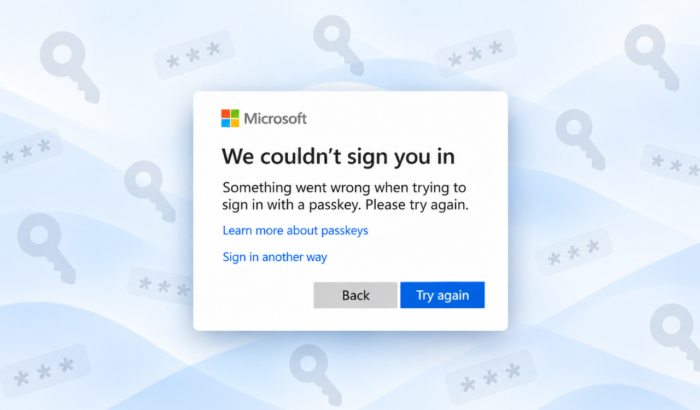
If your Microsoft account passkey is not working, several fixes can help restore access. First and foremost, you need to try another browser. If that doesn’t help, use another sign-in method, reset Windows Hello, and use Microsoft’s recovery tools. Microsoft also lists Bluetooth, outdated software, deleted passkeys, and disabled screen locks among common causes of Microsoft Account passkey issues.
How can I fix Microsoft Account Passkey if it’s not working?
Quick Fixes to Try When Your Microsoft Account Passkey Isn’t Working
- Open your Microsoft account sign-in page in a private or incognito browser window.
- Try signing in with another browser if the passkey still does not work. That’s because Microsoft supports passkeys in current browsers, but older browser versions may not support all passkey features properly.
- Try another sign-in method if you have one available. Microsoft may offer options such as another passkey, Microsoft Authenticator, a verified email address, or another security method.
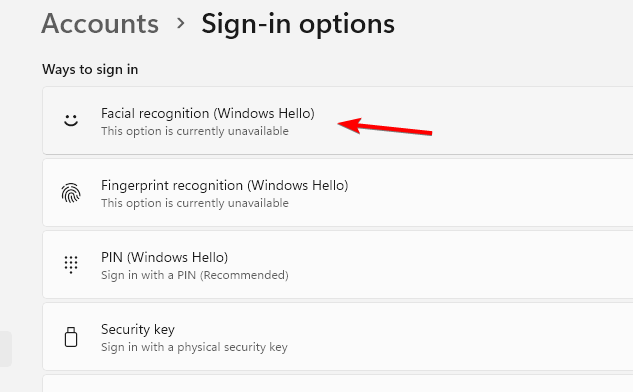
- Check whether your Windows device has a screen lock enabled. Passkeys stored on a Windows device use Windows Hello, which can authenticate you with a PIN, fingerprint, or facial recognition.
- Open Settings > Accounts > Sign-in options and check your Windows Hello settings. Make sure your PIN, fingerprint, or facial recognition method is working correctly before trying the Microsoft account passkey again.
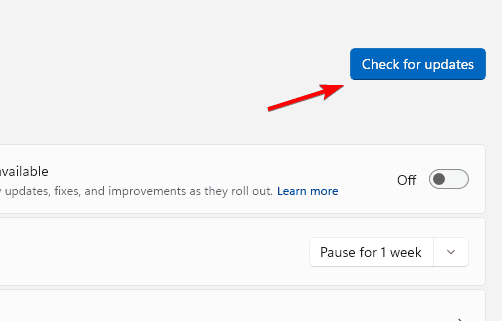
- Update Windows if your passkey continues to fail. Open Settings > Windows Update and select Check for updates. Microsoft says newer Windows versions may be required for the latest passkey features.
- If you see “This passkey can no longer be used,” create a new passkey for your Microsoft account. Microsoft says this error can occur when a passkey has been deleted or when you have changed your PIN or biometric authentication method.
- After creating the new passkey, check your account for old passkeys that no longer apply. Microsoft recommends creating the replacement first and then removing outdated passkeys.
Fix Microsoft Account Passkey When Using Your Phone
If you are using an iPhone, iPad, or Android phone as your passkey, check the connection between your devices.
- Make sure Bluetooth is enabled on both devices.
- Keep the phone and computer close to each other while completing the sign-in.
- Make sure both devices are connected to the internet.
- If Microsoft shows a QR code, scan it using the appropriate passkey or authenticator option on your phone.
Microsoft says the devices do not have to use the same Wi-Fi network, but they need to be nearby and connected to the internet.
Reset Windows Hello If the Passkey Still Fails
If your passkey depends on Windows Hello and the authentication method itself is malfunctioning, resetting Windows Hello may help.
- Open Settings by pressing Windows + I.
- Select Accounts and then click Sign-in options.
- Select PIN (Windows Hello) and choose I forgot my PIN if your PIN is not working correctly.
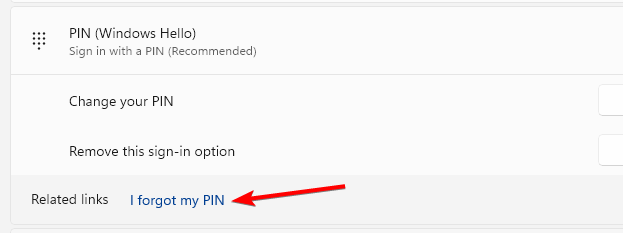
- Follow the instructions to set up your Windows Hello PIN again.
- Try signing into your Microsoft account with the passkey after completing the setup.
If your fingerprint or face recognition is causing the problem, check those Windows Hello options as well.
Use Microsoft Sign-in Helper
If none of these fixes work, Microsoft recommends using its Sign-in Helper to identify account access problems. The tool checks the information you provide and guides you through the available recovery steps. If you have completely lost access to the account, you may also need to use Microsoft’s account recovery options.
This isn’t the only Windows 11 sign-in issue you may encounter. If you’re having trouble with Windows Hello, you may also want to learn how to change the minimum PIN length, what to do if you can’t remove your PIN, or how to fix a fingerprint sensor that isn’t working.
FAQs related to Microsoft Account passkey issues
1. Why is my Microsoft account passkey not working?
The passkey may have become invalid, been deleted, or stopped working after a change to your PIN or biometric authentication.
2. What should I do if Microsoft says my passkey can no longer be used?
Create a new passkey first, then remove the old passkey from your account.
3. Why is my phone passkey not showing up?
Check Bluetooth, internet connectivity, and whether your phone is close enough to the PC.
4. Can I sign in without my Microsoft passkey?
Yes, if another sign-in method is available on your account. Microsoft recommends using another available method and then checking your saved passkeys.

Read our disclosure page to find out how can you help Windows Report sustain the editorial team. Read more



Improve this guide




User forum
0 messages