
Windows 11 Setting Up Live Captions Stuck? Try These Easy Fixes


 4 min. read
  Published on
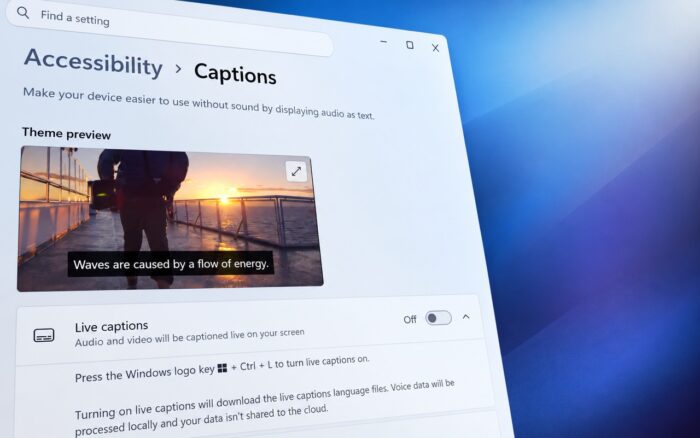
If you ever get stuck on Setting up Live Captions in Windows 11, you must know how frustrating it can be. The feature may sit on the setup screen when Windows fails to download or install the required speech recognition files.
The good news is that you don’t need to dig through complicated settings to fix it. A few changes to Windows’ language, speech, Store, or update settings may be enough to get Live Captions working again.
Here’s how to fix setting up live captions stuck in Windows 11
1. Check the Microsoft Store download
Live Captions may be waiting for its speech package to download through the Microsoft Store.
- Open Microsoft Store.

- Click Library.

- Look for any pending Speech, Speech Pack, or language-related download.
- If you see one, click Resume.
- If it appears stuck, cancel the download and try again.
- Restart your PC.
- Press Win + Ctrl + L and try Live Captions again.
Microsoft says problems accessing the Store catalog can prevent required language files from downloading.
2. Make sure Microsoft Store can download apps
This is worth checking before changing Windows components.
- Open Microsoft Store.
- Find any free app.
- Try downloading it.
- If the download fails, open Library.
- Select Get updates.
- Install any available Store updates.
- Restart Windows.
You can also press Win + R, enter wsreset.exe, and press Enter. Wait for Microsoft Store to reopen, then try Live Captions again.
3. Reinstall the speech language feature
A damaged or incomplete speech package can leave Live Captions permanently stuck on setup.
- Open Settings and go to Time & language.

- Select Language & region.
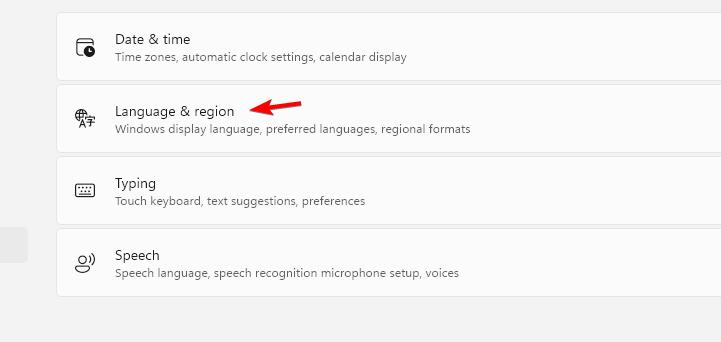
- Find your preferred language under Preferred languages.
- Click the three dots next to it.
- Select Language options.
- Look for Speech.
- If available, remove the speech component and restart your PC.
- Return to the same page.
- Install the Speech component again.
Windows provides speech recognition support through the language settings, and Live Captions uses those files for on-device captioning.
4. Reset Windows’ speech data
If the speech package appears installed but Live Captions still hangs, cached data could be causing the problem.
- Press Win + R.
- Enter
%ProgramData%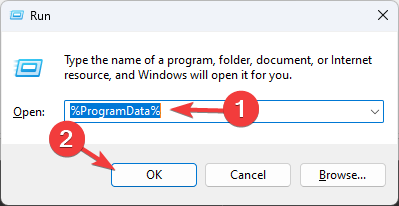
- Press Enter.
- Look for folders related to Speech or Speech_OneCore.
- Do not delete folders unless you know they belong to the speech component.
- Restart Windows.
- Try Win + Ctrl + L again.
If you’re uncomfortable deleting system files, skip this step and continue with the next fix.
5. Install pending Windows updates
Microsoft has previously addressed Live Captions setup problems through Windows updates. Some users have also reported setup issues on newer Windows 11 24H2 builds.
- Go to: Settings > Windows Update > Check for updates
Install everything available, restart the PC, and test Live Captions again.
6. Try another supported language
If the problem only happens with one language, the speech package itself may be the issue.
- Go to: Settings > Time & language > Language & region
Try installing English (United States) and its Speech component. Then launch Live Captions again. This is especially worth trying if Live Captions works with another English variant but remains stuck with your preferred language. Users have reported language-specific setup problems.
Why is Live Captions stuck on Setting up?
Windows needs to install the right speech recognition support before Live Captions can start working. In some cases, that installation can take longer than expected or fail to complete properly. Microsoft has also documented issues where language feature installation progress becomes hidden, leaving Live Captions waiting for the required files.
If Live Captions remains stuck, start with the Microsoft Store and the speech language package. Reinstalling the Speech component and applying Windows updates should be the next steps.
If Live Captions remains stuck, start by checking the Microsoft Store and reinstalling the speech language package before moving on to Windows updates. You can also review how to turn Live Captions on or off in Windows 11, check the Windows 11 settings worth changing, or troubleshoot cases where the Snipping Tool notification is not showing.
Frequently Asked Questions
1. Why is Windows 11 Live Captions stuck on “Setting up Live Captions”?
Windows is usually trying to download or install the required speech recognition files. Microsoft says Store connectivity can prevent those files from downloading.
2. Does Live Captions need an internet connection?
The initial setup can require internet access to obtain the required language files. After installation, Live Captions processes captions on the device.
3. Can I reinstall the Live Captions language files?
Yes. Go to Settings > Time & language > Language & region, open your language’s options, and reinstall its Speech component.
4. Does Live Captions work on Windows 11?
Yes. Microsoft supports Live Captions on Windows 11 version 22H2 and later.

Read our disclosure page to find out how can you help Windows Report sustain the editorial team. Read more



Improve this guide


User forum
0 messages