
Snipping Tool notification not showing in Windows 11? Try these fixes


 6 min. read
  Published on
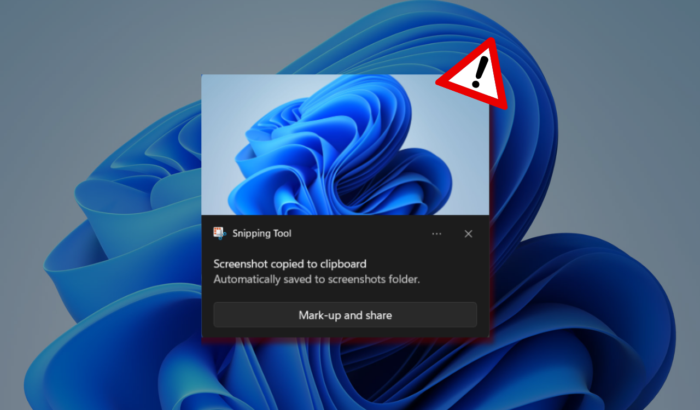
Windows 11’s screenshot experience can be frustrating when Snipping Tool’s notification does not show up. The screenshot may still be captured correctly, but the small notification that normally lets you open, edit, save, or share it simply does not appear. Well, if you are facing similar issues, here are the fixes worth trying.
How to fix Snipping Tool notification not showing in Windows 11
1. Make sure Snipping Tool notifications are enabled
Windows lets you control notifications separately for individual apps. If Snipping Tool is disabled, its screenshot notification will not appear.
- Press Windows + I to open Settings.
- Click System.
- Select Notifications.
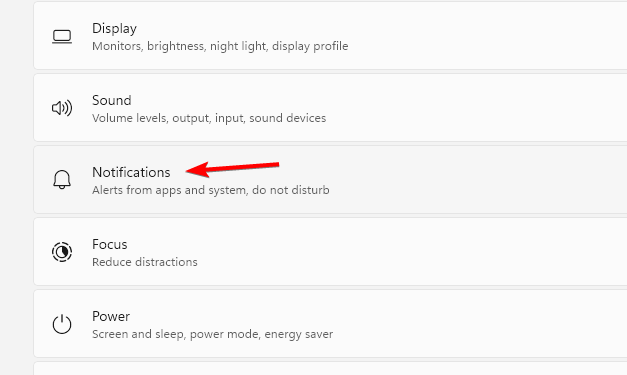
- Scroll down to Notifications from apps and other senders.
- Find Snipping Tool.
- Turn notifications On.
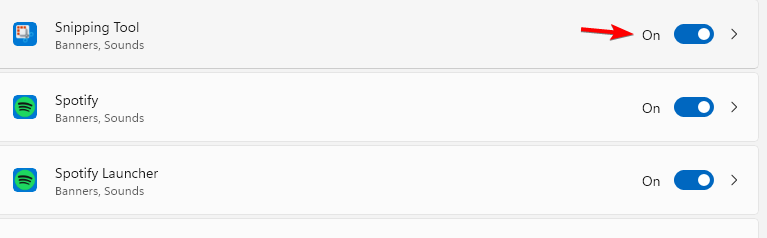
- Click Snipping Tool to open its notification options.
- Turn on Show notification banners.
- Turn on Show notifications in notification center.
- Take another screenshot with Windows + Shift + S.
2. Turn off Do not disturb
Do not disturb can suppress normal app notifications, including Snipping Tool alerts.
- Open Settings.
- Go to System > Notifications.
- Find Do not disturb.
- Turn it Off.
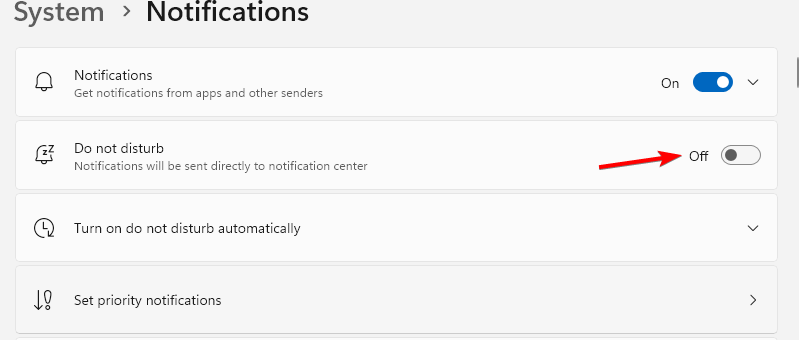
- Expand Turn on do not disturb automatically.
- Check the automatic rules.
- Disable any rule that could be activating it automatically.
- Take another screenshot.
3. Check whether Focus is blocking the notification
Focus can also interfere with normal notifications because it can enable Do not disturb while a Focus session is active.
- Open Settings.
- Click System.
- Select Focus.
- Check whether a Focus session is currently running.
- If one is active, click Stop focus session.
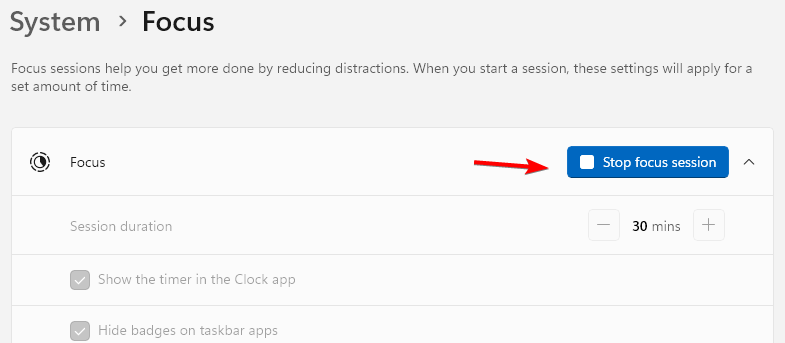
- Check the Focus settings.
- Make sure it is not automatically enabling Do not disturb.
- Press Windows + Shift + S and take another snip.
Microsoft says Focus temporarily blocks notifications and turns on Do not disturb by default during a focus period.
4. Check whether the screenshot itself is working
Before changing the app, make sure the actual capture process is working.
- Press Windows + Shift + S.
- Select Rectangle snip.
- Drag around an area of your screen.
- Release the mouse button.
- Open Paint or another image editor.
- Press Ctrl + V.
- Check whether the screenshot appears.
If the screenshot is copied successfully but no notification appears, the capture feature itself is working. The problem is likely related to the notification or Snipping Tool interface.
5. Try opening Snipping Tool directly
There is an important difference between launching a snip from the app and using the keyboard shortcut.
- Open Start.
- Search for Snipping Tool.

- Open the app.
- Click New.
- Capture part of your screen.
- Check whether the captured image opens inside Snipping Tool.
When you use New from inside Snipping Tool, the capture can open directly in the app. The notification behavior you expect is more similar to that when using Windows + Shift + S.
6. Repair Snipping Tool
If notifications are enabled but still refuse to appear, repair the app before resetting it.
- Open Settings.
- Click Apps.
- Select Installed apps.
- Search for Snipping Tool.
- Click the three-dot menu beside it.
- Select Advanced options.
- Find the Reset section.
- Click Repair.
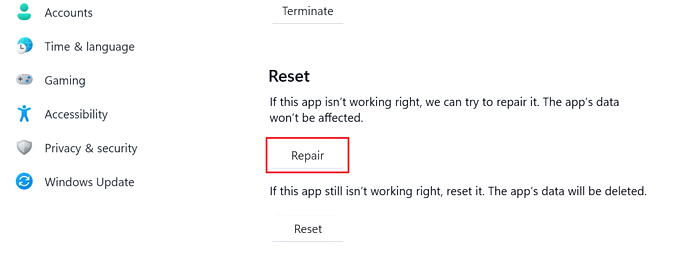
- Wait for Windows to finish.
- Now, press Windows + Shift + S and take another screenshot.
Microsoft recommends using the Repair option for apps that are not behaving correctly.
7. Reset Snipping Tool
If repairing the app did not help, resetting it is the next step.
- Open Settings.
- Go to Apps > Installed apps.
- Find Snipping Tool.
- Click the three dots beside it.
- Select Advanced options.
- Click Reset.
- Confirm the reset.
- Open Snipping Tool again and test by taking a screenshot.
Resetting returns the app to its default state and can remove its stored app data. Microsoft recommends trying Repair before Reset.
8. Check the screen-snipping default app
Some Windows 11 users have reported notification problems when the screen-snipping protocol is associated incorrectly.
- Open Settings.
- Click Apps.
- Select Default apps.
- Search for screen snipping.
- Check the available association for the screen-snipping function.
- Make sure Windows is using the appropriate Snipping Tool or screen-snipping component.
- Lastly, test by taking a screenshot.
Windows 11 lets you change default apps and associations for specific file types and link types from Settings > Apps > Default apps.
9. Update Snipping Tool
An outdated or damaged Store version can also cause strange behavior.
- Open the Microsoft Store.
- Click Library.
- Select Get updates.
- Allow Windows to update Snipping Tool if an update is available.
- Restart your PC.
- Test the screenshot shortcut again.
If Snipping Tool is already updated, move on to the next fix.
10. Uninstall and reinstall Snipping Tool
If nothing else works, reinstalling the app can replace damaged app files
- Open Settings.
- Select Apps.
- Click Installed apps.
- Find Snipping Tool.
- Click its three-dot menu.
- Select Uninstall.

- Restart your PC.
- Open the Microsoft Store.
- Search for Snipping Tool.
- Install it again.
- Finally, test by taking a screenshot using the aforementioned shortcut keys.
For more information, we have a detailed guide on how to reinstall Snipping Tool on Windows 11.
What if Snipping Tool works but the notification still does not appear?
If the screenshot is successfully copied to the clipboard but the notification is missing, do not immediately assume Snipping Tool itself is broken. Check Settings > System > Notifications first. Make sure Snipping Tool notifications and banners are enabled, then check Do not disturb and Focus. Microsoft says notifications can be configured at both the system and individual-app level.
What if Snipping Tool is missing from notification settings?
This can happen on some Windows 11 installations.
- Open Settings.
- Go to Apps > Installed apps.
- Search for Snipping Tool.
- If it is missing, open the Microsoft Store.
- Search for Snipping Tool.
- Install or update the app.
- Restart Windows.
- Check Settings > System > Notifications again.
If the Snipping Tool notification is missing, start with Windows 11’s notification settings and Do not disturb. If those are fine, repair or reset the app, check the screen-snipping association, and reinstall Snipping Tool only as a last step.
If Snipping Tool notifications still aren’t working, the problem may be tied to the app itself rather than Windows notifications. We also have guides on extracting text with Snipping Tool, fixing Snipping Tool when it stops working, troubleshooting a broken Snipping Tool shortcut, and resolving clipboard copy errors.
FAQs related to Snipping Tool notification issue
1. Why is my Snipping Tool notification not showing?
Check Snipping Tool’s notification settings first. Do not disturb, Focus, an app problem, or an incorrect screen-snipping association can also prevent the notification from appearing.
2. Why does Windows + Shift + S work but show no notification?
The screenshot capture and notification systems are related but separate. If the screenshot reaches your clipboard, the capture is working and the problem is likely with the notification or Snipping Tool interface.
3. Does Do not disturb block Snipping Tool notifications?
Yes. Windows can suppress normal app notifications when Do not disturb is active. Check its automatic rules if it keeps turning itself back on.
4. Should I reset Snipping Tool?
Try Repair first. If that does not solve the notification problem, Reset is the next reasonable step.
5. What is the shortcut for Snipping Tool?
Press Windows + Shift + S to start a screen capture. Microsoft says a notification normally appears after completing the snip.

Read our disclosure page to find out how can you help Windows Report sustain the editorial team. Read more



Improve this guide


User forum
0 messages