
Essential Windows 11 Settings To Change Today For Better Privacy


 4 min. read
  Updated on

Windows 11 is sleek and modern, but many default settings can slow down your PC or compromise your privacy; here are the most important Windows 11 settings you should change now to make your system faster, safer, and more efficient.
Table of contents
- Here Are Windows 11 Settings You Should Change
- Turn Off Startup Apps
- Disable Background Apps
- Adjust Privacy Settings
- Change Power Mode for Better Performance
- Disable Visual Effects
- Manage Notifications
- Enable Storage Sense
- Set Default Apps Manually
- Disable Personalized Ads
- Enable Clipboard History
- Adjust Display Refresh Rate
- Turn On Enhanced Security
- FAQs
- Conclusion
Here Are Windows 11 Settings You Should Change
Turn Off Startup Apps
Startup apps launch automatically and can make your computer boot slowly; you can also manage startup behavior in System Settings to control what loads when Windows starts, see how to adjust Windows 11 system settings.
- Press Ctrl + Shift + Esc to open Task Manager.
- Click the Startup apps tab.
- Right-click any app you do not need at startup.
- Select Disable.

Disable Background Apps
Background apps consume memory and battery even when unused.
- Press Windows + I to open Settings.
- Go to Apps > Installed apps.
- Click the three dots beside an app and select Advanced options.
- Set Background app permissions to Never.

Adjust Privacy Settings
Windows collects telemetry by default, but you can limit data sharing to protect your privacy.
- Open Settings.
- Go to Privacy & security > Diagnostics & feedback.
- Set Diagnostic data to Required only.

- Turn off Tailored experiences and Improve inking & typing.
To reduce tracking, improve privacy, and stop Windows from collecting extra diagnostic data, follow this step by step guide to Windows 11 privacy settings and turn off the options you do not actually need.
Change Power Mode for Better Performance
Switching to performance mode ensures your CPU and GPU run at full speed.
- Press Windows + I.
- Go to System > Power & battery.
- Click Power mode and select Best performance.
Disable Visual Effects
Disabling animations and transparency improves responsiveness on older PCs.
- Search for Performance Options in Start.
- Click Adjust the appearance and performance of Windows.
- Select Adjust for best performance or turn off specific effects.
Manage Notifications
Unwanted notifications can distract you from work and affect productivity; if alerts keep popping up you can also disable the Notification Center in Windows 11.
- Open Settings.
- Go to System > Notifications.

- Turn off alerts for unnecessary apps.
Enable Storage Sense
Storage Sense automatically clears temporary files to free up space.
- Press Windows + I.
- Navigate to System > Storage.
- Turn on Storage Sense.

- Click Configure Storage Sense to customize cleanup frequency.
Set Default Apps Manually
Setting your preferred apps prevents Windows from resetting defaults to Microsoft ones.
- Go to Settings > Apps > Default apps.
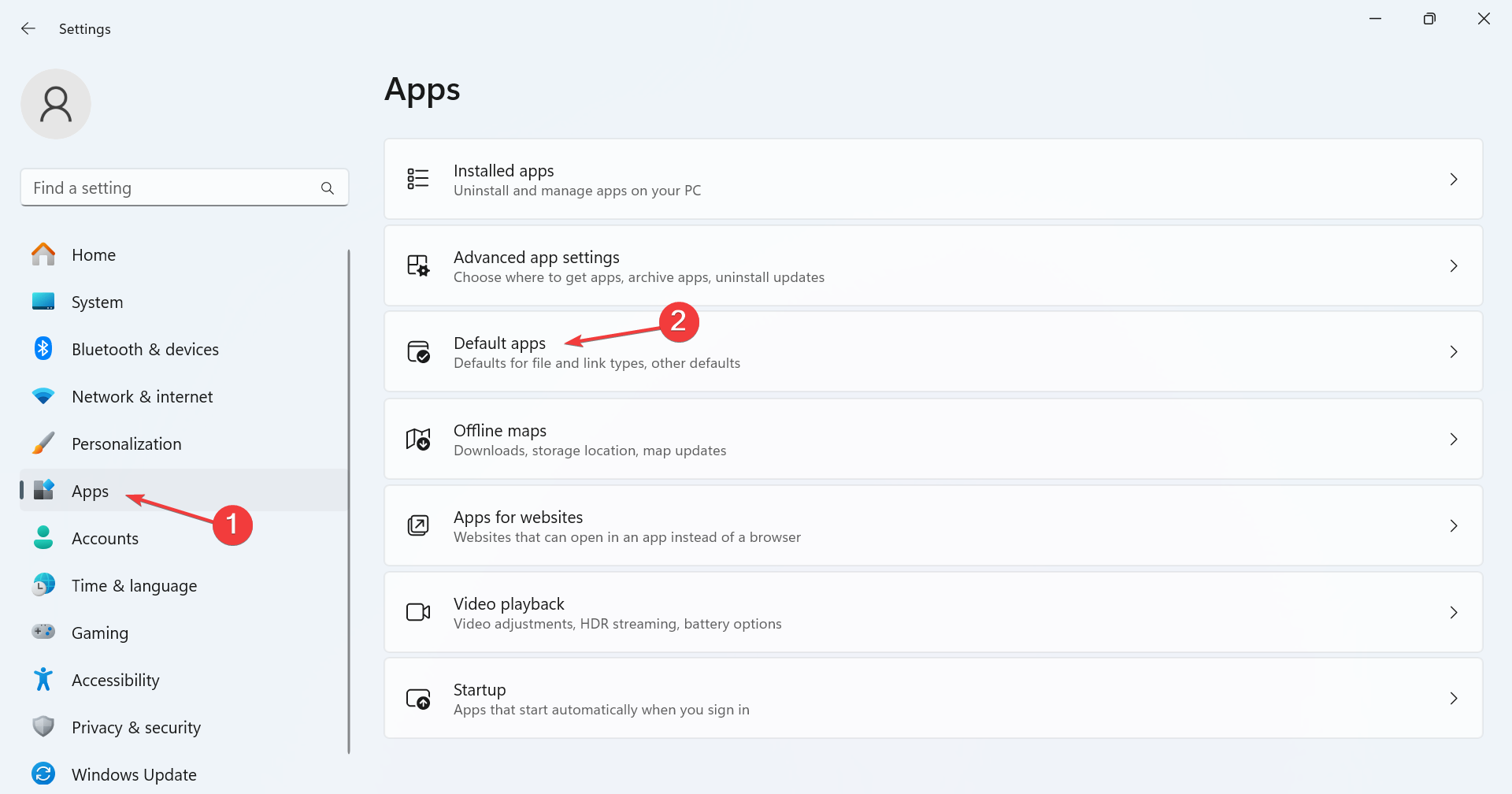
- Search for the app type such as browser or media player.
- Select your preferred app and confirm.
Disable Personalized Ads
Turning off ad tracking helps prevent targeted ads from using your data.
- Go to Settings > Privacy & security > General.
- Turn off Let apps show me personalized ads.
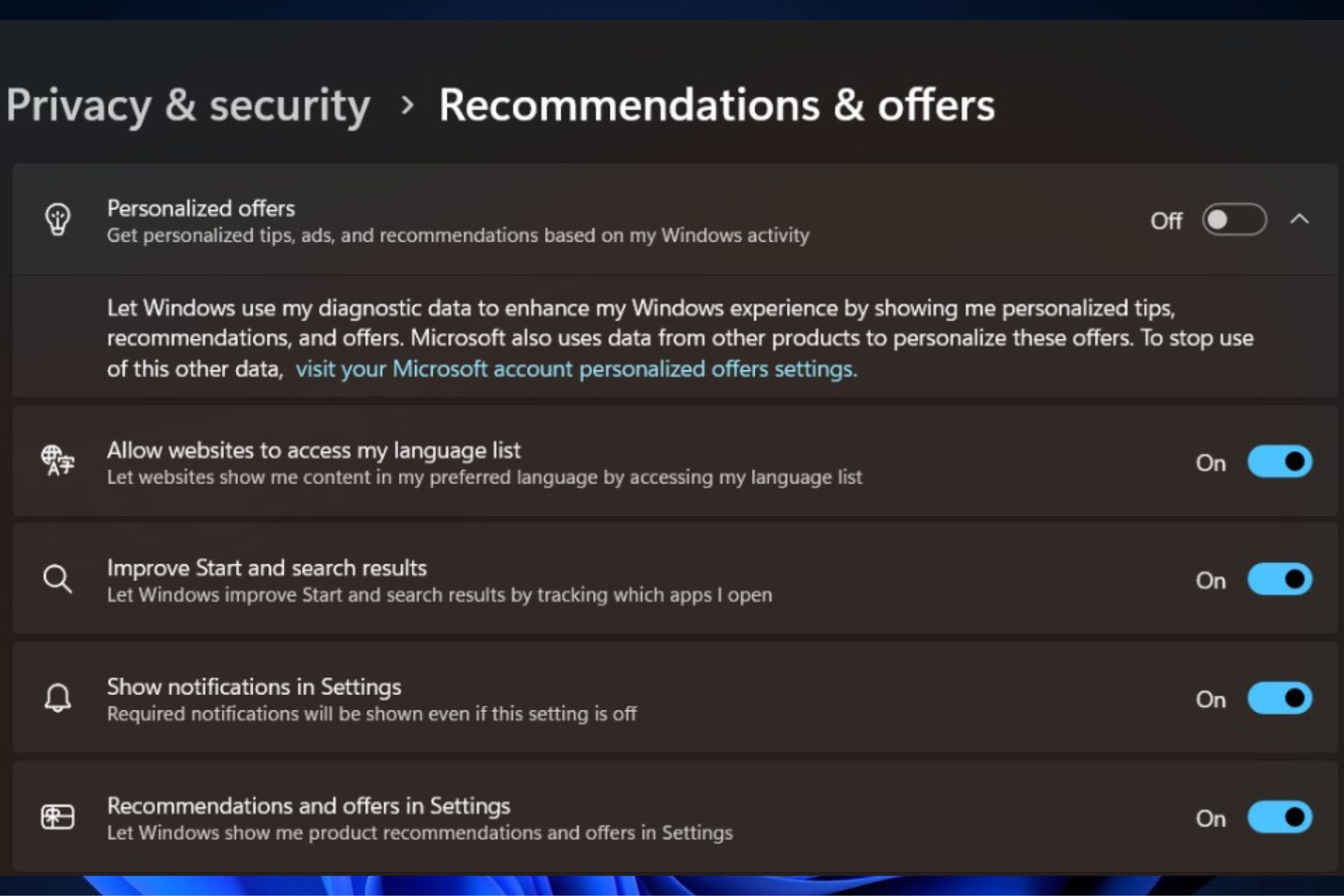
- Disable Show me suggested content in Settings app.
Enable Clipboard History
Clipboard history makes copying and pasting multiple items faster.
- Open Settings.
- Navigate to System > Clipboard.
- Turn on Clipboard history.
Adjust Display Refresh Rate
Higher refresh rates make animations and scrolling smoother and improve usability.
- Open Settings > System > Display.
- Scroll to Advanced display.
- Choose the highest Refresh rate available.
Turn On Enhanced Security
Built-in protection tools like Core Isolation and Secure Boot can block malware and improve system integrity; for detailed steps review how to use Windows Security.
- Go to Settings > Privacy & security > Windows Security.
- Open Device Security.
- Enable Memory integrity and Secure Boot if available.

For better protection and driver management, check Windows Update settings to keep your system secure and up to date.
FAQs
Disabling startup apps, background apps, and visual effects offers the biggest speed improvement.
Yes, limiting data collection to required only does not affect system functionality.
Enable it to run weekly or automatically when your storage is low.
Use Balanced power mode, lower display brightness, and close unused background apps.
Conclusion
Tweaking these Windows 11 settings can make your computer faster, safer, and cleaner; start with privacy options, notifications, and security improvements to see immediate results.

Read our disclosure page to find out how can you help Windows Report sustain the editorial team. Read more



Improve this guide
User forum
0 messages