
Integrated GPU Showing as Removable in Windows 11? Try These 6 Fixes


 5 min. read
  Published on
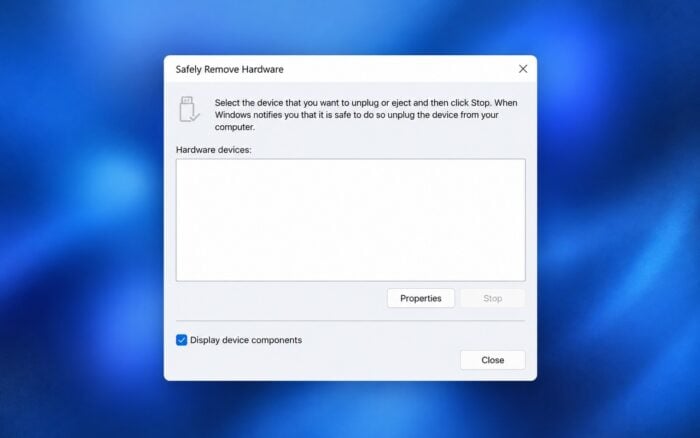
If your integrated GPU is showing as removable in Windows 11, you might notice an option to eject your graphics card from the system tray, just like a USB drive. This usually points to how Windows identifies the graphics hardware rather than a physical problem with the GPU.
You can try updating your drivers, checking BIOS settings, and resolving software conflicts to remove the unwanted eject option.
How to fix an integrated GPU showing as removable in Windows 11?
1. Disable PCIe Hot Plug in BIOS
Some motherboards support PCIe Hot Plug, which allows Windows to treat certain PCIe devices as removable. Disabling this feature can resolve the issue when it affects a dedicated GPU connected through PCIe.
Follow these steps if your computer offers the setting:
- Restart your computer and press F2, Delete, or the appropriate key to enter BIOS.
- Navigate to Advanced, PCIe Configuration, or a similarly named section.
- Look for PCIe Hot Plug or Hot Plug Support.
- Disable the option for the affected GPU’s PCIe slot.
- Save your changes and restart Windows.
Check whether the graphics card still appears in the Safely Remove Hardware menu.
Note: This setting usually applies to discrete PCIe devices, not integrated graphics built into the processor. Don’t change unrelated BIOS settings if you cannot identify the correct option.
2. Update or reinstall your graphics driver
An outdated or incompatible graphics driver may contribute to incorrect device identification.
First, check whether Windows has a newer driver:
- Press Windows + X and select Device Manager.
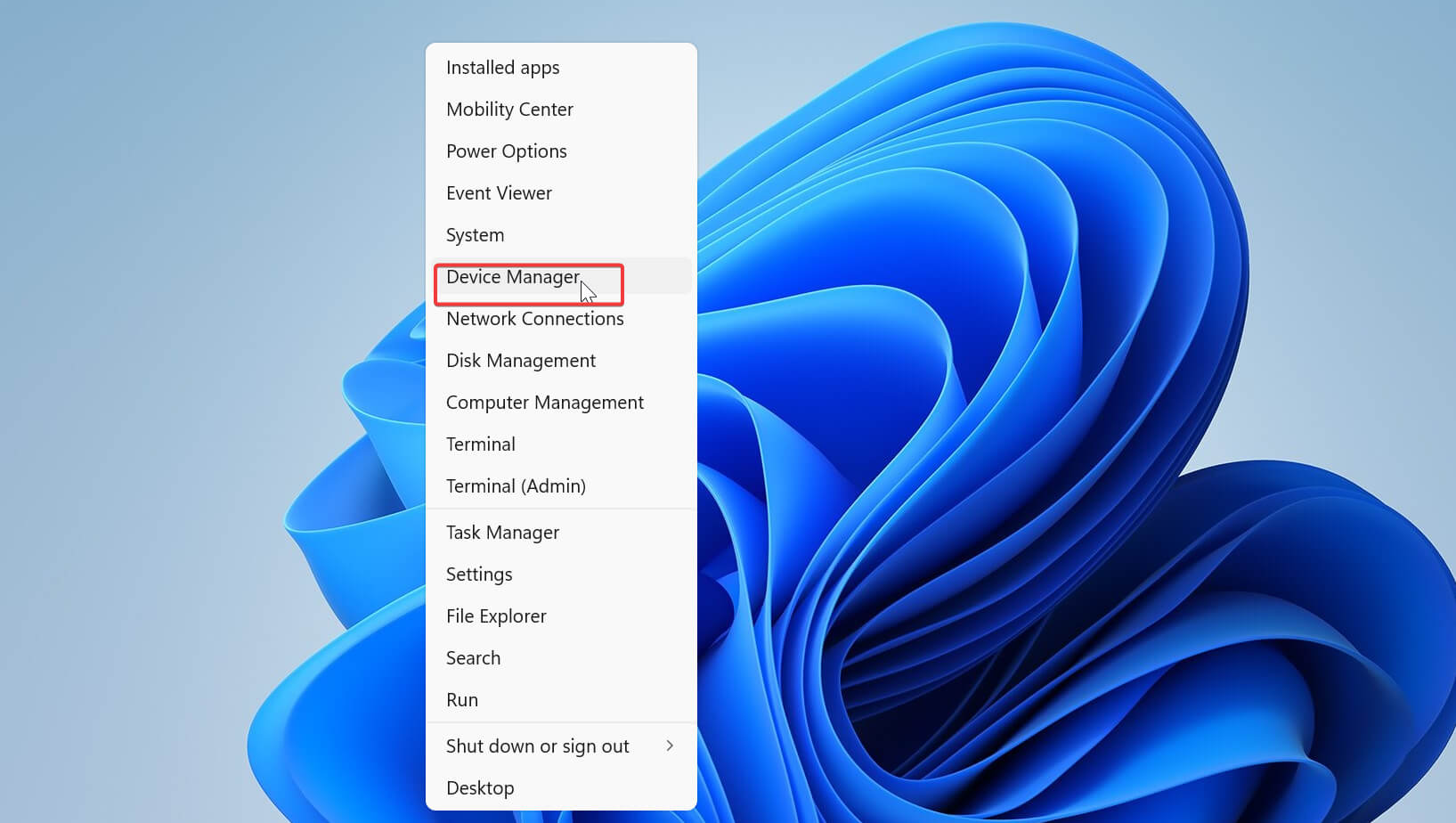
- Expand Display adapters.
- Right-click your graphics adapter and select Update driver.

- Choose Search automatically for drivers.

- Install any available update and restart your PC.
3. Update your BIOS and chipset drivers
Outdated BIOS firmware and chipset drivers can cause compatibility problems with hardware detection.
Check for available updates using these steps:
- Press Windows + R, type msinfo32, and press Enter.
- Find BIOS Version/Date in the System Information window.
- Visit your laptop or motherboard manufacturer’s official support website.
- Search for your exact model and compare the available BIOS version with your installed version.
- Download any appropriate BIOS and chipset updates.
- Follow the manufacturer’s instructions to install them.
Afterward, restart your computer and check whether Windows still identifies the GPU as removable.
Only install firmware intended for your specific model. Keep your computer connected to reliable power during BIOS updates.
4. Reinstall the ASUS Precision Touchpad driver
If you use an ASUS laptop, the issue may involve another device driver rather than the graphics driver itself.
Some ASUS users have reported resolving the removable GPU problem by reinstalling the Precision Touchpad driver, although this isn’t a confirmed fix for every model.
To try this solution:
- Visit the official ASUS support website.
- Search for your laptop’s exact model.
- Open the Driver & Tools section.
- Find the latest compatible ASUS Precision Touchpad driver.
- Download and install the driver.
- Restart your laptop and check the system tray.
Only use this solution if your ASUS laptop supports the relevant touchpad driver.
5. Check for third-party software conflicts
Background applications and services can sometimes interfere with hardware-related functions. Performing a clean boot can help you identify whether third-party software contributes to the issue.
Follow these steps:
- Press Windows + R, type msconfig, and press Enter.

- Open the Services tab.
- Check Hide all Microsoft services.

- Click Disable all and select Apply.
- Open the Startup tab and select Open Task Manager.
- Disable enabled third-party startup applications.
- Restart your computer.
If the GPU disappears from the removable devices menu, reenable the disabled services and applications in groups to identify the conflict.
Microsoft provides additional guidance on performing a clean boot in Windows, including how to restore your normal startup configuration.
6. Restore Windows to an earlier state
If your integrated GPU started appearing as removable after a recent update or software installation, restoring Windows to an earlier state may help.
Try this if you have a suitable restore point:
- Press Windows + R, type rstrui.exe, and press Enter.

- Click Next to view available restore points.
- Select a restore point from before the issue appeared.
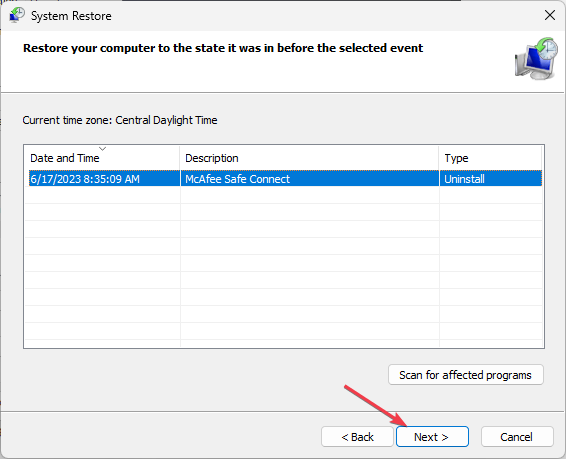
- Click Next, then Finish.
- Allow Windows to complete the restoration and restart.
System Restore can reverse recent system changes, but it may also remove applications and drivers installed after the selected restore point.
Don’t reset or reinstall Windows solely because a working integrated GPU appears in the eject menu.
An integrated GPU appearing as removable doesn’t necessarily mean anything is wrong with your computer. If you have a separate graphics card, you can also learn how to use a dedicated graphics card instead of integrated graphics.
If you’re experiencing display issues, check what to do when an external monitor isn’t using your GPU or explore how to enable advanced graphics on Windows 11. However, if everything works correctly and only the eject option remains, it’s generally safer to leave the device alone.
FAQs
Can I safely eject my integrated GPU in Windows 11?
No. You should avoid ejecting an internal GPU because Windows may disable the graphics device and cause display problems. The GPU isn’t physically removable while your computer runs.
Why does Windows show my NVIDIA GPU as removable?
Windows may identify certain NVIDIA graphics adapters as removable because of PCIe hot-plug capabilities, firmware settings, or driver behavior. Updating drivers and checking the relevant BIOS settings may help.
Will disabling PCIe Hot Plug affect GPU performance?
Disabling PCIe Hot Plug generally shouldn’t affect normal graphics performance, but it removes hot-plug functionality from the affected PCIe connection. Only change this setting if your hardware supports it and you don’t require that functionality.
What happens if I accidentally eject my GPU?
Windows might temporarily disable the graphics adapter, causing a black screen, reduced graphics performance, or the loss of an external display. Restarting your computer will often restore the device. If the problem persists, check Device Manager and reinstall the appropriate graphics driver.

Read our disclosure page to find out how can you help Windows Report sustain the editorial team. Read more



Improve this guide


User forum
0 messages