
Hannaford App Not Working Today? Try These 7 Fixes


 5 min. read
  Published on
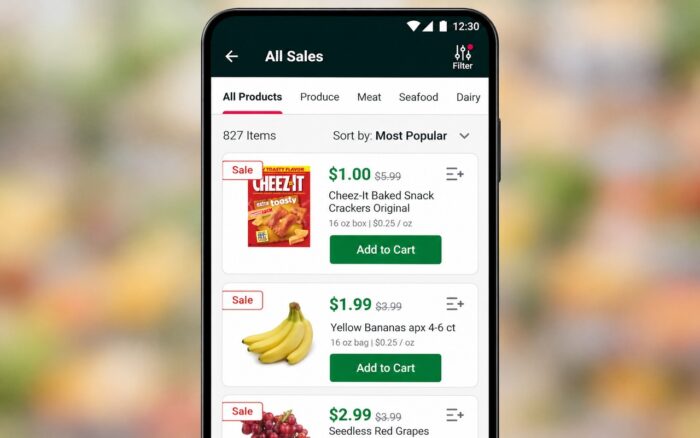
The Hannaford app makes grocery shopping easier, but sometimes the Hannaford app is not working at all, and in today’s guide we’ll show you how to fix it.
What can I do if the Hannaford app is not working?
1. Check whether Hannaford is down
Before troubleshooting your device, determine whether the problem affects everyone or just your phone.
Here’s how to check:
- Open your browser and visit the official Hannaford website.
- Check whether the website loads normally or displays a maintenance notice.
- Try opening the Hannaford app on another device, if available.
- If both the website and app are unavailable, wait for Hannaford to restore service.
If Hannaford reports an outage, avoid repeatedly reinstalling the app or resetting your password. Neither action can resolve a server-side problem.
2. Force close and reopen the Hannaford app
Sometimes the Hannaford app gets stuck because a background process stops responding. Completely closing the app can resolve temporary freezing, loading, and navigation problems.
On iPhone:
- Swipe up from the bottom of the screen and pause in the middle.
- Find the Hannaford app in the app switcher.
- Swipe its preview upward to close it.
- Wait a few seconds and open the app again.
On Android:
- Open Settings > Apps.
- Select Hannaford from the installed apps.
- Tap Force stop.
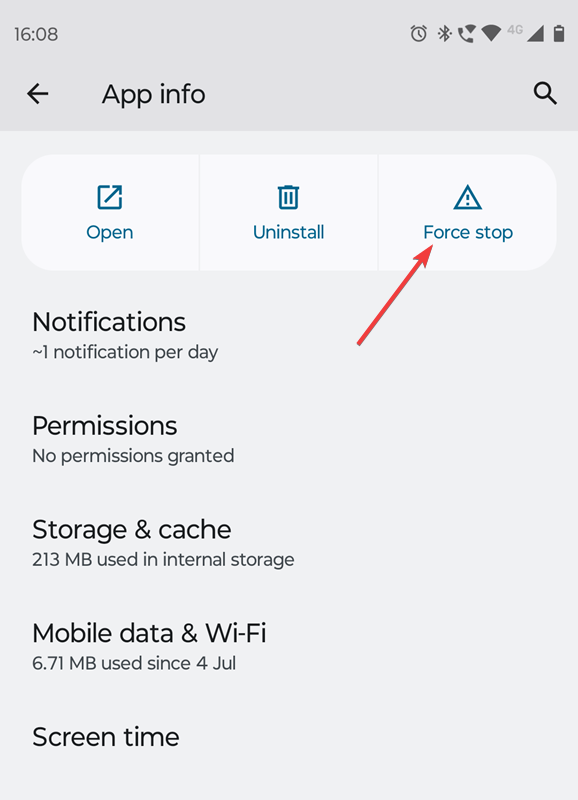
- Launch the app again.
If the app continues crashing, restart your phone before trying the remaining solutions.
3. Check your internet connection
A weak or unstable connection can prevent the Hannaford app from loading products, displaying coupons, or completing online orders.
Try these steps:
- Open another app or website to confirm your internet connection works.
- Disable Wi-Fi and switch to mobile data.
- If the app works on mobile data, restart your Wi-Fi router.
- Temporarily disconnect any VPN or private DNS service that might interfere with the connection.
- Reopen Hannaford and check whether the issue persists.
If you’re shopping inside a Hannaford store, try switching to cellular data when the store’s Wi-Fi connection becomes unreliable.
4. Update the Hannaford app
An outdated app version can cause crashes, blank screens, and compatibility problems after Hannaford updates its services.
To update the app:
- Open the App Store on iPhone or Google Play Store on Android.
- Search for Hannaford.
- Tap Update if a newer version is available.
- Wait for the installation to finish.
- Restart the app and check whether it works.
If you don’t see an update option, you probably already have the latest version available for your device.
5. Clear the Hannaford app cache on Android
Over time, the app stores temporary files to speed up loading. If those files become corrupted, Hannaford may freeze, crash, or display outdated information.
Follow these steps:
- Open Settings > Apps > Hannaford.
- Select Storage or Storage & cache.
- Tap Clear cache.
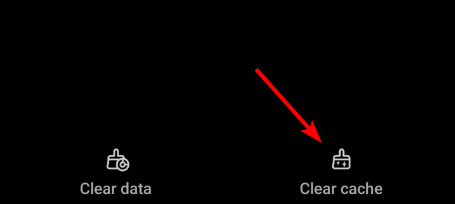
- Restart your phone.
- Open the Hannaford app again.
If clearing the cache doesn’t help, return to the same menu and select Clear storage or Clear data.
Keep in mind that clearing app data can remove locally saved settings and require you to sign in again.
On iPhone, you can reinstall the app to remove problematic local files.
6. Fix Hannaford login and rewards problems
Sometimes the Hannaford app opens normally, but you can’t sign in, access your rewards, or load digital coupons.
Try the following:
- Sign out of the Hannaford app if you can access your account settings.
- Close and reopen the app.
- Sign in again using the correct email address and password.
- Use the password reset option if you can’t remember your credentials.
- Check whether your rewards and digital coupons appear correctly.
If your My Hannaford Rewards barcode won’t load at checkout, you can use the phone number associated with your rewards account instead.
However, if Hannaford’s account services are experiencing an outage, signing out may prevent you from accessing your account again until service returns.
7. Uninstall and reinstall the Hannaford app
If the app continues crashing or refuses to launch, reinstalling it can replace damaged local files and eliminate certain installation-related problems.
On iPhone:
- Touch and hold the Hannaford app icon.
- Select Remove App > Delete App.
- Open the App Store.
- Search for Hannaford and reinstall it.
- Sign in again and check whether the problem has disappeared.
On Android:
- Open Settings > Apps > Hannaford.
- Tap Uninstall.
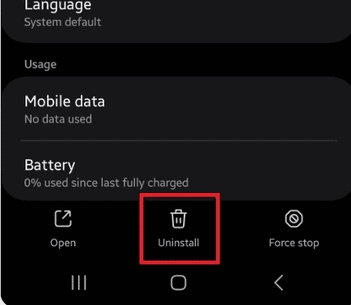
- Open the Google Play Store.
- Download and install Hannaford again.
- Sign in to your account.
Reinstalling can remove locally stored information, but your account-based rewards should remain associated with your Hannaford account.
If the Hannaford app still isn’t working after these steps, check for an ongoing service outage before making further changes. When Hannaford’s servers are functioning normally, updating the app, clearing its cache, or reinstalling it can resolve many common issues.
Similar problems can affect other shopping apps, so you may also find our guides on the Stop & Shop app not working, Giant app crashes and login issues, and Starbucks app not working helpful.
FAQs
Why does the Hannaford app keep crashing?
The Hannaford app may crash because of corrupted temporary files, an outdated version, insufficient device resources, or software bugs. Start by force closing the app, installing available updates, and clearing its cache on Android.
Why are my Hannaford digital coupons not working?
Digital coupons may fail to appear or apply when your account doesn’t synchronize correctly, the coupon has expired, or Hannaford experiences a service disruption. Check your account and coupon eligibility once the app becomes available.
Can I use My Hannaford Rewards without the app?
Yes. You can enter the phone number linked to your My Hannaford Rewards account at checkout instead of scanning the app’s barcode. This allows Hannaford to identify your rewards account without opening the app.
Why is the Hannaford app stuck on the loading screen?
A loading screen that never disappears may indicate a connection problem, corrupted cache, outdated software, or a Hannaford server outage. Check the official website first, then restart and update the app if Hannaford’s services are operational.

Read our disclosure page to find out how can you help Windows Report sustain the editorial team. Read more



Improve this guide


User forum
0 messages