
How to Set an FPS Limit on Your GPU in Windows 11


 5 min. read
  Published on
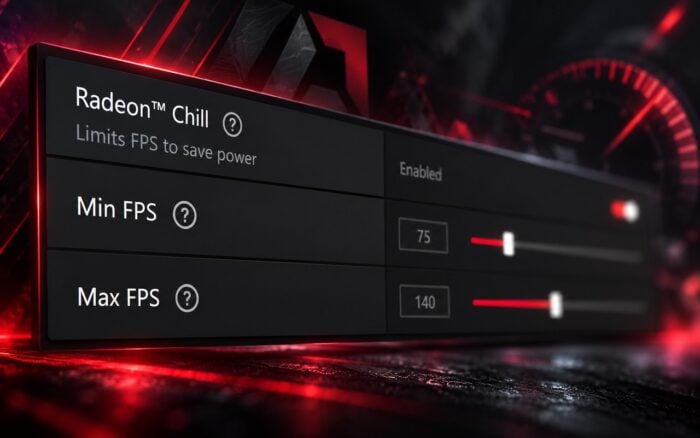
Setting an FPS limit on your GPU can help reduce graphics card temperatures, lower power consumption, and prevent unnecessary frame rendering while gaming. Whether you use an NVIDIA, AMD, or Intel graphics card, you can limit your frame rate through GPU software, game settings, or third-party tools.
How do I set an FPS limit on my GPU?
1. Set an FPS limit using NVIDIA Control Panel
If you have an NVIDIA GeForce graphics card, NVIDIA Control Panel lets you set a maximum frame rate for all games or individual applications.
Follow these steps to configure the FPS limit:
- Right-click an empty area of your desktop and select NVIDIA Control Panel.
- Expand 3D Settings and select Manage 3D settings.
- Open the Global Settings tab to limit FPS across all supported games.
- Alternatively, select Program Settings and choose a specific game.
- Scroll down and locate Max Frame Rate.
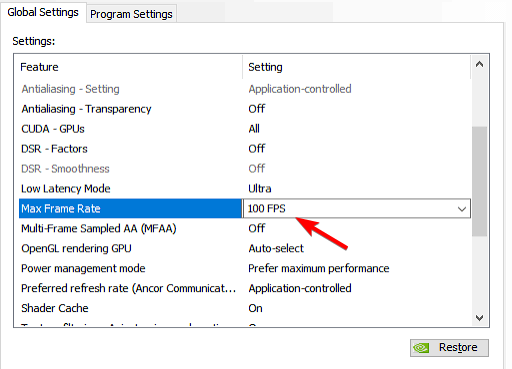
- Change the setting from Off to On.
- Enter your preferred FPS limit, such as 60, 120, or 144.
- Click OK, then select Apply to save your changes.
The new limit should take effect when you launch a supported game. NVIDIA’s 3D settings documentation explains how the frame rate limiter works.
2. Limit FPS using AMD Software: Adrenalin Edition
AMD Radeon graphics cards offer Radeon Chill and, on supported models, Frame Rate Target Control (FRTC). Both features can restrict frame rates, although they work differently.
To set an FPS limit through Radeon Chill, follow these steps:
- Open AMD Software: Adrenalin Edition from the Start menu.
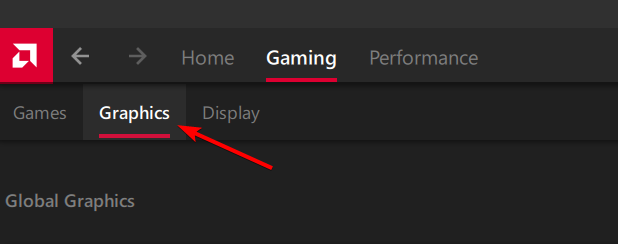
- Navigate to Gaming and open Graphics.
- Find Radeon Chill and enable it.
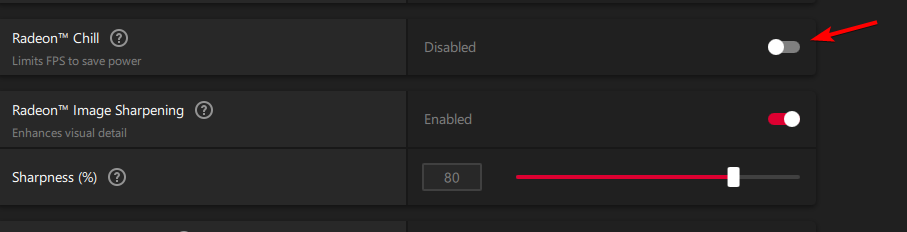
- Set Min FPS and Max FPS to your preferred values.
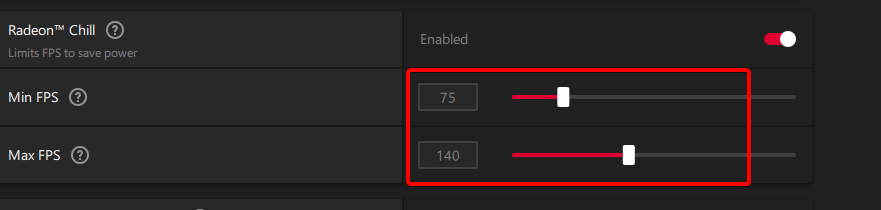
- To maintain a nearly fixed 60 FPS cap, set both values to 60, if your version allows it.
- Alternatively, open an individual game’s profile under Gaming to apply a game-specific limit.
- Close the settings window and launch your game.
Radeon Chill can lower FPS during periods of reduced movement to save power. If your GPU supports FRTC, you can also look under Global Graphics > Advanced > Frame Rate Target Control for a more conventional maximum FPS cap.
AMD’s Radeon Chill configuration guide explains the available settings and how they interact with other Radeon features.
3. Set an FPS limit using Intel Graphics Software
Intel Arc graphics cards and certain Intel integrated GPUs support FPS limiting through Intel Graphics Software.
Here’s how to configure it:
- Open Intel Graphics Software from the Start menu.
- Select Graphics from the navigation menu.
- Choose Global Settings or select a specific game profile.
- Locate the FPS Limiter option.
- Enable the limiter and enter your desired frame rate.
- Apply your changes and launch the game to check whether the limit works.
Intel includes an FPS limiter in its newer graphics software, but availability depends on your hardware and drivers.
If your system lacks this option, try an in-game FPS limiter or use RivaTuner Statistics Server.
4. Limit FPS using RivaTuner Statistics Server
RivaTuner Statistics Server (RTSS) provides a frame rate limiter that works with many NVIDIA, AMD, and Intel graphics cards. It is particularly useful when your GPU software lacks the option or a game ignores the driver-level setting.
Follow these steps:
- Download and install RivaTuner Statistics Server from Guru3D.
- Launch RTSS from your Start menu.
- Find the Framerate limit field in the application window.
- Enter your preferred limit, such as 60 or 120.
- To limit a specific game, click Add and select its executable file.
- Select the newly added game profile and configure its frame rate limit.
- Keep RTSS running in the background while playing.
RTSS supports global and application-specific frame rate limits. You can also install it alongside MSI Afterburner to monitor GPU performance.
5. Set an FPS limit through in-game settings
Many modern games include a built-in FPS limiter, allowing you to control frame rates without changing GPU driver settings.
You can configure it using these steps:
- Launch the game you want to configure.
- Open Settings and navigate to Graphics, Video, or Display.
- Find Frame Rate Limit, Max FPS, or a similarly named option.
- Select your preferred FPS limit.
- Save your settings and restart the game if necessary.
When a game provides its own reliable FPS limiter, try it first. An in-game cap can sometimes deliver better frame pacing or lower input latency than an external limiter, depending on how the developer implements it.
Setting an FPS limit on your GPU can help you control temperatures, reduce fan noise, and maintain more consistent gaming performance. NVIDIA and AMD users can configure limits through their graphics software, while Intel users can use Intel Graphics Software on compatible hardware.
If your gaming performance remains unusually low, check whether your GPU is showing 0% usage and make sure your system uses the dedicated graphics card instead of integrated graphics. On systems with multiple GPUs, you should also investigate why your second GPU isn’t detected, as this could affect gaming performance.
FAQs
Does limiting FPS reduce GPU temperature?
Yes. Limiting FPS can reduce GPU utilization, power consumption, and heat generation when your graphics card would otherwise render more frames. The temperature reduction depends on the game and hardware.
Can I set a global FPS limit for all games?
Yes. NVIDIA Control Panel, AMD Software, and Intel Graphics Software offer global frame rate controls on supported hardware. RTSS also provides a global FPS limiter for compatible applications.
Is it better to limit FPS through the GPU or the game?
Try the game’s built-in FPS limiter first. If the game doesn’t provide one or it performs poorly, consider your GPU driver’s frame rate limiter or RTSS.
Does limiting FPS increase input lag?
It can, depending on the limiter, VSync settings, and GPU workload. However, a well-configured FPS cap can also improve frame consistency and sometimes reduce latency when it prevents the GPU from reaching full utilization.
Can I limit FPS without VSync?
Yes. NVIDIA Max Frame Rate, Radeon Chill, Intel’s FPS limiter, and RTSS can limit FPS without requiring VSync. However, a frame rate cap alone does not guarantee that screen tearing will disappear.

Read our disclosure page to find out how can you help Windows Report sustain the editorial team. Read more



Improve this guide


User forum
0 messages