
Disney Plus Login Guide: How to Access Your Account & Fix Streaming Issues


 5 min. read
  Published on

Want to log in to Disney Plus and start watching your favorite movies and shows? You can access your account through a web browser, the Disney+ mobile app, or a smart TV using your email address and password. Here’s how to sign in on different devices and fix common login problems.
How do I log in to Disney Plus?
1. Log in to Disney Plus on a computer
The easiest way to access Disney+ is through its official website. You don’t need to install any additional software.
Follow these steps to sign in:
- Open your preferred web browser, such as Chrome, Edge, Firefox, or Safari.
- Visit the Disney+ website.
- Click Log In in the upper-right corner.
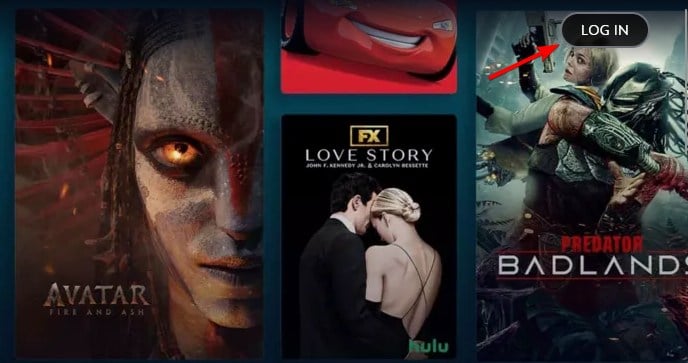
- Enter the email address associated with your Disney+ account.
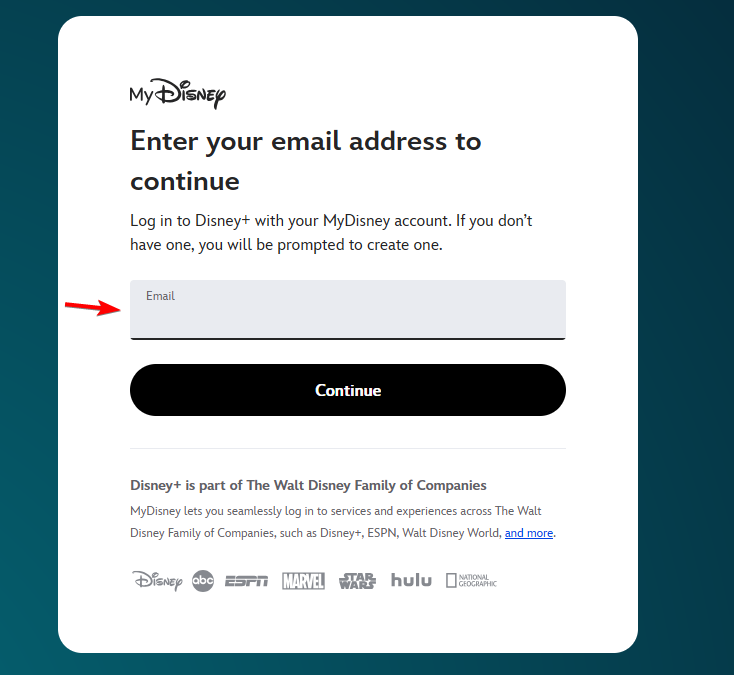
- Click Continue and enter your password or follow the on-screen verification instructions.
- Complete the login process and select your profile to start streaming.
Disney+ uses MyDisney credentials, which means you can use the same email address and password across supported Disney services.
2. Log in to Disney Plus on Android or iPhone
If you prefer watching Disney+ on your smartphone or tablet, you can sign in through the official mobile app.
Here’s what you need to do:
- Open the Disney+ app on your Android device, iPhone, or iPad.
- Tap Log In on the welcome screen.
- Enter the email address associated with your Disney+ subscription.
- Tap Continue.
- Enter your password and select Log In.

- Choose your viewing profile to access movies and TV shows.
If you haven’t installed the app, download Disney+ from the Google Play Store or Apple App Store.
You can also use your mobile browser to access Disney+, although the dedicated app provides a more convenient streaming experience.
3. Log in to Disney Plus on a smart TV
Disney+ supports smart TVs, streaming devices, and gaming consoles. Instead of typing your credentials with a remote, you can activate the app using a code.
Follow these instructions:
- Turn on your smart TV and launch the Disney+ app.
- Select Log In.
- Look for the eight-digit activation code on your TV screen.
- Open a browser on your computer or smartphone.
- Visit the Disney+ activation website.
- Enter the eight-digit code displayed on your TV and select Continue.
- Sign in using your Disney+ account credentials.
- Return to your TV and select Start Streaming once activation finishes.
To complete the process, use the official Disney Plus login activation page.
Some supported devices also allow you to approve a TV login from the Disney+ app on your phone when both devices use the same Wi-Fi network.
How to fix Disney Plus login problems
Sometimes, Disney+ won’t let you sign in even when you’re using the correct email address and password. Browser problems, expired verification codes, and account issues can prevent access.
Try these solutions:
- Check your login details. Make sure you’re entering the correct email address and password associated with your MyDisney account.
- Reset your password. If Disney+ displays an incorrect password message or error code 14, use the account recovery option.
- Check your verification code. Request another six-digit code if the previous one has expired.
- Clear your browser cache. Remove old cookies and cached data, then try signing in again.
- Update the Disney+ app. Install the latest available version on your phone, TV, or streaming device.
- Try another device. Sign in from a different browser or device to determine whether the problem affects your account or the original device.
- Check your subscription. If you subscribed through a third-party provider, confirm that your subscription remains active.
If these solutions don’t work, visit the Disney+ login troubleshooting page for additional assistance.
Logging in to Disney Plus is straightforward whether you’re using a computer, smartphone, or smart TV. You can sign in with your MyDisney credentials or activate compatible TV devices using an eight-digit code.
If you encounter issues afterward, learn how to fix common Disney Plus error codes or troubleshoot the Disney Plus app not working. Once everything works, you can also download movies on the Disney Plus app to watch your favorite content offline.
FAQs
Can I log in to Disney Plus without a password?
Disney+ supports one-time email verification codes for certain login methods. Enter your registered email address and follow the available verification instructions to access your account.
Where do I enter my Disney Plus eight-digit code?
Enter the eight-digit activation code at DisneyPlus.com/begin. This connects your smart TV or compatible streaming device to your Disney+ account.
Why can’t I log in to Disney Plus on my TV?
An expired activation code, incorrect account credentials, or an outdated app can prevent you from signing in. Restart the Disney+ app, request a new activation code, and try again.
Can I use the same Disney Plus login on multiple devices?
Yes. You can sign in to your Disney+ account on multiple supported devices. However, simultaneous streaming limits and Disney+ Household rules depend on your subscription and location.
What should I do if I forgot my Disney Plus email address?
Check your email accounts for Disney+ subscription confirmations or billing messages. If you still can’t identify the registered address, contact Disney+ customer support for account recovery assistance.

Read our disclosure page to find out how can you help Windows Report sustain the editorial team. Read more



Improve this guide


User forum
0 messages