
How to Log In to Your Discord Account [Website, App & QR Code]


 5 min. read
  Published on
Signing into Discord gives you access to your servers, direct messages, friends list, and voice channels. You can log in through the desktop app, a web browser, or the Discord mobile app using the credentials associated with your account.
If you enabled two-factor authentication, Discord may also ask you to verify your identity before completing the login. In this guide, you’ll learn how to log into your Discord account, whether you are accessing it on the web or the mobile app.
How to Log In to Discord?
Log in using the web browser
You can access Discord through your browser or its desktop application on Windows and macOS. Both options use your existing Discord account.
- Open the official Discord website.
- Enter the email address or phone number associated with your account.
- Enter your Discord password.
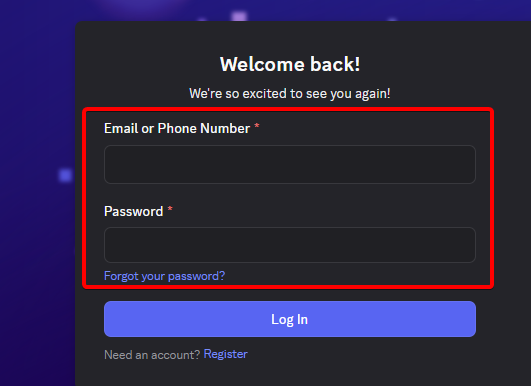
- Complete any requested CAPTCHA or security verification.
- If prompted, complete two-factor authentication using your authenticator app, security key, or another available method.
- Once verified, Discord opens your account and loads your servers and conversations.
If you prefer the desktop application, open Discord and follow the same sign-in process. You can download Discord desktop app here.
How to Sign In to Discord on the Mobile App
The Discord mobile app lets you access chats, communities, and voice channels from your phone. You can use the same account on desktop and mobile.
- Open the Discord app on your Android phone or iPhone.
- Tap Log In.
- Enter your registered email address or phone number.
- Enter your password and continue.
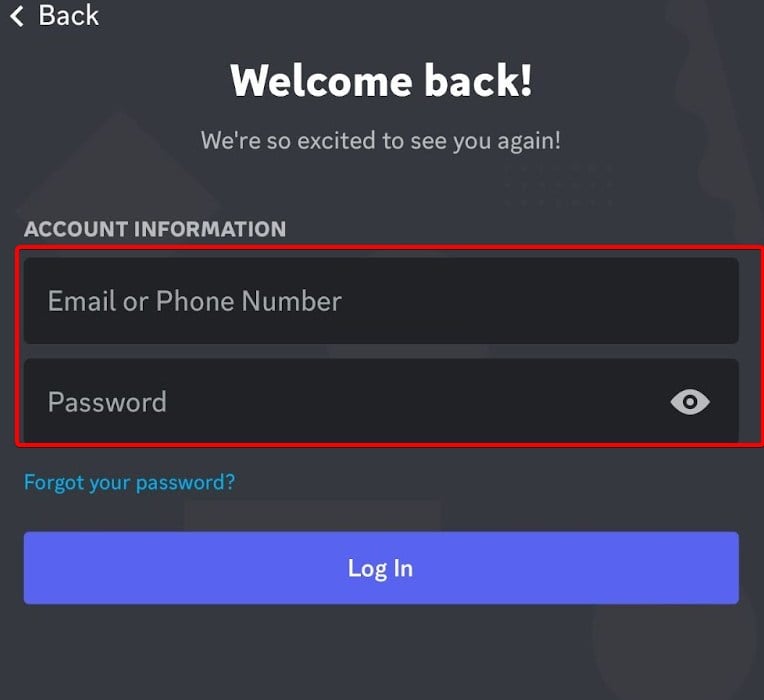
- Complete any security verification Discord requests.
- Wait for your servers and messages to load.
If you are already signed in to another account, open your profile or account settings and look for the account-switching option. The exact menu can vary by app version.
Sign In to Discord Using a QR Code
Discord also supports QR-code login for compatible desktop sessions. This method can save time when you are already signed in to the mobile app.
- Open Discord on your desktop and choose the QR-code login option, if displayed.
- Open the Discord mobile app where you are already signed in.
- Open your profile or account settings and find the Scan QR Code option, if available.
- Scan the QR code displayed on your computer.
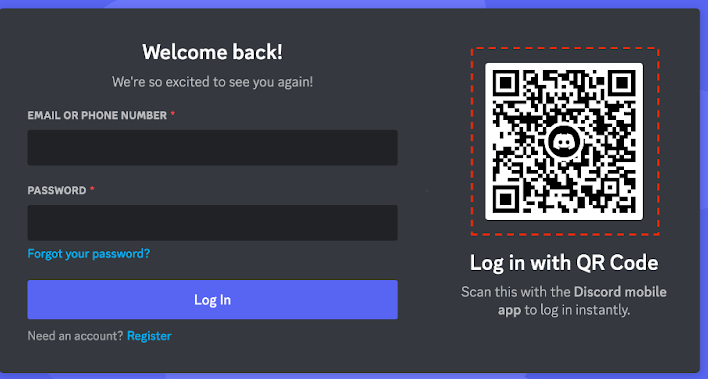
- Review the login request carefully and approve it only if you initiated it.
Note: Never scan or approve an unexpected Discord login QR code. Someone could use a malicious code to trick you into authorizing access to your account.
Forgot Your Discord Login Password?
If you can’t remember your password, reset it through Discord’s official login page. If you use a password manager, check whether it has saved the correct credentials.
- Visit Discord’s login page.
- Enter your account email address.
- Select Forgot your password?
- Check your inbox for Discord’s password-reset email.
- Follow the link and create a new, strong password.
- Return to Discord and sign in using the updated password.
If you can’t access the registered email address, try recovering that email account first. Discord may require you to use its official support site if you can’t complete account recovery.
Discord Login Not Working? Try These Fixes
The right solution depends on whether Discord rejects your credentials, fails to load, or blocks verification. Work through these checks before reinstalling the app.
- Incorrect email or password: Check for typing errors and confirm you are using the right account. Reset your password if necessary.
- Verification code rejected: Enter the current code from your authenticator app. Check that your device’s time is set automatically, as incorrect time settings can affect generated codes.
- Two-factor authentication unavailable: Use a backup code or another recovery method you previously configured. If none works, contact Discord Support.
- Discord stuck loading: Check your internet connection and restart the app. You can also try signing in through a browser.
- Browser login keeps failing: Open Discord in a private window or clear the site’s cookies and cache. Temporarily disable extensions that might interfere with sign-in.
- Desktop app won’t open: Update Discord and restart your computer. If the issue continues, reinstall the app using the official download page.
- Login blocked or account disabled: Read the message Discord displays and follow its instructions. If you believe the restriction is mistaken, contact Discord Support.
Before troubleshooting further, check the Discord Status page for reported service problems. If Discord is experiencing an outage, changing your password or reinstalling the app may not help. We also have detailed guides to help you fix common Discord issues, including DMs failing to load, voice/video calls not working, and login not working in your browser.
Summing Up
Logging into your Discord account gives you access to your communities and conversations across desktop and mobile devices. If you can’t sign in, start by checking your credentials, verification method, and Discord’s service status before attempting more involved fixes.
If you’re new to the platform, check out our guide on how to create a Discord account. For other common issues, learn what the yellow exclamation mark on Discord means or how to fix high CPU usage.
FAQs related to Discord login
1. Can I use the same Discord account on desktop and mobile?
Yes. Sign in with the same account on both devices to access your servers, friends, and messages.
2. Can I log in to Discord without a password?
Discord may offer QR-code login on compatible desktop sessions. Otherwise, use your regular credentials or the sign-in options displayed by Discord.
3. Why is Discord asking for a two-factor authentication code?
Two-factor authentication adds another security check after your password. Enter the code from your configured authenticator app or use another supported verification method.
4. What should I do if I no longer have access to my authenticator app?
Try a backup code or another recovery method you previously configured. If you cannot access any supported method, contact Discord Support for guidance.
5. Is Discord login free?
Yes. Signing in to Discord is free, although the platform offers optional paid subscriptions and features.

Read our disclosure page to find out how can you help Windows Report sustain the editorial team. Read more



Improve this guide




User forum
0 messages