
Regions Mobile Banking App Not Working? Try These 7 Fixes


 5 min. read
 Published on

If the Regions app is not working, you may have trouble logging in, checking your balance, depositing checks, or transferring money. The problem can occur because of a temporary server outage, an outdated app, internet connection issues, or incorrect login information.
Here are seven ways to get the Regions Mobile Banking app working again on iPhone and Android.
What can I do if the Regions app is not working?
1. Check if Regions Bank is down
Before changing your phone settings, check whether Regions Bank is experiencing technical problems. To check for an outage:
- Visit Downdetector and look for recent Regions Bank outage reports.
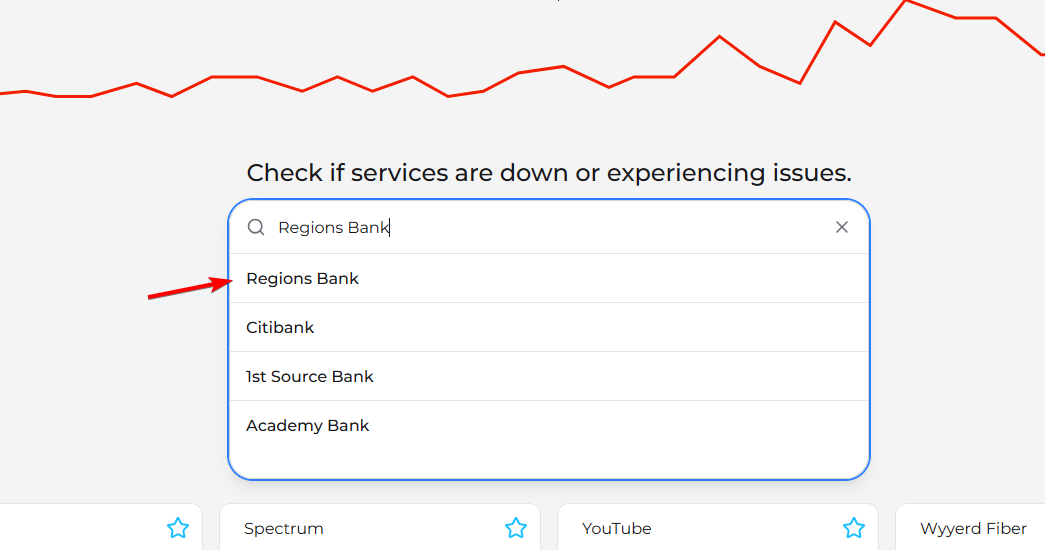
- Check whether other users report login problems, connection errors, or unavailable banking features.
- Visit the Regions Bank website and see whether online banking works.
If both the website and mobile app fail, Regions may be experiencing a service interruption.
In that case, avoid repeatedly submitting payments or transfers. Wait until the service becomes available and check your transaction history before trying again.
2. Check your internet connection
If your connection is unstable, the app may freeze, display an error, or fail to sign in. Try these steps to check if your connection is working:
- Turn off Wi-Fi and switch to mobile data.

- Open another website to confirm that your connection works.
- Restart your Wi-Fi router if other apps also have connection problems.
- Disable Airplane Mode if you accidentally enabled it.
- Reopen the Regions app and try signing in.
If the app works on mobile data but not Wi-Fi, your wireless network may be causing the problem.
3. Force close the Regions app and restart your phone
Sometimes, a temporary software glitch causes the Regions app to stop responding. Restarting the application can clear the problem without changing your account settings.
On Android:
- Open Settings and select Apps.
- Find and select Regions.
- Tap Force stop.
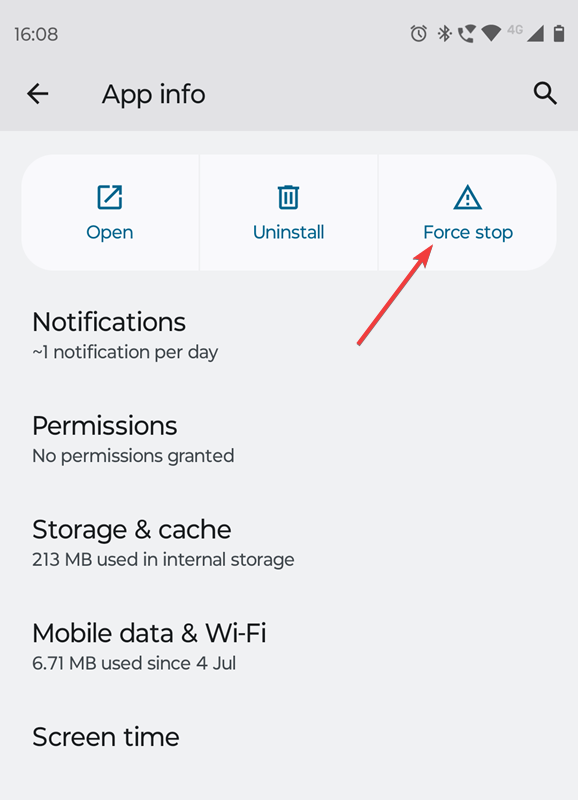
- Reopen the app and try logging in.
On iPhone:
- Swipe up from the bottom of the screen and pause to open the App Switcher, or double-click the Home button on older models.
- Find the Regions app.
- Swipe its preview upward to close it.
- Launch the app again.
If the problem continues, restart your phone and check whether the app works.
4. Update the Regions Mobile Banking app
An outdated version of the Regions app may contain bugs or compatibility problems that interfere with login, transactions, and other banking features. To update the app on Android:
- Open the Google Play Store.
- Search for Regions Bank.
- Select the official application.
- Tap Update if the option appears.
On iPhone:
- Open the App Store.
- Search for Regions Bank.
- Open the app’s listing.
- Tap Update if an update is available.
You can also visit the Regions Mobile app information page to learn more about the application.
After updating, restart the app and check whether the issue persists.
5. Clear the Regions app cache on Android
Clearing the cache may fix crashes, freezing, and loading problems. Follow these steps to do that:
- Open Settings on your Android phone.
- Select Apps and find Regions.
- Tap Storage or Storage & cache.
- Select Clear cache.
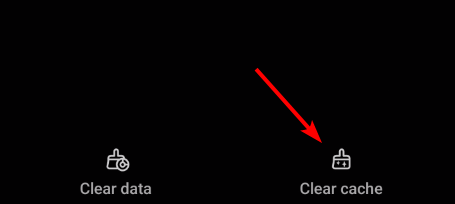
- Restart the app and sign in again.
The exact menu names may vary depending on your Android device.
Clearing the cache normally preserves your login information and app settings.
6. Reset your Regions login credentials
To reset your credentials, do the following:
- Open the Regions Mobile app.
- Select Need help logging in?
- Choose Retrieve my username or Reset password.
- Follow the instructions to verify your identity.
- Create a new password if necessary, then try signing in.
Regions may request account information and send a verification code to the email address or phone number associated with your account.
For additional instructions, visit Regions Bank’s account recovery guide.
7. Reinstall the Regions app
If none of the previous solutions works, reinstalling the Regions app may resolve corrupted application files or persistent software problems.
On Android:
- Find the Regions app on your phone.
- Press and hold its icon.
- Select Uninstall.
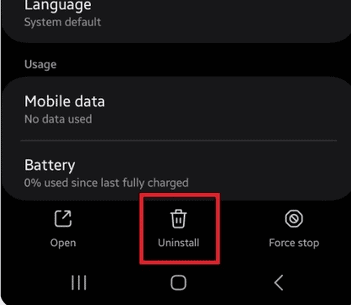
- Open the Google Play Store and reinstall the official Regions Bank app.
- Sign in again.
On iPhone:
- Press and hold the Regions app icon.
- Select Remove App, followed by Delete App.
- Open the App Store.
- Download the official Regions Bank app again.
- Sign in with your existing account credentials.
Reinstalling may reset biometric login and other saved app preferences, but it will not delete your bank accounts.
If the Regions app is not working, start by checking for an outage, testing your internet connection, and updating the application. These simple steps can resolve many common loading and login problems. If you experience similar issues with other banking apps, check our guides on fixing Huntington Bank app login and loading problems, resolving M&T Bank app login issues, and troubleshooting the PNC Bank app when it’s down or not working.
FAQs
Why is my Regions app not working today?
The Regions app may stop working because of a temporary server outage, unstable internet connectivity, outdated software, or account authentication problems. Check for service interruptions before restarting or updating the application.
Why won’t the Regions app let me log in?
Incorrect login credentials, expired verification codes, security checks, or a temporary account lock can prevent you from signing in. Try resetting your password or using the bank’s account recovery options.
How do I fix the Regions app crashing on my iPhone?
Force close the app, restart your iPhone, and install any available updates. If the app continues crashing, delete it and reinstall the latest version from the App Store.
Why is my Regions mobile deposit not working?
Mobile deposits may fail when the app lacks camera or location permissions, cannot capture a clear image of your check, or encounters a connection problem. Check your permissions, internet connection, and deposit status before retrying.
Can I access Regions Bank without the mobile app?
Yes. You can use Regions Online Banking through a web browser to access supported banking services. If you cannot sign in through the website either, contact Regions Bank for help.

Read our disclosure page to find out how can you help Windows Report sustain the editorial team. Read more


Improve this guide

User forum
0 messages