
Switch Pro Controller Not Detected on Windows 11 [Fix]


 3 min. read
  Updated on

While the Switch Pro controller is popular for its long battery life and large buttons, some users have reported that Windows 11 doesn’t recognize it, either in Device Manager or Steam.
This issue may stem from outdated drivers, faulty USB ports, or other technical glitches. Here’s how to fix it.
How can I fix Windows 11 not recognizing the Switch Pro controller?
1. Check your USB port
While USB ports are generally durable, they can accumulate dust and debris over time, leading to recognition problems with your Switch Pro controller.
To check if the issue is with the USB port, try connecting to another device, like your phone. If your computer recognizes the other device, the port is fine. You can also try holding down the sync button on the controller while plugging it into your computer.
2. Update your drivers
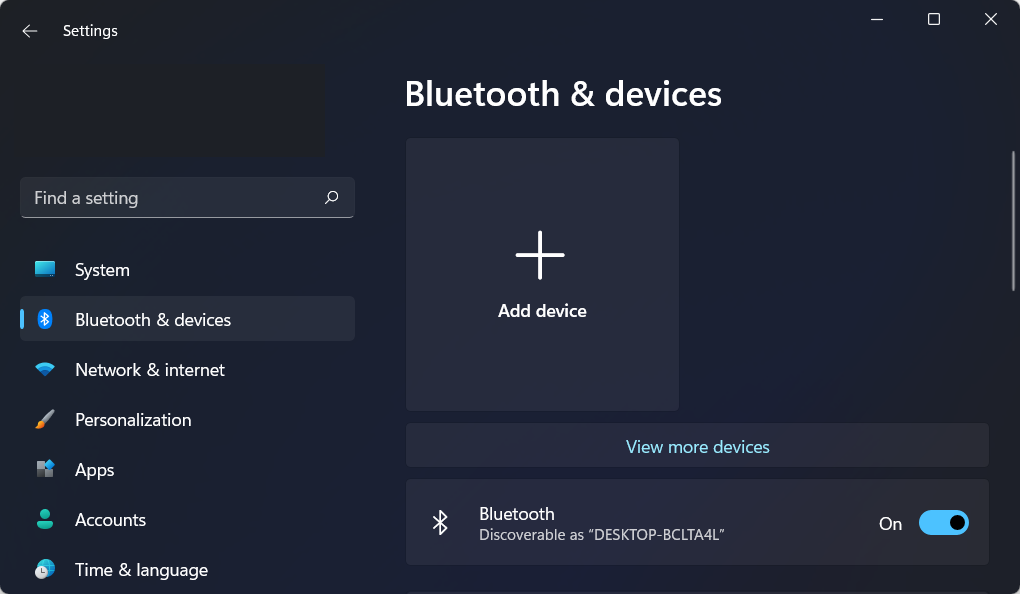
- Open Settings with the Windows + I shortcut and navigate to the Windows Update section from the left side, followed by Advanced options from the right side.

- Now click on the Optional updates option and select all the driver updates that you have available followed by the Download and install button.

If you don’t want to manually update your drivers, we recommend that you give Fortect Driver Updater a try. It is a lightweight software that automatically updates, fixes, and replaces all of your drivers without interfering with your day-to-day activities.
3. Disconnect other controllers from Switch
- In order to disconnect all your controllers from your Switch, you will have to go to System Settings followed by Controllers and Sensors.

- Scroll down to the button then select the Disconnect controllers option. In order to ensure your controller doesn’t connect to your Switch wirelessly and cause Windows 11 not to recognize the Switch Pro controller error again, turn your Switch off.
4. Update your OS
- Open the Settings app and go to the Windows Update section.
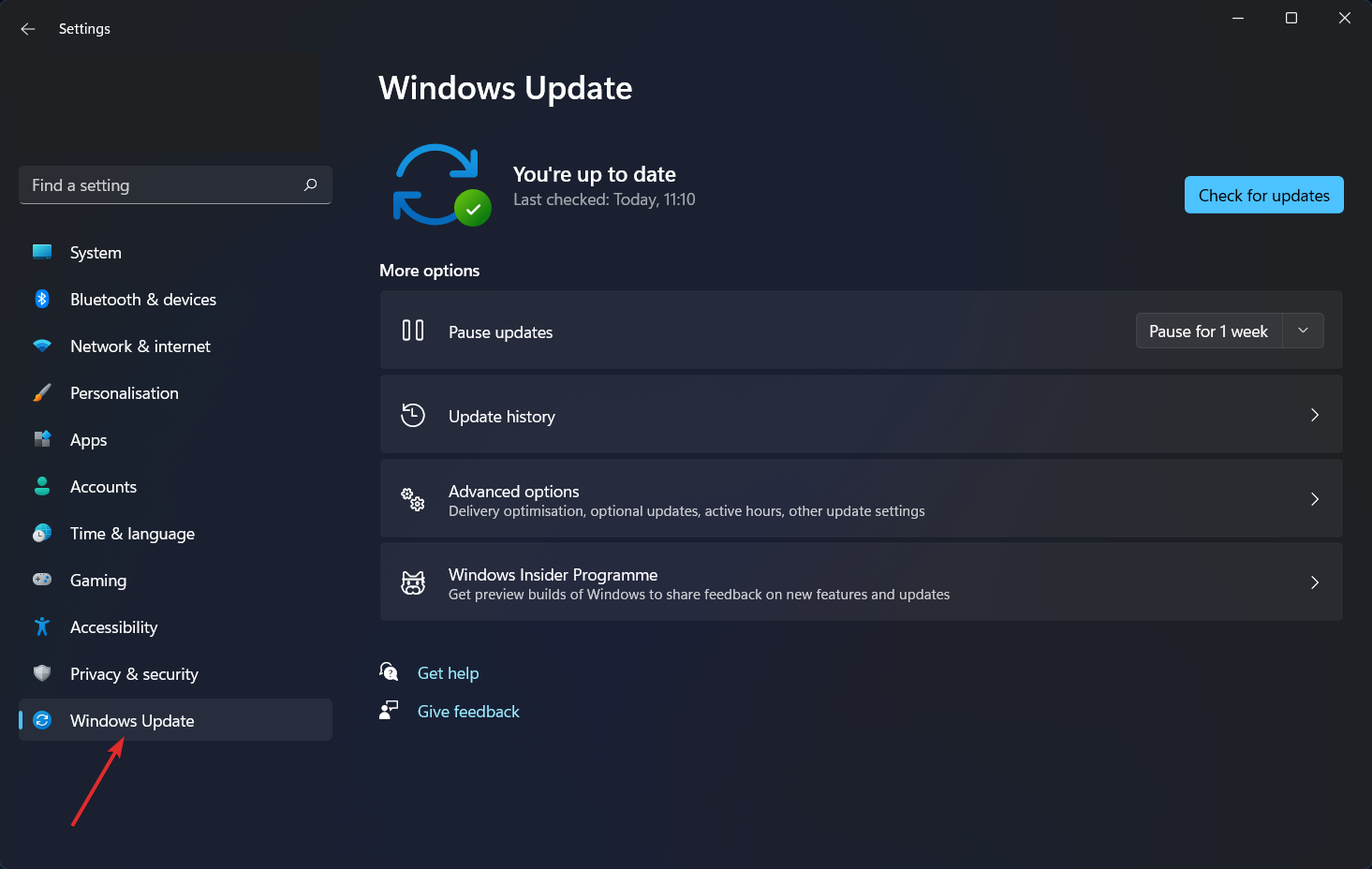
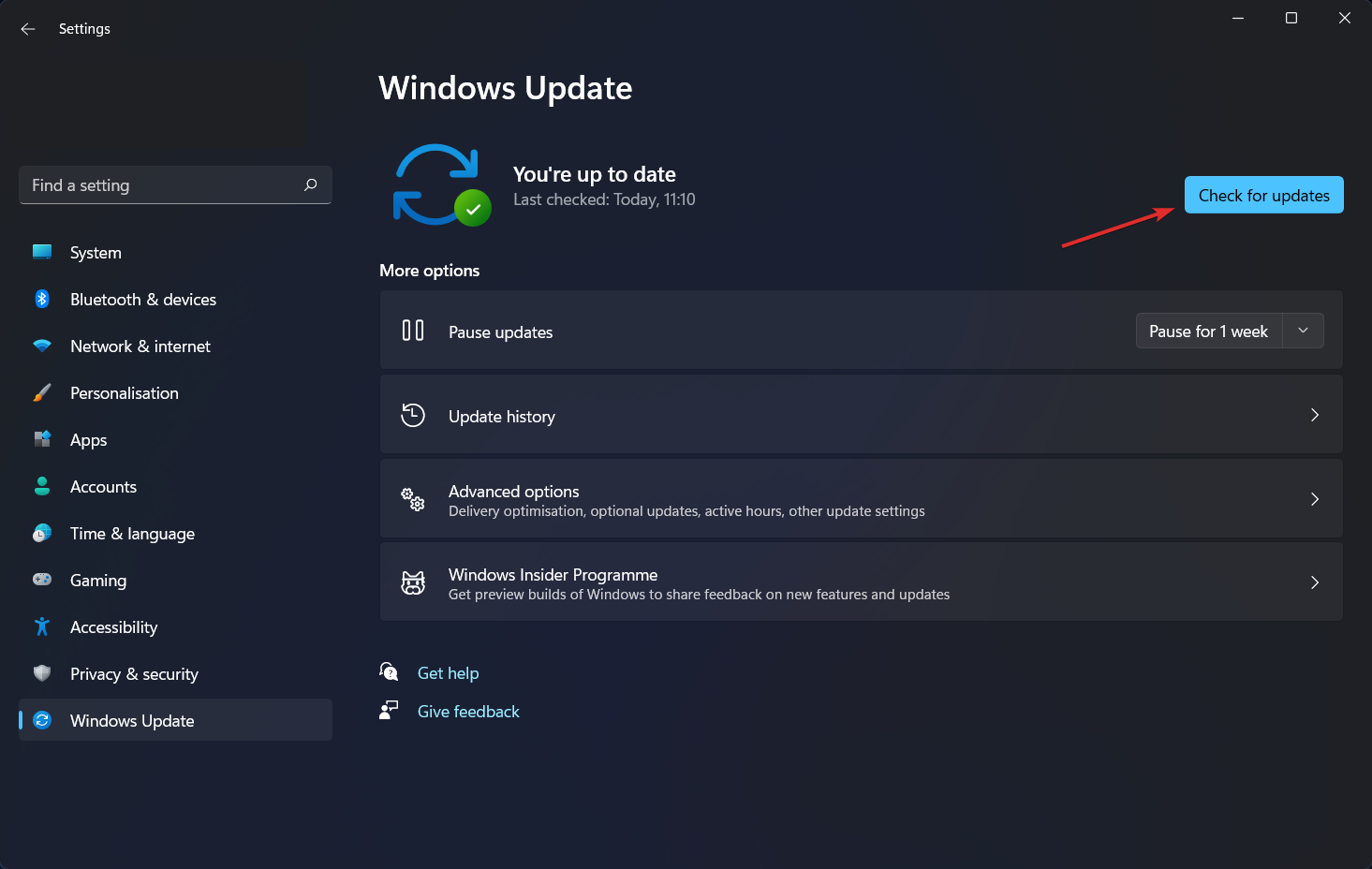
- Here, press the blue button that either says Install now or Check for new updates, depending on your case.
What are the advantages of using the Switch Pro controller?
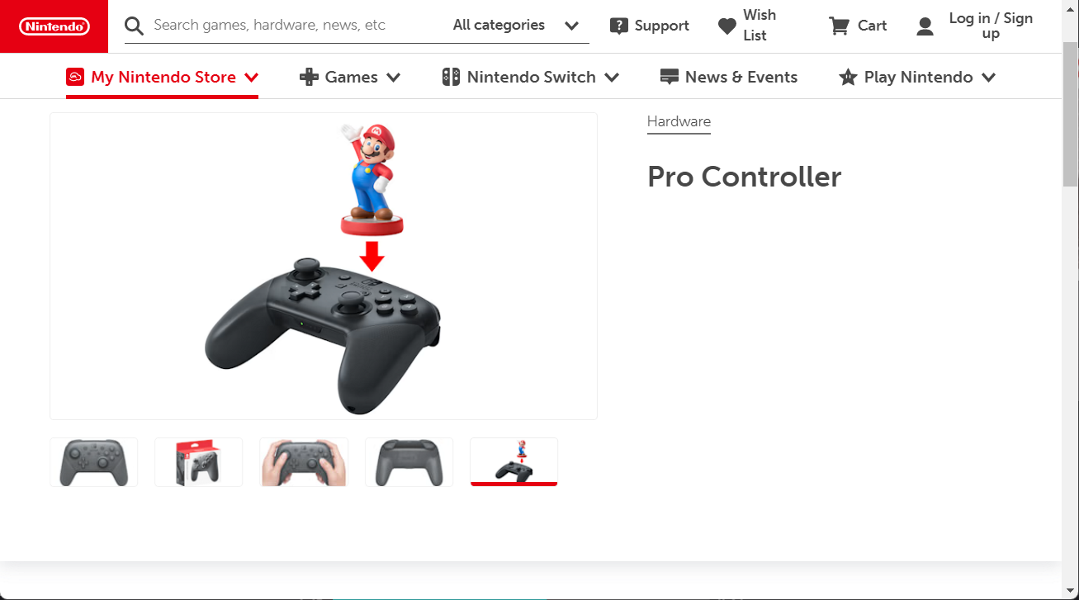
Here are the main benefits of Switch Pro controller:
- Ergonomic Design: The Switch Pro controller features a smarter button layout and size, offering maximum comfort for hands and fingers during gameplay.
- High-Quality Build: Made from matte plastic, it resists fingerprints and is assembled with precision for durability.
- Comfortable Thumb Positioning: Unlike Joy-Cons, the design allows users to keep their thumbs straight when switching between buttons and sticks.
- Optimized Buttons: The A, B, X, and Y buttons are larger and arranged in a traditional diamond pattern, suitable for all hand sizes.
- Smooth Sticks: The sticks on the Pro controller provide a very smooth gaming experience.
Wrapping up
If you’re having this problem, it’s very likely that you’re using an older version of Windows, and that’s what’s causing it. Upgrading to the most recent Windows update may resolve the problem.
These are the ways in which you can fix the Windows 11 not recognizing Switch Pro controller error. If you need further assistance, you might have to call the Nintendo support team to check whether your controller has any problems.
Was this guide useful? Let us know in the comments section below as well as whether you have more solutions in mind. Thanks for reading!

Read our disclosure page to find out how can you help Windows Report sustain the editorial team. Read more



Improve this guide

User forum
0 messages