
How to Sign in to Adobe Acrobat (Step-by-Step Guide)


 4 min. read
  Published on
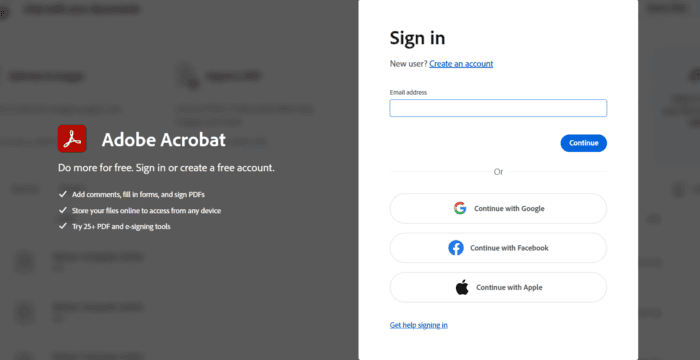
Whether you want to edit a PDF, access cloud files, manage an Acrobat subscription, or use Acrobat Sign, you’ll need to complete the Adobe Acrobat sign in process. Fortunately, signing in to Adobe Acrobat is usually quick and pretty straightforward. Adobe now supports several sign in options, including an email and password, social accounts, and passkeys. If you are unaware how to log into Adobe Acrobat, this guide will walk you through every method.
How to Sign in to Adobe Acrobat on Desktop
- Open Adobe Acrobat on your Windows PC or Mac.
- Select Sign in when the login screen appears.
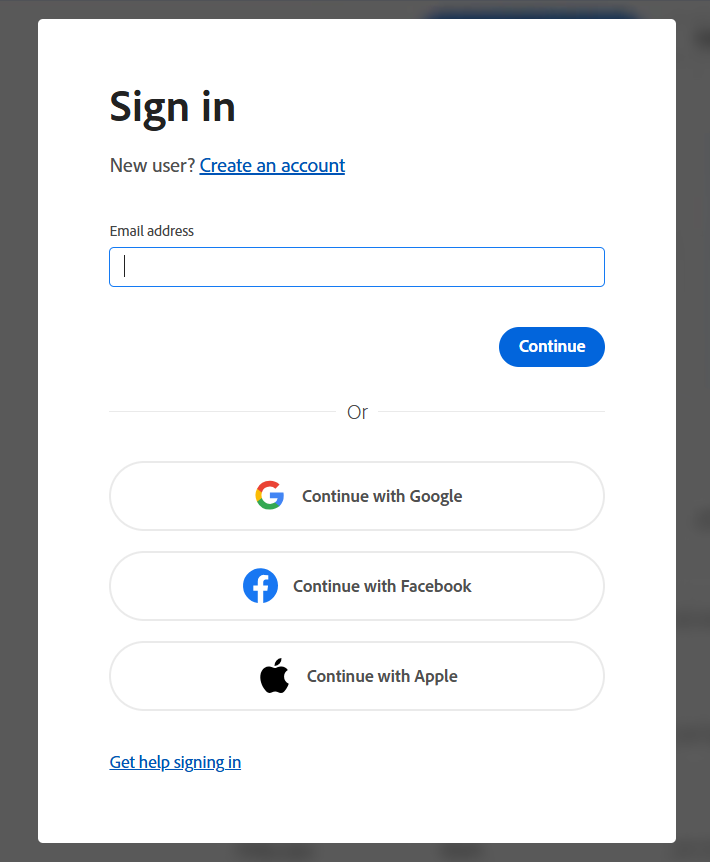
- Type the email address connected to your Adobe account and click Continue.
- Enter your Adobe password.
- Finally, follow any verification steps shown on screen. You can then access your Acrobat features and documents.
You can alternatively choose Continue with Google, Continue with Facebook, or Continue with Apple if that option is connected to your account.
How to Sign In to Adobe Acrobat on Android and iPhone
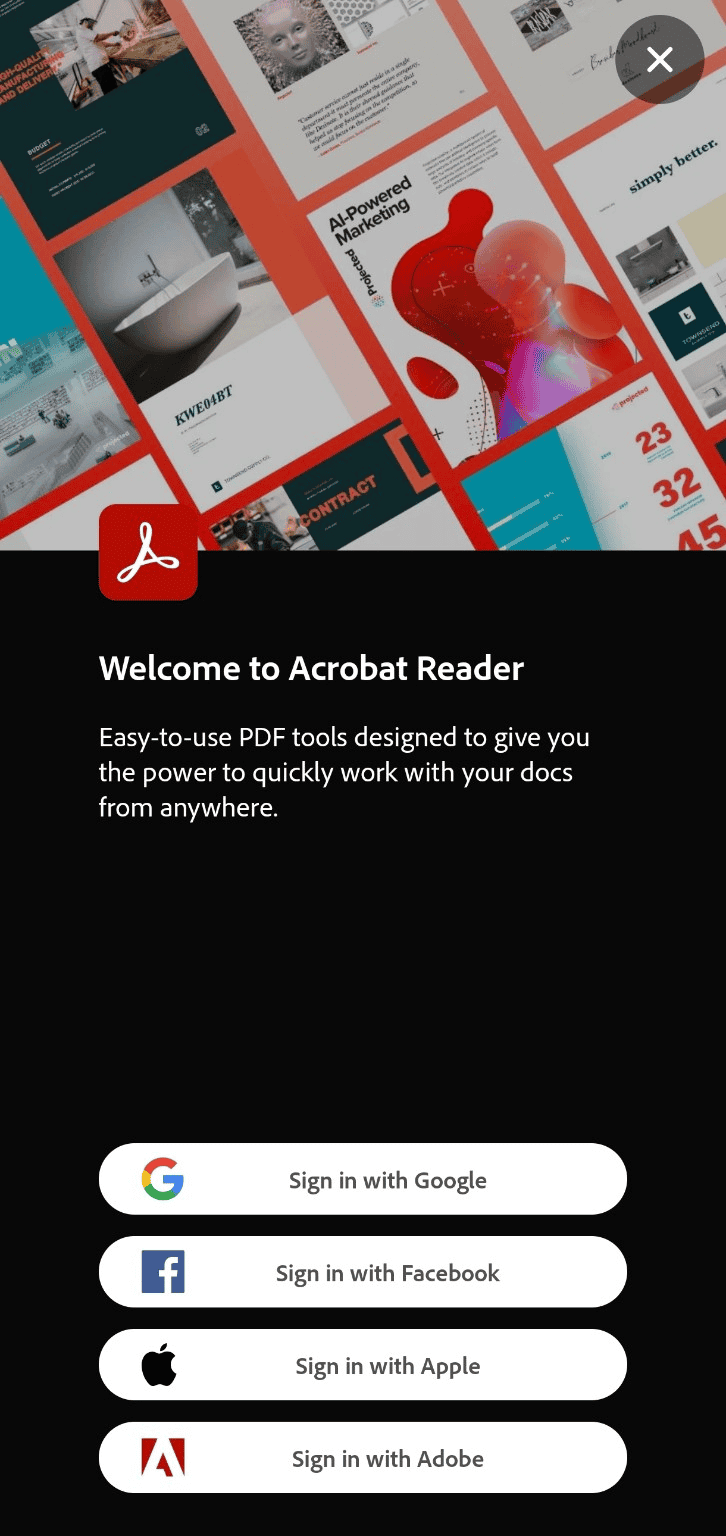
The mobile Acrobat Reader app provides the same basic sign-in choices in a mobile-friendly layout.
- Open Adobe Acrobat app on your iPhone or Android device.
- Choose Sign in with Google, Sign in with Facebook, Sign in with Apple, or Sign in with Adobe.
- If you choose Adobe, enter your account details. For Google, Facebook, or Apple, complete the authentication steps for that service.
- After signing in, you can work with supported PDFs and access your account features from your phone.
Which Sign-In Option Should You Use?
Use the same account method you originally connected to Adobe. If you are unsure, Sign in with Adobe is the standard option for an Adobe account, while Google, Facebook, and Apple can provide quicker access when those accounts are already linked.
Final Tips
Always use the official Acrobat app or Adobe website when signing in. On shared devices, avoid saving your password, and use additional account security when available.
Why You May Need Adobe Acrobat Sign In
You might need to sign in after switching computers, reinstalling Acrobat, accessing files from another device, managing an Acrobat subscription, or trying to edit and sign PDFs through Adobe’s online tools. Some basic Acrobat PDF tools can also be used without signing in, while an account unlocks additional cloud and document features.
Common Adobe Acrobat Login Problems & Fixes
- Forgot your password: Go to Adobe Account, choose Get help signing in, then select Reset your password. Adobe can send a verification code to your email, and phone verification may also be available if configured.
- Wrong email address: Adobe’s Find your account option can help identify the email address or registered phone number associated with an account.
- Verification code not arriving: Check your spam or junk folder, confirm that the email or phone number is correct, and try requesting another code.
- Acrobat Sign shows the wrong profile: If your email is linked to multiple Adobe profiles, select the profile that is actually enabled for Acrobat Sign. Organization-managed accounts may also require administrator assistance.
- Browser login keeps failing: Try a private browsing window, update your browser, temporarily disable problematic extensions, or clear cached site data before trying again.
FAQs related to Adobe Acrobat sign in
1. How do I sign in to Adobe Acrobat?
2. Is Adobe Acrobat login free?
Adobe provides free online PDF tools and a free account option. Some advanced editing, conversion and e-signature features require a paid Acrobat plan.
3. Is Adobe Acrobat Sign the same as Acrobat?
They are related Adobe services, but Acrobat Sign focuses specifically on electronic signatures and agreement workflows. Its login can also depend on an organization’s authentication setup.
4. Can I use Adobe Acrobat without signing in?
Yes. Adobe says several online PDF tools can be used without a login, although signing in provides access to account-linked features and cloud services.

Read our disclosure page to find out how can you help Windows Report sustain the editorial team. Read more



Improve this guide



User forum
0 messages