
How to Fix Asus Armoury Crate if it's Not Working
Make sure that the app is compatible with your device


 5 min. read
  Updated on
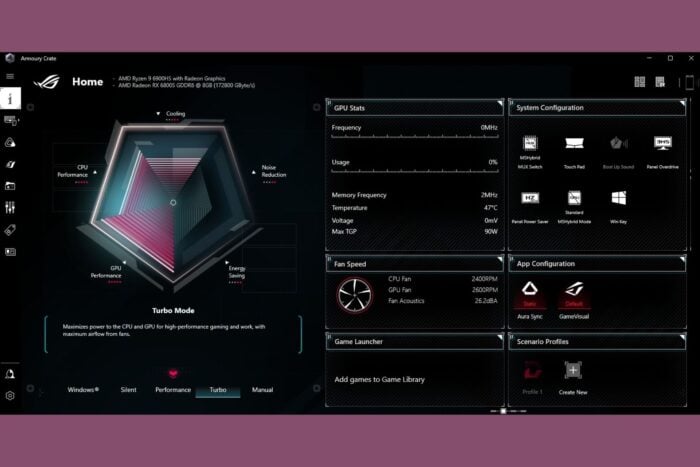
If ASUS Armoury Crate is not working as expected, or not opening, it could be due to various issues such as software bugs, outdated drivers, or corrupted installation files.
Table of contents
How do I fix Asus Armoury Crate if it’s not working?
1. Update Armoury Crate
- Open Armoury Crate (if it launches at all).
- Go to Settings > About.
- Check for updates and install them if available.
- If the app doesn’t open, manually download the latest version:
- Visit the official Asus Armoury Crate download page or read our guide on how to install Armoury Crate on Windows 11.
- Download and install the latest version.
In addition to updating, make sure that Armoury Crate is compatible with your device. It only works with ROG, TUF Gaming and other selected Asus devices.
2. Check for Windows Updates
- Press Win + I to open Settings.
- Navigate to Update & Security → Windows Update.
- Click Check for updates and install any pending updates.
Sometimes, the latest Windows updates come with drivers and other fixes for the software installed on your PC so updating your OS might also solve this problem quickly.
3. Update the Asus drivers
- Visit the official ASUS Support website.
- Search for your motherboard or laptop model.
- Download the latest drivers for:
- Chipset
- RGB or Aura Sync software
- Device-specific drivers (e.g., GPU, cooling system)
The Asus Armoury Crate software works with the component drivers to provide you with the needed services. If the drivers are not updated, Armoury Crate might not work on your system.
4. Repair the Armoury Crate installation
- Click the Start button, type control panel and open the app from the results.
- Go to Programs and Features and locate Armoury Crate in the list.
- Right-click and select Repair or Modify (if available).
- Follow the on-screen instructions to repair the installation.
5. Reinstall Armoury Crate
- Open Control Panel as instructed in the previous solution.
- Go to Programs and Features, find Armoury Crate, right-click, and select Uninstall.
- Navigate to the following directories and delete any Armoury Crate-related folders:
C:\Program Files (x86)\ASUSC:\ProgramData\ASUSC:\Users\<YourUsername>\AppData\Local\ASUS
- Download the latest Armoury Crate installer from the ASUS website as instructed in the first solution from this guide.
- Run the installer and follow the setup instructions.
After reinstalling, some users also reported errors with hardware detection, such as the GPU not showing in Armoury Crate, which has its own dedicated guide.
If Armoury Crate opens but the fan panel shows no readings or the Fan Control page is blank, use our dedicated guide to fix Armoury Crate not showing fan speed and restore accurate RPM reporting.
6. Enable Armoury Crate in BIOS
- Restart your computer and press F2 or Del to enter the BIOS setup. If these keys don’t work, look for the right one for your system or check for instructions on the motherboard manual.
- Navigate to the Tools tab.
- Find the Armoury Crate Download and Install setting.
- Ensure it is enabled.
- Save and exit the BIOS, then boot into Windows.
7. Check the background services
- Press Ctrl + Shift + Esc to open Task Manager.
- Go to the Services tab.
- Look for Armoury Crate-related services (e.g., ArmourySocketServer) and ensure they are running.
- If a service is stopped, right-click on it and select Start.
8. Disable conflicting software
Third-party applications like RGB control software or overclocking utilities may conflict with Armoury Crate. Therefore, you should check if you installed any of these kinds of apps and close or uninstall them temporarily to see if Armoury Crate is running.
If that was the problem, you will either need to get rid of the conflicting software or use it instead of Armoury Crate if it’s providing the missing service you need.
9. Reset the Armoury Crate application
- Open Settings by pressing Win + I.
- To to Apps > Installed apps.
- Locate Armoury Crate and select it, click on Advanced Options.
- Choose Reset to restore the application to default settings.
By following these steps, you should be able to restore Asus Armoury Crate functionality and manage your device’s performance and lighting effectively. If Asus Armoury Crate is crashing your PC, click the highlighted link for our guide on how to fix it. We also have a troubleshooting guide to fix the Armoury Crate black screen if you come across that problem in Windows.
If you’re still struggling with Asus Armoury Crate not working, it might help to compare it with other Asus tools. Check out this detailed breakdown of Asus Armoury Crate vs AI Suite to see which software better fits your needs and ensures smoother performance management.
FAQ
It may stop responding due to outdated software, corrupted installation files, or conflicts with Windows updates.
Try reinstalling the Armoury Crate app, updating Windows, and checking for the latest drivers from Asus’ support page.
Yes. Services like Armoury Crate Service and ASUS Framework Service must be running for the app to work correctly.
This issue often appears when RGB drivers are missing or corrupted. Reinstall Aura Sync or update device firmware to restore detection.
Yes. Some antivirus tools or VPNs may block connections. Temporarily disable them and see if Armoury Crate launches properly.
For any other questions or suggestions, don’t hesitate to reach us in the comments section below.

Read our disclosure page to find out how can you help Windows Report sustain the editorial team. Read more



Improve this guide



User forum
0 messages