
How to Check Printer Ink Levels on Windows 11 in 3 Ways


 4 min. read
  Updated on
If your printer suddenly stops printing or your colors look faded, your ink or toner levels may be low. Checking printer ink levels on Windows 11 helps you know when to replace cartridges before print quality drops. This guide explains the best ways to view your ink status quickly and accurately.
Table of contents
How to Check Printer Ink Levels on Windows 11?
1. Use Windows Settings
Use the Windows Settings app to quickly check basic ink information for your installed printer.
- Press Windows key + I to open Settings.
- Select Bluetooth & devices on the left panel.

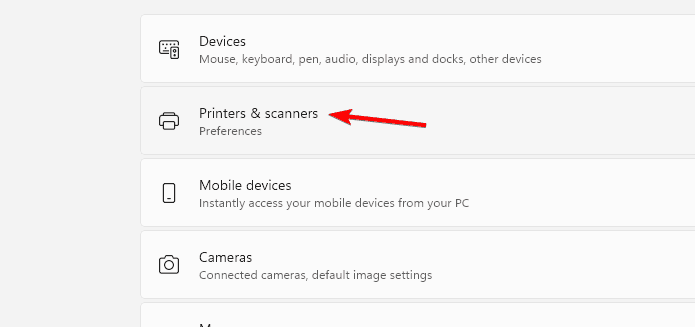
- Click Printers & scanners.

- Choose your connected printer.

- Check the Ink levels section below the printer name or status.

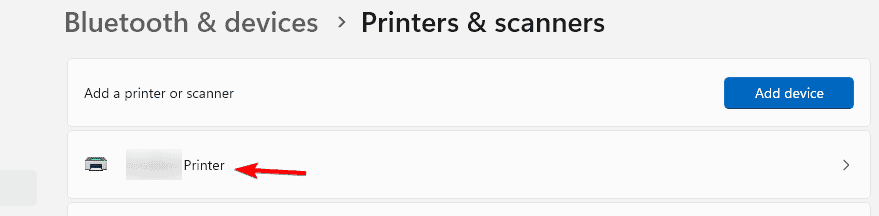
Note: Some printers require the manufacturer driver package before ink level information appears in Windows.
For more options when managing printers, see this guide on Devices and Printers settings in Windows 11.
2. Use Printer Software (Manufacturer Utility)
The official printer utility from your manufacturer usually provides the most detailed ink or toner level information.
- Open the Start menu and search for your printer utility, such as Canon, Epson, HP, or Brother tools.
- Launch the utility and select your printer if prompted.
- Open the Maintenance, Status, or Ink Levels tab.
- Review the current ink or toner status for each cartridge.

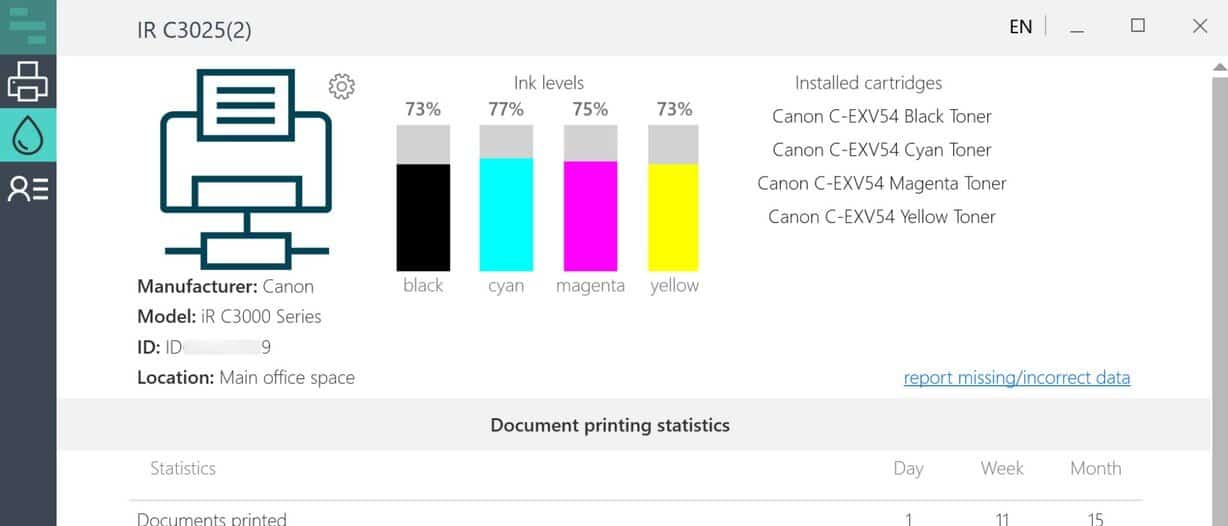
Tip: If you cannot find the utility, download the full driver and software package from your printer manufacturer support page.
3. Check Ink Levels on the Printer Screen
Many modern printers display cartridge information right on the built in control panel.
- Power on your printer.
- Press the Home or Menu button on the printer panel.
- Navigate to Ink Levels or Supplies Status.
- View the remaining ink or toner level for each cartridge.
This is a good time to print a test page to confirm that your cartridges are working correctly. You can also print a contact sheet of photos in Windows 11 to preview multiple images on one page before printing them individually. It’s a convenient way to test colors and ink quality after checking your ink levels.
FAQs
You can use your printer display panel and open the Settings or Maintenance menu to view ink or toner levels directly on the device.
Your printer driver may not be fully installed. Install the official driver package from your printer manufacturer, then check the Printers and scanners page again.
Yes, low ink often causes faded colors, missing text, or streaks, so you should replace cartridges once the printer warns about low levels.
Yes, as long as your printer is connected to the same network as your PC, Windows and the printer utility can usually display live ink status.
Why You Should Check Ink Levels
Low ink or toner can lead to faded colors, streaks, or incomplete prints, so regular checks are essential.
- Maintain clear and vibrant print quality
- Prevent last minute printing interruptions
- Save money by managing ink usage effectively
For even better print accuracy, you can also align your print cartridges to ensure colors and text print properly.
Conclusion
Keeping an eye on your printer ink levels helps you avoid surprise printing failures and keeps documents looking sharp and professional. Whether you use Windows settings, the printer utility, or the printer screen, regular checks ensure you always know when it is time to replace a cartridge.

Read our disclosure page to find out how can you help Windows Report sustain the editorial team. Read more



Improve this guide


User forum
0 messages