
Step-by-Step Guide to Pair Bluetooth Headphones on Windows 11


 3 min. read
  Published on
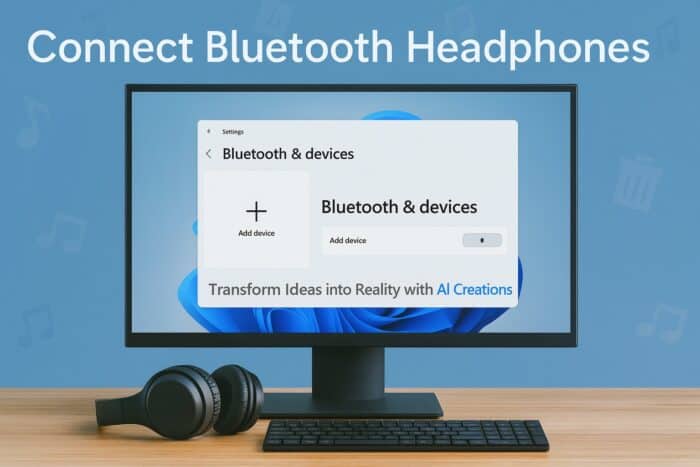
Bluetooth headphones make your listening experience wireless and convenient. If you are unsure how to pair them with your Windows 11 PC, follow these simple steps to get started.
Table of contents
How to Connect Bluetooth Headphones to Windows 11?
1. Turn On Bluetooth on Your PC
Before pairing, make sure Bluetooth is enabled on your computer.
- Press Windows + I to open Settings.
- Click Bluetooth & devices on the left sidebar.

- Switch the Bluetooth toggle to On.

- Your PC is now ready to detect nearby Bluetooth devices.
To learn more, check out this detailed guide on how to turn on Bluetooth in Windows 11.
2. Put Your Headphones in Pairing Mode
Next, activate pairing mode on your Bluetooth headphones.
- Hold down the Power or Pairing button on your headphones until the LED light starts blinking.
- Some models will announce “Pairing mode” or flash blue/red lights to confirm.
- Keep the headphones close to your PC to ensure quick detection.
3. Add and Connect the Headphones
Once pairing mode is active, add the device from Windows Settings.
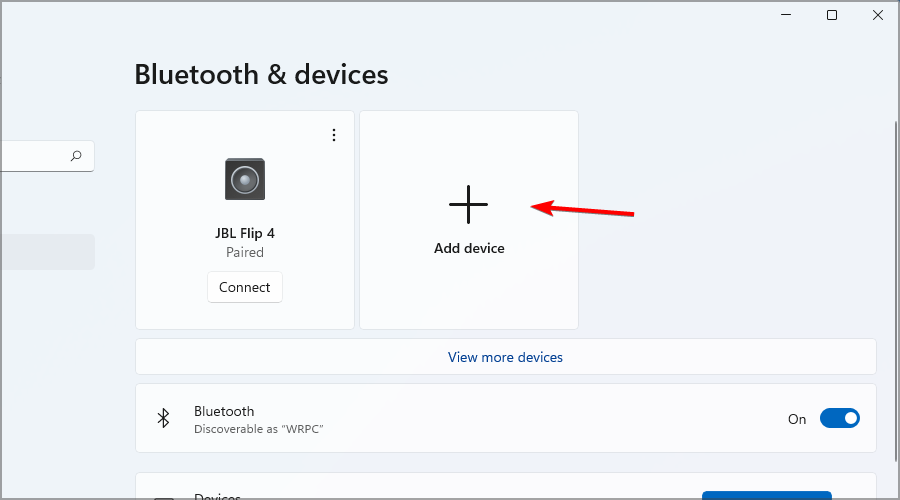
- In Bluetooth & devices, click Add device.
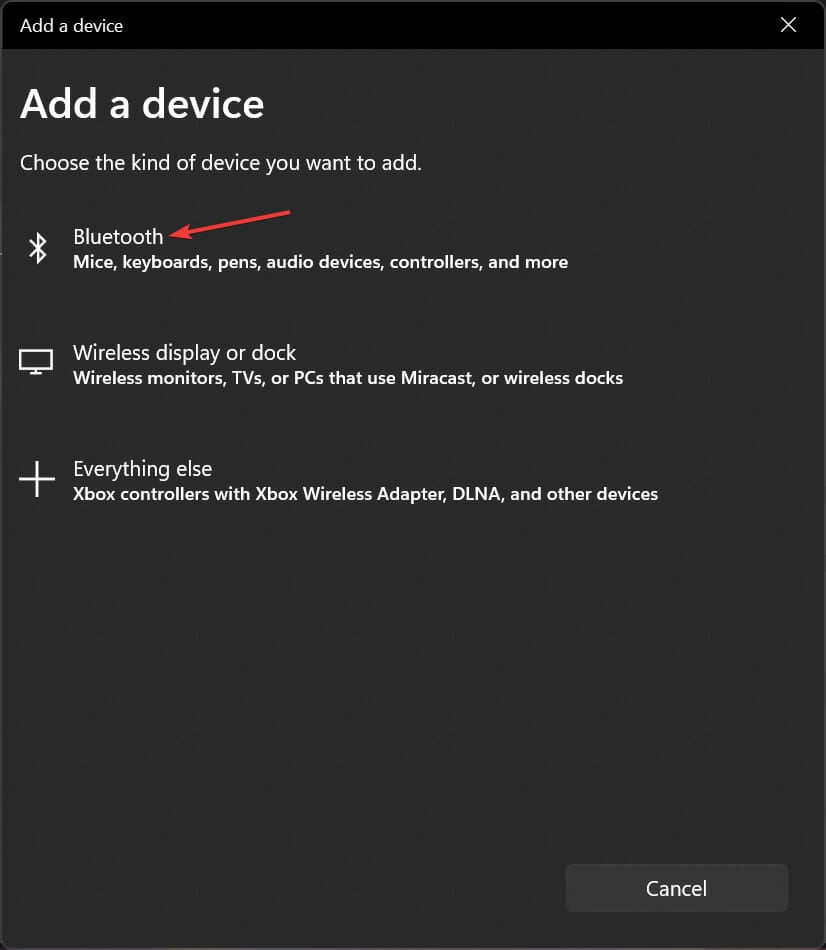
- Select Bluetooth from the options.
- Choose your headphones from the list of available devices.
- Wait for Windows to pair and confirm the connection.
If you often use multiple wireless devices, here’s how to pair multiple Bluetooth devices in Windows.
4. Set Headphones as the Default Audio Device
To ensure sound plays through your new headphones, make them the default output.
- Right click the Sound icon on the Taskbar.
- Select Sound settings.
- Under Output, pick your Bluetooth headphones.
- Test the sound to confirm the setup.
You can also follow these steps to auto connect Bluetooth devices in Windows 11 for a seamless experience.
Why Your Bluetooth Headphones May Not Connect
Sometimes, pairing can fail due to connection issues. Here’s how to fix it.
- Restart both devices and try pairing again.
- Remove other paired devices that may interfere.
- Update Bluetooth drivers in Device Manager.
- Forget and re-pair the headphones from Settings.
FAQs
Go to Settings > Bluetooth & devices, click the three dots next to your headphones, and choose Remove device.
Yes, Windows 11 supports multiple Bluetooth connections, but only one audio output can be active at a time.
Ensure your headphones are selected as the default playback device under Sound settings.
Most modern headphones work automatically, but you can update Bluetooth drivers for better performance.
Conclusion
Connecting Bluetooth headphones to Windows 11 is a straightforward process once you know where to look. Start by enabling Bluetooth, put your headphones in pairing mode, and set them as the default device. If you want a more streamlined experience, consider setting Windows to automatically reconnect your headphones every time you turn on your PC.

Read our disclosure page to find out how can you help Windows Report sustain the editorial team. Read more



Improve this guide

User forum
0 messages