
Discord Invite Link Not Working? Here's How to Fix It


 4 min. read
  Updated on
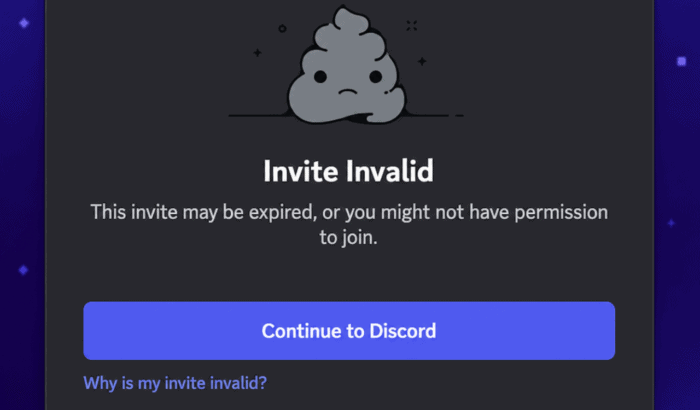
You’ve probably clicked a Discord invite link expecting to join a server, only to be greeted with an “Invite Invalid” or “Unable to Accept Invite” error. All of sudden, you start thinking why is Discord invite link not working for you. We understand it could be quite frustrating, especially when everyone else seems to be getting in without any trouble. The good news is that the problem usually isn’t permanent, and in most cases, you can fix the Discord invite link not working issue.
In this guide we will walk you through reasons why is your Discord invite link not working, tried and tested fixes to resolve it and some frequently asked questions by our readers regarding the Discord invite link issue. So, without much ado, let’s jump in.
Why is your Discord invite link not working?
Before trying any fixes, it’s worth understanding why the problem happens. A Discord invite invalid message usually appears when the invitation has expired, reached its maximum number of uses, or was deleted by the server administrator. You may also see errors if you’re using the wrong Discord account, have been banned from the server, or Discord is experiencing temporary service issues.
How to fix a Discord invite link not working
1. Ask for a new Discord invite link
Many Discord invitations are set to expire after a certain amount of time or after a specific number of people join. If the Discord invite link expired or reached its maximum usage, you’ll need the server owner or a moderator to create a fresh invitation.
2. Double-check the invite link
If someone manually copied the invite code, make sure it wasn’t shortened, cut off, or modified. Even one incorrect character can result in a Discord invite says invalid error.
3. Sign into the correct Discord account
Some users have multiple Discord accounts and accidentally open an invite while logged into the wrong one. Log out, sign into the intended account, and try opening the invitation again.
4. Update the Discord app
An outdated version of Discord can sometimes prevent invitation links from opening correctly.
- Windows/Mac: Download the latest version or restart Discord to install pending updates.
- Android: Update Discord from the Google Play Store.
- iPhone: Install the latest version from the App Store.
This can help if your Discord invite link is not working on mobile or PC.
5. Clear Discord’s cache
Corrupted cached files may interfere with invite links.
Windows:
- Close Discord completely.
- Press Windows + R.
- Type %appdata% and press Enter.

- Delete the Discord folder’s Cache, Code Cache, and GPUCache folders.
- Restart Discord.
Android:
- Open Settings > Apps > Discord.
- Tap Storage.
- Select Clear Cache.

6. Try another browser or device
If the Discord invite link won’t work, open it using another browser or a different device. If it works elsewhere, the problem is likely related to your current browser or Discord installation.
7. Disable your VPN or proxy
VPNs and proxy services can occasionally interfere with Discord connections. Temporarily disable them and try opening the invite again.
8. Check Discord’s server status
If Discord is experiencing an outage, invite links may not work properly. Wait until the service is fully operational before trying again.
9. Contact the server administrator
If you’ve tried every fix and still can’t join the Discord server, ask a moderator whether:
- The invite was revoked.
- The server is full.
- You’ve been banned.
- New members are temporarily restricted.
They can generate a new invite or confirm whether there’s an account-specific issue.
We hope one of these methods helps you get the Discord invite link issue fixed. For those who are unable to open Discord at all, check our comprehensive guide on how to force start it.
FAQs related to Discord invite link issues
1. Why does my Discord invite say invalid?
An invalid invite usually means the link expired, reached its maximum number of uses, was deleted, or contains an incorrect invite code.
2. Why does Discord say, “Unable to Accept Invite”?
This error often appears if the invitation is no longer valid, you’ve been banned from the server, you’re using the wrong account, or Discord is experiencing temporary issues.
3. Can I use an expired Discord invite?
No. Once a Discord invite link expired, only a server administrator or moderator can generate a new invitation.
4. Why is my Discord invite not working on Android or iPhone?
Updating the Discord app, clearing its cache (on Android), switching networks, or reinstalling the app usually resolves most mobile invite issues.
5. Why can’t I join a Discord server even with a valid invite?
You may have reached Discord’s maximum server limit, the server could have membership restrictions, or your account may have been blocked by the server’s administrators.

Read our disclosure page to find out how can you help Windows Report sustain the editorial team. Read more



Improve this guide


User forum
0 messages