
How to Fix Discord App Not Working Issue


 3 min. read
  Updated on

If your Discord app is not opening, showing a grey screen, or failing to connect, you can usually fix most problems quickly by following these steps.
Table of contents
What can I do if Discord app not working?
1. Restart Discord and your device
The first thing you should try when Discord is not working is a simple restart. To restart the app and your device, do the following:
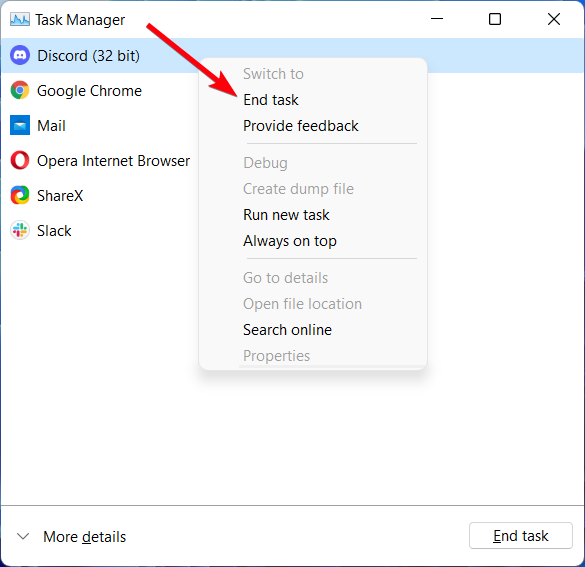
- Press Ctrl + Shift + Esc to open Task Manager.
- Find Discord in the list, right click it, and select End task.
- Restart your computer and open Discord again.
If you are on Windows 11, follow the steps in Discord won’t open on Windows 11.
2. Check your internet connection
A weak or unstable network often causes Discord issues. To check your internet connection, follow these steps:
- Open another app or website to confirm your internet is working.
- Switch between Wi-Fi and mobile data or try another network.
- Restart your router if needed.
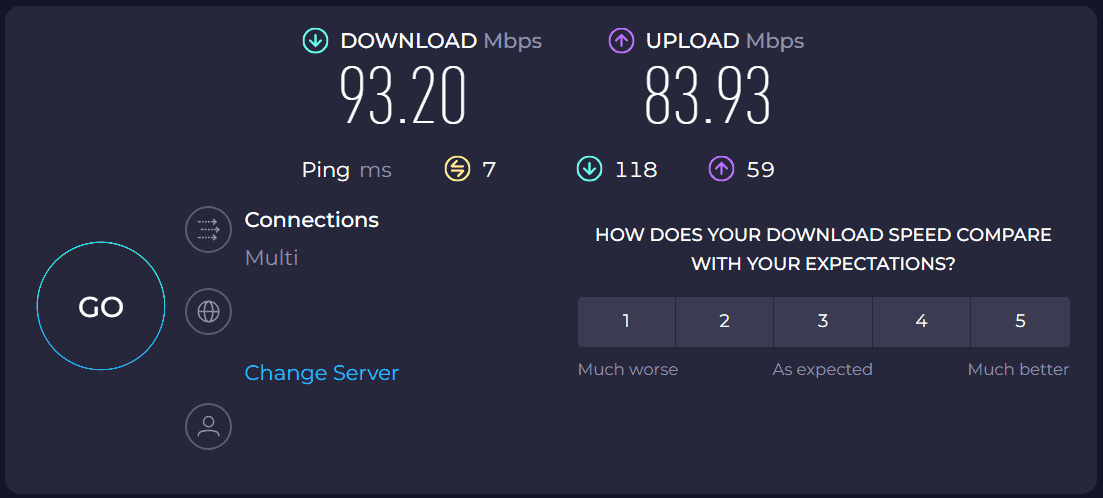
- Run a quick speed test to make sure your connection is stable.
3. Clear cache and data
Corrupted cache files can cause the app to freeze or show a grey screen. To clear the cache and data, do the following:
- On Windows, press Windows + R and type %appdata%.
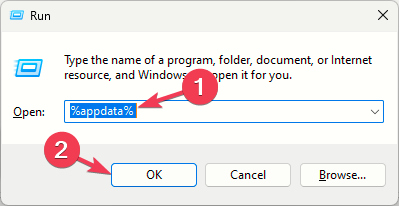
- Find the Discord folder and delete it.
- Restart Discord so it can create fresh files.
- On mobile, clear the app cache from your device settings.
If you encounter a blank window, see more fixes in Discord grey screen issue.
4. Update or reinstall the app
Running an outdated version of Discord can cause crashes or prevent it from opening. To update or reinstall the app, follow these steps:
- Open your app store or visit Discord’s official website.
- Check if an update is available and install it.
- If the app still does not open, uninstall the current app and reinstall a fresh copy.
For persistent launch problems on Windows, try the steps in Discord won’t open on Windows.
5. Check server status
Sometimes the issue is on Discord’s side. To confirm if there is an outage, follow these steps:
- Go to the official Discord Status page.

- If servers are down, wait until the issue is fixed.
6. Disable VPNs or background apps
VPNs or other apps running in the background may block Discord from working correctly. To fix this, do the following:
- If you are using a VPN or proxy, turn it off and try opening Discord again.
- Close unnecessary background apps in Task Manager to free up system resources.
Conclusion
These steps resolve most Discord issues. Start with a restart and connection check, then move to cache clearing or reinstalling if needed.

Read our disclosure page to find out how can you help Windows Report sustain the editorial team. Read more



Improve this guide


User forum
0 messages