
EA App Not Opening on Windows PC? Try 10 Ways to Fix


 5 min. read
  Published on
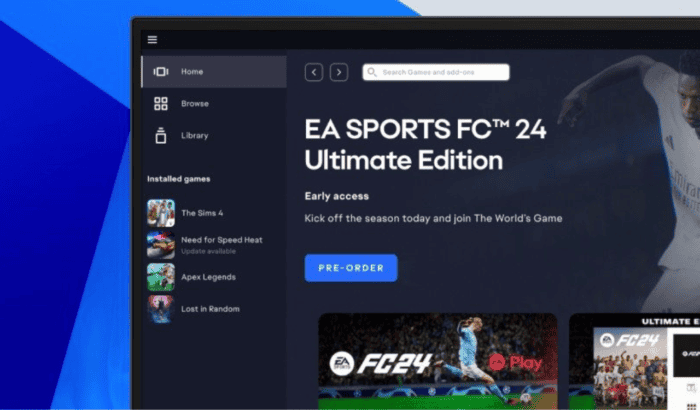
It is possible that sometimes EA app won’t open or throw some errors on Windows PC, and honestly, it is one of the most common app issues players run into before launching games like EA Sports FC 26, Battlefield, The Sims 4, Apex Legends, and more. Sometime EA app simply doesn’t launch, or at times it remains stuck on a black screen, endlessly load, or close immediately after opening.
In most cases, the issue is caused by corrupted cache files, background EA processes, outdated Windows components, network problems, or temporary EA server outages. Here are the best 10 ways to get the EA app working again if it doesn’t open.
How to Fix EA App Not Opening on Windows PC
1. Restart your PC
A fresh reboot clears temporary Windows services and background processes that may prevent the EA App from launching.
- Restart Windows.
- Try opening the EA App before launching any games.
2. Check if EA servers are down
If EA authentication or login servers are offline, the app may fail to load correctly.
- Visit EA Help’s Server Status page.
- Check EA Help on X (formerly Twitter) for maintenance announcements.
- Look at community outage trackers if multiple users are reporting the same issue.
3. End all EA background processes
Sometimes the launcher continues running silently after closing.
- Press Ctrl + Shift + Esc to open Task Manager.
- End every EA App, EABackgroundService, and EA-related process.
- Launch the EA App again.
4. Clear the EA App cache
Corrupted cache files are one of the leading causes of EA App launching issues.
- Open the EA App Recovery tool from the Start Menu if available.
- Select Clear Cache.
- Restart your PC.
If the app won’t open at all:
- Press Windows + R.
- Type:
%localappdata%- Delete the Electronic Arts cache folders if present.
- Restart Windows.
5. Run the EA App as Administrator
Missing permissions can stop the launcher from loading correctly.
- Right-click the EA App shortcut.
- Select Run as administrator.
- Allow the app to make changes if prompted.
6. Repair the EA App
Damaged launcher files can often be repaired without reinstalling.
- Open Settings > Apps > Installed Apps.
- Find EA App.
- Choose Modify or Repair if available.
7. Disable antivirus temporarily
Some antivirus suites mistakenly block EA services.
- Temporarily disable real-time protection.
- Add the EA App installation folder as an exclusion.
- Launch the app again.
8. Update Windows
Older Windows builds can cause compatibility issues.
- Go to Settings > Windows Update.
- Install all available updates.
- Restart your computer.
9. Repair Microsoft Visual C++ Redistributables
The EA App depends on Microsoft’s runtime libraries.
- Open Installed Apps.
- Locate Microsoft Visual C++ Redistributables.
- Select Modify > Repair for every installed version.
10. Reinstall the EA App
If nothing else works, perform a clean reinstall.
- Uninstall the EA App.
- Delete any remaining EA folders inside:
C:\Program Files\Electronic Artsand
%localappdata%\Electronic Arts- Restart Windows.
- Download the latest installer from EA’s official website.
- Install the launcher and sign back in.
Additional Troubleshooting Tips
If the EA App is still stuck loading:
- Disable VPN software temporarily.
- Flush your DNS cache using ipconfig /flushdns.
- Ensure the EA Background Service is running in Windows Services.
- Update your graphics drivers.
- Try switching between Wi-Fi and Ethernet if you’re experiencing connection problems.
Why is the EA App Not Launching?
There isn’t a single reason why the EA App won’t open. Depending on your PC, one or more of the following could be responsible:
- Temporary EA server outage.
- Corrupted EA App cache.
- Damaged installation files.
- Outdated Windows version.
- Background EA processes hanging.
- Antivirus or firewall blocking the app.
- Corrupted Microsoft Visual C++ Redistributables.
- Network or DNS issues.
- Compatibility problems after a recent EA App update.
If the problem started after an EA update or maintenance, checking EA’s server status should be your first step. Just in case you are having trouble playing EA games online, check these fixes.
Frequently Asked Questions
Not necessarily. Most EA App issues are caused by corrupted cache files, background processes, Windows compatibility problems, or damaged launcher files. However, server maintenance or outages can also prevent the app from opening or logging in.
If multiple users suddenly can’t sign in or launch games, EA may be experiencing a temporary outage. Check the EA Help Server Status page or EA Help’s official social channels for the latest service updates before troubleshooting your PC.
EA servers occasionally go offline for maintenance or unexpected outages. Authentication, login, or game-specific servers may be affected independently, so checking EA’s official server status page is the fastest way to confirm.
Force-close all EA processes in Task Manager, clear the EA App cache, restart your PC, and try launching the app as an administrator. If the loading screen still doesn’t disappear, reinstall the EA App and verify that EA’s servers are operational.

Read our disclosure page to find out how can you help Windows Report sustain the editorial team. Read more



Improve this guide

User forum
0 messages