
How to enable Copilot on a Windows 11 computer


 4 min. read
  Updated on


World-class 24/7 support with 82% for a 2 years plan and 2 months free
70% of our readers choose Private Internet Access
70% of our readers choose ExpressVPN

Amazing connection speed with 61% off and 4 months free for the 2-years plan.

Best security protocols with 83% off and 2 months free for a 2-year plan.
AI is all the rage these days, and Microsoft has made a new splash with its new Copilot program. First announced on March 16, 2023, the Copilot program is an artificial intelligence assistant feature for Microsoft 365 applications and services.
Table of contents
cHow to enable Copilot on a Windows 11 Computer
If you have enrolled into the Insider Preview Build 23493 or higher in the Dev Channel, you might have the Windows Copilot enabled in your PC by default. However, if you aren’t using the Dev Channel then you might have to rely on external help, which in this case will be ViveTool.
Before you download ViveTool to run Copilot, we’d also like to state that ViveTool has sometimes been found to cause problems in Windows, breaking many of its rules, and for that reason is generally not liked in the Microsoft community.
So if you cannot run Copilot yet, it might be better to be on the side of caution and perhaps wait for little more. You can check out ViveTool on GitHub and decide for yourself.
If you want to enable Copilot regardless, though, then follow the steps below:
- Head to GitHub and download the ViveTool-vx.x.x.zip file.
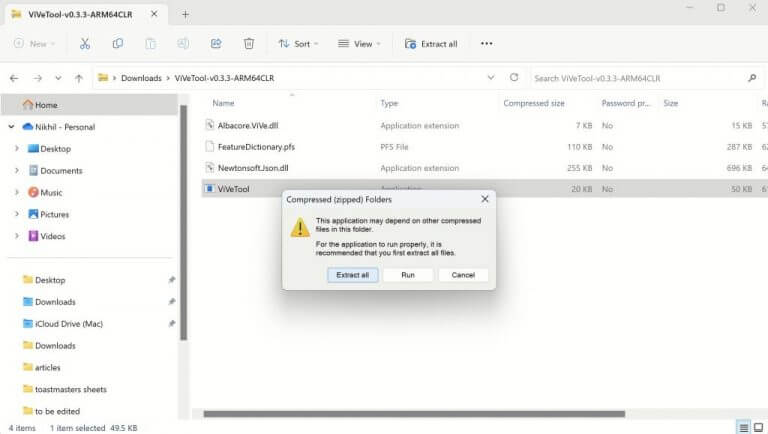
- Launch the downloaded Zip folder.
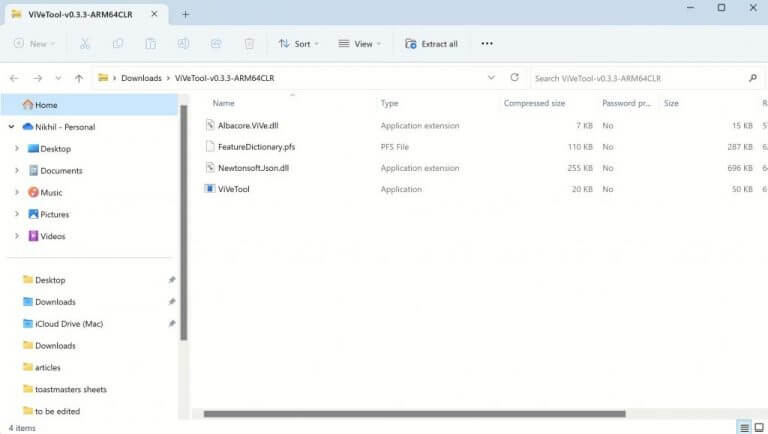
- Click on Extract all.
- Select the Extract button.
- Copy the folder’s path from the address bar.
- Head to Start menu, type in ‘cmd’, and launch the command prompt as an administrator.
- In the CMD, type in the following command and hit Enter:
cd c:\folder\path\ViveTool-v0.x.x
Remember to change the path to the folder with your folder’s address in the command above.
- Then, to enable Copilot, type in the following command and hit Enter:
vivetool /enable/id:44774629,44776738,44850061,42105254,41655236
After you have followed the above steps, give your PC a quick reboot right away. Just head to Settings > Personalization and click on the Taskbar tab.
From there, turn on the toggle on the Copilot (preview) switch to enable the Copilot app.
That’s it, really. Now that you have enabled the Copilot switch, you can quickly launch it by pressing the Windows key + C shortcut.
Once Copilot is active, you can explore its full potential by reading our complete guide on how to access Microsoft Copilot and start using it across your favorite apps.
Need to turn it off later? Follow this guide on how to disable Microsoft Copilot when you are done testing.
FAQ
Press Windows + C or go to Settings > Personalization > Taskbar and toggle on Copilot (preview).
Your device might not have the latest Windows 11 update. Install all pending updates and restart.
Yes, you can turn it off anytime from Settings > Personalization > Taskbar > Copilot (preview).
It’s available on Windows 11 Home and Pro, but may roll out gradually in certain regions.
Like other AI technologies such as ChatGPT, the AI program from Microsoft uses large language models (LLMs) to improve your productivity this time on your Microsoft tools like Teams, Outlook, Word, and so on. Amongst other soft tasks, that tool also comes in handy in summarizing your emails or reading documents.
Enabling Copilot on a Windows 11 PC
Again, the feature is still in its initial phases, so it’s left to seen what you can do with it. But follow the above steps, and you can run the beta version for fiddling around with the features that best fit your daily uses for now.

Read our disclosure page to find out how can you help Windows Report sustain the editorial team. Read more



Improve this guide




User forum
0 messages