
How to Enable Tablet PC Touch Input on Windows 11 (Quick Steps)


 4 min. read
  Published on
If your touchscreen or stylus has stopped responding, it might be because the Tablet PC Input Service is disabled. In this guide, you’ll learn how to enable it using Windows built-in tools and get your touch functionality working again.
Table of contents
1. Enable Tablet PC Touch Input via Services
The simplest way to restore touchscreen input is by using the Services panel, where you can manually enable the Tablet PC Input Service.
- Press Windows + R to open the Run dialog.
- Type services.msc and press Enter.

- Scroll down and locate Tablet PC Input Service or Touch Keyboard and Handwriting Panel Service.
- Right-click the service and select Properties.
- Set Startup type to Automatic.

- Click Start, then Apply, and OK to save changes.
If touch gestures still feel inaccurate afterward, try running the built-in calibration tool by following this touchscreen calibration guide for Windows 11.
2. Enable Tablet PC Touch Input Using PowerShell
If you prefer command-line tools or cannot access the Services window, PowerShell lets you enable the same service with just two commands.
- Right-click the Start button and select Windows Terminal (Admin).

- Type the following commands and press Enter after each:
Set-Service -Name "TabletInputService" -StartupType Automatic
Start-Service -Name "TabletInputService"- Restart your PC to apply the settings.
PowerShell provides a quick alternative if system services aren’t loading properly.
3. Check if Touch Input Works
After enabling the service, verify that your touchscreen or pen now responds properly.
- Tap the screen to test responsiveness.
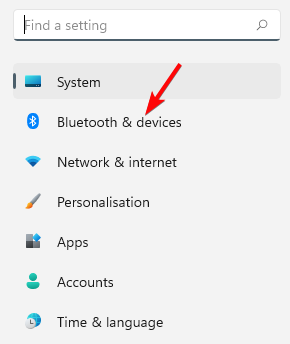
- Go to Settings > Bluetooth & devices > Pen & Windows Ink to confirm pen input.
- Open the on-screen keyboard to check touch accuracy.
- Update touchscreen drivers in Device Manager > Human Interface Devices if touch still fails.
If you ever want to turn touch off again for troubleshooting or when using an external monitor, see this quick tutorial on how to disable the touchscreen on Surface devices.
4. Common Reasons Tablet PC Touch Input Stops Working
Sometimes touch input can fail after updates or driver changes. Here are a few common causes:
- The service was disabled during a Windows update.
- Touchscreen drivers became outdated or corrupted.
- Sleep or hibernation reset your input configuration.
- A loose hardware connection on convertible or tablet devices.
Keeping both Windows and touch drivers up to date prevents most issues.
What Is Tablet PC Touch Input?
Tablet PC Input Service manages all touch and pen input on Windows 11. When it’s disabled, features such as handwriting, gestures, and on-screen keyboard stop working. Re-enabling it restores those features instantly and ensures smoother performance.
If your screen registers random taps or phantom touches after re-enabling touch, you can follow this fix for ghost bubbles in Windows.
FAQs
Enable the Tablet PC Input Service, update touchscreen drivers, and restart your PC.
Yes, but doing so will remove handwriting and touch functions until re-enabled.
Search for Touch Keyboard and Handwriting Panel in the Start menu to open it.
This may happen due to calibration issues or static interference. Re-calibrate your screen and clean it with a microfiber cloth to fix inconsistent touches.
Conclusion
Enabling Tablet PC touch input on Windows 11 restores both touchscreen and stylus capabilities in just a few minutes. Whether you use the Services window or PowerShell, turning the service back on ensures smooth interaction with your device.

Read our disclosure page to find out how can you help Windows Report sustain the editorial team. Read more



Improve this guide




User forum
0 messages