
Turn Off Touch Screen on Surface Laptop or Tablet in Minutes


 3 min. read
  Updated on
If you no longer want to use touch on your Microsoft Surface, you can turn it off quickly. Below are three reliable methods that let you disable the touch screen safely.
Table of contents
How to Disable Touch Screen on Surface?
1. Disable Touch Screen in Device Manager
This is the most common way to stop touch input on your Surface.
- Press Windows + X and choose Device Manager.

- Expand Human Interface Devices.
- Right click HID-compliant touch screen.
- Select Disable device and confirm.

If your Surface shows irregular response zones or touch input delays, you can also troubleshoot by checking for touchscreen dead spots on Surface devices.
2. Turn Off Touch Screen Using Windows PowerShell
PowerShell lets you disable the touch screen with a simple command:
- Press Windows + S and type PowerShell.
- Right click and choose Run as administrator.
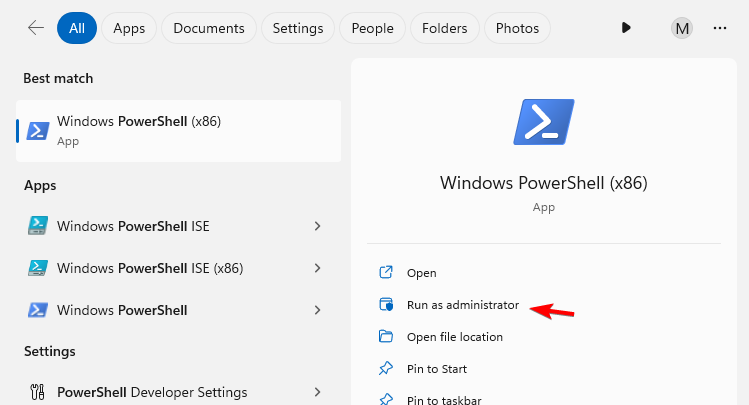
- Type this command and press Enter:
Disable-PnpDevice -InstanceId (Get-PnpDevice | Where-Object {$_.FriendlyName -like "HID-compliant touch screen"}).InstanceId -Confirm:$false
3. Disable Touch Screen in BIOS/UEFI
Some Surface models allow you to turn off touch directly in firmware.
- Shut down your Surface.
- Hold Volume Up and press Power to enter UEFI.
- Navigate to Devices or Advanced.
- Find Touch screen and toggle it Off.
- Save and exit.
If you need detailed steps, here’s a guide on how to get to BIOS on Surface. Once touch input is disabled, you can check Surface battery health to ensure your device continues to perform reliably and maintains accurate power readings.
FAQs
Yes. Follow the same steps and choose Enable device in Device Manager or toggle it back on in BIOS.
No. The Surface Pen works independently of touch input.
Many users turn it off to avoid accidental touches, when using only a keyboard, or if the screen is damaged.
It may reduce minor background power usage, but for a real impact, see how to turn off smart charging on Surface.
Conclusion
Disabling the touch screen on your Microsoft Surface is simple and reversible. Whether you use Device Manager, PowerShell, or BIOS, you can manage touch input in just a few steps. For more optimization tips, explore related Surface guides linked above.
For complete instructions on restoring touch features after disabling them, see how to enable Tablet PC touch input on Windows 11 and get your touchscreen working again.
To get the most out of your device’s power settings, check how to charge a Surface battery to 100% for step-by-step instructions.

Read our disclosure page to find out how can you help Windows Report sustain the editorial team. Read more



Improve this guide




User forum
0 messages