
Error Ring2 Stack In Use 207 (0xCF): How to Fix it
Adjusting your network settings can help with this issue


 2 min. read
  Updated on

Error_Ring2_Stack_In_Use is a developer error, and it comes with the following message: 207 (0xCF) The ring 2 stack is in use. This is a rare error, but if you ever encounter it, these steps might help you fix it.
How can I fix Error_Ring2_Stack_In_Use?
1. Adjust your network connection
- Press the Windows key + S and type network. Select View network connections.
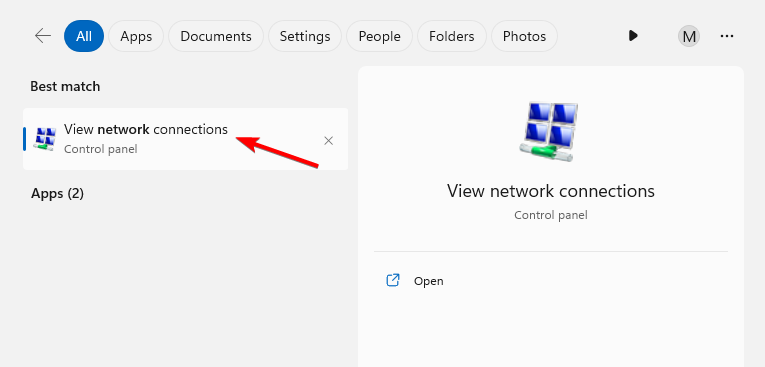
- Locate your connection, right-click it, and choose Properties.
- Ensure that the Client for Microsoft Networks is checked and save changes.

- Do this for all computers in the network.
2. Update your network driver
- Press the Windows key + X and choose Device Manager.

- Locate your network adapter on the list, right-click it, and choose Update driver.

- Select Search automatically for drivers.

- Check if the problem is gone.
For best results, many are suggesting to visit your motherboard or network card manufacturer’s website and download the latest drivers for your network card.
3. Reinstall your network driver
- Open Device Manager again.
- Locate the network adapter on the list and right-click it.
- Choose Uninstall device.

- Once you uninstall it, go to Action and click on Scan for hardware changes.

- Check if the problem is gone.
4. Use System Restore
- Press the Windows key + R and type rstrui.
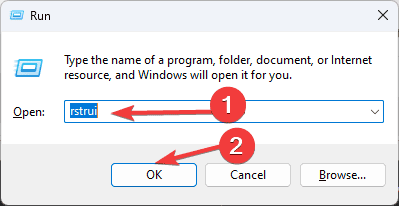
- Next, select the desired restore point and click on Next.

- Follow the instructions on the screen to complete the process.
- Once restored, check if the problem is gone.
If nothing else helps with Error_Ring2_Stack_In_Use, check your network hardware and make sure that it’s working properly. As a last resort, you might want to perform a Windows 11 factory reset.
This isn’t the only issue you can encounter, we wrote about DRIVER_INVALID_STACK_ACCESS and Kernel_Stack_Locked_At_Exit, so don’t miss them.
Before you leave, don’t miss our latest guide on Error_Checkout_Required for more information.

Read our disclosure page to find out how can you help Windows Report sustain the editorial team. Read more



Improve this guide



User forum
0 messages