
Extensions Microsoft Edge: How to Add, Remove, and Disable


 3 min. read
  Published on
Microsoft Edge extensions let you personalize your browser, block ads, manage passwords, or boost productivity. If you want to customize your browsing experience, here’s how to install or remove extensions in Microsoft Edge safely.
Table of contents
How to Add or Remove Extensions in Microsoft Edge?
How to Add Extensions in Microsoft Edge
- Open Microsoft Edge.
- Click the three-dot menu in the top-right corner.
- Select Manage Extensions.

- Choose Get extensions for Microsoft Edge.

- Use the search bar to find the desired extension.
- Click Get, then Add extension to install it.

- Click the puzzle icon in the toolbar to manage or pin it.
For a curated list of top tools, check out the best Edge extensions.
How to Remove Extensions in Microsoft Edge
- Click the puzzle icon on the toolbar.
- Select Manage extensions.
- Locate the extension you want to uninstall.
- Click Remove under the extension’s name.
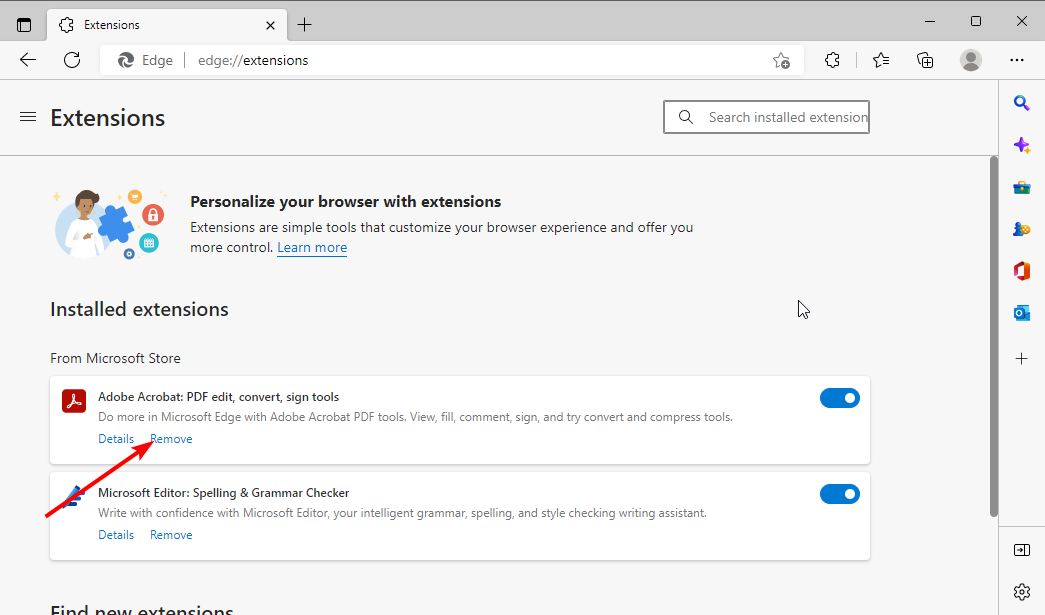
- Confirm by selecting Remove again in the pop-up dialog.
If removal fails or an add-on gets stuck, see what to do when you can’t remove an Edge extension.
How to Disable Extensions Without Removing Them
- Open the Extensions page from the menu.
- Find the extension you want to turn off.
- Toggle the switch next to it to disable it.
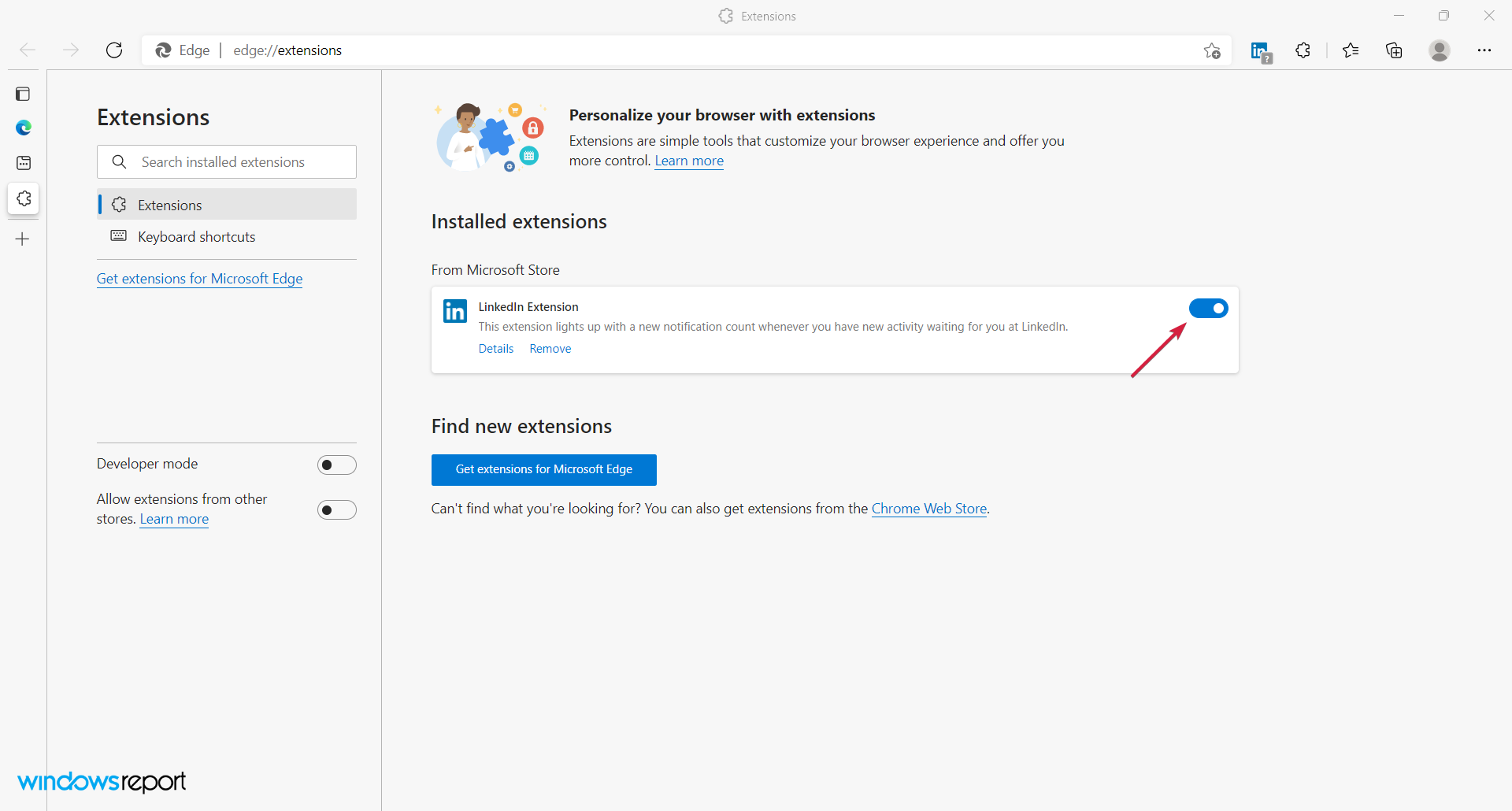
- Repeat the process to re-enable it when needed.
What Are Microsoft Edge Extensions?
Extensions are lightweight software tools that enhance the browser’s functionality. They can block ads, save passwords, improve productivity, or integrate apps directly into Edge.
- Grammarly for writing assistance
- LastPass for password management
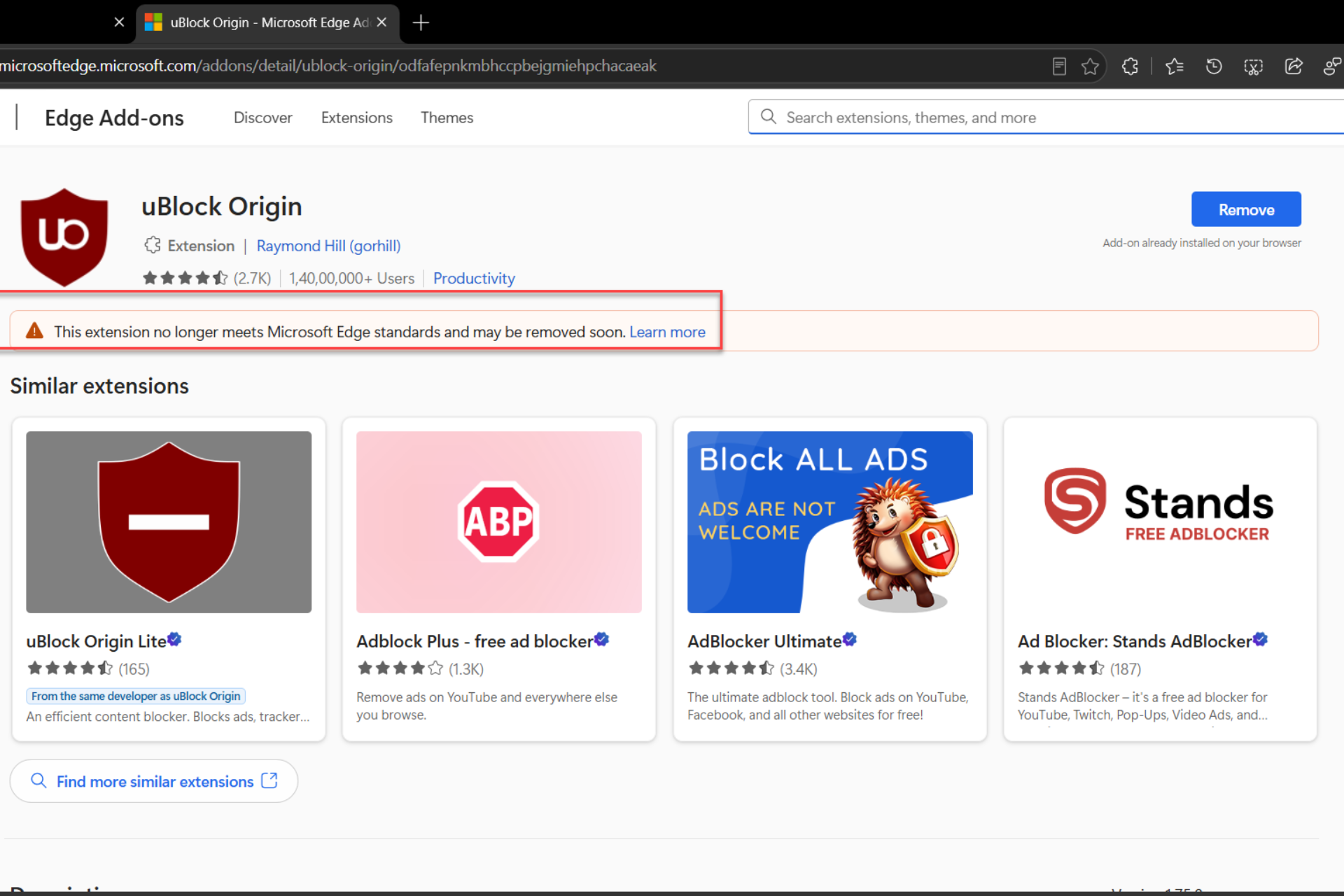
- uBlock Origin for ad blocking
- Microsoft Editor for spell-checking
For advanced customization, learn how to enable Edge flags for experimental features.
FAQs
Edge updates extensions automatically. You can also open the Extensions page, turn on Developer mode, and select Update.
Yes. Enable the option to allow extensions from other stores, then visit the Chrome Web Store to add them.
Too many active extensions can affect performance. Disable or remove those you rarely use.
Extensions from the official store are generally safe. Check reviews, requested permissions, and the publisher before installing.
Some updates may temporarily disable add-ons. Reopen the Extensions page and re-enable them.
Conclusion
Managing Microsoft Edge extensions keeps your browser fast, secure, and personalized. Install only what you need, keep them updated, and remove unused ones regularly. Explore top-rated extensions and safe customization to get the most from Edge.

Read our disclosure page to find out how can you help Windows Report sustain the editorial team. Read more



Improve this guide


User forum
0 messages