
How to Fix the "Microsoft Word Can't Be Opened" Error on MacBook


 3 min. read
  Published on
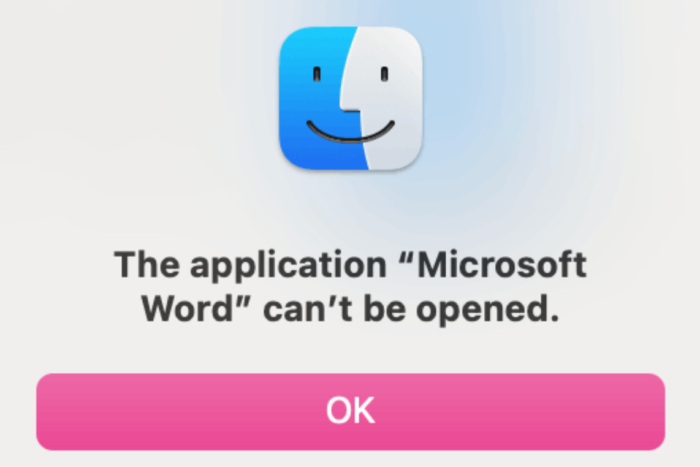
If Microsoft Word won’t open on your MacBook with the specific “Microsoft Word can’t be opened” error, the problem may be with Word itself, its cached files, an outdated Office build, or even your macOS user profile. In this guide, we’ll walk you through multiple reasons as to why Microsoft Word might not be opening on your MacBook and different ways to get it fixed. In case you are using Microsoft Word on Windows 11, we have a guide for similar issue.
How to fix Microsoft Word when it won’t open on MacBook
1. Restart your MacBook
A simple restart can clear a temporary process or cache that is stopping Word from launching.
- Save your work and close other apps.
- Click the Apple menu.
- Select Restart.
- Try opening Word again.
2. Update Microsoft Office
An outdated Office build can cause compatibility problems with macOS. Microsoft recommends keeping Office updated, and recent support guidance also points to updating macOS and Office when Office apps stop working properly.
- Open another Office app such as Excel.
- Go to Help.
- Select Check for Updates.
- Install any available updates.
- Restart your MacBook and try Word again.
3. Clear Word’s cache and preferences
Corrupted Word preferences can stop the application from launching. Microsoft support guidance has suggested removing Word’s preference file and clearing its cache for this type of problem.
- Press Command + Shift + G in Finder.
- Go to:
~/Library/Containers/com.microsoft.Word/Data/Library/Preferences/ - Remove:
com.microsoft.Word.plist. - Check:
~/Library/Caches/com.microsoft.Word/and clear the cache. - Try opening Word again.
4. Try Safe Mode
If Word opens in Safe Mode, a cache, startup item, or other software may be interfering with it. Microsoft community guidance has also recommended Safe Mode when Word refuses to launch on MacBook.
5. Reinstall Microsoft Word
If nothing else works, remove Word and install the latest version again. This has also been suggested in Microsoft community discussions where Word would not launch after an attempted reinstall or update.
Why Microsoft Word won’t open on MacBook
The problem can be caused by corrupted preferences, outdated Office files, compatibility problems, damaged application files, or issues with the macOS user profile. Microsoft also currently warns that unsupported Office versions can enter reduced functionality mode on MacBook, so keeping both macOS and Office updated matters.
Summing Up
If Word won’t open, start with a restart and Office update before deleting anything. If that doesn’t work, clearing Word’s preferences, testing Safe Mode, and reinstalling the app are the next things worth trying. If you are facing other problems with your MacBook, we have also covered what to do when the trackpad stops working, along with the steps to follow if your MacBook gets stuck in Recovery Mode. You can also check our guides on fixing MacBook Wi-Fi when no networks are showing up and for times when MacBook update gets stuck.
FAQs related to Microsoft Word not opening on MacBook
1. Why does Word say it can’t be opened on MacBook?
It can happen because of corrupted files, outdated software, or compatibility issues.
2. Will restarting my MacBook fix Word?
It can if a temporary process or cache is causing the problem.
3. Should I reinstall Word if it’s opening on MacBook?
Try updating and clearing Word data first, then reinstall it if the problem continues.
4. Can Safe Mode fix Word?
It can help identify whether another startup process or cache is interfering.
5. Why won’t Word open after a macOS update?
The Office version may need an update to remain compatible with your macOS version.

Read our disclosure page to find out how can you help Windows Report sustain the editorial team. Read more



Improve this guide




User forum
0 messages