
Ford App Not Working? Here's How to Fix It


 6 min. read
  Published on
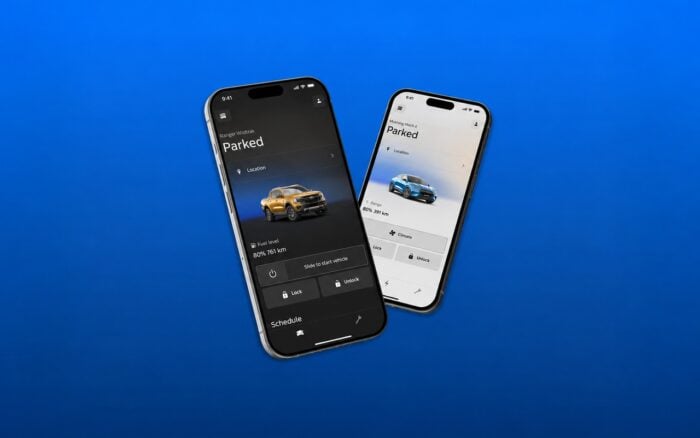
Is the Ford app not working on your iPhone or Android phone? Problems can range from the app freezing or refusing to sign in to remote start, lock, unlock, charging, and vehicle status features failing to respond.
The Ford app, previously called FordPass, depends on both your phone’s internet connection and your vehicle’s connectivity. Try the fixes below to get it working again.
What can I do if the Ford app is not working?
1. Try these general troubleshooting fixes
Before changing your vehicle settings, try these basic fixes to resolve common Ford app problems, including freezing, login errors, and connection failures.
- Check your internet connection – Switch between Wi-Fi and mobile data to see whether the app connects.
- Force close the app – Close the Ford app completely and reopen it to clear temporary glitches.
- Sign out and sign back in – Open the Ford app, go to Account, sign out, and log in again to refresh your session.
- Restart your phone – Turn off your iPhone or Android device, wait 30 seconds, and turn it back on.
- Update the Ford app – Open the App Store or Google Play Store and install any available updates.
- Clear the app cache – On Android, go to Settings > Apps > Ford > Storage > Clear cache to remove temporary files.
- Check app permissions – Make sure the Ford app has the necessary Location and Bluetooth permissions for the features you use.
- Reinstall the Ford app – Delete and reinstall the app if the other fixes fail. Keep your physical key available if you use Phone As A Key.
If none of these steps work, the problem may involve your vehicle’s connectivity settings or Ford’s online services.
2. Reconnect the Ford app to your vehicle
If the app opens normally but remote commands or vehicle information do not work, check the connection between your Ford and the app.
- Start your Ford and leave it parked in a safe, well-ventilated location.
- Make sure Vehicle Connectivity is enabled in your vehicle’s settings.
- Open the Ford app.
- Select Connect to Vehicle if the option appears.
- Tap I’ve Started my Vehicle.
- Accept the activation request on your vehicle’s display.
- Return to the app.
- Select Check Connection Status.
These activation steps apply when the app asks you to connect or reactivate your vehicle. If your Ford already appears as connected, check its connectivity settings before attempting to activate it again.
Both your phone and vehicle need adequate connectivity for remote functions to work. Your Ford’s embedded modem must also remain active.
3. Fix Ford remote start not working
If other Ford app features work but remote start does not, the problem may come from the vehicle rather than the app.
- Make sure you signed in to the correct Ford Account.
- Check whether the vehicle entered Deep Sleep Mode.
- Open your vehicle’s settings.
- Go to Vehicle > Remote Start > System, if your model offers this menu.
- Make sure Remote Start is enabled.
- Confirm that the hood, doors, and trunk are completely closed.
- Check whether the Check Engine light is on.
Deep Sleep Mode, an open hood or door, disabled Remote Start settings, or certain vehicle faults can prevent remote start from working.
If the vehicle entered Deep Sleep Mode, starting and driving it normally may restore connectivity. The exact requirements depend on your Ford model.
4. Check your vehicle’s modem and connectivity settings
If the Ford app displays outdated vehicle information, cannot refresh the status, or repeatedly shows connection errors, the vehicle’s built-in modem may not communicate with Ford’s servers.
- Start your vehicle in a safe location.
- Open the vehicle’s Settings menu.
- Find Connectivity, Connected Vehicle Features, or the equivalent option for your model.
- Make sure vehicle connectivity and data-sharing settings required for Ford app features are enabled.
- Move the vehicle to an area with better cellular coverage if necessary.
- Open the Ford app and refresh the vehicle status.
Menu names vary by vehicle model and SYNC version. Some Ford vehicles also allow you to restart the infotainment system, which may help with temporary connectivity problems.
5. Check whether Ford services are experiencing problems
Sometimes, the Ford app stops working because Ford’s connected services experience an outage or temporary server issue.
- Check whether other internet-dependent apps work on your phone.
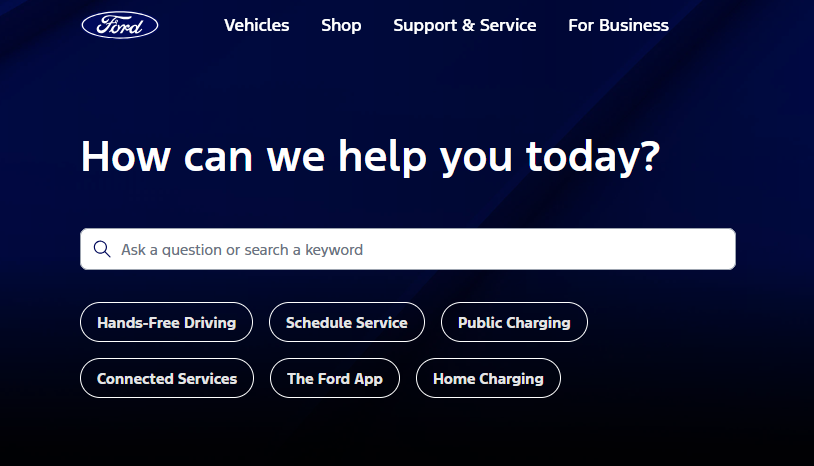
- Visit Ford Support for troubleshooting information.
- Check recent reports on Downdetector for possible service interruptions.
- See whether other Ford owners report similar problems.
- Try the Ford app again after Ford resolves any confirmed service issue.
If multiple users report the same errors, reinstalling the app or changing vehicle settings may not help.
6. Contact Ford support
If the Ford app still fails after troubleshooting your phone and vehicle, Ford support can help investigate account activation, modem connectivity, and remote command problems.
- Open the Ford app.
- Go to Account.
- Select Contact Help, if available.
- Explain the problem and mention any error messages.
- Provide your vehicle model, model year, and phone operating system.
- Follow the troubleshooting instructions from Ford support.
If the Ford app still fails, contact Ford support. For similar issues, check our guides on the T-Mobile app, Nespresso app, and Target app.
FAQs
Why is my Ford app not working?
The Ford app may stop working because of a poor internet connection, an outdated app, corrupted temporary files, account authentication problems, disabled phone permissions, or a problem with the vehicle’s embedded modem.
Why is my Ford app not updating vehicle status?
Make sure both your phone and vehicle have connectivity. Restart the app, start the vehicle, and verify that Vehicle Connectivity remains enabled. Poor cellular coverage or a sleeping vehicle modem can also prevent the app from refreshing vehicle information.
Why won’t Ford remote start work from the app?
Remote start may fail when the vehicle enters Deep Sleep Mode, Remote Start is disabled, the hood or a door is open, the vehicle lacks a cellular connection, or a vehicle fault prevents remote starting.
Is FordPass the same as the Ford app?
Yes. Ford renamed FordPass to the Ford app, so older FordPass troubleshooting instructions may refer to the same application. Some features and menus differ by region, model, and app version.
Should I reinstall the Ford app?
Reinstalling the Ford app can help when updating, restarting, force closing, and signing back in do not solve the problem. Try the less disruptive fixes first, especially if you use features such as Phone As A Key.

Read our disclosure page to find out how can you help Windows Report sustain the editorial team. Read more



Improve this guide


User forum
0 messages