
Giant App Not Working? Fix Crashes, Login and Coupons


 5 min. read
  Published on
The Giant app makes grocery shopping easier, but it can be frustrating when it suddenly stops working, especially when you’re trying to check digital coupons, access rewards, or place an order. Sometimes the app won’t open, gets stuck on the loading screen, or refuses to let you sign in.
Fortunately, most of these issues have simple fixes, and you can usually get the app working again without contacting customer support.
How to fix the Giant app not working?
1. Check if Giant is experiencing an outage
Before changing anything on your phone, check whether the problem comes from Giant’s servers. Temporary outages can prevent users from signing in, loading coupons, or completing grocery orders.
Here’s how to check:
- Open the Giant Food website or GIANT Food Stores website in your browser.
- Try signing in to your account.
- Check whether your shopping cart, digital coupons, and account information load correctly.
- Look for service announcements or reports of widespread problems.
If the website and app both fail, Giant might be experiencing a temporary service disruption. In that case, try again once the service returns.
2. Check your internet connection
An unstable internet connection can cause the Giant app to freeze, display a blank screen, or fail during checkout.
Try these steps:
- Switch from Wi-Fi to mobile data, or vice versa.
- Open another website to confirm your connection works.
- Turn Airplane Mode on for 10 seconds, then turn it off.
- Temporarily disable your VPN or private DNS service.
- Restart your router if other apps also experience connectivity issues.
Once your connection works normally, reopen Giant and check whether the issue persists.
If you’re experiencing similar connection problems with other grocery apps, our guide on the Stop & Shop app not working covers additional troubleshooting steps.
3. Force close and restart the Giant app
Sometimes the Giant app gets stuck because of a temporary background process. Closing it completely can resolve this without affecting your account.
On Android:
- Open Settings > Apps.
- Find and select the Giant app.
- Tap Force stop.
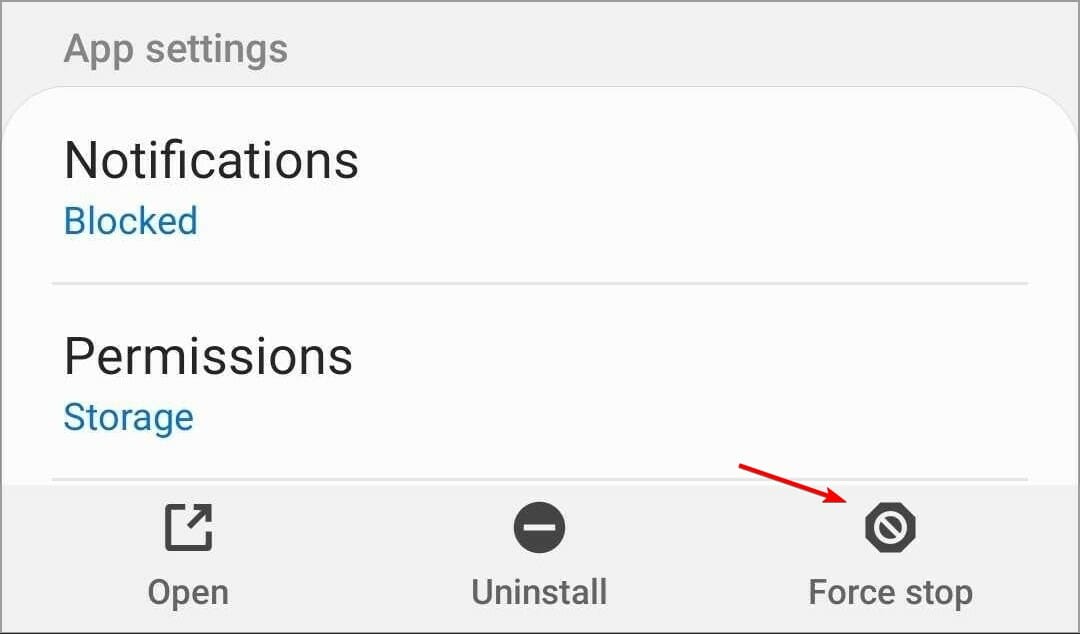
- Reopen the app.
On iPhone:
- Swipe up from the bottom of the screen and pause to open the App Switcher.
- Find the Giant app.
- Swipe up on its preview to close it.
- Launch it again.
If the app still won’t respond, restart your phone and try again.
4. Update the Giant app
An outdated version can cause crashes, login failures, or compatibility problems, particularly after your phone receives a system update.
To install the latest version:
- Open the Google Play Store or Apple App Store.
- Search for the Giant app you use.
- Select the official app.
- Tap Update if an update is available.
- Restart the app after installation.
Developers regularly release updates to improve app stability and address bugs, so keeping Giant updated can prevent recurring issues.
5. Clear the Giant app cache
If Giant keeps crashing or gets stuck on the loading screen, corrupted temporary files might be responsible. Clearing the cache can help restore normal operation.
On Android, follow these steps:
- Open Settings > Apps.
- Select the Giant app.
- Tap Storage & cache or Storage.
- Select Clear cache.
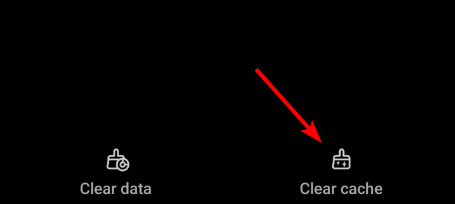
- Reopen the app and check whether it works.
If clearing the cache doesn’t help, select Clear data or Clear storage. Keep in mind that this resets the app’s local information, so you’ll need to sign in again.
On iPhone, you can reinstall the app to remove its local data.
Cache-related problems can also affect other retail applications. For example, if the Best Buy app is not working, similar steps can help address crashes and loading issues.
6. Fix Giant login and digital coupon problems
If the app opens but won’t let you sign in, or your digital coupons and rewards aren’t appearing, the issue could involve your account or loyalty card information.
Try the following:
- Sign out of your Giant account if you can access the account settings.
- Sign back in using the correct email address and password.
- Use Forgot password on the login screen if your credentials aren’t working.
- Check that your Giant loyalty card links to the correct account.
- Open the digital coupons section and check whether your offers appear.
If you’re using Giant Food, you can also check your account and rewards through its official website.
Other retail apps can experience similar account issues. If you’re also having trouble signing in or checking out with Target, our guide on the Target app not working explains how to troubleshoot those errors.
7. Reinstall the Giant app
If the previous solutions haven’t worked, reinstalling Giant can fix damaged app files or installation problems.
Here’s how:
- Press and hold the Giant app icon on your phone.
- Select Uninstall on Android or Remove App > Delete App on iPhone.
- Restart your phone.
- Open the Google Play Store or Apple App Store.
- Download and install Giant again.
- Sign in to your account and check whether the problem has disappeared.
Reinstalling the app might remove locally saved shopping information, so check anything important before deleting it.
If Giant continues to malfunction after you try these fixes, check for a service outage before resetting your device or making additional account changes.
FAQs
Why does the Giant app keep crashing?
The Giant app may crash because of outdated software, corrupted cache files, or compatibility issues. Updating the app, clearing its cache, and restarting your phone can often resolve the problem.
Why are my Giant digital coupons not working?
Digital coupons may fail to appear or apply if you’re signed into the wrong account, your loyalty card isn’t linked correctly, or the offer has expired. Check your account information and the coupon’s eligibility requirements.
Why can’t I log into my Giant account?
An incorrect password, temporary account issue, or service interruption can prevent you from signing in. Try resetting your password, changing your internet connection, and checking whether Giant’s website works.
Can I use Giant without the app?
Yes. You can usually access shopping, account, and coupon features through Giant’s website. If the website is also unavailable, check alternative delivery services or visit a Giant store.

Read our disclosure page to find out how can you help Windows Report sustain the editorial team. Read more



Improve this guide

User forum
0 messages