
How to Switch Gmail Accounts and Log In as Different User


 4 min. read
  Published on
Google lets you stay signed in to multiple accounts at the same time, making it easy to move between Gmail inboxes, and in this guide we’re going to show you how to log in to Gmail as a different user.
How do I log in to Gmail as a different user?
1. Use your browser
If Gmail automatically opens your current inbox, you can add another account from the profile menu.
- Open Gmail in your browser.
- Click your profile picture or initial in the upper-right corner.
- Select Add another account.
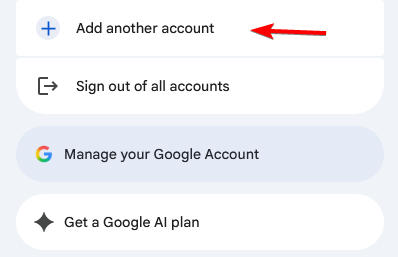
- Enter the Gmail address or phone number for the other account.
- Click Next.
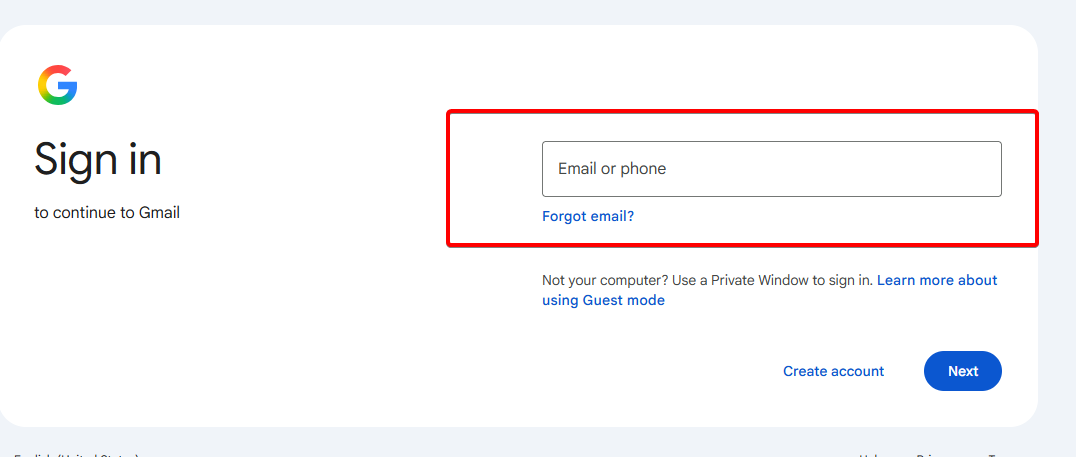
- Enter the password for that Google account.
- Complete any additional verification if Google requests it.
- Gmail will open the inbox for the account you just added.
Google lets you sign in to multiple accounts at once, so you do not need to log out every time you want to check another inbox.
If you don’t have another account, see how to create a Gmail account.
2. Use another account from the Gmail login page
You may also see several saved Google accounts when you open the Gmail sign-in page.
- Open the Gmail sign-in page.
- Select Use another account if the account you need does not appear.
- Enter the other user’s email address or phone number.
- Click Next.
- Enter the password.
- Complete two-step verification if enabled.
Choose Use another account whenever Gmail displays a different saved user on the sign-in page.
3. On Android
The Gmail app also supports multiple Google accounts on Android.
- Open the Gmail app.
- Tap your profile picture in the upper-right corner.
- Select Add another account.
- Choose Google.
- Enter the email address for the other Gmail account.
- Enter the password.
- Complete any verification steps.
- Return to Gmail and tap your profile picture to switch accounts.
If the account uses two-step verification, Google may ask you to confirm your identity before completing the login.
4. On iPhone or iPad
You can also add and switch Gmail accounts in the iPhone and iPad app.
- Open the Gmail app.
- Open the account menu.
- Select the current account.
- Choose Add account if the second account is not already listed.
- Sign in with the other Google account.
- Return to the account menu whenever you want to switch inboxes.
The Gmail app lets you keep multiple accounts available and quickly move from one inbox to another.
How to switch between Gmail accounts
Once you add several Gmail accounts, switching between them only takes a few seconds.
- Open Gmail.
- Click your profile picture in the upper-right corner.
- Find the Gmail account you want to access.
- Click the account.
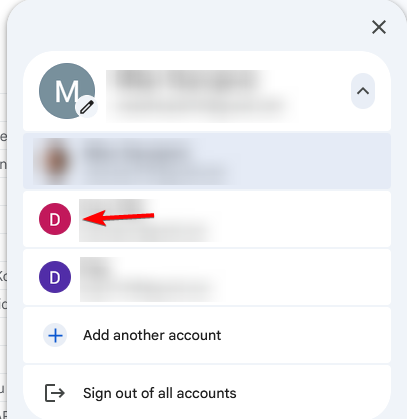
Gmail will open that account without requiring you to sign out of your other accounts. Each account keeps its own inbox, messages, contacts, and account settings.
How to sign out and log in as a completely different user
If you do not want multiple accounts connected to the same browser session, sign out before using another Gmail login.
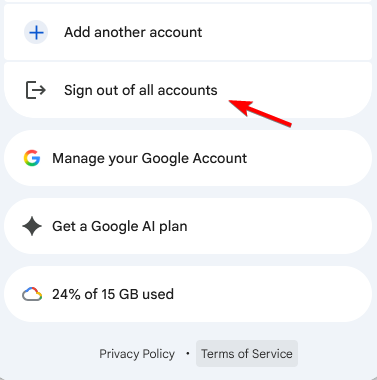
- Open Gmail.
- Click your profile picture.
- Select Sign out or Sign out of all accounts.
- Return to the Gmail sign-in page.
- Select the account you want to use or click Use another account.
- Enter the new Gmail address and password.
This option works well when another person needs to access Gmail temporarily from your computer.
Gmail makes it simple to add another user or switch between existing accounts. If you need more help, see how to log in to Gmail, create a Google account, or sign out of Gmail.
FAQs
How do I log in to Gmail with a different user?
Open Gmail, click your profile picture, select Add another account, and enter the email address and password for the other Google account.
Can I have two Gmail accounts logged in at the same time?
Yes. Gmail lets you sign in to multiple Google accounts and switch between them from your profile menu.
How do I switch Gmail accounts without logging out?
Click your profile picture in Gmail and select another account from the list. Gmail will open the selected inbox.
Why don’t I see my other Gmail account?
The account may not have been added to your current browser or Gmail app. Select Add another account and sign in with its credentials.
How do I remove another user from Gmail?
Open your Google account menu and sign out if needed. You can then remove the saved account from the account chooser. On mobile, you can also manage accounts through the Gmail app or your device settings.

Read our disclosure page to find out how can you help Windows Report sustain the editorial team. Read more



Improve this guide


User forum
0 messages