
How to Fix Vanguard Error: VAN 57


 6 min. read
  Published on
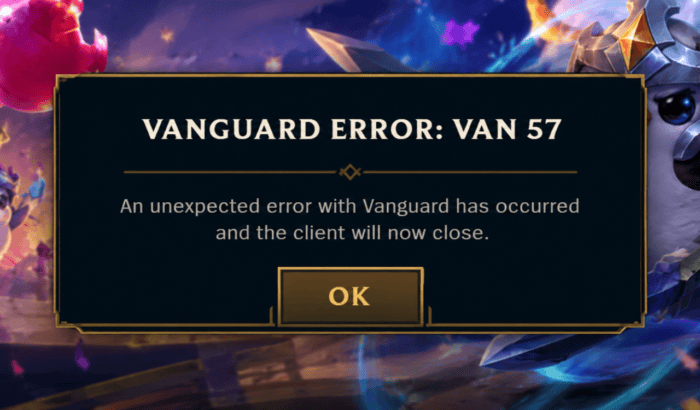
If Vanguard error VAN 57 appears when you try to launch VALORANT or League of Legends, the problem is usually much smaller than it looks. Vanguard has failed to initialize, so Riot blocks the game from starting. The most useful approach is to work from the simplest Vanguard checks toward a clean Vanguard reinstall, then investigate software conflicts if the error keeps returning.
What to do when Vanguard throws Error VAN 57
1. Restart Windows completely
This is the first thing to try because Vanguard loads during the Windows startup process.
- Close VALORANT or League of Legends.
- Exit the Riot Client.
- If the Vanguard icon is still in the system tray, right-click it and exit Vanguard.
- Restart Windows.
- Once the desktop loads, give Windows a few seconds to finish starting its background services.
- Open Riot Client and launch the game.
A normal restart can be enough when Vanguard simply failed to initialize during the previous boot. Recent troubleshooting reports continue to recommend a full reboot before moving to more invasive fixes. If you’re also dealing with VALORANT startup problems, check our guide to fix Valorant not working on Windows 11.
2. Check whether the VGC service is running
If restarting did nothing, check the Windows service responsible for Vanguard.
- Press Windows + R.
- Type
services.msc. - Press Enter.
- Find vgc in the list.
- Double-click it.
- Look at Service status.
- If it is stopped, click Start.
- Set Startup type to Automatic.
- Click Apply, then OK.
- Restart your PC.
- Try launching the game again.
If vgc is missing completely, skip ahead to the Vanguard reinstall method.
3. Reinstall Riot Vanguard, not the whole game
If the VGC service is missing, damaged, or refuses to start, reinstalling Vanguard is the next logical step.
- Open Settings.
- Go to Apps > Installed apps.
- Find Riot Vanguard.
- Select Uninstall.
- Restart Windows.
- Open the Riot Client.
- Launch VALORANT or League of Legends.
- Allow Riot Client to reinstall Vanguard.
- Restart the PC again after Vanguard is installed, even if the client does not make the restart requirement especially obvious.
- Launch the game after Windows starts again.
Remember that reinstalling VALORANT or League first can waste a lot of time when the actual problem is the anti-cheat component.
4. Delete the Vanguard boot-status file
If Vanguard VAN 57 error keeps returning after reinstalling Vanguard, you can also try deleting the Vanguard boot-status file. The file in question is:
C:\Windows\vg0kbootstatus.dat
To try it:
- Close Riot Client and all Riot games.
- Open File Explorer.
- Enter
C:\Windowsin the address bar. - Find
vgkbootstatus.dat. - Delete the file.
- Restart Windows.
- Launch Riot Client.
- Try the game again.
If Windows refuses to delete the file, don’t force it with random registry changes. Move on to the clean Vanguard reinstall instead.
5. Check for conflicting anti-cheat or system software
If Vanguard VAN 57 error returns every time you restart the computer, start looking beyond Vanguard itself. This is especially important if you use another anti-cheat system. A few users have recently reported that that a recurring Vanguard VAN 57 error was resolved after removing FACEIT Anti-Cheat, suggesting a software-level issue rather than an issue with VALORANT installation.
Temporarily close or uninstall software you recently added that operates deeply within Windows, especially another anti-cheat, system-monitoring utility, driver-level tool, or security application. Also, don’t remove random drivers just because someone on some random community mark them as a possible culprit. Identify the software first, then test whether the problem disappears.
6. Install pending Windows updates
An outdated or partially updated Windows installation can create compatibility problems for software that operates at a low system level.
- Open Settings.
- Select Windows Update.
- Click Check for updates.
- Install available updates.
- Restart the PC.
- Launch the Riot game again.
At this stage, also make sure your graphics and motherboard/chipset drivers aren’t significantly outdated.
7. Don’t confuse VAN 57 with Secure Boot errors
Vanguard error VAN 57 primarily points toward Vanguard not initializing. Secure Boot and TPM 2.0 problems normally produce different Vanguard error messages, such as VAN9001 or VAN9003 on supported Windows 11 configurations. So, don’t jump into BIOS and start changing security settings simply because VAN 57 appeared. If your screen specifically mentions Secure Boot, TPM 2.0, HVCI, or an incompatible software component, troubleshoot that separate error instead.
8. Use Riot’s repair and support options
If Vanguard repeatedly installs but immediately stops when the game launches, you’ve probably moved beyond the basic VAN 57 error scenario. Before reinstalling the entire game:
- Run Riot Client’s available repair option if presented.
- Restart Windows afterward.
- Check whether
vgcremains running. - Note any additional Vanguard error that appears.
- If the problem persists, collect the relevant logs and contact Riot Support.
This is especially worthwhile when vgc starts normally but shuts down as soon as VALORANT launches.
Why does Vanguard error VAN 57 happen?
VAN 57 generally means Riot Vanguard is not running or did not initialize correctly when the Riot game attempted to start. The vgc Windows service is particularly important because Vanguard relies on it to operate. A failed Vanguard update, corrupted installation, incomplete reboot, or Windows startup problem can leave the service stopped. Community reports also show cases where vgc is configured to start automatically but stops as soon as VALORANT launches. Do note that third-party software can be another factor.
FAQs related to Vanguard error VAN 57
1. Is Vanguard VAN 57 caused by Riot being down?
Usually, VAN 57 points to Vanguard failing to initialize on the PC rather than a normal game-server outage. If many players suddenly report the same error at once, however, checking Riot’s service status is worthwhile.
2. Will reinstalling Vanguard delete my VALORANT account?
No. Reinstalling Riot Vanguard does not delete your Riot account, purchases, or normal game progress. You’re replacing the anti-cheat component installed on your PC.
3. Why does VAN 57 keep coming back after I restart?
If the error returns after every reboot, the vgc service may not be starting correctly, Vanguard’s installation may be damaged, or another program may be interfering with it. Recent reports show that recurring cases can involve conflicts with other anti-cheat software.
4. Do I need to enable Secure Boot and TPM 2.0 for VAN 57?
Not automatically. VAN 57 primarily concerns Vanguard initialization, while Secure Boot and TPM-related failures generally have their own error codes and messages.

Read our disclosure page to find out how can you help Windows Report sustain the editorial team. Read more



Improve this guide


User forum
0 messages