
Sign In to YouTube: Quick Steps for Every Device


 3 min. read
  Updated on

Logging into YouTube is quick and helps you unlock comments, playlists, and personalized recommendations. Here is how to sign in on desktop, mobile, and smart TV.
Table of contents
How to Login to YouTube?
1. Sign in to YouTube on Desktop
If you are on your computer, follow these steps to log in:
- Open your browser and go to youtube.com.
- Click Sign In at the top right corner.

- Enter your Gmail or Google account email.
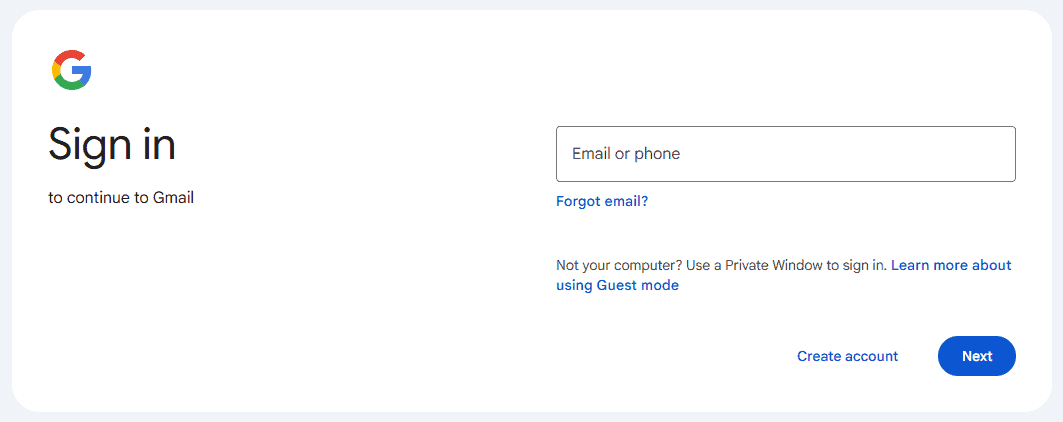
- Type your password and click Next.
- You are now signed in and can explore your homepage.
Once logged in, you might want to create content. Try this guide on how to make a YouTube Short on PC.
2. Login to YouTube on Mobile App
On your phone or tablet, the YouTube app makes sign in simple:
- Download and install the official YouTube app from Google Play or App Store.
- Open the app and tap the profile icon in the top right.
- Select Sign In.
- Pick your Google account or add a new one.

- Enter your password and confirm.
- You are now logged in and can like, comment, and subscribe.
After logging in, you can stream directly. See how to go live on YouTube from PC.
3. Sign in to YouTube on Smart TV
Watching on the big screen? Here is how to log in on your smart TV:
- Open the YouTube app on your smart TV.
- Head to Sign In in the menu.
- Scan the QR code with your phone or go to youtube.com/activate on a browser.
- Enter the code shown on your TV screen.
- Sign in with your Google account details.
- Your account is now linked to your TV, and your subscriptions will be available.
Prefer a dimmer look while browsing? Switch to YouTube dark mode.
FAQs
YouTube is part of Google, so a Google account is required for login and personalization.
Yes, but you will not be able to comment, subscribe, or save playlists.
Go to the Google account recovery page and follow the instructions to reset it.
Yes, you can add and switch between multiple accounts across devices.
Conclusion
Signing into YouTube takes only a minute on desktop, mobile, or TV. Once logged in, you get a personal experience with playlists, subscriptions, and recommendations.

Read our disclosure page to find out how can you help Windows Report sustain the editorial team. Read more



Improve this guide




User forum
0 messages