
Install Office Web Apps on Windows 11 (Quick Steps)


 4 min. read
  Updated on
Microsoft Office Web Apps let you access Word, Excel, PowerPoint, and Outlook directly from your browser without installing desktop software. They are ideal if you need Office tools quickly or want to save storage space on your PC.
Below is a quick guide to install and use Office Web Apps on Windows 11.
Table of contents
How to Install Office Web Apps on Windows 11?
1. Open Microsoft Edge
Start by opening Microsoft’s browser where the installation option is available.
- Click the Start button and type Microsoft Edge in the search box.
- Launch the Edge browser from the results.

2. Visit the Microsoft Office Website
Next, head to the official Microsoft Office site to access the online suite.
- Go to office.com in your browser.
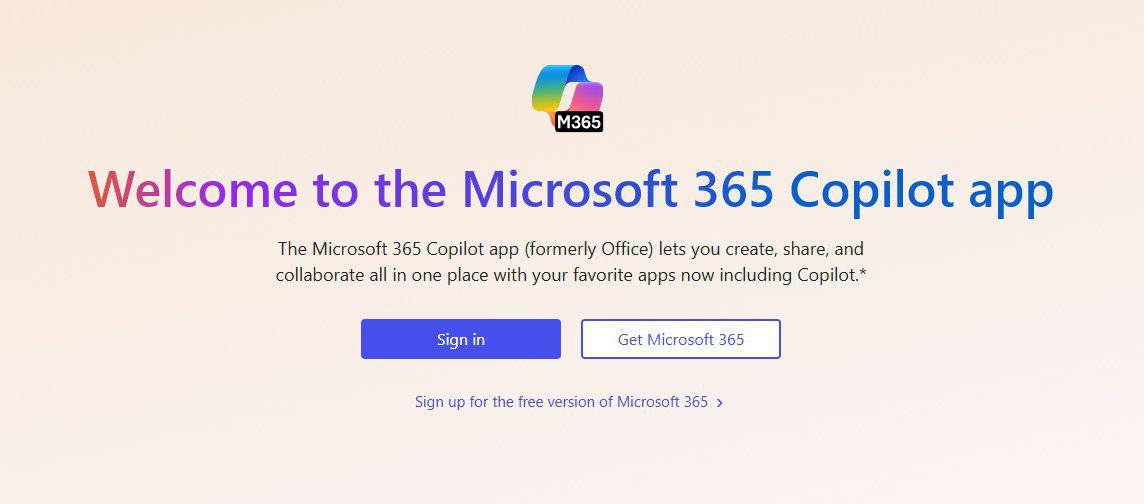
- Sign in with your Microsoft account or create one if needed.

For more details on Microsoft’s online version, check out Microsoft 365 Web to see what features are available.
3. Open the Desired App
Choose the application you want to use first.
- Once signed in, choose Word, Excel, PowerPoint, or Outlook.
- Click on it to open the web-based version.
If you mainly use Word online, you can read this guide on how to use Microsoft Word effectively to master the web features.
4. Install as a Progressive Web App (PWA)
You can install the site as a standalone app for faster access.
- With the Office site open, click the Settings and More (⋯) menu in the top-right corner of Edge.
- Select Apps > Install this site as an app.
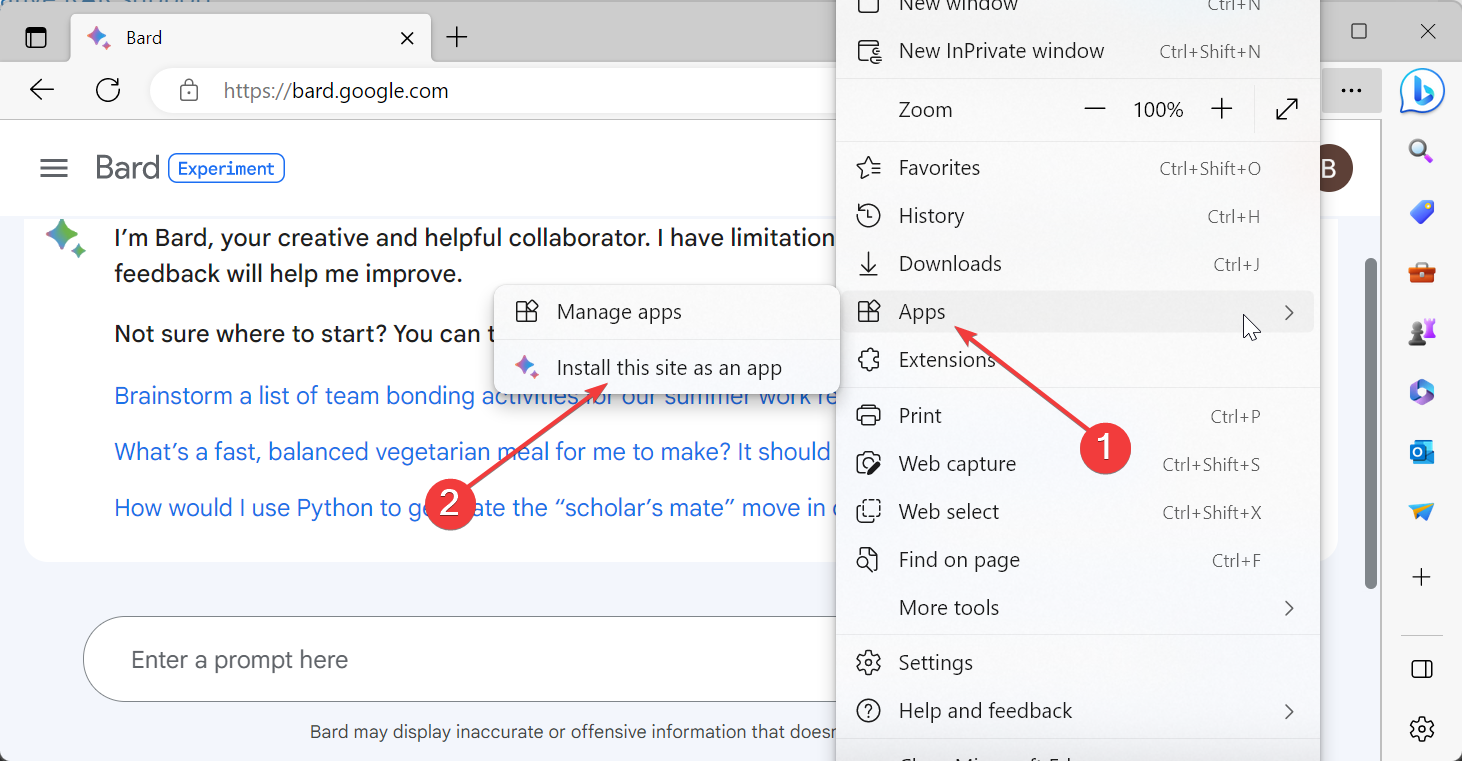
- Name the app (for example, “Office Online”) and click Install.
- The Office Web App will now appear in your Start menu like any other program.
5. Pin the App for Quick Access
Finally, pin the app so it’s always available on your desktop.
- Right-click the new Office app icon in the Start menu.
- Choose Pin to taskbar or Pin to Start for easy access.
What Are Office Web Apps?
Office Web Apps are free online versions of Microsoft’s productivity tools. They include:
- Word for creating and editing documents
- Excel for spreadsheets
- PowerPoint for presentations
- Outlook for emails and calendar management
You only need a Microsoft account and a browser like Edge, Chrome, or Firefox.
Benefits of Using Office Web Apps
- Free access to essential Microsoft tools
- No local installation required
- Saves storage space on your PC
- Files automatically sync with OneDrive for cloud access
Microsoft account access sometimes fails during login, and the tool here helps resolve those authentication problems Microsoft 365 sign in troubleshooter.
FAQs
You can view previously opened files offline, but editing requires an Internet connection.
Yes, all basic features are free with a Microsoft account.
Yes, the same steps work on Windows 10 and newer versions.
Yes, but Microsoft Edge provides the best integration and PWA support.
Conclusion
Installing Office Web Apps on Windows 11 is an easy way to enjoy Microsoft’s productivity tools for free. Follow the steps above to access Word, Excel, PowerPoint, and Outlook without needing a full Office 365 subscription.
You’ll get instant cloud access, automatic saving, and a smooth experience on any device. With these steps you can install the apps using Microsoft Edge. Learn how to download Microsoft Office on Windows 11 if you prefer the full desktop suite instead.

Read our disclosure page to find out how can you help Windows Report sustain the editorial team. Read more



Improve this guide



User forum
0 messages