
Microsoft 365 Sign In Troubleshooter Guide for Windows Users


 4 min. read
  Updated on

Microsoft 365 sign in troubleshooter in the Get Help app offers a fast way to diagnose account and activation problems. It runs automated checks, clears broken tokens, and guides you through fixes step by step. This guide shows you how to use it and complete each repair flow correctly.
Table of contents
How to Run the Microsoft 365 Sign In Troubleshooter?
1. Open the Get Help App
Start by launching the Get Help app so you can access the Microsoft 365 sign in troubleshooter quickly. The app loads fast and gives you direct access to guided support.
- Click Start.

- Type Get Help and open the app.
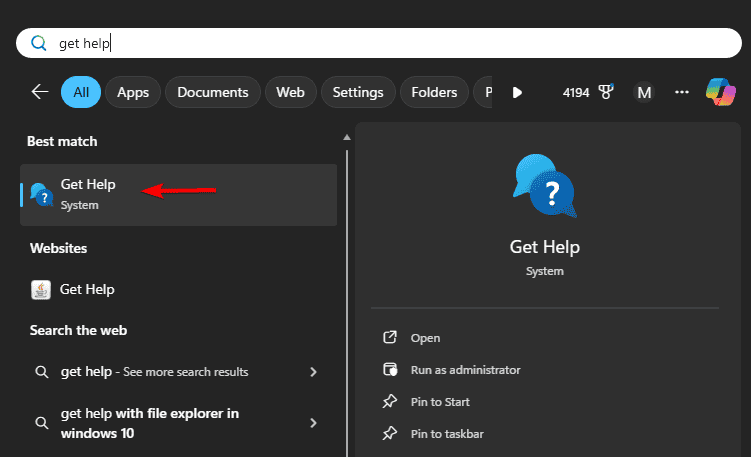
- Wait for the support window to load.
2. Start the Microsoft 365 Troubleshooter
Once the app opens, you can trigger the Microsoft 365 troubleshooter with a simple search query. This starts the automated diagnosis process.
- Type Microsoft 365 sign in in the Get Help search box.

- Select Troubleshoot Microsoft 365 sign in from suggestions.
- Confirm the prompt to start the automated checks.
3. Follow the Guided Checks
The troubleshooter runs a series of quick checks to detect account, network, or token issues. Follow the prompts to keep the process moving smoothly.
- Let the app inspect your network connection and login tokens.
- Wait while it checks your account permissions.
- Review any suggested fixes on screen.
- Apply the recommended action and sign in again.
4. Use the Automatic Repair Options
The tool provides automatic repair steps when it detects specific problems. These quick actions help you reset your login state and fix activation issues.
- Choose Reset sign in state when the app instructs you.
- Use Clear Office credentials if the tool detects token conflicts.
- Select Fix activation when the checker reports licensing issues.
- Restart Office and sign in once the repair finishes.
If you plan to reinstall or reset your Office apps, you can use the Microsoft 365 uninstall troubleshooter to clean up broken installations.
You can also improve reliability during sign in by managing background upload conflicts, and this guide on how to disable Microsoft Office Upload Center helps you prevent sync prompts that can interfere with Microsoft 365 authentication.
You can perform deeper Microsoft 365 repair tasks by using the advanced command line edition of the Support and Recovery Assistant, detailed in this SaRA command line guide.
5. Contact Support Through Get Help
If nothing else works, you might have to contact support:
- Scroll to the bottom of the troubleshooter page.
- Select Contact support.

- Choose chat or callback.
- Follow the support agent’s instructions.
What the Troubleshooter Does
The tool checks your network, account status, activation state, cached credentials, and app configuration. It then applies automatic repairs and shows you clear steps for anything you must finish manually.
You can also read more about the Get Help interface in our guide to the Windows Get Help app.
Why the Built In Troubleshooter Works
The Get Help tool uses Microsoft’s diagnostic scripts to check your login tokens, cloud service responses, and Office activation status. It applies quick resets that you cannot run manually, which helps you solve problems faster.
FAQs
Open the Get Help app and type Microsoft 365 sign in to load the guided troubleshooter.
Yes. It checks your license status and offers a Fix activation option when needed.
It removes outdated tokens so you can sign in with a clean state.
Yes. The Get Help app supports both versions.
The Microsoft 365 sign in troubleshooter gives you a quick and reliable way to fix account and activation problems without digging through settings. Run it whenever your apps refuse to authenticate and follow each step for the fastest results. If the issue continues, the Get Help app connects you directly with support.
If you want to explore cloud based features or reinstall the lightweight browser versions of Office, you can follow our guide on installing Office web apps.

Read our disclosure page to find out how can you help Windows Report sustain the editorial team. Read more



Improve this guide




User forum
0 messages