
Leo AI in Brave: How to Enable and Use It


 3 min. read
  Published on

Leo AI on Brave Browser gives you a built-in AI assistant for summarizing webpages, answering questions, rewriting text, and more. You do not need to install a separate extension to use it. If you have not used Leo AI before, the feature can be easy to miss. Here is how to enable it, open it, and use it while browsing.
How to Enable Leo AI in Brave
Check your settings
- Click the three-line menu again and select Settings.
- Look for the Leo AI section in the right-hand menu.
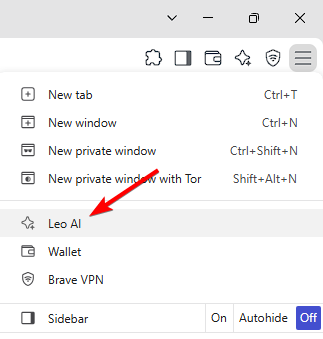
- Open Leo AI and review the available options.
- Make sure Leo is enabled if your version of Brave provides an enable or disable option.
- Close Brave completely and open it again. This can make Leo appear if you have just updated the browser.
How to Open Leo AI in Brave Browser
There are several ways to launch Leo AI, depending on your Brave version.
1. Use the Brave Sidebar
- Open a webpage in Brave.
- Open the Sidebar from the browser toolbar.
- Click Leo AI.
- The Leo chat panel will open beside the webpage.
You can now ask Leo AI questions about the page you are reading.
2. Open Leo AI Directly
- You can open Leo in its dedicated interface by entering:
brave://leo-ai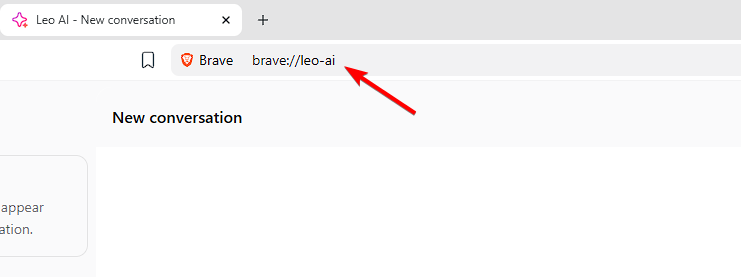
- Press Enter, and Brave should open the Leo AI interface.
What Can You Ask Leo AI?
Leo AI can handle several common browsing tasks.
- Summarize webpages: Ask Leo AI to reduce a long article into its main points.
- Explain information: Ask it to explain technical or complicated sections.
- Rewrite text: Give Leo AI text and ask it to make the wording clearer.
- Translate content: Ask Leo AI to translate supported content into another language.
- Answer questions: Ask follow-up questions about the webpage you are viewing.
- Analyze content: Use Leo AI to extract specific information from supported webpages and documents.
Leo AI makes Brave more useful when you need to quickly understand, summarize, or work with online content. Once enabled, the Sidebar gives you the easiest way to use Leo without leaving the webpage you are reading. If you use Brave regularly, you may also want to know where the browser stores its cache, how it compares with Chrome and Firefox, or how to use a VPN with Brave on your PC.
Frequently Asked Questions
1. Is Leo AI free on Brave?
Brave offers a free version of Leo with usage limits. Additional features and higher limits are available through Leo Premium.
2. Do I need to install an extension for Leo?
No. Leo is built into Brave, so a separate browser extension is not required.
3. Can Leo summarize webpages?
Yes. You can open Leo while viewing a webpage and ask it to summarize or explain the content.
4. Can I use Leo without leaving the webpage?
Yes. The Sidebar lets you keep the webpage open while using Leo in a separate panel.
5. Why is Leo missing from my Brave browser?
Start by updating Brave and restarting it. Then check the Sidebar and Leo settings to see whether the feature is available.

Read our disclosure page to find out how can you help Windows Report sustain the editorial team. Read more



Improve this guide




User forum
0 messages